How to protect your data and get your PC running again safely in Milwaukee
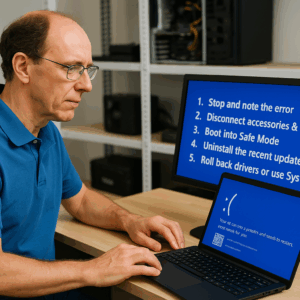 If you’ve recently installed a Windows Update and now see a blue screen (BSOD), don’t panic.
These crashes are usually caused by driver conflicts, update bugs, or file-system errors, and in most cases your data is recoverable.
This guide will walk you through safe steps you can take before calling in professional repair — so you don’t make the problem worse.
⚠️ What Causes the Blue Screen After Windows Update
Blue screens after an update typically appear due to:
- A driver mismatch — Windows installs a generic driver that conflicts with your hardware.
- Corrupted update files — Interrupted downloads or power loss during installation.
- Failing hardware — Especially older hard drives or RAM errors triggered under new drivers.
- Third-party antivirus or security software that didn’t play well with the update.
These are all fixable — the key is to avoid risky DIY steps that can make recovery harder, like forced restarts or random registry edits.
🧩 Step 1: Stop and Note What You See
Before you do anything, take a photo of your blue screen or jot down the error code (for example, STOP 0x0000007E or INACCESSIBLE_BOOT_DEVICE).
This will help pinpoint the issue later.
Then shut down the computer properly.
Don’t keep forcing it to restart repeatedly — each reboot increases the risk of file corruption if your drive is failing.
🔍 Step 2: Disconnect Extras and Power-Cycle Safely
- Unplug all USB devices (printers, external drives, cameras).
- Hold the power button for 10 seconds to discharge any static.
- Plug the power cord back in and boot once more.
- If the BSOD appears again, proceed to Safe Mode.
🧰 Step 3: Boot into Safe Mode
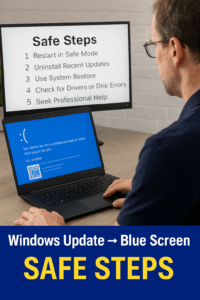
Booting into Safe Mode to safely remove a problematic Windows update.
Safe Mode loads Windows with minimal drivers, often letting you uninstall a bad update or driver.
To enter Safe Mode:
- Hold Shift while selecting Restart from the power menu.
- Choose Troubleshoot → Advanced options → Startup Settings → Restart.
- When prompted, press 4 for Safe Mode (or 5 for Safe Mode with Networking**).
If the blue screen happens before you can reach this menu, try booting three times in a row — Windows will automatically enter recovery mode.
Once in Safe Mode, uninstall the most recent update:
Settings → Windows Update → Update History → Uninstall updates
Reboot normally afterward.
🧹 Step 4: Roll Back Drivers or Use System Restore
If Safe Mode works fine, but normal boot fails:
- Go to Device Manager, right-click suspicious drivers (Display Adapter, Network, etc.), and choose Roll Back Driver.
- Or, use System Restore to return Windows to a working state:
- Control Panel → Recovery → Open System Restore → Choose restore point before update
This reverses only system files, not personal data.
💾 Step 5: Protect Your Data First
If none of the above helps, focus on data safety before further experimentation.
Continuing to reboot a failing drive can destroy recoverable data.
Do this:
- Power off completely.
- If possible, remove the hard drive and connect it to another computer or external dock for backup.
- Copy critical files (Documents, Pictures, Desktop) before trying additional repairs.
If you’re unsure, bring it to PCRuns — we clone failing drives before any invasive fix.
🧠 Step 6: When to Call for Professional Help
If your screen reads “Inaccessible Boot Device”, “Critical Process Died”, or you hear clicking from the drive, it’s best to stop DIY recovery.
At PCRuns in Milwaukee (53210), we:
- Run non-destructive diagnostics (same-day available)
- Clone drives before attempting risky repairs
- Restore Windows cleanly and update safely afterward
We also explain what caused the crash so you know how to avoid it next time.
💬 Call (414) 801-8194 or Request a Quick Quote
for same-day diagnostics in the Milwaukee area.
🧩 Step 7: Prevent Blue Screens in the Future
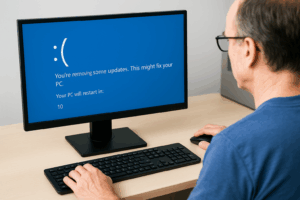
PCRuns technician completes a successful blue screen repair in Milwaukee.
A few easy habits will drastically reduce risk:
- Delay major Windows updates by a week or two — let Microsoft fix early bugs.
- Keep drivers updated via manufacturer sites (Dell, HP, Lenovo), not random driver tools.
- Replace mechanical drives older than 5 years — failing HDDs cause countless BSODs.
- Regularly back up using the 3-2-1 method: three copies, two media, one off-site (external + cloud).
📍 Milwaukee Example: Fixing a Post-Update BSOD
A Wauwatosa customer brought in a Lenovo laptop that blue-screened after a Windows 11 update.
Our tests found a corrupted Intel storage driver. We restored from a restore point, updated the correct driver, and cloned the drive to a fast SSD — all within the same day.
Result: no data loss, and the system boots in 20 seconds flat.
✅ Summary: Safe, Smart, and Data-First
- Don’t panic or keep rebooting — stop and note the error.
- Disconnect devices and try Safe Mode.
- Uninstall updates or roll back drivers.
- Protect your data first if recovery fails.
- Call PCRuns for professional, same-day help in Milwaukee.
🔗 Related: Milwaukee Computer Repair: The Complete Guide (2025 Edition)
🧰 Quick Reference
-
- Location: 6132 W Lisbon Ave, Milwaukee, WI 53210
- Phone: (414) 801-8194
- Email: [email protected]