
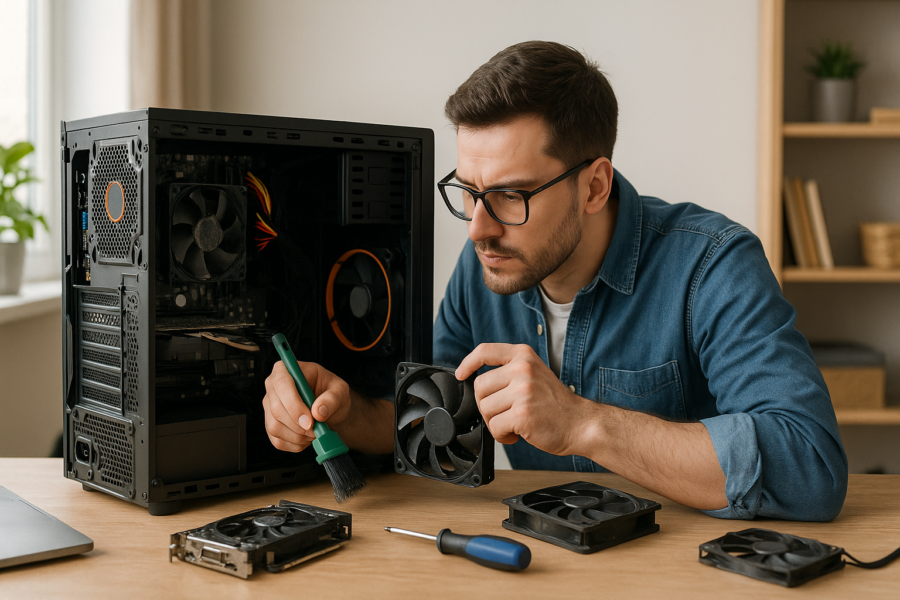


PC Overheating Fix: Clean Fans, Improve Airflow, and Lower Temps
If your PC gets loud, feels hot, or slows down during games or video calls, overheating is a common cause. The good news: most overheating issues come down to dust, blocked airflow, or a fan that isn’t doing its job. Below are safe, beginner-friendly steps to help your computer run cooler.
What overheating looks like (and why it matters)
When a PC gets too warm, it may protect itself by slowing down (you’ll notice stutters or sudden lag). In more serious cases, it can shut down unexpectedly. Keeping temperatures reasonable helps your system stay stable and can reduce wear over time.
Before you start: quick safety checklist
- Shut down the PC (don’t just sleep it).
- Unplug the power cable. For laptops, unplug the charger.
- Let it cool for 10–15 minutes if it’s hot.
- Work in good light on a hard surface (not carpet).
- Use gentle cleaning: avoid vacuums inside the case (static risk) and avoid blowing dust deeper into the PC.
Step 1: Clean the fans and vents (the #1 fix)
Dust acts like a blanket. It blocks airflow through the heatsinks and clogs filters, forcing fans to spin faster and temperatures to rise.
Desktop PC: how to clean safely
- Remove the side panel (usually two screws on the back).
- Use compressed air in short bursts to blow dust out of the case (aim from inside toward the vents when possible).
- Hold the fan blades still with a finger or a cotton swab while blowing air. (Spinning a fan too fast can stress it.)
- Focus on: CPU cooler fins, GPU fans, front intake fans, rear/top exhaust fans, and the power supply intake area.
Laptop: focus on the exhaust vents
- Find the exhaust vent (often on the side or back).
- Blow compressed air across the vent in short bursts.
- If the laptop is still overheating and the fan sounds strained, it may need a deeper clean (which often means opening the bottom cover). If you’re not comfortable with that, it’s okay to stop here and get help.
Step 2: Improve airflow around the PC
Even a clean PC can overheat if it can’t breathe.
- Give it space: keep at least a few inches of clearance around intake and exhaust vents.
- Avoid enclosed cabinets while gaming or heavy use.
- Keep it off carpet (especially desktops with bottom intakes and most laptops).
- Check filters: if your case has dust filters, clean them regularly (a quick rinse and fully dry, or brush them off).
Step 3: Check fan direction (desktop airflow basics)
For most desktop cases, a simple pattern works best: front/bottom fans pull cool air in, and rear/top fans push warm air out.
- Look for arrows on the fan frame showing airflow direction.
- If you recently installed a fan, make sure it isn’t fighting the others (for example, two fans blowing toward each other).
Step 4: Reduce heat from software (easy wins)
Sometimes the PC is working harder than it needs to.
- Close unused apps before gaming or streaming.
- Check Task Manager for a program stuck at high CPU usage. If something is constantly near the top when you’re doing nothing, that can raise temps.
- Lower in-game settings (especially resolution and shadows) if your GPU is running flat-out.
- Update GPU drivers and Windows if you’re seeing odd fan behavior or performance drops. Updates can fix bugs, but they won’t replace good airflow.
Step 5: When to consider thermal paste (and when not to)
Thermal paste helps move heat from the CPU to the cooler. Over years, it can dry out. Replacing it can help, but it’s more advanced than cleaning and airflow changes.
- Consider it if your PC is older, cleaning didn’t help, and temps still spike quickly.
- Skip it if you’re not comfortable removing the CPU cooler—doing it incorrectly can cause worse temps or hardware issues.
Signs you should stop and get help
- The PC shuts down repeatedly even after cleaning vents and improving airflow.
- You hear grinding or rattling (a fan may be failing).
- You see swelling, burning smells, or visible damage (power off and don’t keep testing).
Quick checklist: your 15-minute cooling tune-up
- Clear dust from vents, fans, and filters
- Make sure the PC has open space around it
- Confirm front/bottom intake and rear/top exhaust (desktop)
- Close high-CPU apps and check Task Manager
- Lower heavy game settings if needed
If you’d like, tell me whether you’re using a desktop or laptop, and what symptoms you’re seeing (loud fan, shutdowns, lag, hot keyboard). I can suggest the safest next step.


















Leave a Reply