
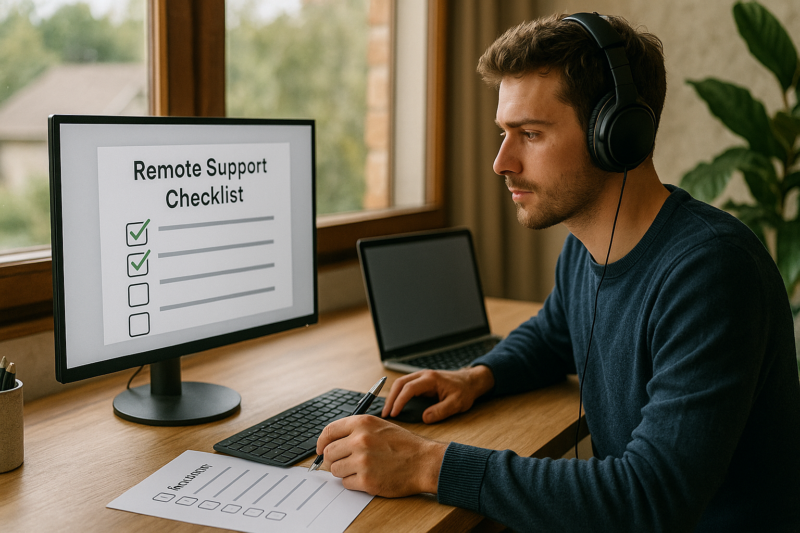


Remote Support Checklist: Secure Setup for Small IT Teams
Remote support is a lifesaver for small IT teams—but only if it’s set up with safe defaults. This checklist focuses on practical steps that reduce risk without making remote help painful for your staff or customers. Use it when you’re choosing a tool, onboarding a new tech, or tightening up an existing setup.
Before you start: define what “remote support” means for your team
Remote support can mean different things: quick one-time help, ongoing unattended access to servers or workstations, or full remote management. The safest setup depends on which of these you actually need.
- Attended support: the user approves each session. Best for most desktops and end-user devices.
- Unattended access: your team can connect anytime. Useful for servers, kiosks, and after-hours maintenance—requires tighter controls.
- Admin tools / RMM: more powerful features (scripts, patching). Treat as high-privilege access.
Secure remote support checklist (small-team friendly)
1) Use strong sign-in (MFA) for every technician
Multi-factor authentication (MFA) is one of the highest-impact protections. It helps even if a password is reused or leaked.
- Turn on MFA for remote support accounts (prefer authenticator app or security key when available).
- Require MFA for admins and all technicians, not just the owner.
- Avoid shared logins. Each tech should have their own account.
2) Separate admin access from everyday access
Day-to-day work (email, browsing, tickets) shouldn’t happen from the same account used to control remote sessions. This reduces the chance that a normal phishing email turns into a remote takeover.
- Use a standard account for daily work.
- Use a separate admin/remote-support account only when needed.
- If possible, limit admin accounts from signing in to email and web apps.
3) Lock down unattended access
Unattended access is convenient, but it’s also the biggest “blast radius” if credentials are compromised.
- Only enable unattended access on devices that truly need it (servers, shared PCs, after-hours endpoints).
- Protect unattended access with device-specific permissions (who can access what).
- Require re-authentication for sensitive actions if your tool supports it (for example, viewing saved passwords or elevating privileges).
- Remove unattended agents from decommissioned devices immediately.
4) Keep remote sessions visible and auditable
Transparency builds trust and reduces mistakes.
- Enable session logging (who connected, when, and to which device).
- Use session consent prompts for attended sessions whenever possible.
- Consider session recording for high-risk systems (only if appropriate for your environment and you’ve informed users).
5) Use least privilege: limit what techs can do by default
Not every technician needs full access to every machine. Least privilege reduces accidental changes and limits damage if an account is abused.
- Create roles (e.g., Helpdesk, Senior Tech, Admin).
- Restrict access by client/site/device group.
- Require approval for elevated actions on critical systems when feasible.
6) Secure the endpoints you connect to
Remote tools are only part of the picture. The computers you support should have basic protections turned on.
- Keep Windows and key apps updated (patching matters more than “perfect” settings).
- Confirm firewall is enabled.
- Use reputable anti-malware protection and keep it updated.
- Disable or remove unused remote access methods to reduce overlap.
7) Create a simple “start of session” safety routine
Small habits prevent big mistakes, especially when you’re moving fast.
- Verify you’re on the correct device (hostname, user name, client/site label).
- Ask the user what they’re trying to do before clicking around.
- Close unrelated windows or sensitive info before sharing your screen.
- Document changes as you go (even quick bullet notes).
8) Protect credentials: password manager + no copying passwords into chat
Remote support often involves credentials (Wi‑Fi, admin accounts, app logins). Handle them carefully.
- Use a password manager for the team (with individual accounts and shared vaults/collections).
- Never paste passwords into remote session chat or email.
- Rotate shared credentials on a schedule and when staff changes occur.
9) Have an offboarding checklist (it’s not optional)
When a technician leaves—or changes roles—access should be removed quickly and consistently.
- Disable the user account (don’t just change the password).
- Remove MFA tokens and active sessions.
- Reassign device groups and shared vault access.
- Review logs for recent activity if anything seems unusual.
10) Prepare a “remote support incident” plan (simple is fine)
You don’t need a binder of policies. You do need a calm, repeatable plan if something looks wrong.
- Know how to revoke sessions and disable accounts quickly.
- Know where logs are and who can access them.
- Keep a list of critical systems and owners to notify internally.
- Afterward, review what happened and tighten one or two controls (not twenty).
Quick “secure-by-default” setup summary
- MFA everywhere + no shared tech logins
- Attended sessions by default; unattended only where needed
- Role-based access and device grouping
- Logging (and recording where appropriate)
- Password manager + clean offboarding
If you want, share the type of remote support you do (attended only vs. unattended, number of techs, and whether you manage servers). I can tailor this checklist into a one-page SOP your team can follow.


















Leave a Reply