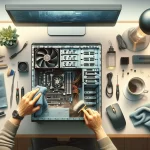


Why Laptops Slow Down Over Time (and What You Can Do About It)
Laptops rarely get “slow” overnight. More often, small changes pile up: more stuff running in the background, less free storage, dust and heat, aging batteries, and software that’s heavier than it used to be. The good news: most slowdowns are fixable with a few practical checks.
Common reasons laptops slow down
1) Too many startup and background apps
Over time, you install tools, launchers, chat apps, and updaters that quietly start with your laptop. Even if you don’t open them, they can use memory (RAM), CPU time, and disk activity.
- What it feels like: slow boot, fans spinning for “no reason,” lag when switching apps.
- Why it happens: background processes compete for resources, especially on laptops with less RAM.
2) Storage filling up (and storage getting slower)
When your drive is nearly full, your laptop has less room for temporary files and (on many systems) less room for virtual memory. That can make everyday tasks drag.
- What it feels like: slow file operations, sluggish app launches, stuttering when multitasking.
- Extra note: Older laptops with hard drives (HDDs) tend to feel much slower over time than those with SSDs.
3) Updates and newer software requirements
Operating system updates and modern apps often add features and security improvements. Sometimes that also means higher baseline resource use than a few years ago.
- What it feels like: your laptop used to feel “fine,” but now the same tasks take longer.
- Why it happens: newer software can be more demanding than the hardware was designed for.
4) Heat, dust, and thermal throttling
Laptops pull air through tight spaces. Dust buildup and dried thermal paste can reduce cooling efficiency. When components run hot, many laptops automatically slow the CPU/GPU to protect themselves (thermal throttling).
- What it feels like: performance drops after a few minutes, hot keyboard area, loud fans.
- Why it happens: cooling can’t keep up, so the system intentionally reduces speed.
5) Battery aging and power settings
As batteries age, they may not deliver power as consistently under heavy load. Some laptops also reduce performance on battery or in “power saver” modes.
- What it feels like: slower performance when unplugged, sudden dips during demanding tasks.
- Why it happens: power limits can cap CPU speed to extend battery life or maintain stability.
6) Malware or unwanted software
Not every slowdown is malware, but unwanted browser extensions, adware-like installers, or compromised software can absolutely drag a system down.
- What it feels like: pop-ups, browser redirects, high CPU usage, fans running while idle.
- Why it happens: background activity consumes resources and can interfere with normal operation.
7) Hardware limits becoming more noticeable
Even if nothing is “wrong,” older hardware can struggle with modern multitasking—especially if you have limited RAM, an older CPU, or a mechanical hard drive.
What you can do (simple fixes first)
Step 1: Restart and check what’s running
- Restart to clear out stuck processes and refresh system resources.
- Open your system’s task manager/activity monitor and look for apps using unusually high CPU, memory, or disk.
- Close what you don’t need, then see if the lag improves.
Step 2: Disable unnecessary startup items
Turn off apps that don’t need to launch at boot (chat apps, game launchers, “helper” tools). You can still open them when you actually need them.
Step 3: Free up storage space
- Uninstall apps you no longer use.
- Delete old downloads and duplicate files.
- Move large videos/photos to external storage if you’re running low.
If your drive is consistently close to full, performance can suffer—aim to keep a reasonable buffer of free space so the system can work smoothly.
Step 4: Update thoughtfully
- Install operating system and security updates (they often fix bugs and vulnerabilities).
- Update key drivers if you’re troubleshooting performance issues (graphics and chipset are common ones), but avoid random “driver updater” utilities you don’t trust.
Step 5: Run a trusted security scan
Use the built-in security tools on your system or a reputable security app you already trust. If you find unwanted extensions, remove them and reset your browser settings if needed.
Step 6: Improve cooling
- Make sure vents aren’t blocked (avoid soft surfaces like blankets).
- Clean dust from vents if accessible.
- If the laptop is older and frequently overheats, a professional cleaning and thermal paste replacement may help.
Step 7: Consider the two biggest upgrades (when possible)
- Upgrade to an SSD: If your laptop still uses a hard drive, switching to an SSD is often the single biggest real-world speed boost.
- Add more RAM: If your laptop is frequently maxing out memory, more RAM can reduce slowdowns while multitasking.
Not all laptops are upgradeable (some have soldered RAM or storage), so check your model’s options before buying parts.
When it might be time to replace the laptop
If you’ve cleaned up startup apps, freed space, confirmed there’s no malware, and the laptop still struggles with your basic needs, the hardware may simply be outmatched by today’s software. Signs include consistently high CPU usage during simple tasks, inability to run current apps smoothly, or battery/thermal issues that persist even after maintenance.
A quick checklist
- Restart and check resource usage
- Disable unnecessary startup apps
- Free up storage space
- Update OS and trusted drivers
- Scan for malware/unwanted extensions
- Address overheating and dust
- Consider SSD/RAM upgrades (if supported)
Most laptops slow down for predictable reasons. Start with the easy wins (startup apps, storage, scans), then move to cooling and upgrades if you need more headroom.