Which Cloud Backup Should I Use?
A Simple Guide for Valued PC Runs Customers
If you’re reading this, chances are one of these is true:
- Your computer slowed down or failed unexpectedly
- You’re worried about losing photos, documents, or work files
- You just got a repaired or upgraded system and want to do things right this time
Here’s the honest truth from a repair technician:
Hard drives fail. Cloud backups prevent permanent loss.
The good news? You don’t need to be “techy” to protect yourself — you just need the right setup.
The Short Answer (For Most People)
Use two cloud backups, not just one.
Why?
- Accounts can get locked
- Passwords get forgotten
- Sync mistakes happen
- Subscriptions expire
If you rely on only one cloud service and something goes wrong, you’re back to square one.
Using two services gives you a safety net.
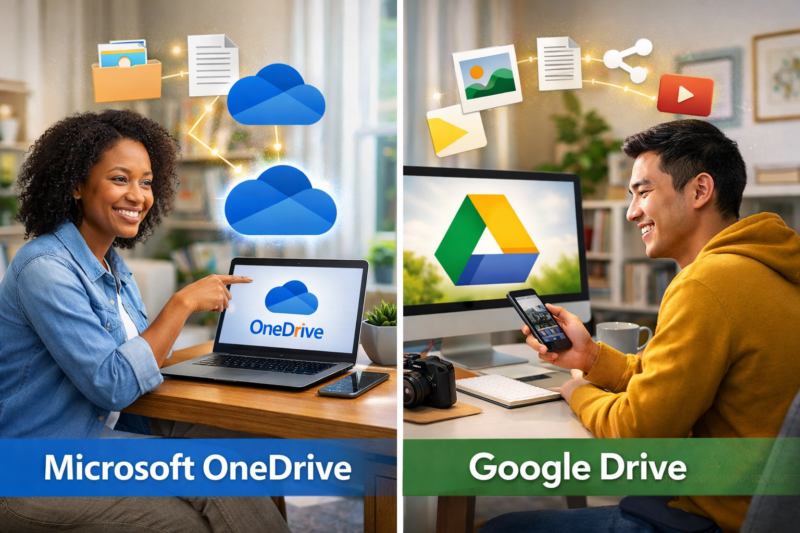
At PC Runs, the most reliable and simplest combination is:
- Microsoft OneDrive
- Google Drive
They work well together and cover each other’s weaknesses.
Option 1: Microsoft OneDrive (Best for Windows Users)
OneDrive is already built into most Windows computers.
OneDrive is ideal if you:
- Use Windows 10 or Windows 11
- Use Word, Excel, or Outlook
- Want automatic backup of Documents, Desktop, and Pictures
- Prefer “set it and forget it” syncing
Free vs Paid (Simple Breakdown)
- Free: 5 GB
Good for essential documents and critical files - Paid: 100 GB → 1 TB
Better for photos, videos, and long-term backups
👉 Read the full OneDrive setup guide here
(Internal link to your OneDrive post)
Option 2: Google Drive (Best as a Second Backup)
Google Drive makes an excellent secondary safety net, even if OneDrive is your primary backup.
Google Drive is ideal if you:
- Have a Gmail account
- Want powerful search (even inside PDFs and images)
- Share files with family, schools, or small businesses
- Want an extra copy of your most important data
Free vs Paid
- Free: 15 GB (shared with Gmail & Photos)
Enough for documents and a backup copy - Paid: More space available if needed
👉 Read the full Google Drive guide here
(Internal link to your Google Drive post)
The Best Strategy: OneDrive + Google Drive Together
This is what we recommend for most PC Runs customers:
How it works in real life
- OneDrive
- Automatically backs up your everyday files on your computer
- Google Drive
- Holds a second copy of your most important documents and photos
If:
- One account has a problem
- You get a new computer or hard drive
- Your system fails unexpectedly
👉 You can still sign in and recover your data.
This turns a disaster into a minor inconvenience.
“But Do I Really Need Cloud Backup?”
Here’s what we see in the shop:
- Most data loss happens without warning
- External drives fail too
- Data recovery is expensive and not always possible
- Cloud backups cost far less than recovery attempts
Cloud backup isn’t about convenience — it’s about not losing irreplaceable files.
What We Recommend You Do Next (10–15 Minutes Total)
- Set up OneDrive and let it sync your Documents & Pictures
- Create a Google Drive account (if you don’t already have one)
- Upload your most important files to Google Drive as a second copy
- Install the mobile apps so you can access files anywhere
That’s it. No advanced skills required.
Helpful Links for Valued Customers
Final Thought (From Your Computer Guy)
Most people don’t think about backups until after something goes wrong.
Taking a few minutes now:
- saves money later
- avoids panic
- protects memories and work
- makes future computer upgrades painless
If you ever want help setting this up or checking that it’s working correctly, just ask — that’s part of being a PC Runs valued customer.