
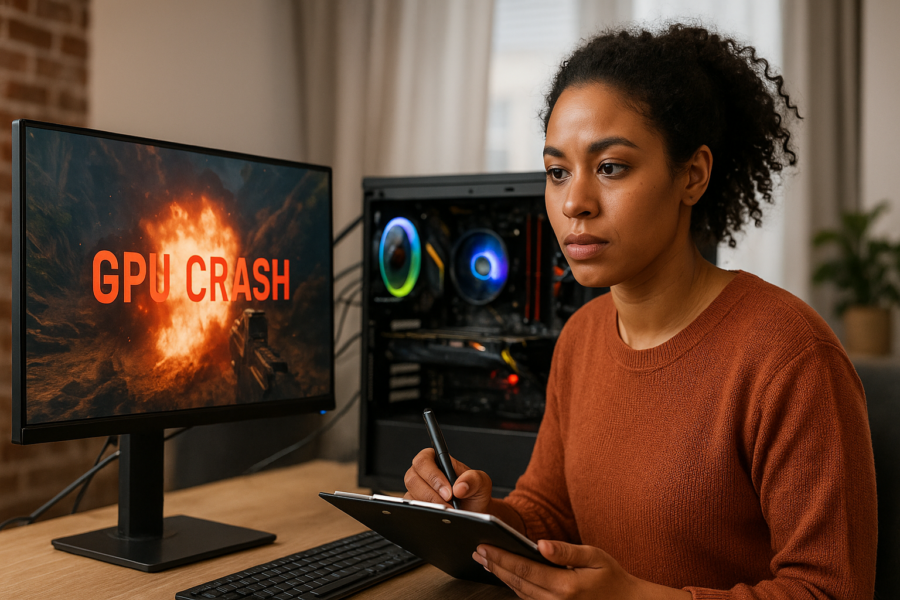


GPU Crashing in Games: A Practical Checklist for Drivers, Power, and Temps
When a game crashes to desktop, freezes, or shows a black screen, it’s easy to blame “the GPU.” In reality, game crashes are often caused by a small set of fixable issues: a messy driver install, unstable power, overheating, or an unstable overclock/undervolt.
This checklist walks you through the safest, most common fixes first—without changing a bunch of settings at once.
Before you start: note what “crash” looks like
- Crash to desktop (game closes, Windows stays responsive)
- Driver reset (screen flickers, then recovers)
- Black screen / full system restart (often power or hardware stability)
- Hard freeze (requires holding the power button)
If you can, write down: the game name, what you were doing when it crashed, and whether it happens in one game or many. Patterns matter.
Step 1: Reset “tuning” to stock (fastest win)
If you’ve changed anything related to GPU or CPU performance, revert it temporarily. Unstable tuning is one of the most common reasons games crash—especially after updates.
- Turn off GPU overclocks/undervolts and custom fan curves (set to Default).
- Disable overlays that hook into games (FPS counters, recording, RGB tools) just for testing.
- If you enabled XMP/EXPO for RAM and crashes started recently, consider testing with it disabled (only as a test).
Why this matters: Games push the GPU in bursty ways that can expose borderline instability even if benchmarks “seem fine.”
Step 2: Do a clean graphics driver reinstall
Driver issues are common after Windows updates, GPU driver updates, or swapping GPUs. A clean reinstall helps remove corrupted settings and leftovers.
Checklist
- Download the latest stable GPU driver from your GPU vendor.
- Install it using the “clean install” option if offered.
- After installing, reboot and test one game for 10–15 minutes.
Tip: If the newest driver made things worse, trying one known-stable older version can be a reasonable test. Don’t bounce between many versions in one sitting—change one thing, then test.
Step 3: Check temperatures (GPU and hotspot) under load
Overheating can cause driver resets, throttling, or crashes. You don’t need perfect numbers—just look for obvious problems.
What to look for
- GPU temperature climbing unusually high for your setup
- Hotspot/junction temperature (if your monitoring tool shows it) running far above the main GPU temp
- Fans not spinning up when the GPU is under load
- Case feels very hot; warm air isn’t being exhausted
Quick fixes that are safe
- Power down the PC and gently remove dust from GPU and case filters.
- Make sure GPU fans spin freely and aren’t blocked by cables.
- Improve airflow: front/side intake + rear/top exhaust (basic, balanced airflow).
- Temporarily remove the side panel to test if airflow is the issue (only as a quick test).
Why this matters: If temps drop a lot with the side panel off, you’ve likely found an airflow problem rather than a “bad GPU.”
Step 4: Power checks (often missed)
Sudden black screens, full restarts, or crashes that happen when the action gets intense can point to power delivery issues.
Checklist
- Make sure the GPU power cables are fully seated (click into place).
- If your GPU uses multiple power connectors, use separate PCIe cables from the PSU when possible (not one daisy-chained cable) to reduce voltage drop.
- Avoid questionable adapters unless they came with the GPU and are required.
- Try a different wall outlet or power strip if you suspect a flaky connection.
Note: It’s hard to “prove” a PSU problem without swapping parts. The goal here is to eliminate simple connection and cabling issues first.
Step 5: Reduce load to confirm it’s stability-related
This doesn’t “fix” the root cause, but it can confirm you’re chasing a stability issue (heat/power/clock) rather than a random software glitch.
- Lower resolution or set a frame cap (for example, cap to 60 or 90 FPS).
- Reduce ray tracing and ultra settings first (these can spike power and heat).
- Switch from borderless to exclusive fullscreen (or vice versa) to test.
If the game becomes stable after reducing load, focus on Steps 3 and 4 (temps and power) and keep everything at stock clocks while troubleshooting.
Step 6: Windows basics that actually matter
- Update Windows (especially graphics-related and .NET components).
- Reboot after updates—don’t rely on “fast startup” sessions.
- Close background apps that can inject overlays or capture video.
- Check Event Viewer for repeated display driver errors (helpful for pattern spotting, not always a clear diagnosis).
When to suspect a hardware fault
None of the signs below are a guarantee, but they increase the odds that something physical is going on:
- Crashes happen across many games and benchmarks even after a clean driver install.
- Artifacts (sparkles, checkerboards, weird geometry) appear before the crash.
- Crashes occur quickly even at low settings and low temperatures.
- The system restarts under GPU load despite good temps and confirmed power cabling.
If you’re at this point, the most practical next step is controlled part swapping (PSU or GPU) if you have access, or having a shop test the GPU in another system.
A simple troubleshooting order (printable)
- Reset GPU/CPU/RAM tuning to stock
- Clean reinstall GPU driver
- Check temps + airflow
- Verify power cables and PCIe cabling
- Reduce load (frame cap / lower settings) to confirm stability angle
- Windows updates + background app cleanup
- If still crashing: consider PSU/GPU hardware testing
Work through it in order and change one thing at a time. That’s the fastest way to find the real cause without creating new variables.

















Leave a Reply