

Let Your PC Start the New Year Right! A Simple Reset Checklist
New Year PC maintenance: quick, practical guidance you can apply today.
A new year is a great excuse to give your PC a quick “reset”—not by wiping everything, but by doing a few small maintenance steps that help it run smoother and feel less cluttered. You don’t need special tools or deep technical knowledge to get real benefits.
1) Do a quick desktop and downloads clean-up
Messy storage can make it harder to find things and can slowly eat up space. Start with the easy wins:
- Move important files off your desktop into clear folders (for example: Documents → Taxes, School, Work).
- Open your Downloads folder and delete installers, duplicates, and files you no longer need.
- Empty the Recycle Bin/Trash once you’re sure you don’t need those files.
If you’re unsure about a file, create a folder called “Review Later” and move it there instead of deleting it immediately.
2) Check your storage space (and free some up)
When a drive gets close to full, your system can feel slower—especially during updates and when apps need temporary space. A safe goal for most people is to keep some breathing room on the main drive.
- On Windows, review what’s using space in system storage settings.
- On macOS, check storage recommendations in system settings.
- Uninstall apps you don’t use (especially old games, trials, and duplicate utilities).
Tip: Don’t delete folders you don’t recognize inside system directories. If you don’t know what it is, look it up first or leave it alone.
3) Update your operating system and key apps
Updates often fix bugs and security issues. They can also improve stability and compatibility.
- Run your OS updates and restart if prompted.
- Update your browser (Chrome/Edge/Firefox/Safari) and any apps you use daily.
- After updates, give your PC one extra reboot—some changes apply more cleanly after a restart.
4) Review what starts up with your PC
Many apps quietly add themselves to startup, which can slow boot time and make your PC feel “heavy” right away.
- Disable startup items you don’t need immediately (chat apps, game launchers, printer helpers, etc.).
- Keep essentials enabled (security software, touchpad/keyboard utilities, audio drivers).
If you’re not sure what something is, disable one item at a time and see how your PC behaves over a day or two.
5) Do a basic security check
You don’t need to become a security expert—just cover the fundamentals:
- Make sure real-time protection is enabled (built-in security is fine for most people).
- Run a quick scan.
- Remove browser extensions you don’t recognize or no longer use.
If your browser is full of toolbars, pop-ups, or surprise redirects, that’s a sign to slow down and investigate before installing anything new.
6) Back up the stuff you can’t replace
Backups aren’t just for “tech people.” They’re for anyone who has photos, school files, work documents, or saved projects.
- Pick one backup method you’ll actually use (external drive or a trusted cloud backup).
- Back up your most important folders first: Documents, Desktop, Photos/Pictures.
- After your first backup, set a simple schedule (weekly or monthly).
7) Give your PC a quick physical refresh
Dust and clutter can affect airflow and make your PC louder. Keep it simple and safe:
- Wipe the keyboard, mouse, and screen with appropriate cleaning materials (avoid harsh household cleaners on screens).
- Make sure vents aren’t blocked by walls, fabric, or piles of papers.
- If you have a desktop tower, gently dust the outside vents. For internal cleaning, only proceed if you’re comfortable powering down and following safe handling steps.
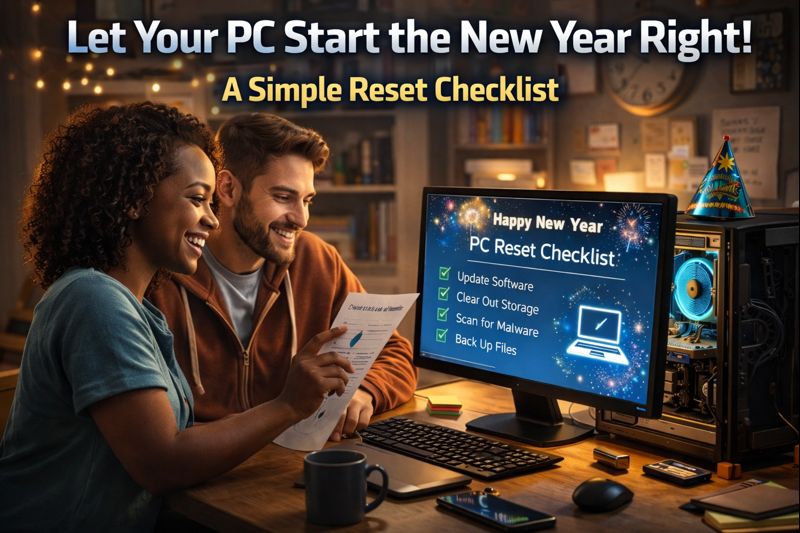
A quick “New Year” checklist (5–15 minutes)
- Delete obvious junk from Downloads
- Uninstall one unused app
- Run updates + restart
- Disable one unnecessary startup item
- Confirm your backup is working
Do even a few of these steps and your PC will feel more organized, more responsive, and ready for whatever you’re doing this year.