Need fast, honest computer help in Milwaukee (53210)?

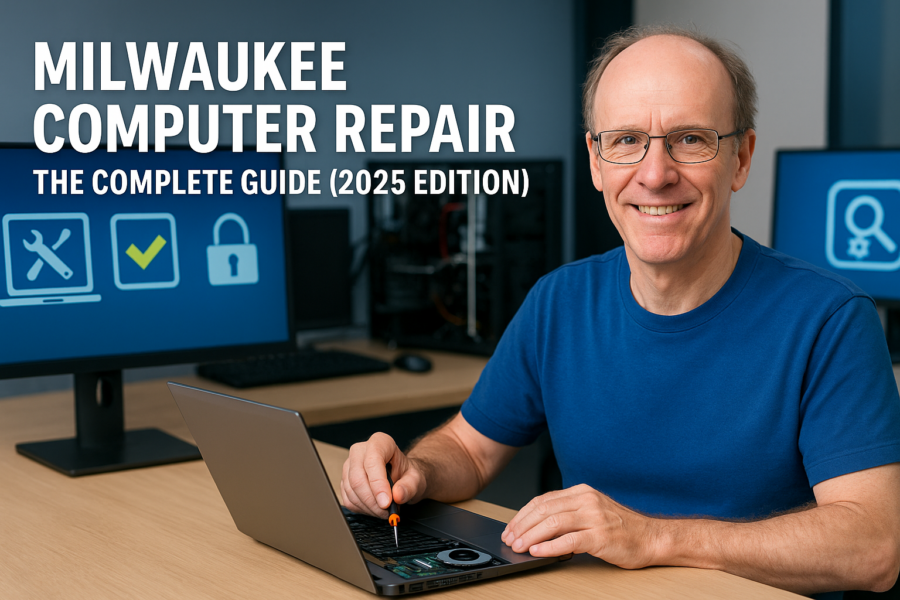
Milwaukee computer repair technician working on laptop in professional workspace.
This guide gives you straight answers on typical costs, timelines, safe DIY checks, and when it’s smarter to upgrade or buy refurbished. If you’d rather skip to help: (414) 801-8194 or Request a Quick Quote.
In 2 minutes you’ll know:
- What your issue likely is and how long it takes to fix
- Typical Milwaukee price ranges (so there are no surprises)
- Which DIY checks are safe—and which to avoid
- When to repair vs. replace vs. go refurbished
PCRuns is a local, owner-operated shop serving 53210 and nearby neighborhoods. We focus on data-safe repairs, clear communication, and honest recommendations.
Fast Diagnostics (Same-Day for Many Issues)
We begin with a short conversation about symptoms, when they started, and what changed (updates, new software, travel, spill, drop). That interview informs our quick checks. We test power, thermal behavior, storage health (SMART), memory stability, and boot integrity. For software issues, we examine event logs and recent installations. The outcome is a clear “go/no-go” decision you can trust.
If we see signs of data risk—for example, file-system errors, repeated kernel panics, or clicking sounds from a drive—we pause and discuss options. In many cases, we attempt a block-level clone to a healthy drive before any invasive repairs. This protects your photos, schoolwork, QuickBooks files, and the things that matter most.
- Typical turnaround: same-day for many software and minor hardware issues
- Bring if you can: charger, external drive that misbehaves, error screenshots, and a brief timeline of what changed
- Deliverable: cause, cost range, parts availability/ETA, realistic timeline, and an honest recommendation
Related (publishing soon):
Windows Update → Blue Screen (safe steps) ·
PC randomly shuts down ·
HP EliteBook keys not working
Mini case — Washington Heights: A laptop wouldn’t power reliably after a storm. Our checks pointed to a failing DC jack (not the board). We replaced the jack, verified stable voltage under load, and returned it the same day—no data loss.
See All Services
Book Diagnostics
Common Repairs & Local Pricing
Every job is unique, but these ranges reflect typical Milwaukee work we see in 53210 and nearby. Factors that move price up or down include model complexity (e.g., ultrabooks with adhesive), parts availability, and the extra time required when we perform data-safe steps first (like cloning shaky drives).
| Repair | Typical Range (Labor + common parts) | Turnaround | Notes |
|---|---|---|---|
| Keyboard replacement | $90–$180 + part | Same/next day (if part in stock) | Ultrabooks with riveted/glued boards add time |
| SSD upgrade + clean OS | $125–$160 labor + SSD | 1-3 days | Biggest speed boost for aging PCs; fresh drivers |
| Hinge repair | $90–$180 + parts (if needed) | 1–2 days | Depends on anchor points and plastics |
| Battery replacement | $75–$140 + battery | Same/next day | Internal batteries require more disassembly |
| Malware cleanup (data-safe) | $95–$160 | Same/next day | Includes post-clean hardening and update plan |
What drives price differences? Model-specific teardown challenges, part quality (OEM vs. generic), and whether a data clone is advisable first. We explain the trade-offs and get your approval before any work begins. You’ll receive a written estimate so there are no surprises.
Related (publishing soon):
Laptop hinge repair costs (Milwaukee) ·
Dell OptiPlex SSD upgrade gains
Windows BSOD & Mac Boot Recovery (Data-Safe)
Blue screens (Windows) and Apple-logo loops (Mac) have many causes: drivers, problematic updates, corrupted system files, failing storage, even loose cables. Your first priority is data safety. If you notice clicking/whirring from a drive or see file-system errors, stop attempts and call—continuing can reduce recovery success.
- Power down; unplug accessories and external drives
- Windows: try Startup Repair → System Restore (if available)
- Mac: boot to Recovery (⌘+R) → Disk Utility → First Aid
- If errors persist, protect data first (clone when possible), then repair
- Good signs: Disk is visible; First Aid/CHKDSK completes
- Concerning signs: SMART warnings; repetitive boot loops; loud mechanical noise
Related (publishing soon):
Windows Update → BSOD: full steps ·
Mac stuck on Apple logo (how to fix) ·
External drive not detected (data-safe checklist)
Mini case — Wauwatosa: A MacBook Air in a boot loop showed minor file-system errors. We stabilized power, ran First Aid, backed up data, and performed a data-safe OS reinstall. The customer picked up the next day with all files intact.
Performance Upgrades (SSD, RAM)
If your computer is 5–8 years old, the most impactful upgrade is usually an SSD and/or NVMe 2.0 with a clean OS install. We avoid migrating old bloat when possible; a fresh install with current drivers and updates produces the best “like-new” feel. We right-size RAM (often 8–16GB) and set startup items sensibly so your machine stays snappy months later.
- SSD vs. HDD: Often 5–10× faster boots and app launches
- RAM sweet spot: 8–16GB for home, school, and small business
- Best candidates: Dell OptiPlex, Lenovo ThinkPad, HP EliteBook refurbs
- Same-day goal: Most SSD upgrades finish the day you drop off
| Task | Before (HDD) | After (SSD) |
|---|---|---|
| Cold boot to desktop | 60–120 sec | 12–25 sec |
| Open a browser with 10 tabs | 15–30 sec | 3–8 sec |
| Windows updates (typical) | “Feels like forever” | Noticeably faster |
Related (publishing soon):
OptiPlex SSD upgrade: before/after ·
SSD vs HDD differences (Milwaukee guide)
Mini case — Bay View: An 8-year-old desktop was unusably slow. We installed a mid-range SSD, added 8GB RAM, and performed a clean OS install with current drivers. Boot time dropped from ~2 minutes to ~20 seconds. Two-day turnaround.
Data Safety, Backup & Recovery
We treat your data like it’s our own. Before any risky action, we assess drive health, file-system integrity, and recent events. If a drive shows instability, we attempt a sector-by-sector clone to a healthy disk first. This preserves your files while we work on the original system. For routine protection, we recommend a simple, affordable 3-2-1 backup approach: three copies of your data, on two different types of media, with one copy off-site (cloud).
- External + cloud: A small USB SSD plus a reputable cloud backup provides speed and resilience
- Version history: Recover older copies after accidental deletes or ransomware events
- Restore tests: We show you how to test restoring a file so you know it works
- Family photos & schoolwork: Simple schedules protect what matters most
Related (publishing soon):
Home backup (practical setup) ·
Best family backup plan (Milwaukee)
Mini case — Riverwest: A family photo library lived on one aging laptop. We migrated the library to an external SSD, set up automatic cloud backup with versioning, and verified a test restore. Peace of mind in an afternoon.
Home & Small-Biz Wi-Fi + Security
Most Wi-Fi headaches come from channel congestion, poor placement, or weak defaults. Apartments near campus often share crowded channels; single-family homes end up with routers tucked behind TVs or in basements. We re-position gear, optimize channels, and lock down security. For small businesses, we separate staff and guest networks, set sensible password policies, and ensure shared folders are backed up automatically.
- Placement: central, elevated, and unobstructed beats “hidden in a cabinet” every time
- Channels: we pick the least congested bands to reduce drops at peak hours
- Security: WPA2/3 with strong, unique passwords; guest network for visitors
- Parents: built-in controls can schedule downtime and filter content
Related (publishing soon):
Wi-Fi keeps dropping (quick fixes) ·
Small-biz IT basics (Milwaukee)
Mini case — East Side: An apartment had constant evening drops. A quick survey showed heavy channel congestion. We moved to a cleaner channel, elevated the router, and added a small mesh node. Streaming stabilized during peak hours.
Repair vs. Replace vs. Refurbished
Unsure whether to repair, replace, or go refurbished? Consider device age, CPU generation, RAM ceiling, battery health, and your budget. If the chassis is in good shape and the CPU/RAM headroom is decent, a targeted repair or SSD/RAM upgrade often wins. If the device is 7–9 years old with low ceilings (e.g., 4GB max RAM), a business-class refurbished model with SSD and warranty typically offers the best value.
| Option | Best For | Pros | Cons |
|---|---|---|---|
| Repair | Specific faults; solid chassis | Lower cost than new; keeps your setup | May not fix age-related slowness |
| Refurbished | Families, students, small biz on a budget | SSD + warranty; business-class reliability | Not the latest design; inventory varies |
| New | Specialized needs (gaming, pro apps) | Latest features and warranties | Highest cost; steep depreciation |
Related (publishing soon):
Refurbished laptop buyer’s guide (Milwaukee) ·
Top refurbs under $400 (local stock)
Mini case — Sherman Park: A 7-year-old laptop needed both a keyboard and a battery. Given age and CPU limits, the owner chose a PCRuns-certified refurb with SSD and warranty. It was faster, cheaper than a multi-part repair, and ready the same day.
Our Process, Warranties & Parts
Clear communication is our whole philosophy. You’ll know what we’re doing, why we’re doing it, and how it protects your data and budget. Here’s what to expect when you work with PCRuns:
How we work (step by step)
- Check-in: We log your device, charger, and symptoms, then confirm contact info and preferred notification method.
- Quick diagnostics: Focused tests to identify the most likely root cause without risking your data.
- Estimate & options: We explain the issue, present costs and timelines, and recommend repair, upgrade, refurb, or no-go.
- Approval: No work starts until you approve the plan and cost range.
- Repair/upgrade: Data-safe procedures, quality parts, best practices for reassembly and thermals.
- Validation: Post-repair tests (thermals, power, storage health, drivers/updates) and final QA.
- Pickup & guidance: We review what we did, warranties, and simple steps to keep things running smoothly.
Warranties & parts quality
- Labor warranty: We stand behind our workmanship. If something related to our work isn’t right, reach out and we’ll make it right.
- Parts: We use reliable, tested parts. For batteries and keyboards, we source known-good vendors; for SSDs, we stick to reputable brands to ensure speed and longevity.
- Refurbs: PCRuns-certified refurbs include SSDs, clean OS installs, and warranty. Business-class machines deliver the best value and reliability.
Turnaround & communication
- Same-day goals: Many diagnostics, SSD upgrades, cleans, and software fixes finish the day you drop off.
- If parts are needed: We’ll give you a realistic ETA and keep you posted. If the plan changes, you’ll hear it from us first.
- Plain-English updates: You’ll know what’s happening and what it means, without jargon.
Related (publishing soon):
What to bring & check-in checklist ·
How our refurb testing works
Local Case Studies (Quick Wins)
Real-world fixes from neighborhoods around Milwaukee. Time/costs vary by model and condition, but these give you a feel for outcomes.
- Bay View — OptiPlex SSD + Cleanup: 8-year-old desktop now boots in ~20 seconds. Same-day turnaround. Owner reports Office opens in seconds instead of minutes.
- Wauwatosa — MacBook Boot Loop: Data-safe OS reinstall; files preserved; next-day pickup. We also replaced a failing battery the following week.
- Riverwest — Loud Laptop Fan: Dust clean + fresh thermal paste; temps down 15–25 °C under load; system quiet and stable.
- West Side — Wi-Fi Congestion: Channel optimization + mesh node; stable streaming in evenings; buffering eliminated in living room.
- Washington Heights — DC Jack: Intermittent power traced to jack; part replaced; no data loss; stable after stress tests.
- Sherman Park — Dead HDD: Drive cloned (salvageable sectors) to SSD; fresh OS; user data restored; massive speed increase.
Milwaukee FAQ
Tip: tap a question to expand.
How long do most repairs take?
Same-day for many keyboard, SSD, and software issues. If parts are required, most jobs finish within 1–2 days. We’ll give you a realistic ETA and keep you posted.
Will you protect my data during repair?
Yes. We assess data risk first. If a drive seems unstable, we attempt a clone before invasive steps. For software issues, we preserve user folders and perform backups when requested.
Can you fix liquid spills on laptops?
Power it off, don’t charge it, and bring it in ASAP. Prompt cleaning improves success; severe corrosion may require parts. Time matters here—hours can make the difference.
Do you work on Macs as well as Windows PCs?
Yes. We handle Mac boot loops, batteries, data-safe OS reinstalls, and common hardware repairs alongside Windows services.
Do you offer refurbished systems with warranty?
Yes. PCRuns-certified refurbs include SSDs, clean OS installs, and warranty. Great value for families, students, and small businesses.
Which Milwaukee areas do you serve?
We’re based in 53210 and serve Washington Heights, Sherman Park, Wauwatosa, Riverwest, Bay View, the East Side, and nearby neighborhoods.
What upgrade gives the biggest speed boost?
An SSD plus a clean OS install. We right-size RAM (often 8–16GB) and minimize startup bloat so speed gains last.
Why do hinge repairs vary in price?
It depends on how the hinge anchors into the chassis. If plastics are cracked or inserts have pulled out, we may need additional parts or reinforcement, which adds time.
Can you help if my external drive isn’t detected?
Yes. First, stop plugging it in repeatedly—this can worsen failures. We test cables/ports, check power needs, and evaluate the drive’s health before any recovery steps.
Do you handle Wi-Fi and printer issues?
Yes. We optimize router placement and channels, set up secure networks, and help with stubborn printer connections for homes and small businesses.
How do I get started?
Call (414) 801-8194 or Request a Quick Quote. A short interview plus quick checks will confirm next steps and an accurate estimate.
Visit, Hours & Service Area
PCRuns is a local, owner-operated computer repair and refurbished sales shop in Milwaukee.
- Address: 6132 W Lisbon Ave, Milwaukee, WI 53210
- Phone: (414) 801-8194
- Email: [email protected]
- Hours: Mon–Sat, 9:00–6:00
- Service area: 53210 + Washington Heights, Sherman Park, Wauwatosa, Riverwest, Bay View, East Side, and nearby neighborhoods
Get Directions
About PCRuns
View Services
Contact PCRuns
PCRuns
6132 W Lisbon Ave, Milwaukee, WI 53210
Phone: (414) 801-8194 · Email: [email protected]
Request a Quick Quote
Get Directions
Serving Milwaukee 53210 and nearby: Washington Heights, Sherman Park, Wauwatosa, Riverwest, Bay View, East Side. Same-day diagnostics for many issues.