
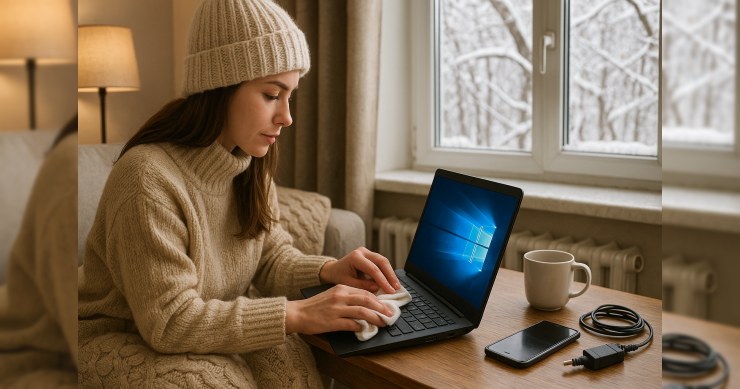


Stay Cozy & Connected: Simple Winter Tech Care for Your Windows PC
Winter PC maintenance: quick, practical guidance you can apply today
Winter is great for warm drinks and cozy nights—but it can be a little tougher on your tech. Cold-to-warm temperature changes, drier indoor air, busy Wi‑Fi, and extra streaming can all add up to slower performance, glitchy connections, and surprise update prompts.
The good news: a few small habits can keep your Windows PC running smoothly through the season. Here’s a practical, low-stress checklist you can use at home.
1) Keep Windows updated (without letting it interrupt your day)
Updates matter because they often include security fixes and stability improvements. You don’t need to obsess over them—just set them up so they happen at convenient times.
- Pick active hours: Go to Settings > Windows Update > Advanced options and set Active hours so Windows avoids restarting during your normal usage.
- Restart when you choose: If you see “Restart required,” save your work and restart at a time that works for you. Avoid forcing shutdowns.
- Don’t stack months of updates: If a PC hasn’t been updated in a long time, updates can take longer and feel more disruptive.
2) Protect your PC from winter “wear and tear”
Winter conditions can affect hardware more than people expect—usually through heat, airflow, and condensation.
Avoid condensation when moving between cold and warm
If you bring a laptop in from a cold car or garage, give it time to warm up before powering it on. Condensation is rare, but it’s a sensible precaution.
- Let it sit (lid closed) for a bit until it reaches room temperature.
- If it feels cold to the touch, wait longer before turning it on.
Keep vents clear (especially during long streaming or gaming sessions)
Blankets, couches, and laps can block airflow. Heat buildup can cause slowdowns or sudden fan noise.
- Use a hard, flat surface when possible.
- Make sure vents aren’t pressed against fabric.
- If the fan is constantly loud, it may be time for a gentle cleaning.
3) Speed and stability: quick maintenance that actually helps
You don’t need a bunch of “tune-up” tools. Windows already includes safe basics that cover most day-to-day slowdowns.
Free up space the simple way
- Open Settings > System > Storage and review what’s using space.
- Turn on Storage Sense to automatically clear temporary files.
- Uninstall apps you no longer use (especially large games or old trials).
Tip: If your drive is nearly full, Windows can feel sluggish. Keeping some breathing room helps with updates and general performance.
Trim startup apps (a common winter “my PC is slow” culprit)
If your computer takes longer to boot after you’ve installed holiday apps, printers, or new utilities, check startup items:
- Right-click the taskbar and open Task Manager.
- Go to the Startup apps tab.
- Disable items you don’t need immediately at startup (leave security tools enabled).
4) Keep Wi‑Fi steady when everyone’s online
Winter often means more devices on the network—streaming, video calls, game downloads, and guests. If your connection feels “fine sometimes, awful sometimes,” try these practical steps.
- Reboot the router occasionally: A simple restart can clear minor hiccups. (Unplug for ~10 seconds, plug back in, wait a few minutes.)
- Move closer for important calls: Walls and floors matter more than you’d think.
- Use Ethernet when it matters: If your PC has an Ethernet port, a cable is still the most reliable option for work calls and large downloads.
- Check for interference: Microwaves, older cordless phones, and crowded apartments can affect Wi‑Fi consistency.
5) Safer habits for the season (without being paranoid)
Holiday emails, shipping notifications, and “account alerts” ramp up this time of year. You don’t need to be anxious—just use a couple of steady rules.
- Pause before clicking: If a message creates urgency, take a breath and verify inside the official app or website (instead of the email link).
- Use built-in protection: Keep Windows Security enabled and up to date.
- Use strong sign-in options: If available, turn on multi-factor authentication for important accounts. (This is usually done in the account settings for the service.)
6) A quick “winter-ready” checklist
- Set Windows Update active hours
- Keep 15–20% free storage space if possible
- Disable unnecessary startup apps
- Keep laptop vents clear; avoid soft surfaces
- Let cold devices warm up before powering on
- Restart router if Wi‑Fi gets inconsistent
- Be cautious with unexpected shipping/account emails
When it’s time to get help
If your PC is overheating, crashing, failing updates repeatedly, or your Wi‑Fi drops no matter what you try, it may need a closer look. A straightforward checkup can often identify whether it’s a software setting, a failing drive, dust/thermal issues, or a router problem.
Staying cozy and connected all winter is mostly about small, consistent maintenance—nothing fancy, just the basics done well.


















Leave a Reply