
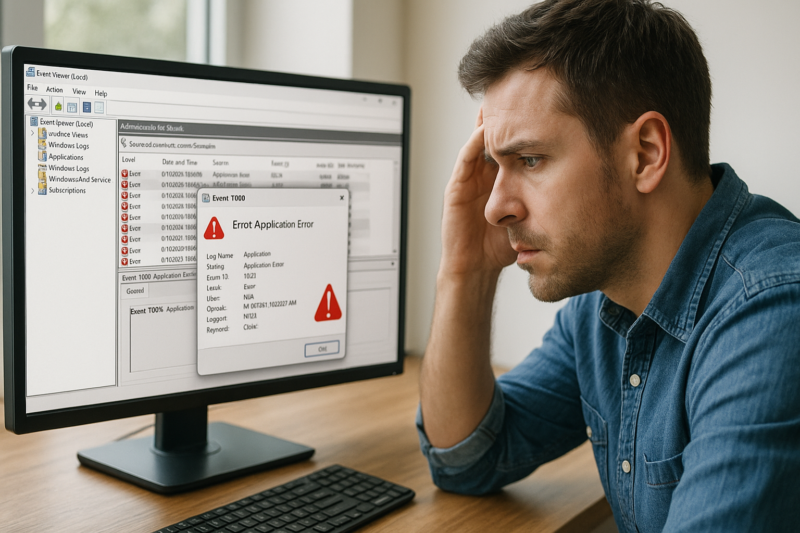


Windows Event Viewer: How to Read Errors Without Panicking
Windows Event Viewer can look intimidating—especially when you see lots of red “Error” entries. The key thing to know: errors in Event Viewer are common, and many are harmless or self-correcting. What matters is spotting patterns that match a real problem you’re experiencing (crashes, freezes, failed updates, app issues).
What Event Viewer is (and isn’t)
Event Viewer is a logbook. Windows and apps write notes about what happened: successful actions, warnings, errors, and informational messages.
- It is: a troubleshooting tool to correlate symptoms with logged events.
- It isn’t: a “health score.” A clean log is not required for a healthy PC.
The only time you should care about an “Error”
Focus on errors that line up with a real symptom. Use this quick filter:
- Timing: Did it happen at the same time as the issue (crash, reboot, app failure)?
- Repeatability: Does it happen every time you do the same thing?
- Frequency: Is it happening many times per hour/day?
- Impact: Does it correspond to a noticeable slowdown, freeze, or feature not working?
Where to look first (the useful sections)
Open Event Viewer, then expand Windows Logs. These are the most practical logs for troubleshooting:
- System: driver, hardware, power, startup/shutdown, Windows services.
- Application: app crashes, .NET issues, application errors.
- Security: sign-in events and auditing (useful, but noisy).
Best starting view: “Critical” and “Error” in System
If your PC is rebooting, freezing, or blue-screening, start with Windows Logs > System and look for:
- Critical events around the time of the reboot.
- Kernel-Power entries (often means Windows noticed an improper shutdown; it doesn’t automatically prove the cause).
- Disk or storahci/nvme-type storage messages (can hint at drive/controller issues).
How to isolate the signal from the noise
Use a simple workflow so you don’t get lost in thousands of entries.
Step 1: Reproduce the problem (if it’s safe)
If an app crashes when you open a file or click a feature, try to reproduce it once. Don’t repeatedly force crashes—one clean reproduction is usually enough.
Step 2: Filter to a tight time window
In the relevant log (System or Application), use filtering to show only:
- Event level: Critical, Error, Warning
- Logged: Last hour / Last 24 hours (or match the time of the issue)
This reduces “background errors” that happen on most systems.
Step 3: Prioritize by “Source” and repeats
When multiple entries appear at the same time, start with items that repeat and have a clear source (for example, a specific application name, display driver, or update component).
Step 4: Open the event and read the plain-English parts
In the event details, focus on:
- General tab: often has the most readable summary.
- Faulting application name (for app crashes)
- Faulting module name (helps identify a DLL/driver involved)
- Event ID (useful for grouping; by itself it rarely “diagnoses” the issue)
Avoid jumping straight to the raw XML unless you know what you’re looking for.
Common Event Viewer entries that look scary but often aren’t
- DistributedCOM (DCOM) warnings: very common; frequently cosmetic unless tied to a specific app malfunction.
- Service timeouts at boot: can happen when Windows is starting many services; investigate only if boot is slow or features don’t load.
- AppModel / background task warnings: often related to Store apps and background components.
These can still matter, but treat them as “leads,” not proof.
When Event Viewer points to a real fix
Event Viewer is most helpful when it confirms one of these patterns:
- One app repeatedly crashes: repair/reinstall the app, update it, or remove add-ins/plugins.
- Display driver resets: update graphics drivers and Windows updates; check for overheating or unstable overclocks (if applicable).
- Disk or filesystem errors: back up important data first, then run Windows disk checks and review drive health.
- Update failures: note the time and component, then run built-in Windows update troubleshooting steps.
Safe, practical next steps (a checklist)
- Write down: the exact time of the issue, the log (System/Application), the Source, and Event ID.
- Update Windows: install pending updates and reboot.
- Update the affected app/driver: especially if the Source clearly points to it.
- Check reliability history: Windows Reliability Monitor can be easier to read than raw logs and often links crashes to dates.
- Back up first if you see storage-related errors or repeated unexpected shutdowns.
If you want to go deeper (advanced-friendly tips)
- Create a Custom View: filter by Critical/Error in System + Application to keep a “signal” dashboard.
- Correlate chains: one event (like an app crash) often triggers follow-up events (like “application hang” or “Windows Error Reporting”). The first event in time is frequently the most useful.
- Look for clusters: multiple different errors at the exact same second can indicate a broader issue (power loss, driver crash, storage hiccup).
Bottom line
Event Viewer is a powerful tool, but it’s easy to misread. Don’t chase every red entry. Instead, match logs to a real symptom, filter by time, and prioritize repeated sources. If you share the Source, Event ID, and what your PC was doing at the time, you’ll usually get to a sensible next step quickly.


















Leave a Reply