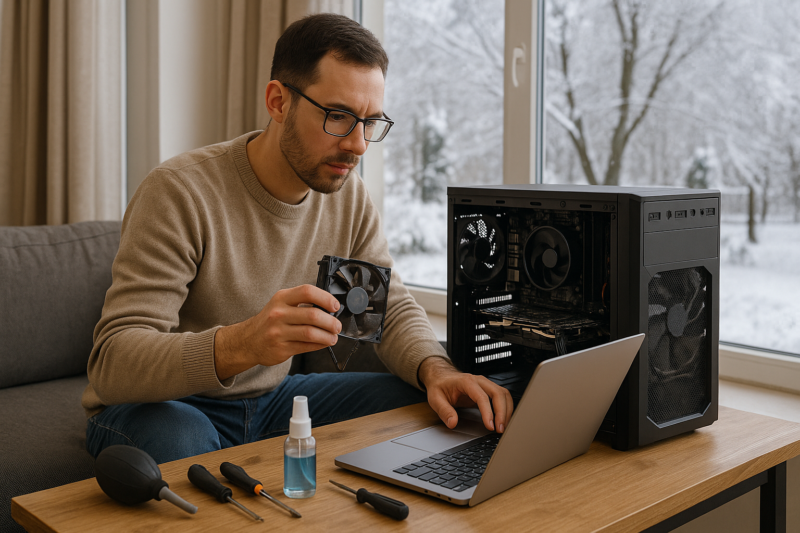
Winter PC maintenance: quick, practical guidance you can apply today.
Winter is a great time to give your PC a quick “reset.” Not a factory reset—just a simple maintenance routine that clears out clutter, reduces slowdowns, and helps Windows run more smoothly. If your computer has been feeling a little sluggish, a short cleanup session can often make everyday tasks feel snappier.
What “winter maintenance” actually means
Think of this like basic upkeep: updates, cleanup, and a quick review of what’s running in the background. The goal is to remove things you don’t need and make sure Windows is healthy—not to chase tiny “tweaks” that can cause problems.
A simple 45–60 minute winter maintenance checklist
Set a timer, grab a cup of coffee, and work through this list. Most steps are built into Windows.
1) Install Windows updates (and restart)
- Open Settings → Windows Update.
- Install available updates.
- Restart when prompted (restarts matter—many fixes don’t apply until you do).
Updates can improve stability and security, and they often fix bugs that cause slowdowns.
2) Free up storage the safe way
- Open Settings → System → Storage.
- Review what’s using space (Apps, Temporary files, Downloads).
- Enable Storage Sense if you want Windows to clean up automatically.
If your drive is nearly full, Windows can feel slow—especially during updates and when multitasking.
3) Uninstall apps you don’t use anymore
- Go to Settings → Apps → Installed apps.
- Remove software you don’t recognize only if you’re sure you don’t need it.
Fewer unused apps means fewer background services, fewer update prompts, and less clutter.
4) Tame startup programs (big impact, low risk)
- Open Task Manager → Startup apps.
- Disable items you don’t need at boot (common examples: extra launchers, chat apps, “helper” tools).
This doesn’t uninstall anything—it just stops it from launching automatically. If you disable something and miss it, you can turn it back on.
5) Run a quick security check
- Open Windows Security → Virus & threat protection.
- Run a Quick scan.
This is a good “just in case” step. If something looks off, avoid installing random cleanup tools—stick to trusted, built-in options or get help.
6) Check your browser: extensions and cached data
- Remove extensions you don’t use (especially toolbars and “coupon” add-ons).
- Clear cached files if pages load oddly or storage is tight (you usually don’t need to clear everything regularly).
Browsers are where most people feel “PC slowness,” so this step often helps day-to-day.
7) Do a quick hardware reality check
- If your PC has a traditional hard drive (HDD), upgrading to an SSD can be a major improvement (not required for maintenance, but worth considering).
- If you’re frequently maxing out memory (lots of tabs, video calls, large files), more RAM may help.
I can’t promise upgrades will fix every issue, but if your system is older, storage type and RAM are common bottlenecks.
Two habits that keep PCs feeling fast
- Restart once a week (not just sleep). This clears stuck background processes and finishes updates.
- Keep some free space on your main drive. Windows runs best when it has room to breathe.
What to avoid during a cleanup
- Registry cleaners and “one-click optimizer” tools. They can cause more problems than they solve.
- Disabling random services based on internet lists. Safe defaults are usually best.
- Deleting folders you don’t recognize in Windows or Program Files.
When it’s time to schedule maintenance help
If your PC is still slow after the checklist—or you’re seeing repeated crashes, update failures, or constant pop-ups—it may need deeper troubleshooting. That could include checking drive health, reviewing error logs, or confirming whether hardware is holding you back.
If you want, set a recurring “winter maintenance” reminder each year (and a smaller 10-minute check every month). Consistent upkeep is usually more effective than trying to fix everything at once.