
PCRuns Cloning Guide
Start a Computer from a Cloning, Repair, or Windows USB
A bootable USB drive cannot help until the computer actually starts from it. The safest method is usually the computer’s one-time boot menu, which lets you select the USB for this startup without permanently changing the normal boot order.
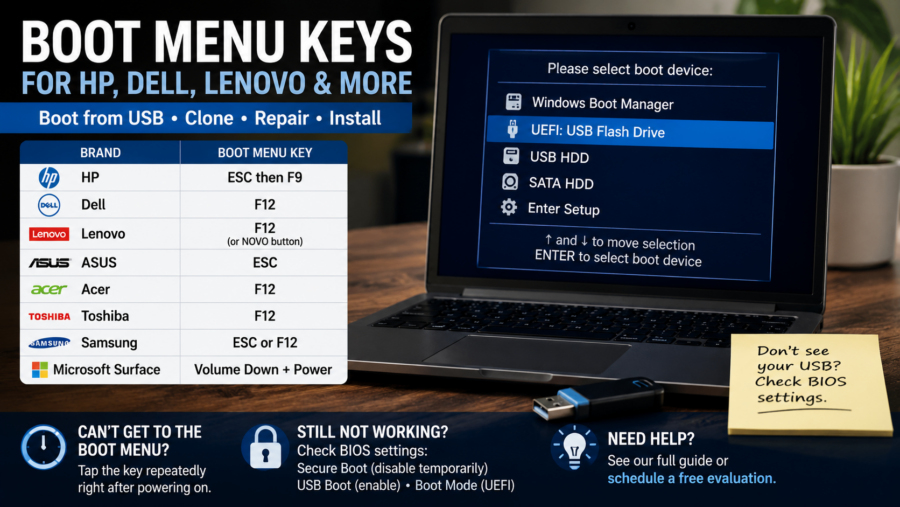
The correct key depends on the manufacturer and sometimes the exact model. This guide covers the most common boot menu keys, the timing that makes them work, and what to check when the USB drive does not appear.
Boot Menu and BIOS Setup Are Not the Same
One-Time Boot Menu
Choose a USB drive for the current startup only. The computer should return to its internal drive on the next restart. This is normally the best choice for cloning, recovery, diagnostics, or Windows installation media.
BIOS or UEFI Setup
Change firmware settings such as boot order, Secure Boot, virtualization, or hardware configuration. Enter setup only when the one-time menu is unavailable or a necessary option is disabled.
How to Open the Boot Menu
Prepare the USB
Create the bootable media with the software vendor’s tool and safely eject it. Insert it directly into the computer before powering on.
Shut Down Fully
Turn the computer off. If Windows Fast Startup interferes, hold Shift while selecting Shut down, or use Restart and begin tapping the key immediately.
Tap the Key
Press the power button and immediately tap the boot menu key about twice per second. Do not wait for the Windows logo.
Select the USB
Highlight the USB entry and press Enter. For a modern Windows 10 or 11 computer, normally choose the entry beginning with UEFI:.
Special Instructions for Microsoft Surface
- Shut the Surface down and insert the bootable USB.
- Press and hold the Volume Down button.
- While holding it, press and release the Power button.
- Continue holding Volume Down until the Surface or Microsoft logo appears and the startup process begins.
To enter Surface UEFI instead, use Volume Up + Power. Microsoft’s current instructions are available in its Surface USB boot guide.
Which USB Entry Should You Choose?
A USB drive may appear twice—once as a UEFI device and once as a legacy device. On nearly every computer designed for Windows 10 or Windows 11, select:
UEFI: [name of your USB drive]
Use a legacy or non-UEFI entry only when the media was intentionally created for an older legacy-BIOS computer. Mixing boot modes can cause an installer, rescue environment, or cloning tool to start incorrectly or fail to recognize the intended system configuration.
Read the screen carefully before continuing. Starting from a USB does not by itself erase the computer, but an installation, recovery, partitioning, or cloning tool can overwrite data after it opens.
Use Windows Advanced Startup When the Key Is Too Fast
If Windows still starts, you may be able to choose the USB without catching the startup key:
- Insert the bootable USB.
- Open Settings > System > Recovery.
- Next to Advanced startup, select Restart now.
- Select Use a device, and then select the USB or EFI USB device.
From the Windows sign-in screen, you can also hold Shift while choosing Power > Restart. Not every computer shows a Use a device option, and the USB must already be properly bootable.
If the Bootable USB Does Not Appear
Check the Media
Confirm that the USB was created as bootable media—not merely copied as an ISO file. Recreate it with the official Windows, recovery, cloning, or rescue-media tool if uncertain.
Try Another Port
Connect directly to the computer rather than through a hub or dock. On an older PC, a USB 2.0 port may work when a newer port does not initialize early enough.
Check Firmware Options
Look for USB Boot, External Device Boot, or—on some Acer systems—F12 Boot Menu. Preserve the existing settings unless you understand the effect of changing them.
Check Compatibility
Try another known-good USB drive and verify that the rescue media supports the computer’s UEFI architecture. A 64-bit UEFI PC generally needs compatible 64-bit boot media.
Do Not Disable Secure Boot Automatically
Current official Windows media and properly built modern rescue media should generally work with Secure Boot enabled. Disable it only when the software vendor specifically requires that change for the exact media you are using—and record the original setting so it can be restored afterward.
If the firmware is protected by a supervisor or administrator password, do not attempt to bypass it. The owner or organization that set the password must authorize and manage the change.
Common Questions
Will opening the boot menu erase my files?
No. Opening the menu and selecting a device does not erase data. However, the installer, cloning program, recovery tool, or partition utility that starts afterward may include destructive operations. Verify the source and destination before approving changes.
Why does the computer ignore the key and start Windows?
The key may have been pressed too late, Fast Startup may have shortened the startup window, or the laptop may require Fn with the function key. Shut down fully, insert the USB, and begin tapping immediately after pressing Power.
Why can the USB tool start but not see the internal SSD?
That is usually a storage-controller or driver issue, not a boot-menu problem. Some Intel VMD, RAID, or RST configurations require a compatible rescue-media driver or a carefully planned firmware change.
Should I permanently put USB first in the boot order?
Usually no. The one-time boot menu is safer and leaves the computer’s everyday startup order unchanged. A permanent boot-order change is useful only for a specific ongoing requirement.
Can I test a cloning or Windows USB safely?
You can confirm that it reaches its opening screen, then exit without starting an installation, recovery, partition, or clone operation. Never proceed past a warning or select a destination disk merely to test it.
Need Help Starting from USB?
If the boot menu is inaccessible, the USB is not recognized, or you are unsure which disk to select, stop before making changes. PCRuns can help Milwaukee-area computer users prepare bootable media, troubleshoot UEFI startup, clone a drive, or recover from a failed migration.














