
DATA RECOVERY & BACKUP GUIDE
Recovering Data from a Failing Hard Drive
A hard drive that clicks, freezes, disappears, or reports read errors may have only a limited amount of working time left. The safest response is not to repair the drive first—it is to protect the most important data while avoiding unnecessary reads, writes, restarts, and experiments.
This guide explains when a cautious do-it-yourself copy may be reasonable, when a sector-by-sector image is the better approach, and when the drive should be powered down for professional recovery.
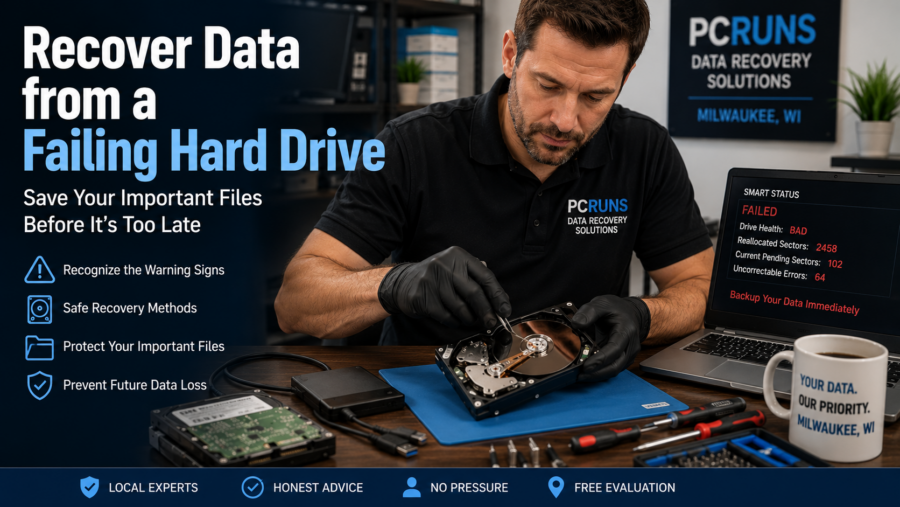
Turn It Off Immediately If the Drive Is Clicking or Grinding
Stop using the drive if you hear repeated clicking, grinding, scraping, or failed spin-up attempts—or if the drive was dropped, exposed to liquid, or is detected only intermittently. Continued power-on time can make a mechanical problem worse and reduce the chance of recovery.
Do not open the drive, strike it, freeze it, repeatedly reconnect it, or keep restarting the computer. A mechanically damaged hard drive generally requires specialized equipment and controlled conditions.
Signs a Hard Drive May Be Failing
Mechanical Warning Signs
- Repeated clicking, grinding, scraping, or beeping
- The drive spins up and then stops
- The computer or external drive was dropped
- The drive is unusually hot or smells burned
Unstable Reading
- Files take unusually long to open or copy
- Windows or File Explorer freezes when the drive is accessed
- The drive repeatedly disconnects and reconnects
- Copy operations slow to zero or report read errors
Windows and File-System Warnings
- “You need to format the disk before you can use it”
- “The file or directory is corrupted and unreadable”
- The drive appears as RAW, unallocated, or the wrong capacity
- Windows asks to scan and repair the drive
SMART Warnings
A SMART warning, rising reallocated-sector count, pending sectors, or uncorrectable errors can support a failure diagnosis. However, a “Good” SMART result does not prove that a drive is healthy. Symptoms and read behavior matter too.
Choose the Recovery Path Before Doing Anything Else
Stable and Fully Readable
If the drive makes no unusual sound, remains connected, and opens files normally, a limited copy of the most important files may be reasonable. Copy to a different physical drive and start with irreplaceable items.
Readable but Degrading
If the drive freezes, slows dramatically, disconnects, or reports bad sectors, ordinary file copying may repeatedly hammer damaged areas. A fault-tolerant sector image or clone is usually safer, but it is advanced work.
Mechanical, Intermittent, or Irreplaceable
If the drive clicks, was physically damaged, is inconsistently detected, or contains the only copy of critical data, shut it down. A professional recovery laboratory is the safer choice.
How to Make a Limited DIY Copy Attempt
Use this approach only when the drive is quiet, consistently detected, and reading normally enough to copy files. If the data is truly irreplaceable, skip the experiment and obtain a professional evaluation.
- Prepare a healthy destination. Use another physical drive with enough free space. Do not save recovered files back to the failing source.
- List your priorities. Begin with documents, financial records, photos, project files, and anything that exists nowhere else. Do not begin with replaceable software or Windows files.
- Copy small, important groups first. A single all-at-once copy can stall on one damaged area before the most valuable files are secured.
- Avoid using the source computer unnecessarily. Do not install recovery software, download updates, or create new files on the failing drive.
- Watch for deterioration. Stop if new clicking begins, the drive disappears, the transfer repeatedly freezes, or read errors rapidly increase.
- Verify the result. Open a sampling of recovered photos, documents, videos, and archives from the destination drive.
Do Not Run CHKDSK Before Capturing the Data
CHKDSK is a file-system checking and repair utility, not a first-response data-recovery tool. Microsoft documents that /f, /r, /x, and related options fix or change errors on the volume; /r also reads the disk looking for bad sectors. On failing hardware, that can mean long, stressful reading and changes to the only copy of the file system.
When the data matters, capture the files or make a sector-level image first. File-system repair can be attempted later on a copy—not on the only failing original. See Microsoft’s CHKDSK documentation.
When a Sector-by-Sector Image Is Better
A sector image attempts to capture the source drive onto a healthy equal-or-larger drive or into an image file. Fault-tolerant tools such as GNU ddrescue can skip difficult regions, preserve a map of completed work, and return to damaged areas later. Recovery software can then work from the copy instead of repeatedly scanning the failing original.
This is safer than an ordinary clone only when it is configured correctly. Selecting the source and destination backward can overwrite the original data. A severely degraded drive may also fail during imaging. For those reasons, sector imaging is best handled by someone experienced with failing media. The GNU ddrescue manual likewise recommends rescuing data as soon as trouble appears and repairing the copy rather than the original.
What Not to Do
Avoid Writes and Repairs
- Do not format or initialize the drive
- Do not install software onto it
- Do not run defragmentation or optimization
- Do not run repair utilities before making a copy
Avoid Repeated Experiments
- Do not scan the drive with several recovery programs
- Do not power-cycle it over and over
- Do not keep retrying a copy that repeatedly freezes
- Do not assume one successful restart means the drive is safe
Avoid Internet “Tricks”
- Do not put the drive in a freezer
- Do not tap, shake, or strike it
- Do not open the sealed drive enclosure
- Do not swap circuit boards without specialist knowledge
Special Situations
External Hard Drives
If an external drive is quiet and stable, one careful test with a known-good USB cable, port, and power supply can rule out a simple connection problem. Stop if the drive clicks, repeatedly disconnects, or behaves worse. See the external hard drive recovery guide for a fuller troubleshooting sequence.
BitLocker-Encrypted Drives
Preserve the BitLocker recovery key. A successful physical or logical recovery may still produce encrypted data that cannot be opened without the correct password or recovery key.
Solid-State Drives
SSDs do not click and fail differently from mechanical hard drives. Controller failure, encryption, TRIM, and damaged flash memory require a different recovery strategy. Use the SSD data recovery guide instead.
When to Use a Professional Recovery Laboratory
Choose a recovery laboratory when the drive has mechanical symptoms, suffered impact or liquid damage, is not consistently recognized, or contains the only copy of business, legal, financial, or deeply personal data. A lab can evaluate the media, stabilize physical components, use donor parts when appropriate, and image the drive with specialized hardware.
Ask for a written evaluation, estimated price range, confidentiality practices, and an explanation of charges if no useful data is recovered. Results cannot be guaranteed, and severe platter damage or overwritten data may be unrecoverable.
After the Files Are Recovered
- Verify important files from the recovery destination.
- Create a second copy before reorganizing or deleting anything.
- Replace the failing drive; do not return it to normal service.
- Set up an automatic backup with at least one additional copy separate from the computer.
- Store the old drive securely until you are certain the recovery is complete.
Frequently Asked Questions
Can I recover files from a clicking hard drive myself?
A clicking drive may have a mechanical problem. Power it down and seek a professional evaluation, especially if the files are valuable or irreplaceable. Repeated DIY attempts can worsen the damage.
Should I copy files or clone the whole failing drive?
For a quiet, stable drive and a small amount of important data, copying priority files first may be reasonable. If the drive has read errors or instability, a fault-tolerant sector image is usually preferable because recovery work can continue from the copy.
Will CHKDSK recover my files?
CHKDSK checks and repairs file-system structures. It is not designed to preserve the original state of a failing drive. Capture the data or image the disk first, then consider repairs on a copy.
Can SMART say “Good” when a hard drive is failing?
Yes. SMART is useful evidence, but it does not detect every developing failure. Clicking, freezing, disconnections, slow reads, and read errors should be taken seriously even without a SMART warning.
Can recovered files be saved back onto the same drive?
No. Save recovered files to a separate healthy physical drive. Writing to the failing source can overwrite recoverable data and place more stress on the hardware.
Related Data-Recovery Guides
Not Sure Whether the Drive Is Safe to Power On?
Describe the symptoms before trying more repairs or scans. PCRuns can help Milwaukee-area customers choose a cautious next step and determine whether the drive needs a professional recovery laboratory.














