
PCRuns Real-World Recovery Guide
How One Forgotten Sync Relationship Nearly Cost Me Years of Work
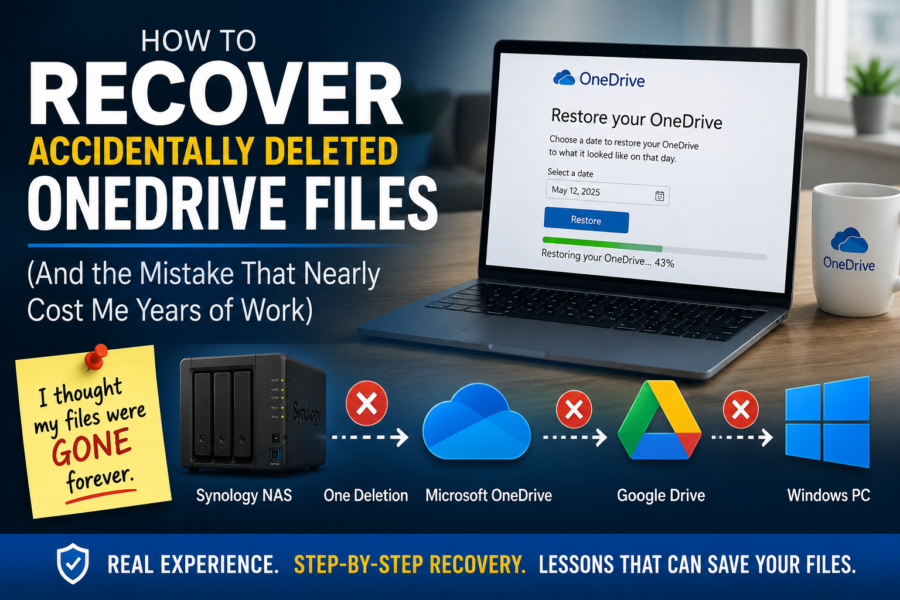
I deleted what appeared to be an old, unused OneDrive folder from my Synology NAS. Within minutes, files began disappearing from Microsoft OneDrive, Google Drive, and the active OneDrive folder on my Windows computer.
Years of website development, custom plugin programming, business records, research, and personal files seemed to vanish. Microsoft’s account-wide OneDrive restoration ultimately returned nearly everything—but the recovery took almost an entire day and taught me a lesson I will not forget:
Several synchronized copies are not the same thing as several independent backups.
If Files Are Disappearing Right Now
Do not begin reorganizing folders or reconnecting every device in search of another copy. First, contain the synchronization problem and determine which location still has a recoverable version.
- Stop deleting, moving, renaming, and editing files.
- Pause OneDrive synchronization on connected computers.
- Pause Google Drive, Dropbox, Synology Drive, Cloud Sync, or other related jobs.
- Disconnect or power down a NAS or secondary computer that may still be propagating changes.
- Sign in to OneDrive through a web browser. Do not rely only on File Explorer.
- Check the OneDrive Recycle Bin and recent activity before choosing a recovery method.
- Do not resume synchronization until the cloud contents are verified and an independent copy exists.
A few deleted files may be restored individually. When thousands of changes have spread through an account, an account-wide restore may be more practical. Microsoft currently provides Restore your OneDrive to Microsoft 365 subscribers for undoing file and folder actions within the previous 30 days.
How My Storage System Evolved
This incident was not caused by a defect in Synology, Microsoft OneDrive, or Google Drive. Each system acted on an old synchronization configuration that I had forgotten was still active.
The Original Arrangement
I synchronized my Windows documents with a Synology NAS and also used Microsoft OneDrive. The files existed in several locations, which felt like strong protection.
A Previous Data-Loss Event
Repeated power interruptions during utility work caused extensive data loss on the NAS. OneDrive helped me restore most of my documents, reinforcing my confidence in the cloud copy.
OneDrive Moved to My PC
I installed a dedicated 2 TB NVMe drive in my Windows computer and moved my active OneDrive folder there. The Synology folder no longer appeared to be part of my daily workflow.
The Forgotten Relationship
More than a year later, I found the old OneDrive folder while freeing NAS storage. I believed it was only an obsolete copy, but its synchronization relationship remained active.
The Deletion That Spread Everywhere
I deleted the old folder from the Synology. The software did not know that I considered it an abandoned copy. It saw thousands of intentional deletions and began making the connected locations consistent.
Synology NAS
The folder and its contents were removed from the location where I initiated the deletion.
Microsoft OneDrive
The active synchronization relationship carried those deletions into the cloud account.
Google Drive
Connected synchronization reflected the changing folder contents into another cloud service.
Windows Computer
OneDrive then synchronized the cloud state back to the active folder on my PC.
From my perspective, every “backup” was disappearing. In reality, I had several connected copies following the same instructions. The systems were working as configured; my understanding of their independence was wrong.
Synchronization and Backup Answer Different Questions
Synchronization
“How do I keep my current files the same everywhere?”
- Copies new files across connected locations.
- Propagates edits and folder moves.
- May also propagate accidental deletion or corruption.
- Is excellent for access and collaboration.
Independent Backup
“How do I return to an earlier state when something goes wrong?”
- Preserves recoverable historical versions.
- Provides another copy outside the live sync relationship.
- Can protect against mistakes, device failure, and malware.
- Must be monitored and tested by restoring files.
Both are valuable. The danger comes from mistaking several linked synchronized folders for several isolated recovery points.
How I Contained the Damage
Once I realized that the deletions were connected, I stopped treating each missing folder as a separate problem.
- I stopped making additional file changes.
- I paused the cloud synchronization programs.
- I shut down the Synology NAS so it could not continue participating.
- I signed in to OneDrive on the web to see the cloud account directly.
- I checked the OneDrive and Google Drive recycle bins.
The recycle bins contained some material, but restoring thousands of changes one item at a time was not a workable solution. I needed to return the entire OneDrive account to a point before the deletion.
How “Restore Your OneDrive” Recovered Nearly Everything
Microsoft’s Restore your OneDrive feature lets Microsoft 365 subscribers return OneDrive files and folders to an earlier state by reversing selected account activity from within the previous 30 days.
I Worked from the Cloud
With synchronization paused, I signed in to OneDrive through a browser and opened the account-wide restoration option.
I Chose an Earlier Point
The destructive activity appeared to have begun around nine days earlier. I chose a point approximately three weeks back so it was safely before the problem.
I Let the Restore Continue
The restore took almost an entire day. Its percentage stayed near 43% for more than an hour and then advanced only about one point during the following hour and a half.
I Verified Before Reconnecting
After the cloud files returned, I reviewed the Recycle Bin for newer items and confirmed the important folders before considering any synchronization restart.
What the Slow Progress Taught Me
The progress indicator appeared frozen, but documents continued reappearing in OneDrive online. That distinction mattered: the percentage was moving poorly, yet the recovery itself was still producing results.
During the early part of my experience, the web interface periodically timed out while preparing and displaying the affected activity. I stayed awake for much of the night checking it. After the restore passed roughly 60%, it became more stable.
This behavior describes my particular recovery, not a promise of how every OneDrive restore will behave. Microsoft can change its interface and processing. If an account displays a specific failure, preserve the information on screen and consult Microsoft Support. If files are still returning and no failure is reported, a slowly changing percentage alone does not prove that the process has failed.
What Happened to Newer Files?
Returning an account to an earlier point can reverse legitimate changes made after that point. In my recovery, newer files were moved into the OneDrive Recycle Bin rather than simply disappearing.
After confirming that the older folder structure and documents had returned, I carefully reviewed the Recycle Bin and restored the newer work I still needed. This is one reason to verify both the restored account and its Recycle Bin before reconnecting other devices.
For a small number of deleted items, start with Microsoft’s instructions for restoring deleted OneDrive files and folders. An account-wide rollback is a broader tool and should not be the first choice for one missing document.
Do Not Reconnect Everything Immediately
A successful cloud restore does not automatically correct every old synchronization job. Reconnecting a NAS, secondary computer, or cloud bridge too early could reintroduce unwanted changes.
- Verify essential folders and sample files in OneDrive online.
- Review the OneDrive Recycle Bin for newer work.
- Create an independent copy of the recovered data when possible.
- Review every active sync job, including its exact source, destination, direction, and deletion behavior.
- Remove or correct the obsolete relationship before reconnecting that system.
- Resume one connection at a time and watch for unexpected activity.
What I Do Differently Now
Document Every Sync Relationship
Keep a simple inventory of OneDrive, Google Drive, Synology Drive, Cloud Sync, Dropbox, and other jobs—including both endpoints and the synchronization direction.
Verify Before Deleting Old Folders
An unused-looking folder may still be connected. Disable the related job and confirm the active copies before permanently removing a large former cloud or NAS folder.
Keep Versioned Backups
Snapshots and historical versions use storage space, but they provide something live synchronization does not: a state from before the mistake.
Maintain an Offline Copy
Periodically create another backup that is disconnected or otherwise protected after completion so a live sync error or malware cannot immediately modify it.
My goal is now threefold: convenient synchronization for daily work, independent versioned backups for recovery, and an additional offline or isolated copy for serious failures.
Frequently Asked Questions
Can accidentally deleted OneDrive files be recovered?
Often, but not always. Depending on the account, timing, and type of change, possible options include the OneDrive Recycle Bin, file version history, and an account-wide OneDrive restore. Stop unwanted synchronization and inspect the cloud account promptly.
When should I use Restore your OneDrive?
It may be appropriate when a large number of files were deleted, corrupted, or changed and individual restoration is impractical. For one or several files, the Recycle Bin or version history is more targeted. Confirm that the feature is available for your account and review Microsoft’s current instructions before proceeding.
How do I choose a restore point?
Choose a point safely before the destructive deletion, ransomware event, or synchronization problem began. Going farther back may recover the desired state but can also reverse more legitimate changes, which must then be reviewed and restored where possible.
Should I cancel if the percentage looks stuck?
Not solely because the percentage pauses. In my case, files continued returning even while the indicator barely changed. Check for returning files and explicit errors. If Microsoft reports a failure or the status is unclear for an extended period, contact Microsoft Support before repeatedly restarting the process.
Did Synology, OneDrive, or Google Drive malfunction?
No. In my case, an old synchronization relationship remained active. The programs treated the folder deletion as an intentional change and propagated it according to their configuration.
Can the same type of problem happen with other cloud services?
Yes. Exact behavior and recovery tools differ, but synchronization services generally attempt to keep connected locations consistent. An accidental deletion can spread when multiple computers, drives, NAS folders, or cloud services participate in active jobs.
What is the most important lesson?
Synchronization keeps current locations consistent; backup preserves a recoverable earlier state. Use both, understand every connection, and test whether your backups can actually restore important files.
Continue with the Recovery Guides
Ordinary OneDrive Recovery
For a missing file, overwritten document, or smaller deletion, use the focused step-by-step OneDrive guide.
Complete Recovery & Backup Hub
Choose the correct guide for a non-starting computer, failing drive, SSD, external drive, USB drive, or memory card.
Need Help Evaluating a Data-Loss Problem?
If files are disappearing, stop synchronization and avoid making additional changes until the cause is understood. PCRuns can help Milwaukee-area computer users evaluate the device, identify practical recovery options, and decide whether DIY recovery or professional assistance makes sense.














