
DATA RECOVERY & BACKUP GUIDE
Recovering Files from External Hard Drives
An external drive that disappears, refuses to open, or asks to be formatted does not necessarily mean the files are gone. The problem could be a USB cable, power supply, enclosure, file system, or the storage drive itself.
This guide begins with the least disruptive checks and explains when to stop. The goal is to recover the data without overwriting it or turning a manageable problem into permanent loss.
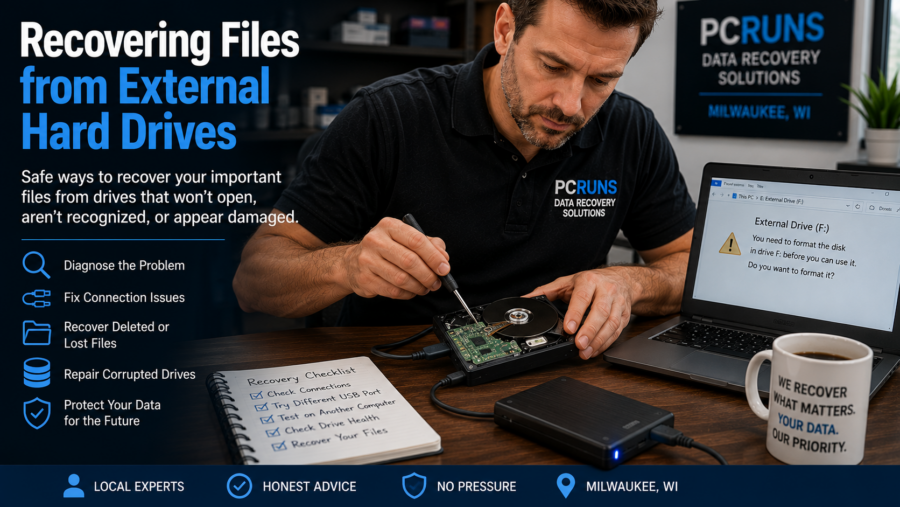
First Rule: Do Not Format or Initialize the Drive
If Windows says the drive must be formatted, choose Cancel. Do not initialize it, create a new volume, run CHKDSK, or save anything onto it. Those actions can change information that recovery software may need.
Power the drive off immediately if it clicks, grinds, repeatedly spins up and stops, smells burned, suffered a drop or spill, or continually disconnects. Irreplaceable data deserves an evaluation before further testing.
Why External Hard Drives Stop Working
Connection or Power
- Damaged or loose USB cable
- Weak USB port or unpowered hub
- Failed external power adapter
- Broken USB connector
Enclosure or Adapter
- Failed USB-to-SATA bridge board
- Damaged enclosure electronics
- Heat or power-surge damage
- Hardware encryption tied to the enclosure
Logical Damage
- Accidental deletion or quick formatting
- Corrupted file system or partition
- Unsafe disconnection during a write
- Malware or ransomware
Physical Drive Failure
- Bad sectors and unstable reading
- Mechanical wear or head failure
- Drop, impact, liquid, or fire damage
- Failed controller, motor, or electronics
Safe First Checks
Try these only if the drive is quiet, has not been physically damaged, and remains stable while connected.
Stop Writing to It
Do not add, move, rename, or delete files. Check whether another copy exists in cloud storage, a NAS, another drive, email, or an older computer.
Test One Known-Good Cable
Connect directly to another USB port, avoiding an unpowered hub. If the drive has its own power adapter, confirm that it is correct and working.
Try One Other Computer
This can distinguish a computer or driver problem from a drive problem. Do not allow the second computer to format, initialize, scan, or repair it.
Copy Important Files First
If it opens normally, copy—not move—the irreplaceable files to another physical drive. Verify the copies before doing repairs or health tests.
When the Drive Is Missing from File Explorer
Windows Disk Management may show a connected drive even when File Explorer does not. Compare its capacity carefully and look for a missing drive letter, an offline disk, a RAW partition, unallocated space, or a device that appears and disappears.
Do not click Initialize, Format, or New Simple Volume. If the file system looks healthy and the only issue is a missing drive letter, assigning one may restore access. Do not make that change when the device is unstable, reports errors, or contains the only copy of important files.
A drive reporting zero capacity, the wrong size, or “No Media” may have an enclosure, electronics, firmware, or internal-drive problem. Repeated reconnection rarely corrects those failures.
When Windows Asks to Format the Drive
The message means Windows cannot understand the current file system. It can result from corruption, partition damage, bad sectors, an unstable connection, or a file system created by another operating system. It does not prove the files are gone.
Choose Cancel. Confirm the cable and connection once, check whether the correct capacity is detected, and then decide whether the drive should be imaged before recovery.
Recovering Accidentally Deleted Files
Deleted files may remain recoverable until new data overwrites their storage space. Stop using the external drive immediately.
- Check the Windows Recycle Bin first.
- Install recovery software on the computer’s healthy internal drive—not the affected external drive.
- Scan the external drive without writing changes to it.
- Preview files when the program supports it.
- Recover selected files to a different healthy drive.
- Open a representative selection to verify the results.
With severe file-system damage, software may recover file contents by recognizing their internal signatures. Original filenames, dates, and folder organization may not survive.
Corruption, Read Errors, and Very Slow Drives
Folders that appear empty, strange filenames, CRC errors, RAW partitions, frozen copy operations, and extreme slowness can indicate corruption or failing media. When the drive can still read reliably, copy irreplaceable documents, photographs, personal videos, business records, and active projects before replaceable downloads or software.
Do not begin with one enormous drag-and-drop operation. One unreadable file can stall the transfer. Smaller priority groups are easier to monitor and may protect the most valuable files before the drive deteriorates.
When to Clone or Image the Drive
A recovery image captures readable sectors onto a healthy equal-or-larger destination. It preserves the current state, reduces repeated scanning of the original, and lets recovery software work from the copy.
A normal backup or consumer clone is not the same as a fault-tolerant recovery image. If the device has bad sectors, freezes, or repeatedly retries damaged areas, specialized imaging tools and experience are preferable. Selecting the source and destination incorrectly can destroy the original data.
Do not attempt a long home imaging session when the drive clicks, grinds, stops spinning, was dropped, or continually disconnects. See Recovering Data from a Failing Hard Drive for the full stop-versus-copy decision.
Is It the Enclosure or the Internal Drive?
Many external products contain a conventional SATA hard drive inside a USB enclosure. A failed cable, power supply, or USB bridge can make a healthy internal drive appear dead, and testing it through a compatible adapter may restore access.
However, some models have a USB connector integrated into the drive or use encryption performed by the original bridge board. Removing the drive or discarding the original electronics can complicate recovery. Opening the plastic outer enclosure is also entirely different from opening the sealed metal hard drive. Never open the sealed drive itself.
Physical Damage and Professional Recovery
Power the device down if it clicks, knocks, scrapes, fails to spin normally, smells burned, was dropped, or suffered liquid or fire exposure. A professional recovery laboratory may stabilize electronics or mechanical components and use specialized imaging hardware to obtain the best possible copy.
Ask for a written evaluation, estimated price range, confidentiality practices, and an explanation of charges if no useful data is recovered. Laboratory recovery commonly costs hundreds of dollars and may exceed one thousand for serious physical damage, so the value and uniqueness of the files should guide the decision.
Encryption and Privacy
External drives may use BitLocker, manufacturer password protection, or hardware encryption tied to the original enclosure. Preserve the password, recovery key, original cable, enclosure, and electronics. Physically recovering the bytes does not bypass sound encryption.
Before leaving a drive for service, ask who will handle it, whether it will be sent elsewhere, where recovered files will be stored, how temporary copies are secured and deleted, and whether outside costs require approval.
After Recovery
- Open representative files from the recovery destination.
- Create a second copy before reorganizing or deleting anything.
- Replace a drive with bad sectors, instability, physical damage, or recurring errors.
- Do not trust an unreliable drive with the only backup.
- Use a 3-2-1 approach: three copies, two storage types, and one separate or off-site copy.
- Test backups by restoring and opening files—not merely by reading a “successful” status.
Frequently Asked Questions
Can files be recovered when an external hard drive is not recognized?
Sometimes. The failure may be the cable, USB port, power supply, enclosure, file system, electronics, or internal drive. Stop early and avoid formatting, initializing, or repeatedly scanning it.
Should I format the external drive when Windows asks?
No—not when you need its existing files. Choose Cancel. Formatting prepares the device for use; it is not a recovery step.
Can another USB cable solve the problem?
Yes. A known-good cable, direct USB port, and correct power supply are sensible low-risk checks when the drive is quiet and physically undamaged. If it opens, copy important files immediately.
Should I run CHKDSK on a damaged external drive?
Not before protecting the data. CHKDSK repair modes change file-system information, while a surface scan can impose extensive reading. Copy or image the drive first when the data matters.
Can I remove the drive from its enclosure?
Sometimes, but not every external drive uses a standard SATA connection. The original bridge board may provide essential encryption or translation. Obtain an evaluation first when the files are valuable.
Can I keep using the drive after recovery?
Only when the problem is conclusively limited to a replaceable cable or enclosure and the internal drive tests healthy. Replace a drive with bad sectors, repeated errors, disconnects, or physical damage.
Related Data-Recovery Guides
Not Sure Why the External Drive Stopped Working?
PCRuns can help Milwaukee-area customers determine whether the likely problem is the cable, power supply, enclosure, file system, or drive itself—and explain whether local recovery or a specialized laboratory makes sense.














