
PCRuns Knowledge Center
Protect Your Files—and Know What to Do When Something Goes Wrong
Lost family photographs, business records, schoolwork, and years of personal files can feel irreplaceable. Fortunately, a missing file does not always mean a permanently lost file. The choices you make during the first few minutes can greatly affect what can still be recovered.
This guide helps you identify the type of data-loss problem, avoid actions that could make it worse, choose the appropriate recovery guide, and build a backup system that is genuinely independent of your working files.
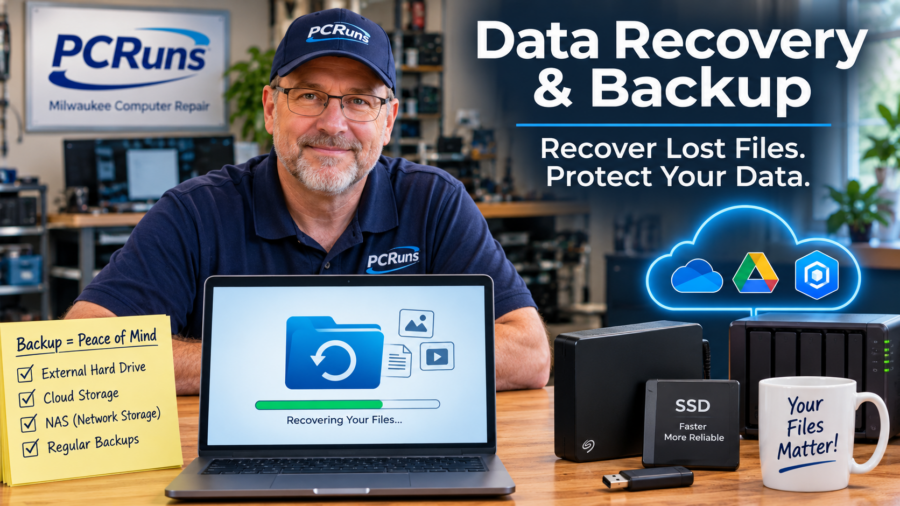
Files Missing? Stop Before Experimenting
When important files disappear, begin with the least disruptive checks. Look in recycle bins, cloud storage, backups, and other devices before installing recovery software, initializing a disk, formatting anything, or making major system changes.
- Stop using the affected drive when files were deleted or the storage device is behaving abnormally.
- Pause synchronization if OneDrive, Google Drive, a NAS, or another connected device is copying unwanted deletions.
- Power off a clicking, grinding, or repeatedly disconnecting hard drive. Repeated attempts can worsen physical damage.
- Do not initialize or format an unreadable drive when you still need its files.
- Do not install recovery software on the affected drive or save recovered files back onto it.
If the files are irreplaceable and no other copy exists, stopping early may preserve recovery options that trial-and-error attempts could eliminate.
Start by Identifying the Situation
A File Was Deleted
Check the Windows Recycle Bin, OneDrive Recycle Bin, cloud trash, version history, and backups first. Avoid creating or downloading new files onto the affected storage device.
Windows Will Not Start
Your files may still be intact even when Windows is damaged. Recovery may be possible through a repair environment, another computer, or a compatible external enclosure.
A Drive Is Failing
Unusual sounds, disappearing drives, severe slowness, read errors, or repeated disconnections require caution. Copying the most important files—or making a controlled clone—may take priority over ordinary repairs.
External Media Will Not Open
The cause could be the cable, USB port, enclosure, card reader, file system, or storage device. Diagnose the connection before assuming the data itself is gone.
Choose the Guide That Matches Your Problem
Each guide below focuses on a different recovery situation. Use the one that most closely matches where the files were stored and what happened immediately before they disappeared.
OneDrive Sync Disaster: A Real Case Study
Follow John’s firsthand recovery after an old Synology synchronization relationship propagated deletions through OneDrive, Google Drive, and Windows.
Everyday OneDrive File Recovery
Restore individual deleted, overwritten, missing, or ransomware-affected OneDrive files using recycle bins, version history, and Microsoft recovery options.
Computer Will Not Start
Learn safer ways to retrieve files when Windows fails to load but the internal storage device may still be readable.
Failing Hard Drive
Recognize mechanical-drive warning signs and decide when limited copying, controlled cloning, or professional laboratory recovery is the safest response.
External Hard Drive
Separate cable, port, enclosure, Windows, file-system, and drive problems before attempting recovery.
SSD File Recovery
Understand why deleted-file recovery can be less predictable on solid-state storage and what actions may preserve the remaining possibilities.
USB Drive or Memory Card
Respond to deleted files, formatting prompts, unreadable removable media, and physical connection problems without immediately overwriting the device.
Recovery, Repair, or Replacement?
Recovery May Be Simple
- The file remains in a recycle bin.
- A cloud version or independent backup exists.
- The storage device is healthy and only Windows has failed.
- A cable, port, reader, or external enclosure is defective.
Repair May Make Sense
- The computer is otherwise dependable.
- The internal drive can be replaced after the data is protected.
- The repair cost is reasonable compared with replacement.
- The system still meets the owner’s everyday needs.
Replacement May Be Wiser
- The computer has several expensive problems.
- It cannot run currently supported software securely.
- Repair approaches the cost of a dependable replacement.
- The files can be recovered separately or already exist elsewhere.
The condition of the computer and the importance of its data are separate questions. You may decide not to repair an old computer while still recovering its files to another device.
Synchronization Is Useful—but It Is Not an Independent Backup
Synchronization keeps the current contents of multiple locations consistent. That is convenient when working across devices, but it can also copy an accidental deletion, unwanted edit, corruption, or ransomware-encrypted file to every connected location.
Synchronization
Keeps current files available across connected devices and services. Changes—including deletions—may propagate automatically.
Backup
Preserves a separate recoverable copy, ideally with version history or snapshots that ordinary synchronization cannot immediately alter.
Cloud recycle bins and version history provide valuable recovery options, but important files should also have an independent backup under your control.
Build a Practical 3-2-1 Backup System
Three Copies
Keep the working copy plus at least two additional copies of anything you cannot easily replace.
Two Storage Types
Use different storage systems—for example, the computer plus an external drive or network-attached storage device.
One Separate Copy
Keep one protected copy off-site or logically separated so theft, electrical damage, malware, or synchronized deletion cannot reach everything at once.
A realistic home or small-business plan might use the computer for active files, an external drive or NAS for versioned local backups, and protected cloud storage for an off-site copy. Disconnect or otherwise protect backup media when it is not actively backing up.
Most importantly, test restoration. A backup report saying “successful” is not enough unless you can retrieve the files you actually need.
When Professional Recovery Becomes Important
DIY recovery can be reasonable when the storage device is healthy and the problem is clearly accidental deletion, Windows failure, or a replaceable connection. Stop and seek experienced help when:
- A hard drive clicks, grinds, scrapes, or repeatedly spins up and down.
- The device was dropped, crushed, burned, or exposed to liquid.
- The storage device disappears or disconnects during copying.
- The files are irreplaceable and there is no verified second copy.
- Recovery software cannot read the device consistently.
- Encryption, ransomware, or an unknown firmware password complicates access.
Software-based recovery and basic file transfer may be relatively straightforward. Clean-room or specialist laboratory recovery can cost much more because it may require donor parts, controlled hardware work, specialized imaging equipment, and extensive technician time. A proper evaluation should distinguish those situations before expensive work is recommended.
Related PCRuns Help
Data Recovery & Backup Services
Get an evaluation of the device, likely cause, recovery possibilities, and sensible next steps before authorizing paid work.
Diagnostics & System Recovery
Determine whether missing files are related to Windows, a failing drive, malware, damaged hardware, or another underlying problem.
Hard Drive Cloning Guide
Learn when cloning can help preserve a working installation or move a computer safely to a replacement SSD or NVMe drive.
Frequently Asked Questions
Can deleted files always be recovered?
No. Recovery depends on the storage technology, how the file was deleted, whether its space was reused, the device’s physical condition, encryption, and whether another copy or earlier version exists. Acting quickly can improve the odds but cannot guarantee success.
Should I format a drive Windows cannot open?
Not when you need the existing files. Formatting prepares storage for new use and writes new file-system information. Cancel the prompt and diagnose why the device is unreadable first.
Is OneDrive a complete backup?
OneDrive provides synchronization plus valuable recovery features such as recycle bins and version history, but synchronized deletion can affect connected locations. Keep another independent, tested backup for important data.
Can files be recovered when Windows will not start?
Often, yes. A Windows startup failure does not necessarily mean the storage device or its files have failed. The drive may be readable through recovery media, another compatible computer, or an external enclosure.
Why is SSD recovery different from hard-drive recovery?
SSDs manage deleted storage internally and may clear unused blocks through TRIM and garbage collection. This can reduce the time and opportunity available for undeleting files, even when the SSD is otherwise healthy.
How often should I test my backups?
Check backup status regularly and restore a small selection of files several times each year. Frequently changing or business-critical data may justify more frequent testing and monitoring.
Not Sure Which Recovery Path Is Safe?
PCRuns provides Milwaukee-area homeowners and small businesses with a practical evaluation and an honest explanation of the available options. No paid recovery, repair, or replacement work is completed without discussing the expected cost first.














