
PCRuns OneDrive Recovery Guide
Restore Missing OneDrive Files with the Smallest Safe Change
OneDrive provides several recovery paths for deleted, overwritten, corrupted, or missing files. The right method depends on whether one document is affected, an entire folder disappeared, or many files changed at approximately the same time.
Begin with the least disruptive option: confirm the account, search online, check the Recycle Bin, and use version history before considering an account-wide rollback.
First: Stop Unwanted Changes from Spreading
- Pause OneDrive if files are actively disappearing, changing, or duplicating.
- Pause other connected services such as Google Drive, Dropbox, or NAS synchronization.
- Do not empty the OneDrive or Windows Recycle Bin.
- Do not reorganize large folders while determining what happened.
- Protect irreplaceable surviving files on separate storage before attempting a broad restore.
Use OneDrive through a web browser to see the cloud account directly. File Explorer may show a delayed, incomplete, or account-specific view.
Why OneDrive Files Seem to Disappear
Deletion or Folder Move
A deletion or move made on one synchronized device may be copied to the cloud and other connected computers.
Wrong Microsoft Account
Personal, work, and school accounts can create separate OneDrive folders. Confirm the email address before assuming data is lost.
Overwrite or Corruption
The file may still exist but contain an unwanted edit, damaged content, or a ransomware-encrypted version.
Sync or Storage Problem
Insufficient cloud space, an error, Files On-Demand, or an interrupted account connection may prevent files from appearing where expected.
The OneDrive Recovery Ladder
Confirm and Search
Sign in at OneDrive.com, verify the account email, search by filename, and inspect the expected folder and Recent view.
Check Recycle Bins
Check OneDrive’s online Recycle Bin. Also check the Windows Recycle Bin for locally deleted files that were available on the device.
Use Version History
For an overwritten, damaged, or encrypted file, restore or download an earlier version without changing the rest of the account.
Consider Account Restore
When many files changed together, eligible Microsoft 365 subscribers can reverse OneDrive activity from within the previous 30 days.
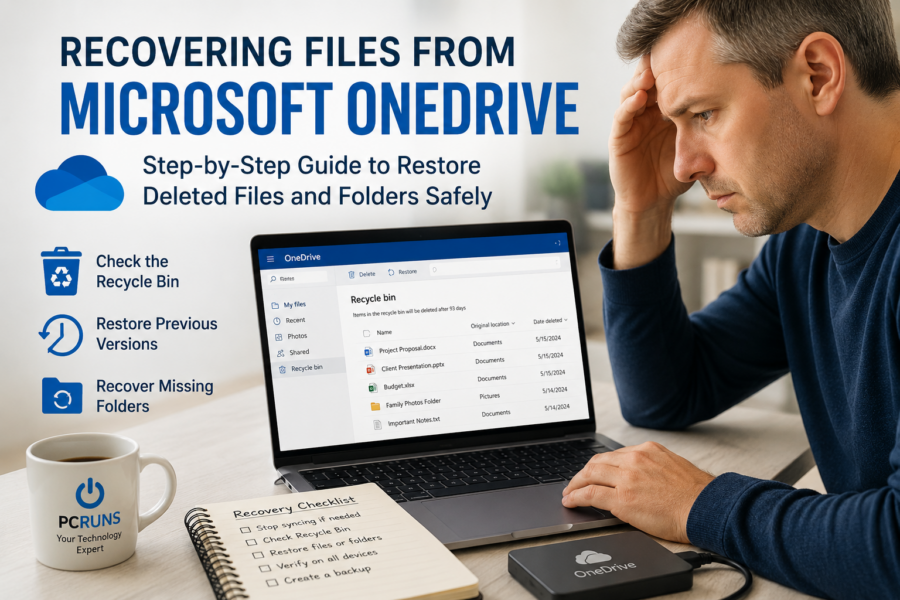
Restore Files from the OneDrive Recycle Bin
- Sign in to the correct account at OneDrive on the web.
- Select Recycle bin in the navigation pane.
- Select the missing files or folders.
- Choose Restore.
- Verify that the items returned to the intended folders before resuming every connected device.
Microsoft currently says items in a personal OneDrive Recycle Bin are automatically deleted after 30 days. Work or school accounts generally retain them for 93 days unless the administrator changes the setting. Online-only files deleted from the cloud may not appear in the computer’s local Recycle Bin.
Restore an Earlier Version of One File
Version history is the better choice when the file exists but was overwritten, corrupted, or encrypted.
- Find the file in OneDrive on the web.
- Open its options menu or right-click it.
- Select Version history.
- Review the available dates and times.
- Open or download a version first when you want to inspect it, then restore the correct version.
Restoring one file is less disruptive than rolling back the entire account. Preserve the current version separately if it contains any work you may need.
Restore the Entire OneDrive Only for Broad Problems
Microsoft’s Restore your OneDrive feature lets Microsoft 365 subscribers undo file and folder actions from within the preceding 30 days. It may help after mass deletion, ransomware, corruption, or a damaging synchronization event.
- Identify when the unwanted activity began.
- Protect legitimate newer files that do not exist elsewhere.
- Keep affected synchronization clients paused.
- In OneDrive online, open Settings and locate Restore your OneDrive.
- Choose a point before the first unwanted activity and review what will be reversed.
- Allow the operation to complete and verify folders online.
- Review the Recycle Bin for files created after the selected restore point.
- Resume synchronization on one computer first and monitor the result.
Microsoft states that files and folders created after the chosen restore point are sent to the OneDrive Recycle Bin. Permanently deleted Recycle Bin items cannot be recovered through this feature.
If Ransomware Changed the Files
- Disconnect the infected computer from the internet and local network.
- Do not reconnect it to OneDrive or other shared storage.
- Use a clean device to inspect OneDrive activity and versions.
- Recover cloud files only after identifying the time of the attack.
- Clean, reset, or otherwise make the infected computer safe before synchronization resumes.
File restoration and malware removal are separate tasks. Restoring documents does not remove the infection that damaged them.
If the Files Are Missing Only on the Computer
- Compare OneDrive online with the local OneDrive folder.
- Confirm that Windows is signed in to the expected Microsoft account.
- Look for a second OneDrive folder created during an account or location change.
- Check whether Files On-Demand shows an online-only copy.
- Read the OneDrive status icon and error message.
- Confirm adequate OneDrive storage and a stable internet connection.
Pause/resume, restarting OneDrive, or restarting Windows are reasonable low-risk checks. Do not begin by resetting, unlinking, or relocating OneDrive when important files are unverified; those actions can create duplicate folders and make the situation harder to understand.
Look Beyond OneDrive When Necessary
Other Copies
Check Windows File History, external drives, NAS snapshots, email attachments, shared copies, and a computer that has not synchronized recently.
Local Deleted-File Recovery
If no cloud copy remains, stop writing to the affected drive. Installing recovery software on that same drive can overwrite recoverable data.
Drive Problems
Severe slowness, read errors, repeated disconnections, or unusual mechanical sounds indicate a storage problem rather than an ordinary OneDrive issue.
OneDrive Synchronization Is Not a Complete Backup
Synchronization keeps current files consistent and accessible, but it may also copy deletions and damage. Keep independent, versioned storage using a practical 3-2-1 approach: three copies, two storage types, and one protected or off-site copy. Test small restores several times a year.
Frequently Asked Questions
How long does OneDrive retain deleted files?
Microsoft currently states 30 days for personal accounts and generally 93 days for work or school accounts unless the organization’s administrator changes that setting. Check immediately rather than relying on the full period.
Can permanently deleted OneDrive files be recovered?
Microsoft states that an item permanently deleted from the OneDrive Recycle Bin cannot be recovered through its restore feature. Another computer, independent backup, NAS snapshot, email copy, or local recovery may still contain the file.
Should I unlink or reset OneDrive first?
No. First compare cloud and local contents, verify the account, pause unwanted activity, and protect surviving files. Reset or unlink only after understanding the problem.
Will an account-wide restore affect newer files?
Yes. It reverses activity after the selected point, and Microsoft says files created afterward are moved to the OneDrive Recycle Bin. Protect recent work and review the bin afterward.
What if thousands of files disappeared through synchronization?
Keep all related synchronization paused and read PCRuns’ real-world synchronized-deletion case study before reconnecting devices.
Related Recovery Guides
Real OneDrive Sync-Deletion Case
See how an old Synology relationship spread deletions and how an account-wide restore recovered nearly everything.
Computer Will Not Start
Recover local files when Windows cannot load but the internal storage may still be readable.
All Recovery & Backup Guides
Choose guidance for hard drives, SSDs, external drives, USB drives, and memory cards.
Need Help Recovering OneDrive Files?
If several systems are involved, the files are irreplaceable, or you are unsure what a broad restore will change, stop before experimenting. PCRuns can help Milwaukee-area users identify the safest practical recovery path.














