
AOMEI Drive Cloning Guide
Move Windows to a New SSD or NVMe Drive Without Starting Over
This step-by-step guide explains how to use AOMEI Partition Assistant to copy a working Windows installation—including its required system partitions, programs, settings, and files—to a compatible replacement drive.
You can use this method to replace a mechanical hard drive with a faster SSD, move Windows to an NVMe drive, or transfer a healthy installation to a larger drive. Read through the complete procedure before beginning because the exact menu labels can vary by AOMEI edition and version.
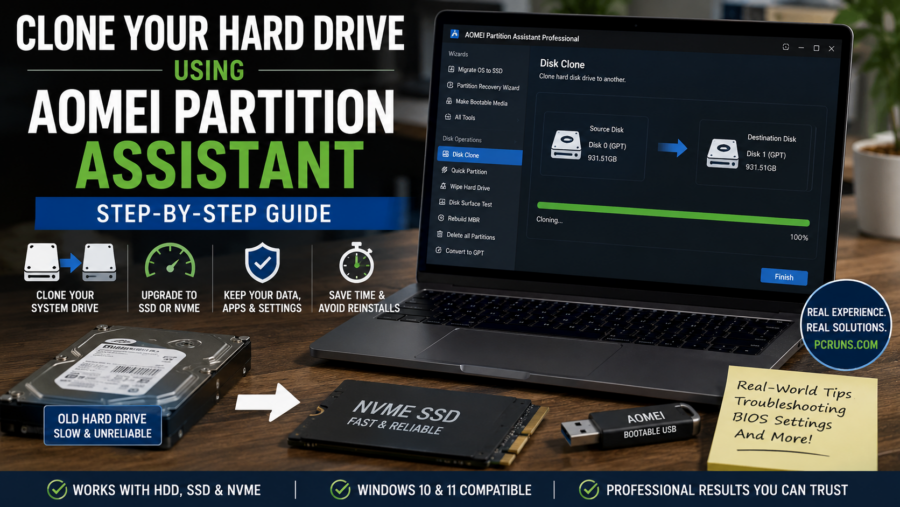
The Most Important Rule
The source is the old drive you are copying from. The destination is the new drive that AOMEI will overwrite. Confirm both by model and capacity before starting. Do not rely on drive letters alone because they can change outside Windows.
Keep the original drive unchanged until the replacement starts successfully and you have verified Windows, your programs, and your files.
Is AOMEI Cloning Appropriate for This Computer?
Good Candidate
Windows is stable, the source drive reads normally, and the goal is a compatible storage upgrade while retaining programs and settings.
Evaluate First
The computer freezes, reports disk errors, loses access to the drive, makes unusual noises, or contains files that cannot be replaced.
Consider a Clean Installation
Windows is badly corrupted, infected, heavily cluttered, or no longer an appropriate supported installation for the computer.
Confirm Compatibility
The replacement must match a supported connection and form factor. SATA, M.2 SATA, and M.2 NVMe drives are not automatically interchangeable.
If the source drive is failing, stop and review how to approach a failing hard drive before attempting an ordinary clone.
What You Will Need
- A compatible destination drive: A SATA SSD, NVMe SSD, or hard drive supported by the computer.
- A connection method: An available internal slot, USB-to-SATA adapter, or suitable NVMe enclosure.
- AOMEI Partition Assistant: Check the current edition comparison because cloning and bootable-media features can change by version and license.
- Optional bootable media: A blank USB flash drive if you intend to run AOMEI outside the installed Windows environment.
- Reliable power: Connect a laptop charger and avoid interrupting the computer or disconnecting either drive during the operation.
- Recovery information: Save the BitLocker or device-encryption recovery key before changing storage or startup configuration.
- A separate file backup: A clone is a migration method, not a substitute for an independent backup.
Before Cloning: Complete These Checks
- Check the source drive. Investigate warnings, slow reads, bad-sector reports, repeated freezes, or disappearing storage before placing the drive under a sustained cloning workload.
- Back up important files. Preserve photographs, documents, accounting data, browser information, and anything else that would be difficult to replace.
- Confirm used space. When cloning to a smaller drive, the required partitions and actual used data must fit within its usable capacity.
- Identify encryption. Save the recovery key and follow the applicable BitLocker or device-encryption procedure before making boot or storage changes.
- Confirm the boot configuration. Note whether the system uses UEFI or Legacy/CSM mode and whether the source drive uses GPT or MBR.
- Inspect the destination. Make certain it contains nothing you need. The cloning process will replace its existing layout and data.
- Close unnecessary programs. If cloning from within Windows, let updates finish and stop other work before beginning.
The AOMEI Cloning Process at a Glance
Prepare
Check drive health, capacity, encryption, compatibility, backups, and the computer’s boot configuration.
Connect
Install or externally connect the destination, then identify both drives carefully by model and capacity.
Clone
Select the complete source disk, destination disk, appropriate copy method, and desired partition layout.
Verify
Start from the new drive and test Windows, programs, files, activation, updates, and storage capacity.
Step 1: Connect and Identify the New Drive
Install the new drive in the computer when a second compatible connection is available, or attach it using the correct USB adapter or enclosure. Open Windows Disk Management or AOMEI and confirm that the destination appears.
Write down the model and capacity of both drives. Windows drive letters can change in recovery environments, so they should not be your only means of identification.
Which Instructions Should You Follow?
The remaining steps apply to both approaches. The main difference is where AOMEI runs:
- From Windows: Open the installed AOMEI Partition Assistant application and continue to the disk-cloning tool.
- From a bootable USB: Create the media first, restart from it, and open the disk-cloning tool in the recovery environment.
If Windows is healthy and both drives are detected, cloning from within Windows is usually the simplest DIY route. Bootable media is useful when you prefer to work outside the active Windows installation or when the specific job requires it.
Step 2: Decide Whether to Clone in Windows or from USB
Clone from Windows
This is convenient when Windows and the source drive are operating reliably. Install AOMEI, connect the destination, close other programs, and begin the disk-cloning workflow.
Use Bootable Media
A bootable environment runs independently of the installed Windows system. I often prefer this controlled method, but availability and creation steps depend on the AOMEI edition and current version.
If using USB media, create it through AOMEI’s bootable-media tool, restart the computer, and choose the USB device from the temporary boot menu. See the PCRuns boot-menu key guide if you need the manufacturer’s startup shortcut.
Step 3: Start the Disk Clone
- Open AOMEI Partition Assistant.
- Choose the disk-cloning function. Depending on the version, it may appear under Clone, Clone Disk, or a disk’s context menu.
- Select the entire current system disk as the source—not merely the visible Windows partition.
- Select the new SSD, NVMe drive, or hard drive as the destination.
- Read the warning that the destination will be overwritten, then verify the two selections again.
A Windows installation may depend on small EFI, recovery, Microsoft Reserved, or system partitions that do not appear in File Explorer. Selecting the complete system disk helps preserve the partitions required for startup.
Pause before continuing: If you cannot confidently distinguish the two physical drives, cancel the operation and identify them before proceeding.
Step 4: Choose the Copy and Partition Options
AOMEI may offer different copy methods and partition-sizing choices. The wording varies, so read the explanation shown by your version before proceeding.
Copy Used Data
A file-aware or quick-copy method can permit migration to a smaller drive when all required used space fits. This is usually more flexible than copying every physical sector.
Sector-by-Sector Copy
This copies every sector and generally requires a destination at least as large as the source. It can also take substantially longer.
Fit to the New Drive
When moving to a larger destination, proportional resizing can make the additional capacity available instead of leaving most of it unallocated.
SSD Alignment
If the software offers SSD optimization or partition alignment, select it for an SSD destination unless the current instructions state otherwise.
When moving between GPT and MBR layouts, or between Legacy and UEFI startup modes, do not approve automatic conversions without understanding how the computer is configured to boot.
Step 5: Review and Run the Operation
Before selecting Proceed, Apply, or the equivalent command, review the operation summary:
- The source is the original drive containing Windows and your files.
- The destination is the replacement drive that may be erased.
- All required system and recovery partitions are included.
- The resulting Windows partition will have a sensible size.
- The destination’s partition style remains compatible with the intended boot mode.
Start the clone and leave the computer connected to power. Do not use the destination, unplug an adapter, force a restart, or interrupt the process. The time required can range from minutes to hours depending on the amount of data, source-drive condition, interface speed, and copy method.
Step 6: Start Windows from the Cloned Drive
- After AOMEI reports completion, shut the computer down fully.
- Install the new drive internally if it was connected through USB.
- For the first test, disconnect the original drive when doing so is safe and practical. This removes ambiguity about which Windows installation started.
- Turn on the computer. If necessary, select the new drive through the temporary boot menu or firmware settings.
- Allow Windows time to detect the storage change and restart if requested.
Do not assume success merely because the familiar desktop appears. Confirm in Disk Management or the firmware that the computer actually started from the replacement drive.
Step 7: Verify the Result
- Restart the computer more than once and confirm consistent startup.
- Open important files and programs.
- Confirm Windows activation and run Windows Update.
- Check Device Manager for unexpected problems.
- Verify the reported capacity and expand the Windows partition if appropriate space remains unallocated.
- Check BitLocker or device-encryption status and securely retain the recovery key.
- Confirm that your independent backup is still usable.
Keep the original drive unchanged until the new installation has been tested thoroughly. When it is eventually reused or disposed of, erase it appropriately for the sensitivity of the information it contains.
If the Cloned Drive Does Not Boot
A completed copy can still fail to start because of an incorrect boot device, missing EFI or system partitions, an incompatible GPT/MBR and UEFI/Legacy combination, damaged boot files, encryption, or a partition-sizing problem.
Do not erase the original. Reconnect it only after checking which drive the computer is using, then follow the Cloned Drive Won’t Boot troubleshooting guide. A fresh Windows installation may be the more reliable fallback when the original installation is unhealthy.
Lessons from Real Cloning Work
I generally prefer cloning each Windows installation within the computer where it will be used. This preserves the machine’s existing hardware relationship and avoids many of the driver, activation, firmware, and startup complications that can occur when one Windows clone is moved among unrelated computers.
I have also seen a clone from a larger source to a smaller destination finish copying but fail to boot. A “completed” message does not prove that the EFI partition, boot files, partition layout, and firmware settings will work together. That is why preserving the original and completing a real boot test are essential parts of the job.
When upgrading an otherwise suitable computer from a mechanical drive, cloning to an SSD before performing a major supported Windows upgrade can reduce the time spent waiting on the older drive. However, cloning does not make unsupported hardware compatible with Windows 11.
When to Stop the DIY Process
Stop rather than repeatedly restarting the clone if the source drive disappears, makes unusual noises, produces read errors, or becomes dramatically slower. Also stop if AOMEI proposes erasing the drive you intended to preserve, the required system partitions are unclear, or your BitLocker recovery information is unavailable.
These conditions do not necessarily mean the files are lost. They mean an ordinary cloning attempt may no longer be the safest next step.
AOMEI Cloning Questions
Can I clone a larger hard drive to a smaller SSD?
Often, but only when the used data and all required partitions fit within the destination’s usable capacity and the selected method supports resizing. Remove unnecessary data and verify the proposed layout before starting.
Does cloning copy programs as well as personal files?
A complete system-disk clone is intended to copy Windows, programs, settings, accounts, personal files, and the partitions needed for startup. The finished system must still be booted and verified.
Will cloning make a slow computer faster?
Moving from a healthy mechanical hard drive to an SSD can substantially improve storage-related performance. It will not correct insufficient memory, overheating, malware, damaged Windows files, a weak processor, or unrelated hardware problems.
Should I clone a drive that is failing?
Not with an ordinary migration workflow until the situation has been evaluated. A failing drive may worsen during repeated reads, and recovery work may require a different imaging strategy that prioritizes irreplaceable data.
Does the AOMEI free edition include everything in this guide?
Not necessarily. AOMEI changes its editions, licensing, and interface over time. Check the current feature comparison and documentation for disk cloning, bootable media, partition resizing, and any commercial-use restrictions before relying on a particular edition.
Is the original drive a permanent backup?
Only if it is deliberately retained, protected, and managed as one part of a real backup plan. An old clone becomes increasingly outdated and can be lost, damaged, or accidentally erased.
Related PCRuns Guides
Drive Cloning Overview
Learn when cloning is appropriate—and when recovery or a clean installation is safer—in the Hard Drive Cloning Guide.
Macrium Reflect USB Method
Compare this process with the Macrium Reflect USB cloning guide.
Cloned Drive Will Not Boot
Work through startup causes in the cloned-drive troubleshooting guide.
Storage Upgrade Services
See how PCRuns approaches SSD, NVMe, RAM, and hardware upgrades.
For current menus, feature availability, and licensing, consult the official AOMEI Partition Assistant website before beginning.
Would You Rather Have the Drive Evaluated First?
I’m John Zettel, the owner and technician at PCRuns. I can check the computer and source drive, confirm replacement-drive compatibility, and explain whether cloning, repair, recovery, or a clean installation makes the most sense before you authorize paid work.
Service is available by appointment for Milwaukee-area homeowners and small businesses. Local pickup or a convenient public meeting location may be arranged. Please include the charger or power adapter with a laptop.














