
COMPUTER UPGRADE GUIDE
NVMe vs. SATA SSD Upgrades
NVMe drives can be several times faster than SATA SSDs in benchmark tests, but that does not mean every computer will feel several times faster. The improvement depends on what storage you have now, what the computer supports, and what work you actually perform.
This guide explains where NVMe speed becomes noticeable, when SATA already feels fast enough, and how to choose a dependable upgrade without paying for performance the computer cannot use.
The Most Important Comparison Is HDD vs. SSD
If the computer still uses a mechanical hard drive, replacing it with either a SATA or NVMe SSD can dramatically improve startup, updates, application launches, searching, and general responsiveness.
If the computer already has a healthy SATA SSD, moving to NVMe is a more specialized improvement. It may be valuable, but it rarely transforms web browsing, email, streaming, and ordinary Office work to the same degree.
What SATA, NVMe and M.2 Actually Mean
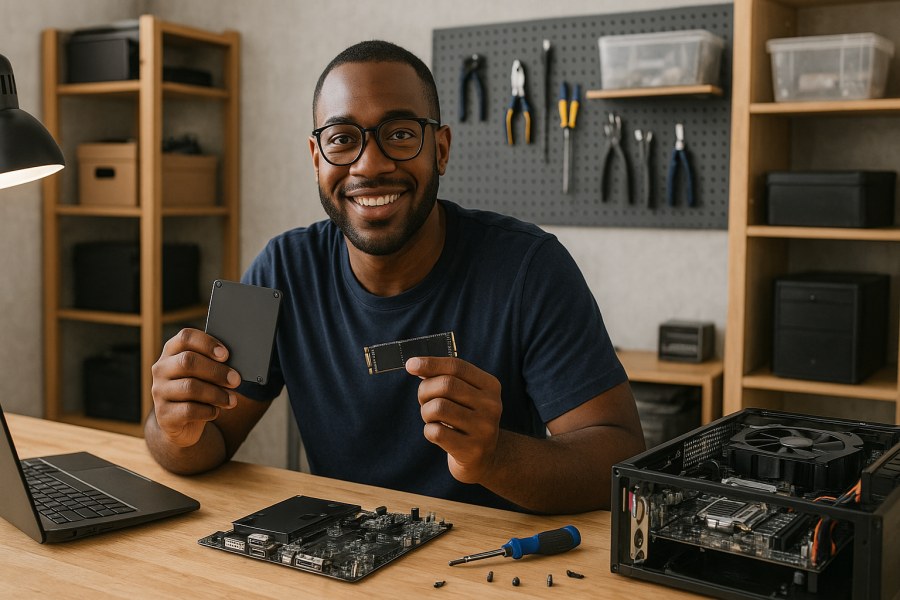
2.5-Inch SATA SSD
This familiar rectangular drive uses the SATA interface. In a desktop it normally connects with separate data and power cables; many laptops use a direct SATA connector or caddy.
M.2 SATA SSD
This slim circuit board fits an M.2 slot but still communicates through SATA. Its shape resembles an NVMe drive, yet its performance and compatibility follow SATA.
M.2 NVMe SSD
This commonly uses PCI Express lanes and the NVMe protocol. PCIe generation and lane count influence the maximum speed the computer can provide.
M.2 Is a Form Factor
M.2 describes the physical format—not the communication protocol. A slot may support SATA, NVMe, both, or neither for storage, so visual appearance alone is not enough.
Quick Upgrade Decision
Currently Using an HDD
Choose a reliable SSD that fits the computer and budget. SATA is already a major improvement; NVMe is preferable when supported and reasonably priced.
Already Using SATA SSD
Stay with it for ordinary use unless you need more capacity, regularly move large files, perform storage-heavy work, or are rebuilding the computer anyway.
Creative or Technical Work
NVMe is worthwhile for high-bitrate video, large photo catalogs, virtual machines, development workloads, disk images, scratch files, and other sustained storage activity.
Computer Still Feels Slow
Check RAM pressure, CPU limits, startup programs, malware, overheating, cloud synchronization, and low free space before assuming SATA is the bottleneck.
Where NVMe Is Noticeably Faster
Large File Transfers
Video projects, virtual-machine files, disk images, and large photo libraries can move substantially faster when both the source and destination are fast enough.
Video and Photo Workflows
High-bitrate media, preview generation, proxies, catalogs, caches, and scratch disks can benefit when the software is actively waiting for storage.
Multiple Storage-Heavy Tasks
NVMe’s low latency and parallelism can help when Windows updates, indexing, cloud synchronization, application installation, and other disk work happen together.
Some Games and Development Tasks
Some games load or stream assets faster, while software builds, virtual machines, databases, and large development projects may complete storage-intensive operations sooner.
The other device must keep up. Copying from a fast NVMe drive to a mechanical hard drive, inexpensive USB stick, slow network, or cloud connection will be limited by the slower link.
Where the Difference Is Usually Modest
- Starting Windows when the computer already has a good SATA SSD
- Opening ordinary productivity applications
- Browsing the web, reading email, and streaming video
- Editing small documents and spreadsheets
- Running tasks limited primarily by the processor, graphics card, or internet connection
- Gaming frame rate after the game has loaded
NVMe may still save a little time, but the difference can be difficult to distinguish without measuring it. Storage rarely raises gaming frame rate by itself; CPU and GPU performance usually matter more once play begins.
Compatibility Comes Before Speed
Before purchasing a drive, identify the exact computer or motherboard model and consult its manufacturer documentation. Confirm the supported interface, physical length, PCIe generation, lane configuration, boot support, available slot, and any shared-port limitations.
Never assume that an M.2 slot accepts every M.2 SSD. Some slots support only SATA, only PCIe/NVMe, or a particular key and length. Others share bandwidth with SATA ports or expansion slots and may disable another connection when occupied.
SSD Compatibility Checklist
- Interface: 2.5-inch SATA, M.2 SATA, or M.2 PCIe/NVMe
- Size: Common M.2 lengths include 2230, 2242, 2260, and 2280
- Keying: The connector and slot must physically and electrically match
- PCIe generation: A newer drive generally negotiates a lower supported speed, but confirm the model documentation
- Boot support: Some older systems can use NVMe only as secondary storage—or not at all
- Available slot: A laptop’s only M.2 slot may already hold the system drive or another device
- Cooling and clearance: A heatsink that fits a desktop may not fit beneath a laptop cover
- Firmware: BIOS/UEFI updates may improve compatibility, but they cannot add missing electrical support
PCIe Generations and Advertised Speed
PCIe 3.0, 4.0, and 5.0 NVMe drives offer progressively higher theoretical bandwidth. A faster-generation drive can often operate in an older compatible slot at that slot’s lower speed, but paying extra for unused peak performance may not make sense.
Advertised figures usually emphasize best-case sequential transfers. Everyday responsiveness also depends on random access, latency, controller behavior, firmware, NAND type, available cache, queue depth, temperature, and how full the drive is.
Benchmark leadership does not automatically make one model the better purchase. Dependable firmware, adequate capacity, warranty, endurance, thermal behavior, and a reputable manufacturer deserve equal attention.
Capacity May Matter More Than Interface
A larger, dependable SATA SSD may provide a better experience than a small premium NVMe drive when the system needs space for Windows updates, applications, games, photographs, and working files. Drives that remain nearly full have less room for temporary files, cache management, updates, and flash maintenance.
Estimate current usage, expected growth, recovery partitions, and working space before choosing capacity. Avoid buying exactly enough storage for today.
Not All SSDs of the Same Type Are Equal
NAND and Endurance
Flash design, spare capacity, controller quality, and workload affect sustained performance and endurance. Compare the manufacturer’s written endurance rating and warranty when the drive will receive heavy writes.
Cache Behavior
Some drives write quickly to a temporary cache and slow substantially during long transfers after that cache fills. Capacity, free space, and temperature can influence this behavior.
DRAM and Host Memory
Drive designs manage mapping information differently. A DRAM-less model is not automatically unsuitable, but bargain models may perform less consistently under demanding workloads.
Firmware and Support
A reputable vendor with stable firmware, diagnostic tools, warranty support, and clear specifications can be more valuable than an unknown drive advertising a larger number.
NVMe Cooling and Thermal Throttling
Fast NVMe drives can become warm during sustained activity. If temperature rises beyond the controller’s intended range, the drive may reduce speed to protect itself. This is thermal throttling—not necessarily a failure.
Use the motherboard heatsink when supplied, install thermal pads correctly, maintain case airflow, and avoid forcing an oversized heatsink into a laptop. A cooler drive can sustain performance more consistently, but ordinary light use may not require elaborate cooling.
A Safe Upgrade and Migration Workflow
- Confirm compatibility before buying. Use the exact model documentation rather than appearance alone.
- Check the old drive’s health. Recover data first if it is failing or unstable.
- Make and verify a separate backup. Cloning is not a substitute for a backup.
- Choose cloning or clean installation. Cloning preserves applications and settings; a clean installation avoids carrying old problems forward.
- Prepare encryption information. Save the BitLocker recovery key before firmware, boot, or storage changes.
- Install the SSD correctly. Disconnect power, use the correct mounting hardware, and avoid overtightening an M.2 screw.
- Boot and verify. Confirm Windows, activation, files, programs, storage capacity, updates, and Device Manager.
- Keep the original temporarily. Do not erase it until the new installation and backup have been proven dependable.
When Cloning Is the Right Choice
Cloning is convenient when the existing Windows installation is healthy and the goal is to preserve applications, profiles, settings, and specialized business software. It is especially useful when moving from a smaller drive to a larger SSD or replacing an HDD without rebuilding the computer.
A clean installation may be better when Windows is badly corrupted, infected, overloaded with obsolete software, or changing between systems with very different hardware. See the Hard Drive Cloning Guide for planning and the Cloned Drive Won’t Boot guide if the migration does not start correctly.
Frequently Asked Questions
Will NVMe make Windows feel much faster than a SATA SSD?
Usually not for basic browsing, email, streaming, and common office applications. NVMe is more noticeable in large transfers, demanding creative work, virtual machines, and other storage-heavy tasks.
Is M.2 always NVMe?
No. M.2 is a physical form factor. M.2 drives may use SATA or PCIe/NVMe, and the computer’s slot may support one or both.
Can a PCIe 4.0 NVMe drive work in a PCIe 3.0 slot?
Often yes, at the slot’s lower supported speed, but compatibility should be confirmed in the system and drive documentation before purchase.
Does NVMe increase gaming frame rate?
Usually not. It may reduce loading time or improve asset streaming in some games, but CPU and GPU performance generally determine frame rate during play.
Should I buy a smaller NVMe drive or a larger SATA SSD?
For many everyday users, adequate capacity provides more value. Choose NVMe when the computer supports it, pricing is close, or the workload benefits from its performance.
Does every NVMe SSD need a heatsink?
No. Cooling needs depend on the drive, workload, airflow, and device. Sustained high-speed work benefits most, while a laptop requires a solution that fits its available clearance.
Should I clone Windows or install it fresh?
Clone a healthy installation when preserving programs and configuration is valuable. Choose a clean installation when the old system contains serious corruption, malware, or years of unwanted software.
Related Guides
Computer Upgrade Guide Center
Explore practical guidance for SSD, NVMe, RAM and Windows upgrades.
Windows 11 Upgrade Guide
Check compatibility and prepare for a safer Windows 11 upgrade.
RAM Upgrade Guide
Determine whether additional memory will improve your computer’s performance.
Hard Drive Cloning Guide
Learn how to migrate Windows, applications and files to another drive.
Cloned Drive Won’t Boot
Troubleshoot common startup problems after cloning a Windows drive.
Not Sure Which SSD Fits Your Computer?
PCRuns can identify the compatible drive types, evaluate the old storage, and explain whether SATA, NVMe, greater capacity, more RAM, or another upgrade will produce the best result for your budget.














