
COMPUTER UPGRADE GUIDE
RAM Upgrade Guide: How Much Memory Do You Really Need?
A computer that slows down with several browser tabs, video calls, documents, or programs open may be running short of RAM. Adding memory can make multitasking much smoother—but only when insufficient memory is actually the bottleneck.
This guide shows you how to check memory use, choose a sensible capacity, verify compatibility, and avoid buying an upgrade that cannot solve the real problem.
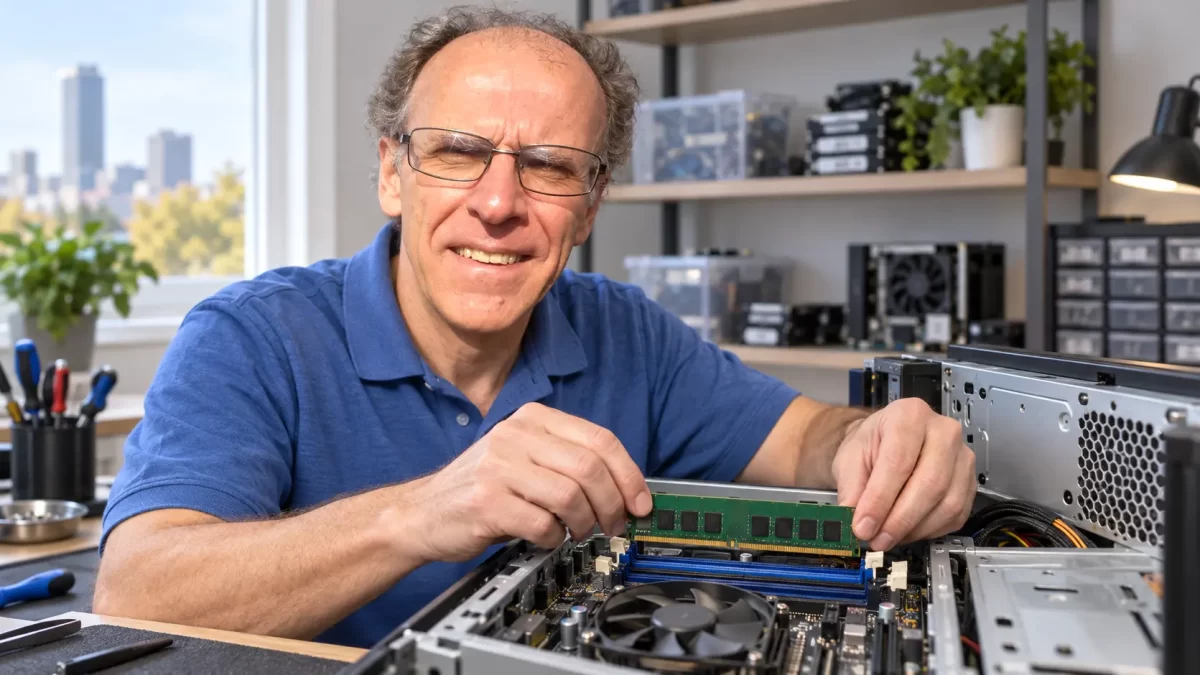
More RAM Helps Only When the Computer Needs It
RAM gives Windows and your programs room to work. When that space fills, Windows relies more heavily on the storage drive, and switching between tasks can become slow or unresponsive.
Extra RAM will not repair a failing drive, remove malware, cool an overheating processor, or make an aging CPU inherently faster. Checking the actual bottleneck first prevents wasted money.
How Much RAM Is Appropriate?
8 GB: Basic Use
Usable for email, light browsing, streaming, and simple documents. It can become restrictive with many browser tabs, video meetings, background applications, or heavier multitasking.
16 GB: Best Fit for Most People
A practical target for Windows 11, home users, students, remote workers, and most small-business systems. It usually provides comfortable everyday multitasking without unnecessary expense.
32 GB: Demanding Work
Useful for large photo projects, video editing, development tools, virtual machines, substantial spreadsheets, modern gaming alongside other applications, and heavier content creation.
64 GB or More: Specialized Needs
Appropriate for multiple virtual machines, professional media production, engineering applications, large datasets, local AI workloads, and other work that demonstrably consumes substantial memory.
Check Whether RAM Is the Bottleneck
Use the Computer Normally
Open the programs, browser tabs, meetings, and files that commonly make the computer feel slow. A reading taken while nothing is running does not represent your real workload.
Open Task Manager
Press Ctrl + Shift + Esc, select Performance, and choose Memory. Windows shows installed memory, current use, available memory, speed, and often the number of slots used.
Watch the Pattern
If memory repeatedly remains near capacity during ordinary work and the computer becomes sluggish, more RAM may help. One brief spike is less meaningful than a consistent pattern.
Check Other Limits
Look for high disk or CPU activity, a mechanical hard drive, overheating, low free storage, excessive startup software, malware, or failing hardware before purchasing parts.
Signs That More RAM May Help
Multitasking Causes Pauses
Programs respond normally alone but stall when you switch among a browser, email, documents, video calls, and other applications.
Browser Tabs Overwhelm the PC
Modern websites can use substantial memory. Tabs reload, applications hesitate, or the entire computer slows when many sites are open.
Memory Use Stays High
Task Manager consistently shows little available memory during the work you actually perform, especially when accompanied by slow switching or heavy disk activity.
Your Workload Has Grown
You have added virtual machines, larger creative projects, demanding business applications, local development tools, or other tasks beyond the computer’s original purpose.
When RAM Is Probably Not the Main Problem
- Slow startup and application launches: A mechanical or failing storage drive may be the larger limitation.
- High CPU use: An aging processor, runaway process, updates, or demanding software may be responsible.
- Sudden shutdowns or severe heat: Cooling, power, or hardware problems require diagnosis.
- Pop-ups, redirects, or unexplained activity: Security or unwanted-software problems should be investigated.
- Crashes or corrupted files: Storage, Windows, drivers, or other hardware may be involved.
- Plenty of available memory: Adding more unused capacity normally will not improve performance.
RAM Upgrade or SSD Upgrade?
Upgrade RAM First When
The computer already has a healthy SSD but becomes slow as programs and tabs accumulate, and Task Manager confirms sustained memory pressure.
Upgrade the Drive First When
The computer still starts Windows from a mechanical hard drive, disk activity frequently reaches 100%, or launching programs and updates is painfully slow.
Consider Both When
An otherwise dependable older computer has both a mechanical hard drive and too little memory. An SSD and compatible RAM can sometimes extend its useful life considerably.
Consider Replacement When
The system cannot support modern security requirements, has soldered memory, needs several expensive repairs, or remains limited by an inadequate processor after reasonable upgrades.
Compatibility Matters More Than the Brand Name
Memory that physically resembles your existing module may still be incompatible. Before ordering, identify the exact computer or motherboard model and confirm all of the following:
- DDR generation: DDR3, DDR4, and DDR5 are electrically and physically different and cannot be substituted for one another.
- Form factor: Desktops generally use DIMMs; laptops and many small computers use shorter SO-DIMMs.
- Maximum capacity: Confirm both the system maximum and the maximum supported per slot.
- Available slots: An empty slot may allow an addition; fully occupied slots may require replacing existing modules.
- Supported speed and specifications: Faster memory may operate at a lower supported speed, but not every combination is guaranteed to work.
- Soldered memory: Many thin laptops have some or all memory permanently attached and may offer no practical upgrade.
- ECC or registered memory: Workstations and servers may require memory types that ordinary consumer computers do not support.
The manufacturer’s service manual, motherboard documentation, or a reputable compatibility tool is safer than choosing memory solely from an online listing.
Matched Memory and Dual-Channel Operation
Many computers perform best with a compatible pair of modules installed in the recommended slots. Two matching 8 GB modules, for example, may provide 16 GB while allowing dual-channel operation.
Mixed brands or capacities sometimes work, but the system may use the speed and timing supported by the least capable module, lose an optimal channel configuration, or become unstable. Matching the generation, capacity, speed, voltage, and basic specifications gives the best chance of predictable operation.
Exact matching is especially important in systems that use integrated graphics because the processor and graphics hardware share system memory bandwidth.
Buying New or Used RAM
New Memory
New RAM normally includes a warranty and is easier to buy as a matched kit. It is often the simplest option for newer DDR4 and DDR5 systems.
Tested Used Memory
Used DDR3 or DDR4 can be economical for an older computer when the specifications are correct, the seller is dependable, and returns are accepted.
What to Avoid
Avoid listings with vague specifications, damaged contacts, no return option, or claims based only on appearance. Server memory is not automatically compatible with a desktop.
Test After Installation
Confirm that Windows recognizes the full capacity, then test for errors and stability. A module can appear to work initially yet fail under load.
Safe Installation Checklist
- Back up important files before working inside the computer.
- Shut down completely, disconnect power, and follow the manufacturer’s battery-disconnection instructions when applicable.
- Protect components from static electricity and handle memory only by its edges.
- Use the slots recommended by the motherboard or service manual.
- Align the notch correctly and press evenly until the retaining clips fully engage.
- Start the computer and verify the reported capacity in BIOS/UEFI or Windows.
- Run a memory diagnostic and use the computer normally while watching for crashes, freezing, or errors.
If the computer does not start, disconnect power and recheck that every module is compatible and fully seated. Do not force a module into a slot.
Common RAM Upgrade Mistakes
- Buying the wrong DDR generation or confusing desktop DIMMs with laptop SO-DIMMs.
- Assuming every laptop has removable memory.
- Exceeding the capacity supported by the motherboard, processor, BIOS, or operating system.
- Installing modules in the wrong slots for a paired configuration.
- Mixing memory without checking speed, voltage, capacity, rank, and system requirements.
- Failing to seat the module completely because the retaining clips appear closed.
- Purchasing large amounts of RAM without confirming that memory pressure caused the slowdown.
- Skipping post-installation testing.
Frequently Asked Questions
Is 8 GB enough for Windows 11?
It can handle basic use, but background services, browser tabs, video meetings, and multiple applications can make 8 GB restrictive. For many home and small-business users, 16 GB provides a more comfortable everyday experience.
Will adding RAM make the computer boot faster?
Usually not by much unless the system is severely short of memory. Slow startup is more commonly related to a mechanical or unhealthy drive, excessive startup programs, updates, or Windows problems. An SSD often improves boot time more than additional RAM.
Can I mix different RAM brands?
Sometimes, but matching modules provide the best chance of stable operation and optimal channel performance. Compatibility depends on more than the logo: generation, capacity, speed, timings, voltage, rank, and system support can all matter.
Can every laptop receive a RAM upgrade?
No. Some laptops have removable SO-DIMMs, some combine soldered memory with one expansion slot, and others have all memory soldered to the motherboard. Check the exact model before buying anything.
Is used RAM safe to buy?
Tested used memory can be a good value, particularly for older DDR3 and DDR4 computers. Verify every specification, buy from a dependable source with a return policy, and test the memory after installation.
Why does Windows show less usable RAM than I installed?
A small amount may be reserved for hardware, particularly integrated graphics. A large unexplained difference can indicate an improperly seated module, incompatible memory, a slot problem, BIOS settings, or another hardware issue.
Related Guides
Computer Upgrade Guide Center
Compare practical options for storage, memory, Windows 11, and overall computer performance.
NVMe vs. SATA SSD Guide
Learn where faster storage makes a noticeable difference and when SATA already performs well.
Windows 11 Upgrade Guide
Check compatibility and prepare for a safer operating-system upgrade.
Hard Drive Cloning Guide
Plan a careful migration of Windows, programs, and files to a replacement drive.
Hardware Installation & Upgrades
See how PCRuns can evaluate compatibility, install parts, and test the completed upgrade.
LOCAL MILWAUKEE COMPUTER HELP
Get an Honest Opinion Before Buying RAM
PCRuns can check your present memory use, available slots, supported capacity, and the rest of the computer before recommending an upgrade. If RAM is not the real limitation, I will explain what is.
No paid work or part purchase proceeds without discussing the expected cost with you first.














