
Hard Drive Cloning Guide
Move Windows, Programs, and Files to a New Drive
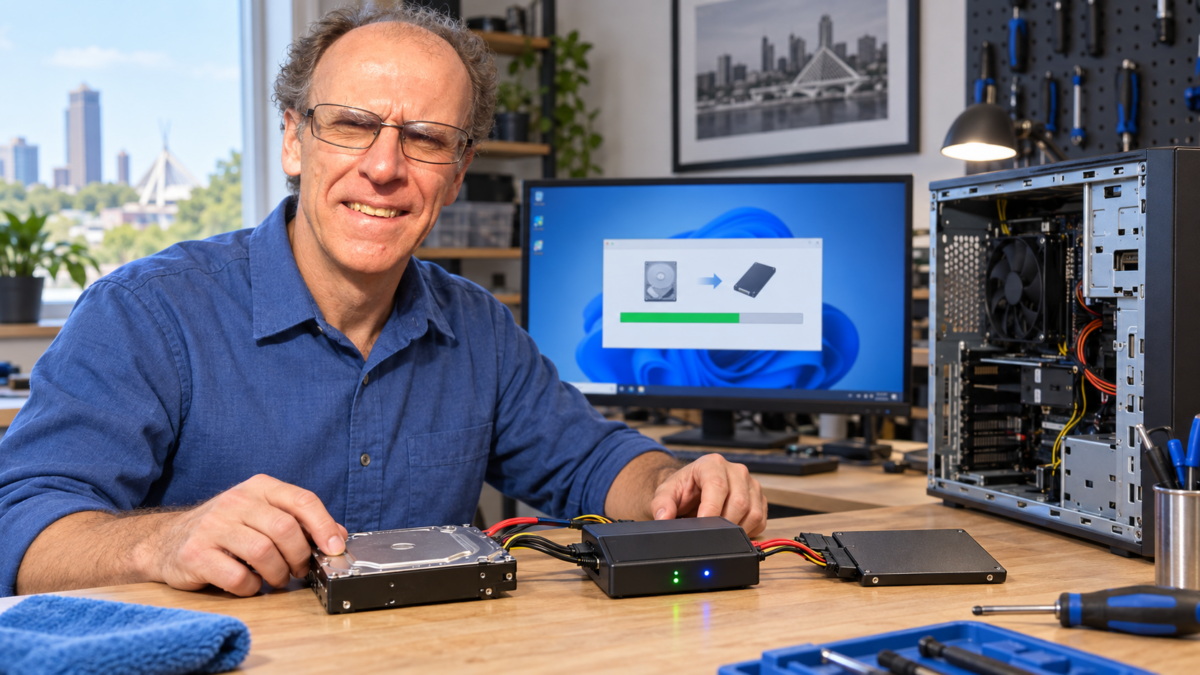
Drive cloning can transfer an existing Windows installation to a replacement SSD or hard drive without rebuilding the computer from the beginning. When the original drive and Windows installation are healthy, it can preserve programs, settings, accounts, and personal files while making a storage upgrade much more convenient.
Cloning is not automatically the safest answer for every computer. A failing drive, corrupted Windows installation, malware infection, encryption issue, or incompatible destination drive can change the right approach. I am John Zettel, the owner and technician at PCRuns, and I begin with a free evaluation before recommending cloning, recovery, repair, or a clean installation.
What Drive Cloning Actually Does
Cloning copies the structure and contents of one storage drive to another. For a Windows system drive, that normally includes the partitions needed to start the computer, Windows itself, installed programs, user accounts, settings, and personal files.
The destination is intended to take the place of the original drive. If the cloning process succeeds and the computer recognizes the replacement correctly, Windows may start from the new drive with the familiar desktop and programs still present.
System Migration
Move an existing Windows environment from an older drive to a compatible replacement.
SSD Upgrade
Replace a mechanical hard drive with a SATA or NVMe SSD when the computer supports it.
Larger Drive
Move to additional storage capacity while retaining the current working environment.
Known Starting Point
Preserve a healthy, familiar setup instead of reinstalling and reconfiguring every program.
A Clone Is Not the Same as a Backup
A clone is usually a replacement copy created for migration or immediate use. A backup is a separate, recoverable copy kept in case files are deleted, changed, encrypted, corrupted, or lost later.
If the new drive becomes the working drive and the old drive is erased, reused, or stored without ongoing updates, you still need a regular backup plan. Important files should exist in more than one place, and at least one backup should be disconnected or otherwise protected from problems affecting the computer.
When Cloning Is a Good Choice
- The original drive is healthy enough to read reliably.
- Windows is stable and free from serious corruption or malware.
- You want to keep installed programs, settings, and the familiar desktop.
- The replacement drive is compatible with the computer.
- The used space will fit on the destination drive after accounting for required partitions.
- The existing Windows installation remains appropriate for the computer and its supported operating-system path.
Cloning is especially useful for an SSD upgrade when the computer is otherwise dependable and reinstalling specialized programs would be inconvenient.
When Cloning May Be the Wrong Choice
Failing Source Drive
Repeated reads can place additional stress on a failing drive. If data is irreplaceable, recovery should take priority over an ordinary migration attempt.
Unstable Windows
Cloning can carry corruption, unwanted software, malware, driver problems, and accumulated clutter to the new drive.
Unsupported Platform
Moving an old installation does not make incompatible hardware eligible for a supported version of Windows.
Multiple Hardware Problems
A new drive will not correct a damaged motherboard, overheating, weak processor, broken hinge, unreliable power, or other unrelated failure.
See Recovering Data from a Failing Hard Drive if the drive clicks, disappears, freezes repeatedly, reports errors, or has become unusually slow.
What Must Be Checked Before Cloning
- Source-drive health: A readable drive is not necessarily a healthy drive. Symptoms and diagnostic information matter.
- Destination compatibility: SATA, M.2 SATA, and M.2 NVMe are not interchangeable merely because two drives look similar.
- Capacity: The destination must accommodate the data and required partitions. A physically smaller drive can sometimes work if the actual used space fits and partitions can be adjusted safely.
- Partition style and firmware: UEFI, Secure Boot, GPT, MBR, and boot configuration can affect whether the cloned drive starts correctly.
- Encryption: BitLocker or device encryption should be identified, and the recovery key should be available before major storage changes.
- Windows condition: Existing file-system errors, malware, or startup problems should be addressed or considered before copying the installation.
- Backup: Valuable files should be separately backed up whenever the condition of the source permits it.
Cloning and Data Recovery Are Different Jobs
A normal clone assumes that the source can be read consistently. Data recovery deals with drives or file systems that may already be damaged. Recovery work may prioritize the most valuable readable data, reduce unnecessary access, or use a different imaging strategy rather than attempting an ordinary all-or-nothing migration.
Cloning software cannot repair physical damage, and repeated failed attempts can reduce the remaining opportunity to recover data. If the files matter more than restoring the exact Windows environment, protect the data first.
Learn more in the Data Recovery and Backup Guide or review PCRuns Data Recovery and Backup Services.
Cloning or a Clean Windows Installation?
Choose Cloning When
- The system is stable and clean.
- Programs and settings would be difficult to recreate.
- The existing Windows installation remains suitable.
- A compatible drive upgrade is the main objective.
Consider a Clean Installation When
- Windows is badly corrupted or heavily cluttered.
- Malware or persistent software trouble is present.
- A fresh supported configuration is preferable.
- You have installers, licenses, passwords, and a verified file backup.
A clean installation takes more setup work, but it avoids carrying existing software problems onto a new drive. The better choice depends on the condition of the computer, not only on convenience.
A Careful Cloning Workflow
Evaluate
Check the source drive, Windows condition, important files, encryption, and the computer’s overall value.
Prepare
Confirm drive compatibility and capacity, preserve critical files, and select an appropriate migration method.
Clone and Install
Copy the required partitions, install or connect the destination drive, and select the correct boot device.
Verify
Confirm that Windows starts, files and programs are accessible, storage capacity is correct, and the system operates normally.
Step-by-Step Cloning Guides
The following PCRuns guides cover specific parts of the process:
AOMEI Partition Assistant
Review the workflow for cloning a drive with AOMEI Partition Assistant.
Macrium Reflect USB Method
See the Macrium Reflect USB cloning guide for a bootable-media approach.
Cloned Drive Will Not Boot
Use the cloned-drive troubleshooting guide when the copy completes but Windows does not start.
Boot Menu Keys
Find common manufacturer shortcuts in the HP, Dell, Lenovo, and other computer boot-menu guide.
Software interfaces and licensing can change. Read the current software documentation and verify each selection before starting; choosing the source and destination in the wrong order can overwrite the data you intended to preserve.
After the Clone
- Boot from the replacement drive and verify Windows before changing the original.
- Open important programs and confirm that essential files are present.
- Check Device Manager, Windows activation, updates, and storage capacity.
- Confirm that the recovery and system partitions are present as expected.
- Do not immediately erase the original drive unless another verified backup exists and the new system has been tested.
- Dispose of or reuse an old drive only after considering the sensitive information stored on it.
Hard Drive Cloning Questions
Does cloning copy all my programs and files?
A complete system-drive clone is intended to copy the required partitions and their contents, including Windows, installed programs, settings, and files. The result still needs to be verified, and no single copy should be treated as the only protection for important data.
Can I clone a larger hard drive to a smaller SSD?
Sometimes. The used data and required partitions must fit, and the cloning method must support safely resizing the layout. The destination’s advertised capacity can also differ slightly from the usable capacity Windows reports.
Will cloning remove viruses or Windows problems?
No. A clone normally carries the existing software environment—including many existing problems—to the destination. An unstable or infected system may be a better candidate for repair or a clean installation.
Can a failing drive be cloned?
It may be possible to image or recover some data, but ordinary cloning is not always appropriate. Unusual noises, disappearing storage, read errors, and repeated freezes are reasons to stop and evaluate recovery priorities first.
How long does professional cloning take?
It depends on drive health, connection speed, data quantity, encryption, parts, and whether startup repair is needed. Most PCRuns service requires at least two days, so I do not promise same-day completion.
Need Help Moving to a New Drive?
I can evaluate the computer, explain whether cloning is appropriate, check replacement-drive compatibility, and discuss the expected cost before paid work begins. No paid service or expensive part purchase is completed without your approval.
Service is by appointment. Local pickup or a convenient public meeting location may be arranged. Please include the charger or power adapter with a laptop.














