
COMPUTER UPGRADE GUIDE
Windows 11 Upgrade Guide
A successful Windows 11 upgrade starts before the installation begins. Compatibility, storage health, backups, encryption keys, application requirements, and the condition of the computer matter more than simply clicking “Download and install.”
This beginner-friendly guide explains how to decide whether an upgrade is worthwhile, prepare safely, choose the right installation method, and verify the computer afterward.
Windows 10 Support Has Ended
Standard support for Windows 10 ended on October 14, 2025. A Windows 10 computer still operates, but without an applicable Extended Security Updates enrollment it no longer receives normal security fixes from Microsoft.
Microsoft currently lists its Consumer Extended Security Updates program as protection through October 12, 2027. ESU can provide additional transition time, but the long-term choices remain upgrading compatible hardware, replacing an unsuitable computer, or moving to another supported operating system.
Should You Upgrade This Computer?
Upgrade May Make Sense
- The computer officially supports Windows 11
- Its processor and overall performance still meet your needs
- The storage drive is healthy and dependable
- Your essential programs and devices are compatible
- The upgrade cost is reasonable compared with replacement
Upgrade the Hardware First
- Windows still runs from a mechanical hard drive
- Storage is nearly full or unreliable
- The system has too little RAM for its actual workload
- The computer overheats or needs maintenance
- A larger SSD would improve both capacity and responsiveness
Replacement May Be Better
- The processor is unsupported and the system is too old to justify work
- Several expensive components are failing
- Critical software or peripherals will not work in Windows 11
- The computer cannot provide dependable performance or security
- The combined repair and upgrade cost approaches a better replacement
Check Official Windows 11 Compatibility
Use Microsoft’s PC Health Check application or Windows Update to evaluate the computer. The principal minimum requirements include:
- A compatible 64-bit processor with at least two cores and a speed of 1 GHz or faster
- At least 4 GB of RAM
- At least 64 GB of storage
- UEFI firmware with Secure Boot capability
- TPM version 2.0
- DirectX 12-compatible graphics with a WDDM 2.0 driver
- A display larger than 9 inches with at least 720p resolution
These are installation minimums, not ideal performance targets. For comfortable general use, 8 GB is a practical floor and 16 GB is preferable for heavier browsing, Office multitasking, creative programs, or longer useful life. An SSD is strongly preferable to a mechanical hard drive.
Requirements and feature-specific hardware can change, so confirm them on Microsoft’s Windows 11 specifications page before upgrading.
TPM 2.0, UEFI and Secure Boot
A compatible computer may fail the check because a security feature is disabled rather than absent. TPM may appear in firmware settings as Intel PTT, AMD fTPM, Security Device, or Trusted Computing. Secure Boot normally requires UEFI boot mode rather than legacy BIOS or CSM mode.
Do not change firmware settings casually. Switching from legacy boot to UEFI without confirming the disk’s partition style can make Windows unbootable. Changes to TPM, Secure Boot, firmware, or boot configuration may also trigger BitLocker recovery.
Before making those changes, record the existing settings, create a backup, and locate the BitLocker recovery key. A careful conversion from MBR to GPT may be possible on an otherwise compatible installation, but it should be verified before changing the boot mode.
A Safe Windows 11 Upgrade Workflow
Evaluate
Confirm official compatibility, computer health, program requirements, peripheral support, and whether upgrading is financially sensible.
Protect
Back up important files, verify the backup, save license information and recovery keys, and consider a complete system image or known-good clone.
Prepare
Repair existing Windows problems, check drive health, create free space, update essential firmware and drivers, and connect reliable power.
Install and Verify
Use the appropriate installation method, allow restarts to finish, then test updates, activation, files, applications, sound, networking, printing, and backups.
Back Up More Than the Obvious Folders
At minimum, protect Desktop, Documents, Downloads, Pictures, Videos, Music, browser bookmarks, email archives, financial data, password-vault access, and application-specific project folders. Confirm whether OneDrive and other cloud folders are fully downloaded or merely represented by online-only placeholders.
Also preserve software licenses, installer information, printer or specialty-device settings, VPN details, and the BitLocker recovery key. Open representative files from the backup before trusting it.
A restore point is useful for some Windows changes, but it is not a substitute for a file backup or full-system image.
Cloning Can Provide a Strong Fallback—When the Original Drive Is Healthy
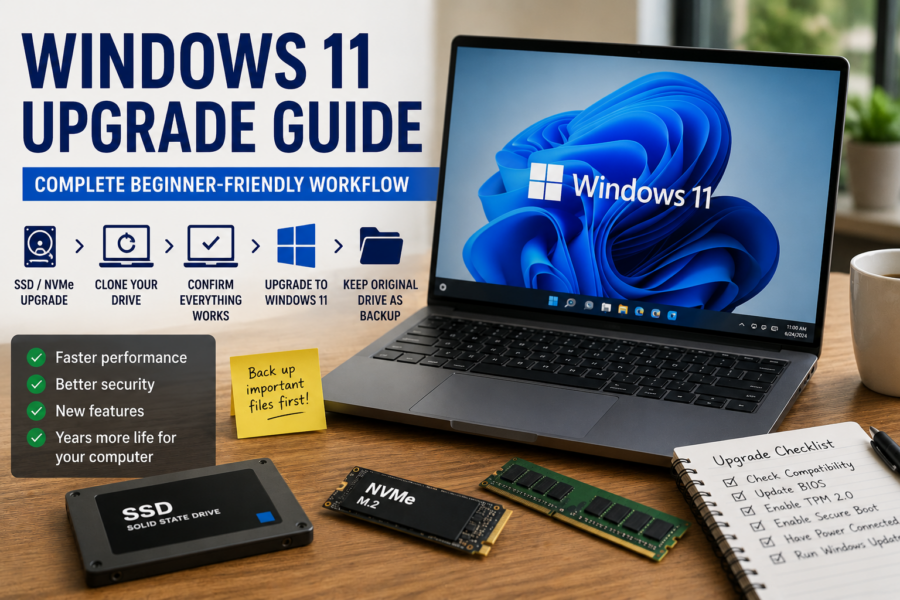
Your practical workflow can be excellent: install a new SSD or NVMe drive, clone the healthy Windows 10 system, boot and verify the clone, and then upgrade that copy to Windows 11. The untouched original drive provides a fallback while the upgraded installation is tested.
Do not blindly clone a failing drive or seriously corrupted Windows installation. A clone can reproduce file-system errors, malware, driver problems, and accumulated clutter. Recover important data first when the source drive is unstable.
Upgrade Storage Before Windows When Appropriate
Replacing a mechanical hard drive with any suitable SSD often produces a larger everyday improvement than the operating-system upgrade itself. Startup, updates, applications, searches, and multitasking become more responsive.
NVMe offers much higher sequential performance than SATA, but ordinary web browsing and office work may not feel proportionally faster. Compatibility, capacity, quality, cooling, price, and workload should guide the choice. See NVMe vs. SATA SSD Upgrades for the detailed comparison.
Choose the Installation Method
Windows Update
This is Microsoft’s recommended path for an eligible Windows 10 computer. It normally preserves personal files, installed applications, and settings while Windows evaluates compatibility.
Installation Assistant or Setup from Media
This can perform an in-place upgrade when Windows Update has not offered it. Confirm that Setup says Keep personal files and apps before proceeding.
Clean Installation
Booting from installation media and installing a fresh copy removes the existing Windows installation, applications, settings, and potentially all files on the selected drive. Use it only with verified backups and careful drive selection.
Microsoft explains these choices in its official Windows 11 installation guidance.
Unsupported Hardware: Understand the Tradeoff
Workarounds can install Windows 11 on some computers that fail Microsoft’s requirements, but the ability to install it is not the same as official support. Microsoft does not recommend this configuration and warns that compatibility problems can occur and updates are not guaranteed.
An unsupported installation may be reasonable only as an informed experiment or a temporary use case with dependable backups. It is usually a poor default for customer systems, business-critical computers, or anyone expecting predictable long-term support. Consider ESU, supported replacement hardware, or another supported operating system instead.
Prepare the Existing Windows Installation
- Install pending Windows 10 updates and restart.
- Confirm the drive is healthy and Windows is stable.
- Remove malware and resolve recurring crashes first.
- Create generous free storage space beyond the listed minimum.
- Update BIOS/UEFI only when there is a relevant reason and stable power.
- Check the computer manufacturer for Windows 11 drivers and known limitations.
- Disconnect unnecessary external drives, printers, and USB devices during installation.
- Connect a laptop charger or protect a desktop with reliable power.
Common Upgrade Problems
“This PC Can’t Run Windows 11”
Check the exact PC Health Check result. TPM or Secure Boot may be disabled, the system may use legacy boot mode, or the processor may be unsupported.
Upgrade Fails or Rolls Back
Insufficient space, damaged Windows files, incompatible drivers, security software, firmware, or attached devices may be involved. Record the error code before trying again.
BitLocker Recovery Appears
Firmware and boot changes can require the 48-digit recovery key. Match the key identifier with the correct record rather than guessing or clearing security settings.
The Clone Will Not Boot
Boot mode, partition style, EFI files, boot order, storage-controller drivers, and cloning errors are common causes. Use the Cloned Drive Won’t Boot guide.
After Windows 11 Is Installed
- Confirm Windows activation under Settings.
- Run Windows Update repeatedly until no required updates remain.
- Check Device Manager for missing or failed hardware.
- Test Wi-Fi, Ethernet, Bluetooth, audio, camera, sleep, printing, scanning, and external displays.
- Open important files and launch essential applications.
- Verify OneDrive and other sync services before assuming all files are local.
- Confirm security protection and backups are working.
- Keep the old drive or system image unchanged until the upgraded computer has been proven dependable.
Frequently Asked Questions
Is Windows 11 still a free upgrade from Windows 10?
Microsoft currently provides the upgrade without a separate Windows purchase for eligible, properly licensed Windows 10 computers that meet the requirements.
Will upgrading erase my files and programs?
A normal in-place upgrade is designed to preserve them, but no major operating-system change should be attempted without a verified backup. A clean installation can erase the selected drive and removes installed applications.
Is 4 GB of RAM enough for Windows 11?
It meets Microsoft’s minimum, but it is restrictive for modern browsing and multitasking. Eight gigabytes is a practical floor for light use, while 16 GB is preferable for many current workloads.
Should I install an SSD before upgrading?
Usually yes when the computer still uses a mechanical hard drive. Confirm that the rest of the system supports Windows 11 and is worth investing in first.
Can Windows 11 be installed without TPM 2.0 or a supported processor?
Workarounds exist, but Microsoft considers such systems unsupported and does not guarantee compatibility or updates. That tradeoff should be disclosed clearly rather than treated as a normal upgrade.
Should Secure Boot be disabled for cloning?
Most ordinary clones should work with Secure Boot enabled when the disk layout and boot files are correct. Temporarily changing it can help diagnose certain boot issues, but return the system to a supported, secure configuration after troubleshooting.
Related Upgrade Guides
Not Sure Whether to Upgrade, Repair, or Replace?
PCRuns can evaluate your computer’s Windows 11 compatibility, storage, memory, and overall condition, then explain which option makes sense for your needs and budget.














