
Computer Upgrade Guide
Make an Older Windows Computer Faster—When an Upgrade Makes Sense
A slow computer does not always need to be replaced. The right solid-state drive, memory upgrade, or carefully planned Windows installation can make a capable computer feel much more responsive. The important question is not simply Can it be upgraded? It is whether the upgrade is compatible, dependable, and worth the total cost.
I am John Zettel, the owner and technician at PCRuns. I provide a free initial evaluation and explain the practical choices before any paid work or expensive parts are approved.
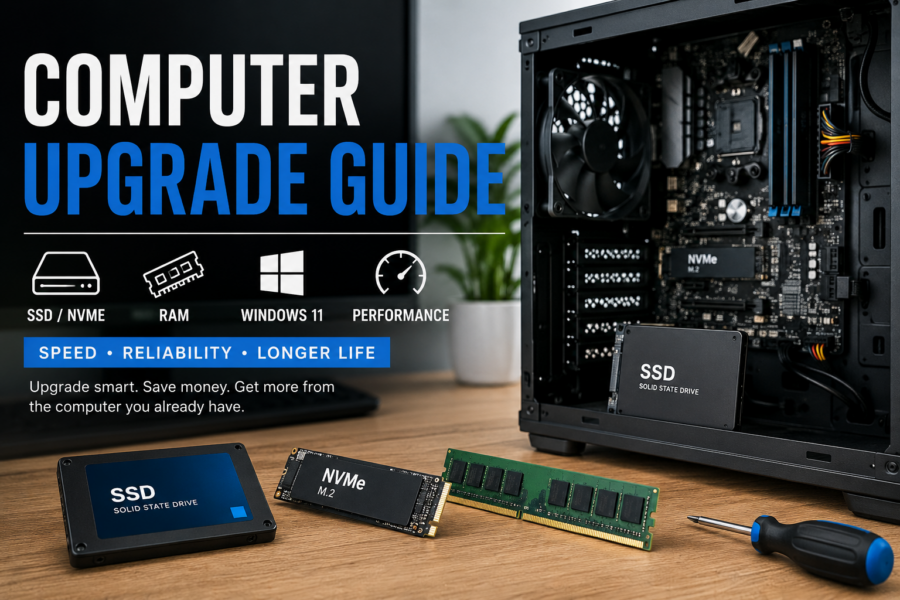
Start With the Actual Bottleneck
An upgrade is most useful when it addresses the part that is truly limiting the computer. Replacing parts without first checking the system can waste money or leave the original problem unchanged.
Slow Hard Drive
A mechanical hard drive can make startup, updates, programs, and file searches feel sluggish. Moving to an SSD is often the most noticeable upgrade for an otherwise usable computer.
Not Enough Memory
If memory usage stays high while you work, additional compatible RAM may improve multitasking and reduce delays caused by the computer relying on storage as temporary memory.
Heat or Maintenance
Dust, poor airflow, failing fans, unwanted software, and background activity can imitate a hardware limitation. These problems should be identified before buying an upgrade.
Age or Processor Limits
Some computers remain slow because the processor, motherboard, or overall platform is too old for current needs. In that situation, replacement may provide better value.
Protect Your Files Before Changing Hardware
Important files should be backed up before a drive replacement, Windows upgrade, cloning operation, or other major change. A successful upgrade should never depend on having only one copy of irreplaceable data.
If a drive is already making unusual noises, disappearing, reporting errors, or causing repeated freezes, ordinary cloning may place it under additional stress. Stop using it when possible and consider a data-recovery evaluation before attempting an upgrade.
SSD Upgrades: Often the Best Place to Start
A solid-state drive has no moving parts and responds much faster than a traditional hard drive. On a computer with a healthy processor and enough memory, replacing a mechanical system drive with an SSD can improve startup, application loading, updates, and everyday responsiveness.
An SSD will not repair malware, overheating, damaged Windows files, a weak processor, or another failing component. The computer should be evaluated as a whole before deciding that storage is the answer.
SATA SSD or NVMe SSD?
- SATA SSD: Common in older desktops and laptops and often an excellent replacement for a 2.5-inch hard drive.
- NVMe SSD: Uses a compatible M.2 slot and can provide higher performance, but the connector, physical size, interface, and system support must match.
- Best choice: The fastest specification is not automatically the best purchase. Compatibility, workload, capacity, reliability, and price all matter.
For a more detailed comparison, see NVMe vs. SATA SSD Upgrades.
RAM Upgrades: Helpful When Memory Is the Limit
RAM holds the information that Windows and your programs are actively using. Too little memory can cause slow switching between programs, browser-tab delays, and heavy reliance on the storage drive.
Memory must match the computer’s supported type, speed, module arrangement, and maximum capacity. Some laptops have soldered memory that cannot be upgraded, while others have only one available slot. Adding RAM beyond what your normal work uses may provide little noticeable benefit.
See the RAM Upgrade Guide for the compatibility questions to check before purchasing modules.
Windows 11 Compatibility Now Matters
Microsoft ended standard Windows 10 support on October 14, 2025. Windows 10 computers still operate, but without an applicable support option they no longer receive the normal security updates and fixes provided during standard support. That makes operating-system eligibility an important part of any upgrade decision.
Windows 11 requires, among other items, a compatible 64-bit processor, at least 4 GB of RAM, at least 64 GB of storage, UEFI firmware with Secure Boot capability, and TPM 2.0. Those are minimum requirements, not necessarily the specifications I would recommend for comfortable everyday use.
Microsoft’s Windows 11 specifications and PC Health Check can help assess eligibility. You can also read the PCRuns Windows 11 Upgrade Guide.
I do not recommend treating an unsupported Windows 11 installation as an ordinary upgrade path. A computer that cannot meet Microsoft’s requirements may be better suited to a supported transition plan or replacement rather than spending heavily on parts.
Clone the Existing Drive or Install Windows Clean?
Drive Cloning
Cloning attempts to copy the existing Windows installation, programs, settings, and files to the replacement drive. It can reduce setup time when the source drive and Windows installation are healthy.
Cloning can also carry existing software problems, unwanted programs, corruption, and clutter to the new drive. A failing source drive may not clone reliably.
Clean Installation
A clean installation starts with a fresh supported Windows environment. It can avoid inherited software problems, but programs must be reinstalled and personal settings restored.
Licenses, installers, passwords, backups, and device compatibility should be reviewed before the old installation is removed.
Explore the Drive Cloning Guide, including help for a cloned drive that will not boot.
What an Upgrade Cannot Fix
- A cracked case, damaged hinge, unreliable charging circuit, or multiple failing components.
- A processor or graphics system that is too weak for the programs you need.
- A computer that cannot support a currently supported operating system.
- Data loss that has already occurred on a failing or damaged drive.
- Software, driver, malware, or overheating problems that have not been diagnosed.
If several limitations apply at once, putting the upgrade budget toward a newer computer may be the more dependable choice.
How I Approach an Upgrade
Evaluate
I examine the symptoms, current hardware, Windows condition, and the way you use the computer.
Check Compatibility
I verify the supported drive, memory, firmware, and Windows options before recommending parts.
Explain the Choices
I discuss likely benefits, limitations, data considerations, expected cost, and whether replacement may be wiser.
Proceed With Approval
No paid work or expensive part purchase is completed without discussing it with you first.
Upgrade or Replace?
An upgrade is more likely to make sense when the computer is physically sound, supports a current operating system, meets your performance needs apart from one clear bottleneck, and can be improved for a reasonable total cost.
Replacement deserves serious consideration when the computer has several problems, poor Windows 11 compatibility, expensive proprietary parts, a weak processor, physical damage, or an upgrade cost that approaches the value of a more suitable replacement.
These guides can help you compare the decision:
Computer Upgrade Questions
Will an SSD make every computer fast?
An SSD can greatly improve responsiveness when a mechanical drive is the main bottleneck. It cannot overcome every processor, memory, heat, software, or hardware limitation.
Should I upgrade RAM or the drive first?
It depends on actual usage. A computer still using a mechanical hard drive often benefits noticeably from an SSD, while a system that regularly runs out of memory may need RAM. Checking both prevents guesswork.
Can my programs and files be moved to the new drive?
Often, but the method depends on the health of the original drive and Windows installation. Cloning may preserve the existing environment; a clean installation requires programs to be reinstalled and files restored or transferred.
How long does an upgrade take?
Timing varies with diagnosis, part availability, drive condition, data quantity, and the work selected. Most PCRuns service requires at least two days, so I do not promise same-day completion.
Do you guarantee the work?
PCRuns provides a 30-day limited workmanship guarantee. Details and limitations are explained in the Terms of Service.
Not Sure Which Upgrade Is Worth It?
Tell me what the computer is doing, its model if you know it, and what you want it to do better. I can provide a free initial evaluation and an honest recommendation.
Service is by appointment. Local pickup or a convenient public meeting location may be arranged. Please include the charger or power adapter with a laptop.














