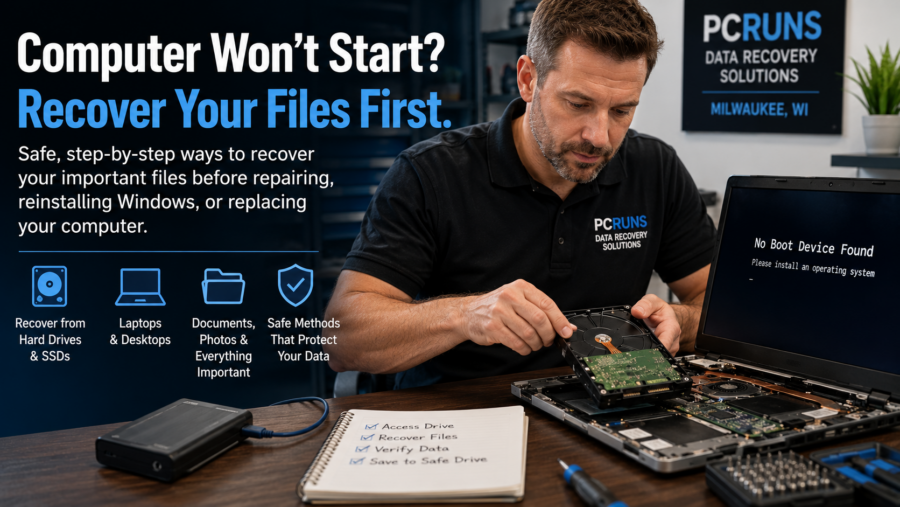
A Step-by-Step Guide to Protecting Your Files Before Repairing or Replacing the Computer
How to recover documents, photographs, and other important files when Windows will not load
When a computer suddenly will not start, the first fear is often not the computer itself—it is losing years of photographs, documents, financial records, schoolwork, or business files stored inside it. The reassuring news is that a computer can fail to start even when the files on its storage drive are still completely recoverable.
This guide explains the safest options in plain language. It shows what to try first, what not to do, how to compare repair and replacement, and when to stop experimenting before a manageable problem becomes permanent data loss.
What “Won’t Start” Actually Means
A computer that will not start can describe several very different problems. Understanding what you see and hear helps determine whether the files are probably safe and which recovery method makes sense.
The Computer Shows No Signs of Power
No lights, fan noise, screen activity, or charging indicator may point to a power adapter, charging port, battery, power supply, motherboard, or electrical problem. In many of these cases, the storage drive and its files are still unharmed.
The Computer Turns On but the Screen Stays Black
A black screen can be caused by the display, memory, graphics hardware, a loose connection, or a failed startup process. The computer may still be running even though nothing appears on the screen.
The Manufacturer Logo Appears but Windows Never Loads
This often points to a Windows startup problem, an interrupted update, damaged startup files, a storage problem, or a device that is trying to start from the wrong drive.
Windows Shows a Blue Recovery Screen or Error Message
This may mean Windows detected a startup problem and entered its recovery tools. It does not automatically mean the personal files are lost.
The Computer Makes Clicking, Grinding, or Repeated Beeping Sounds
Unusual mechanical noises or repeated storage errors deserve immediate caution. Continued startup attempts can make a physically failing drive worse.
Important: A computer that cannot start and a storage drive that cannot be read are not the same problem. The computer may need repair or replacement while the files remain recoverable from its original drive.
What to Do Before You Try Anything
The greatest risk is often not the original failure. It is an unnecessary reset, reinstall, repair utility, or repeated startup attempt that changes the drive before the files are protected.
- Write down what happened. Note any error message, unusual sound, update, power outage, spill, fall, or slowdown that happened before the failure.
- Do not choose “Reset this PC” yet. Some reset options preserve personal files, but they can still remove programs, settings, or data stored outside expected folders.
- Do not reinstall Windows. A reinstall can overwrite recoverable files or make the original folder structure harder to restore.
- Do not initialize or format a drive if another computer says it must be formatted before use.
- Do not run repeated repair scans on a drive that is clicking, disappearing, freezing, or reporting errors.
- Locate account passwords and encryption keys before removing the drive or attempting advanced recovery.
- Prepare a separate external drive with enough free space for the recovered files.
Stop when the files are irreplaceable. If the computer contains the only copies of family photographs, tax records, customer data, creative work, or legal documents, avoid guessing. A quick check now can save hundreds later—and may prevent recoverable data from being overwritten.
Check the Simple Causes First
A few low-risk checks may restore access without opening the computer or changing the drive.
For a Laptop
- Confirm the charger is connected firmly at both ends.
- Try a known-working wall outlet.
- Disconnect docks, printers, external drives, memory cards, and unnecessary USB devices.
- Hold the power button long enough to shut the computer down fully, then wait briefly and try again.
- If the battery is removable, disconnect power and the battery, then reconnect only the charger for a test.
- Look for a charging light or other indication that power is reaching the computer.
For a Desktop
- Check the wall outlet, surge protector, and power cable.
- Confirm the power supply switch on the back of the computer is on.
- Disconnect nonessential USB devices and external drives.
- Confirm the monitor is powered on and set to the correct input.
- Try another monitor cable or display when one is available.
When the Computer Appears to Start but the Screen Is Black
- Listen for fans, startup sounds, or notifications.
- Increase the screen brightness.
- Try an external monitor or television when practical.
- Disconnect the computer from a docking station.
- Wait long enough to rule out a slow update before forcing another shutdown.
Practical tip: If a desktop or laptop starts normally after an external drive or USB device is removed, copy the important files immediately. The original problem may return.
Try Windows Recovery Without Erasing Files
When the computer reaches the Windows Recovery Environment, several tools may repair startup without deleting personal files. Begin with the least disruptive option.
Startup Repair
Startup Repair checks for certain problems that keep Windows from loading. In the recovery menus, look for:
Troubleshoot → Advanced options → Startup Repair
This is generally a reasonable first repair attempt when Windows will not start but the storage drive appears healthy.
Uninstall a Recent Update
If the failure began immediately after a Windows update, the Advanced options menu may provide a way to remove the latest quality or feature update.
System Restore
System Restore can return Windows system files and settings to an earlier restore point. It is intended to affect Windows configuration rather than personal documents, but important files should still be protected first whenever possible.
Quick Machine Recovery
On supported Windows 11 systems, the recovery environment may offer Quick Machine Recovery for certain widespread startup problems. Availability depends on the Windows version and the specific failure.
Avoid “Reset this PC” until recovery has been evaluated. Even when Windows offers a “Keep my files” option, applications and settings may be removed, unexpected folders may not be preserved, and a failing drive may deteriorate during the process.
Use Safe Mode When Windows Partly Starts
Safe Mode starts Windows with a limited set of drivers and services. It can help when a recently installed program, driver, or startup item prevents a normal startup.
How to Reach Startup Settings
- Enter the Windows Recovery Environment.
- Select Troubleshoot.
- Select Advanced options.
- Select Startup Settings.
- Select Restart.
- Choose Safe Mode or Safe Mode with Networking.
What to Do If Safe Mode Opens
- Connect a separate external drive.
- Copy Documents, Desktop, Pictures, Videos, Music, Downloads, and other known work folders.
- Check OneDrive, Google Drive, Dropbox, and other cloud folders carefully.
- Export browser bookmarks or other important application data when needed.
- Do not spend hours troubleshooting before protecting irreplaceable files.
Recovery comes before repair. If Safe Mode gives you access, protect the files first. Afterward, you can work on restoring normal startup without placing the only copy at risk.
Check for BitLocker or Device Encryption
Many Windows computers protect the storage drive with BitLocker or Device Encryption. Encryption is valuable for privacy, but it also means the drive may require a recovery key before files can be accessed outside the original Windows installation.
What the Recovery Key Is
A BitLocker recovery key is a 48-digit number used to unlock an encrypted drive when Windows cannot unlock it automatically.
Where the Key May Be Stored
- The Microsoft account used on the computer
- A printed copy
- A saved text file or USB drive
- A work or school organization account
- The records of an employer or information technology administrator
Match the Correct Key
The recovery screen may display a key identification number. Match that identification number to the correct recovery key before entering it.
Do not discard the original computer or erase the drive while searching for the key. BitLocker is designed to prevent access without the required authentication. Microsoft cannot recreate a lost recovery key, and replacing Windows does not decrypt the old files.
Privacy benefit: Encryption helps protect personal and business data if a computer is lost or stolen. After recovery, save the key in more than one secure place so a future hardware change does not lock you out.
Recover Files by Connecting the Drive to Another Computer
When Windows will not start but the storage drive is healthy, one of the most direct recovery methods is to remove the drive and connect it to another working computer.
What May Be Needed
- A compatible USB enclosure or drive adapter
- A working Windows computer
- An external destination drive with enough free space
- The BitLocker recovery key when the drive is encrypted
- Tools appropriate for opening the computer safely
General Recovery Process
- Shut the failed computer down and disconnect power.
- Remove the storage drive carefully when it is serviceable.
- Place it in a compatible enclosure or attach it through the correct adapter.
- Connect it to a working computer.
- Unlock it with the recovery key if required.
- Open the user profile folder and locate the needed files.
- Copy the files to a different drive.
- Verify that several recovered documents and photographs open correctly.
Where Personal Files Are Usually Stored
Personal files are commonly located under the old Windows user profile, including folders such as Desktop, Documents, Downloads, Pictures, Videos, Music, Favorites, and cloud-storage folders.
Copy—do not move—the files. Keep the original drive unchanged until the recovery has been verified and backed up in at least one additional location.
When Drive Removal Is Not Practical
Some modern laptops use storage that is soldered directly to the motherboard. Others are difficult to open without damaging clips, cables, or the case. In those situations, repairing the motherboard long enough to access the data or using a bootable recovery environment may be the better option.
Recover Files with a Bootable USB
A bootable USB can start a separate recovery environment without loading the damaged Windows installation. This may allow files to be copied to an external drive while the original Windows system remains unchanged.
When This Method Makes Sense
- The computer powers on and can start from USB.
- The internal drive is detected and appears stable.
- Windows itself is damaged.
- The drive cannot be removed easily.
- You have the BitLocker key if encryption is enabled.
General Process
- Create the bootable recovery USB on another trusted computer.
- Connect the recovery USB and a separate destination drive.
- Open the computer’s boot menu.
- Start from the USB device.
- Confirm that the internal drive and personal folders are visible.
- Copy the files to the separate destination drive.
- Verify the recovered files before repairing or reinstalling Windows.
Use trusted recovery media. A bootable environment has broad access to the computer. Avoid unknown downloads, and never save recovered files back onto the same internal drive.
Recognize a Failing Storage Drive
A computer that will not start because Windows is damaged is usually much safer to work with than a computer whose storage drive is physically failing.
Warning Signs of a Hard Drive Problem
- Clicking, grinding, chirping, or repeated spin-up sounds
- The drive appears and disappears
- The computer freezes while reading files
- Folders open very slowly or report errors
- Windows repeatedly attempts disk repair
- The computer reports that no boot device is found
- The drive is not consistently detected in the computer setup screen
Warning Signs of an SSD Problem
- The SSD disappears from the computer setup screen
- The computer freezes during file access
- Files suddenly become unreadable
- The drive becomes read-only
- Startup fails intermittently and then stops completely
Why Repeated Attempts Can Be Harmful
A failing drive may have only a limited amount of useful operating time left. Repeated startup repairs, full scans, cloning attempts, and recovery programs can place additional stress on it.
Stop immediately if a hard drive clicks or grinds. Turn the computer off. Do not keep restarting it, run repair software, open the sealed drive, freeze it, strike it, or follow internet tricks. Physical recovery requires specialized equipment and a clean environment.
Software Recovery Versus Laboratory Recovery
Software recovery may be appropriate when the drive is readable and physically stable. Laboratory recovery is more appropriate when the drive has physical damage, severe electronic failure, internal mechanical problems, or irreplaceable files that cannot be risked.
Repair the Computer or Replace It?
Recovering the files and deciding what to do with the computer are related, but they are not the same decision. An honest evaluation should protect the data first and then compare the real cost and value of repair versus replacement.
Repair Often Makes Sense When:
- The problem is Windows corruption, a failed update, memory, a power supply, or a replaceable storage drive.
- The computer still meets the owner’s everyday needs.
- The screen, keyboard, hinges, and other major parts remain in good condition.
- The repair cost is reasonable compared with a dependable replacement.
- A solid-state drive or memory upgrade would also improve speed and reliability.
Replacement May Make More Sense When:
- The motherboard, soldered storage, display, and other costly components have multiple problems.
- The computer is too old to run supported software safely.
- Repair would cost close to the price of a reliable replacement.
- The computer no longer meets the owner’s work, school, or accessibility needs.
- Parts are unavailable or the same failure is likely to return.
Keep the Old Drive Until Recovery Is Complete
Even when replacement is the best decision, do not surrender, recycle, or erase the old computer until the files have been recovered, checked, and backed up. A new computer does not solve the data problem by itself.
Milwaukee-area help: PCRuns can separate the file-recovery decision from the computer-repair decision. You receive an honest opinion about whether repair makes sense, whether replacement is the better value, and which recovery path is least risky.
Computer File Recovery Cost Guidance
The cost depends less on whether the computer starts and more on the condition of the storage drive, whether encryption is involved, and how much work is needed to organize and verify the recovered files.
- Simple file transfer from a healthy drive: usually the lowest-cost recovery when the drive can be removed, unlocked, and read normally.
- Windows startup repair plus file backup: may require more time to diagnose the startup failure and confirm the recovered files.
- Recovery from a readable but damaged file system: may require cloning and specialized recovery software.
- Encrypted drive recovery: may remain straightforward when the correct BitLocker key is available, but access may be impossible without it.
- Physically failing drive: professional laboratory recovery can cost several hundred dollars to well over one thousand dollars, depending on the damage and urgency.
Other Costs to Consider
- A replacement SSD or hard drive
- An external drive for the recovered files
- Windows repair or reinstallation
- Program reinstallation and setup
- Transfer to a replacement computer
- A new backup system to prevent a repeat problem
Start with an evaluation, not the most expensive option. A computer that will not start may need only a simple file transfer. Laboratory recovery should be reserved for situations where the drive itself has failed and no safer copy exists.
What to Do After the Files Are Recovered
Recovery is not finished when the copy process ends. The recovered files should be checked, organized, and protected before the original computer or drive is repaired, erased, sold, or recycled.
Verify the Recovery
- Open a selection of documents, photographs, videos, and spreadsheets.
- Confirm that important folders contain the expected files.
- Compare folder sizes and file counts when practical.
- Check that recent files and older archives are both present.
- Create a second copy before erasing or returning the original drive.
Protect Privacy
- Use a trusted destination drive.
- Keep recovered files under the owner’s control.
- Do not upload private documents to unknown recovery websites.
- Erase or physically retain the old drive after recovery, depending on its condition and the owner’s privacy needs.
- Change account passwords if malware or unauthorized access may have contributed to the failure.
Create a Better Backup
A practical home or small-business backup can include:
- The working copy on the computer
- A versioned cloud service such as OneDrive
- An external drive or NAS backup that keeps separate historical copies
Test the backup before trusting it. Restore a few files periodically. A backup that cannot be restored is only a hopeful copy, not real protection.
A quick check now can save hundreds later. Watch for slow startup, storage warnings, unusual sounds, freezing, and failed backup notices before they become a larger problem.
Frequently Asked Questions
Can files be recovered if a computer will not turn on?
Often, yes. A failed charger, power supply, screen, motherboard, or Windows installation does not necessarily damage the storage drive. The drive may be removed and connected to another computer, or the computer may be started from recovery media.
Will Startup Repair delete my personal files?
Startup Repair is designed to fix certain Windows startup problems rather than erase personal files. However, protect irreplaceable files first whenever the drive can be accessed, especially if the storage device may be failing.
Should I choose Reset this PC and keep my files?
Not before the files have been evaluated or backed up. The keep-my-files option removes programs and settings, may not preserve every unusual storage location, and can add stress to a failing drive.
Can I remove the drive and connect it to another computer?
Usually, when the drive is removable and physically healthy. You need the correct enclosure or adapter, and an encrypted drive may require its BitLocker recovery key. Some thin laptops use storage that is soldered to the motherboard and cannot be removed normally.
What if the other computer says the drive must be formatted?
Do not format it. Formatting changes the drive and can make recovery more difficult. Disconnect it safely and have the file system and drive condition evaluated.
Can files be recovered without the BitLocker key?
BitLocker is designed to prevent access without the required authentication. Search the Microsoft account, printed records, USB drives, saved files, and work or school records for the correct 48-digit key. Microsoft cannot recreate a lost recovery key.
Should I keep trying to start a clicking hard drive?
No. Clicking, grinding, or repeated spin-up sounds can indicate physical failure. Turn the computer off and avoid repair scans, repeated restarts, or internet tricks that may worsen the damage.
Is it worth repairing an old computer just to recover the files?
Sometimes the computer needs only a temporary repair long enough to copy the files. In other cases, removing the drive is less expensive. Recover the data first, then compare the full repair cost with a reliable replacement.
Where are my files stored on the old Windows drive?
They are usually inside the old user profile under folders such as Desktop, Documents, Downloads, Pictures, Videos, Music, and cloud-storage folders. Some programs store important data in less obvious locations, so application-specific files may need separate attention.
How can I prevent this from happening again?
Keep at least one independent backup in addition to the working computer. A good plan commonly includes cloud version history plus an external drive or NAS backup, followed by periodic test restores.
Final Thoughts
A computer that will not start does not automatically mean the files are gone. The failure may be limited to Windows, the display, the power system, or another replaceable part while the storage drive remains readable.
The safest order is simple: stop unnecessary changes, protect the files, verify the recovery, and only then repair, reset, reinstall, replace, or recycle the computer. When the drive makes unusual sounds, disappears, freezes, or contains the only copy of irreplaceable information, stop early and get an honest evaluation.
Most importantly, use the experience to create a tested backup before the next warning. Early problem detection protects your privacy, saves money, and turns a frightening computer failure into a manageable repair decision.
Need Files Recovered from a Computer That Won’t Start?
If you are in Milwaukee or a nearby community and your desktop or laptop will not start, PCRuns can help determine whether the files can be recovered safely and whether repairing the computer still makes sense.
Schedule a free evaluation and get an honest opinion—no pressure and no obligation.