

If you’re shopping for an SSD upgrade because your computer feels slow, you’re already on the right track—and you’re also right to be careful with your money and your data. In my Milwaukee shop, the most common question I hear is: “Do I need NVMe, or is a SATA SSD good enough?”
Here’s the honest answer: most people notice the jump from a hard drive (HDD) to any SSD far more than they notice SATA vs NVMe. NVMe can be meaningfully faster in the right situations, but it’s not automatically “worth it” if your computer can’t take advantage of it—or if your bottleneck is somewhere else (low RAM, overheating, background software, or a failing system install).
Quick definitions (plain English)
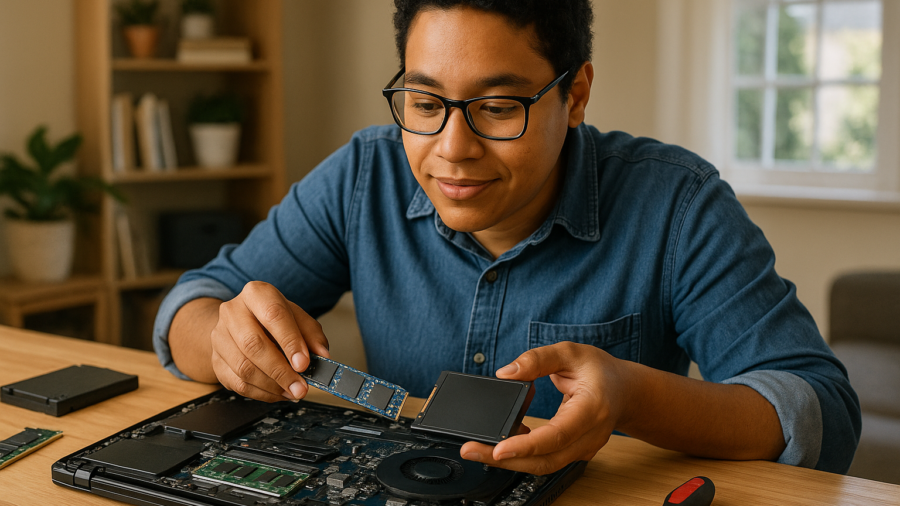
SATA SSD is an SSD that connects using the older SATA interface (the same general family used by hard drives). It’s usually a 2.5-inch drive (like a small rectangle) connected by a cable inside desktops and many older laptops.
NVMe SSD is an SSD that connects over PCIe (a faster pathway). Most commonly, it’s an M.2 “gumstick” drive that mounts directly on the motherboard—no SATA cable needed. NVMe is the protocol; M.2 is the physical form factor. (Some M.2 drives are SATA, so you can’t judge by shape alone.)
When you’ll feel a real difference (and when you won’t)
Instead of focusing on benchmark charts, I like to focus on tasks you actually do. Below is a practical “noticeability” guide.
| What you’re doing | Will NVMe feel faster than SATA SSD? | Why |
|---|---|---|
| Booting Windows, opening apps, everyday browsing | Sometimes, but usually a small difference | These tasks involve lots of small reads and CPU/background activity; both SSD types are already “fast enough” for most people. |
| Moving huge files (video projects, disk images, large photo libraries) | Often yes | Large, sustained transfers can better use NVMe’s higher throughput—if the source and destination are also fast. |
| Video editing, large Adobe projects, big sample libraries | Often yes | High-volume media workflows can benefit from faster scratch/cache and faster load times. |
| Gaming load times | Sometimes | Some games see modest improvements; many are limited by CPU/GPU decompression and game engine behavior more than raw drive speed. |
| Virtual machines (VMs), lots of multitasking with heavy apps | Sometimes to often | Multiple simultaneous storage requests can reward faster drives, but RAM capacity can matter just as much (or more). |
| Old laptop with a tired battery/thermal issues, or very low RAM | Usually not | Other bottlenecks dominate. An SSD still helps a lot, but NVMe vs SATA may not be the limiting factor. |
The biggest “speed win” is usually HDD → SSD (either type)
If you’re currently on a traditional hard drive, moving to a SATA SSD can feel like a completely different computer: faster boot, faster app launches, less “grinding” time while Windows catches up in the background. If your computer already has a SATA SSD, moving to NVMe may be a smaller, more situational improvement.
Three common scenarios (and what I’d recommend)
1) “My computer is slow and I just want it to feel normal again.”
If you’re on a hard drive, pick an SSD that fits your machine and budget. If your computer supports NVMe and the price difference is small, NVMe is fine—but I wouldn’t overspend for NVMe expecting a night-and-day change for basic use.
Also: slow performance isn’t always storage alone. Malware, overloaded startup programs, and Windows corruption can all mimic “bad hardware” symptoms. Microsoft’s support documentation on Windows performance and troubleshooting is a good baseline if you want to cross-check symptoms and safe steps before changing hardware (Microsoft Support documentation).
2) “I do work stuff: lots of big files, video, or I’m always waiting on transfers.”
This is where NVMe earns its keep. If you routinely copy large files, edit big media projects, or use software that hammers the disk, NVMe can save real time. Just remember: if you’re copying from an older USB drive or a slow network share, the “slowest link” still sets the pace.
3) “My laptop is older. I’m not sure it’s worth upgrading at all.”
Totally fair. On many older systems, a SATA SSD plus a sensible amount of RAM can be the sweet spot. On others, spending money doesn’t make sense because of age, battery condition, hinge damage, overheating, or because the machine can’t run modern Windows comfortably.
If you’re weighing this decision, I’d rather you determine whether repair makes sense before spending money. That’s the whole point of an honest evaluation.
Compatibility: the part that trips people up
Before you buy anything, confirm what your computer actually supports. A few pitfalls I see regularly:
- M.2 is not the same as NVMe. Some M.2 slots support NVMe, some support SATA, some support both, and some systems physically fit a drive but won’t boot from it.
- Not every desktop has an M.2 slot. Some can add NVMe with an adapter card, but boot support varies by motherboard/BIOS.
- Laptop space matters. Some laptops support only one drive total. If you have one slot and you replace the drive, you need a plan for moving your data.
Upgrade paths: fresh install vs cloning (and what’s safer)
You generally have two routes:
- Clone your existing drive to the new SSD (keeps your programs and settings). This is convenient, but it works best when the current Windows install is healthy.
- Fresh install Windows on the new SSD (cleanest long-term). This takes longer because you reinstall apps and restore data, but it can remove years of accumulated “junk” and software conflicts.
If your computer has been crashing, freezing, or behaving oddly, cloning can copy problems over. If things are stable and you just want it faster, cloning is often the simplest path. If you want the cloning route, our step-by-step guide can help you understand the process and choices before you touch anything (SSD cloning guide: how drive cloning works).
What else can bottleneck your “SSD speed”?
Even the fastest NVMe drive can feel ordinary if something else is holding the system back. Here are the big ones I see:
- RAM limits: If you’re regularly maxing out memory, Windows will use the drive as overflow (paging), and everything feels choppy. Sometimes a RAM upgrade does more for responsiveness than switching SATA → NVMe (RAM upgrade guide).
- Thermal throttling: Overheating laptops can slow themselves down to protect the CPU.
- Startup and background apps: Too many auto-start items can make boot times long regardless of drive.
- Drive nearly full: Any SSD can slow down if it’s packed tight and constantly juggling data. Leaving free space helps.
- OS or file-system problems: Corruption, failing updates, or malware can create slowdowns that feel like “bad hardware.” For safe malware-reading and cleanup guidance, I trust reputable security reporting and how-to resources like BleepingComputer (BleepingComputer security articles).
So… should you buy NVMe or SATA?
Here’s how I’d decide for a typical home or small business PC:
- Choose SATA SSD if: your PC only supports SATA; you want the best bang-for-buck upgrade; you’re coming from a hard drive; your usage is mostly web, email, Office, school, Zoom, and everyday apps.
- Choose NVMe SSD if: your system clearly supports NVMe; the cost difference is small; you work with large files or do heavier creative/pro workloads; you want the best performance headroom for the next few years.
- Consider replacement (or refurbished) if: the computer is unstable due to multiple failing parts, has major physical damage (hinges/screen), can’t meet Windows requirements you need for work/school, or the upgrade cost starts approaching the value of a more reliable system.
Practical shopping tips (without brand hype)
- Buy the right capacity first. Running out of space causes real pain. If your budget is tight, getting enough storage is often more important than chasing peak speed.
- Plan your migration. If it’s a laptop with one drive slot, decide ahead of time whether you’re cloning or reinstalling.
- Don’t ignore health signs. If the current drive is failing, prioritize backup and a careful migration over “performance optimization.”
If you’re in Milwaukee and want an honest call
If you’d like more background on upgrade options in general, you can also browse our upgrade guides (computer upgrade guides) or see what we typically help with day-to-day (maintenance and performance tuning services).
Need local computer help?
PCRuns serves readers in Milwaukee, Wisconsin and nearby communities. Services or primary themes include computer diagnostics, Windows repair, malware removal, data backup, system recovery, hardware upgrades, remote support, small business IT support, broken screen replacement, broken hinge repair.
Schedule a free evaluation, get an honest opinion, or see whether repair makes sense with no pressure and no obligation.
Q&A
If I already have a SATA SSD, is upgrading to NVMe worth it?
Sometimes, but usually only if your work involves large files, heavy creative apps, or lots of disk activity (like VMs). For basic booting and everyday apps, the difference can be modest. I’d also check RAM and system health first, because those often limit “real-world speed” more than SATA vs NVMe.
How do I know if my laptop supports NVMe?
You need to confirm what the M.2 slot (if present) supports—NVMe, SATA, or both—and whether the system can boot from that slot. The safest approach is to check the exact model’s documentation or have a technician verify it before you buy parts.
Is cloning my old drive to a new SSD safe?
Cloning is usually safe when your current Windows install is stable and you’ve backed up important files first. If the system is crashing, infected, or corrupted, a clean install can be more reliable long-term because it avoids copying problems to the new drive.
What upgrade will I notice more: NVMe or more RAM?
If your computer is running out of memory (lots of tabs, big apps, multitasking), a RAM upgrade can feel more dramatic than switching from SATA SSD to NVMe. If you’re coming from a hard drive, any SSD is typically the biggest win.
Should I upgrade or replace an older computer?
Upgrade makes sense when the system is otherwise healthy and a drive/RAM upgrade fits your needs and budget. Replacement can make more sense when there are multiple issues (overheating, failing battery, hinge/screen damage, instability) or when upgrade costs start approaching the value of a more reliable computer. If you’re unsure, an honest evaluation helps you avoid spending money in the wrong direction.


















Leave a Reply