
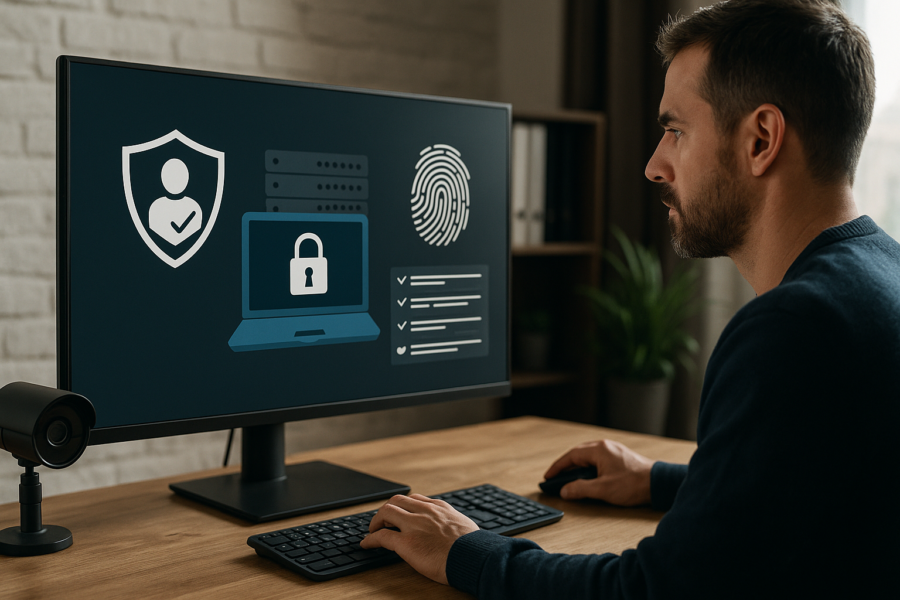


Hardening Unattended Remote Access: MFA, Roles, and Audit Logs
Unattended remote access security: quick, practical guidance you can apply today.
Unattended remote access can be genuinely useful: you can reach your PC when you’re away, help a family member, or manage a small office setup without driving across town. The downside is simple: if someone gets in, they can do a lot quickly. The goal isn’t “perfect security” (that doesn’t exist)—it’s reducing risk with a few safe defaults that are easy to maintain.
What “unattended” really means (and why it matters)
Unattended access means a device can be reached without someone physically approving each session. That convenience is exactly why it needs stronger guardrails than “normal” logins.
- More time exposed: It’s available when you’re asleep or away.
- Fewer chances to notice: You may not see a pop-up or prompt.
- Higher impact: Remote access often includes file access, installs, and settings changes.
Step 1: Turn on MFA (and make it hard to “MFA fatigue”)
Multi-factor authentication (MFA) is one of the most effective upgrades you can make. If a password leaks (reused password, phishing, breach), MFA can still stop the login.
Good MFA choices for unattended access
- Authenticator app codes (time-based codes) are a solid default for most people.
- Number matching / prompt approvals can be convenient, but only if you’re careful about unexpected prompts.
- Hardware security keys are excellent where supported, especially for admin accounts.
Practical MFA checklist
- Enable MFA for the remote access account and the email account used for password resets.
- Save backup/recovery codes somewhere safe (offline is ideal).
- Remove old devices from the MFA list (old phones/tablets you no longer control).
- Be suspicious of unexpected approval prompts. If you didn’t try to sign in, deny it and change your password.
Step 2: Use roles and least privilege (so one mistake can’t do everything)
“Least privilege” means each account only has the access it truly needs. This is one of the biggest differences between a safe setup and a fragile one.
Simple role setup that works for most homes and small offices
- Daily-use account: Standard user (not admin). Use this for normal work.
- Admin account: Separate account used only when you need to install software or change system settings.
- Remote access account: If your tool allows it, use an account with limited permissions rather than full admin.
Why this helps
- If a remote session is compromised, the attacker may be blocked from installing software or changing security settings.
- It reduces accidental damage too (like deleting the wrong folder or changing a system setting you didn’t mean to).
Step 3: Turn on audit logs (so you can verify what happened)
Audit logs don’t prevent access by themselves, but they help you answer important questions quickly: “Was there a login?” “From where?” “What changed?” Even basic logging can save hours of guesswork.
What to log (minimum viable logging)
- Sign-in events: successful and failed logins
- Remote session start/stop: when a connection was made and ended
- Privilege changes: adding users, changing roles, enabling/disabling MFA
Logging tips that make logs actually useful
- Make sure your PC’s time is correct (wrong time makes logs confusing).
- Review logs on a schedule (weekly or monthly), not only after a problem.
- If your remote tool supports it, enable alerts for new device sign-ins or new logins from unusual locations.
Extra hardening that’s worth doing (quick wins)
- Strong, unique password: Use a password manager if you can. Avoid reusing a password from email or social accounts.
- Limit who can connect: If your tool allows “approved devices” or “allowed users,” turn that on.
- Disable when not needed: If you only use unattended access occasionally, consider turning it off between uses.
- Keep Windows updated: Updates fix security issues you may never hear about.
- Secure the local PC session: Use a lock screen PIN/password, and set the screen to lock automatically after inactivity.
A calm way to test your setup
After you change settings, do a quick “sanity check”:
- Try signing in from a second device: confirm MFA is required.
- Confirm the remote account can do what you need, but not more (for example, it shouldn’t automatically have admin rights unless you intended that).
- Find the audit logs and verify your test sign-in shows up.
When to get help
If you’re supporting a small office, handling sensitive files, or you’re unsure whether your remote access tool is configured safely, it can be worth getting a second set of eyes. The best setups are the ones you can maintain—simple, documented, and reviewed occasionally.

















Leave a Reply