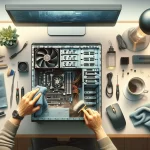
Your Personal Tech Ally: Support From the Person Who Actually Fixes Your PC
Direct PC support: quick, practical guidance you can apply today.
When your computer starts acting up, it’s easy to feel stuck—especially if you’re bouncing between generic help articles, automated chat, and long hold times. PCRuns is built around a simpler idea: you get direct support from the person who actually works on your machine.
What “direct support” means (in plain English)
Direct support means you’re not being passed around. The same technician who diagnoses the issue is the one who explains it, fixes it, and helps you prevent it from coming back.
- Clear explanations: What’s happening, why it matters, and what we’re changing.
- Fewer handoffs: Less repeating yourself, fewer mixed messages.
- Practical options: Fix it now, improve it later, or leave it alone if it’s not worth the cost.
Why this matters for everyday Windows users
Most PC problems aren’t “mysteries”—they’re a pile-up of small things: too many startup apps, outdated drivers, a nearly-full storage drive, or a security setting that needs attention. Direct support helps because it keeps the focus on what actually affects your computer and your day-to-day use.
You get less jargon and more decisions
A good repair isn’t just clicking buttons. It’s knowing what to change—and what not to change. You should feel confident about the tradeoffs (for example, speed vs. convenience, or privacy vs. features).
You avoid “one-size-fits-all” fixes
Some advice online is fine, but it’s often written for a different Windows version, different hardware, or a different problem entirely. Direct support is tailored to your setup.
How support typically works (remote or local)
Every situation is a little different, but most support follows a straightforward path:
- Quick intake: What you’re seeing, when it started, and what changed recently (updates, new printer, new software, etc.).
- Safe checks first: Storage space, Windows Update status, startup programs, and basic security settings.
- Fix the root cause: Not just the symptom (for example, stopping repeated crashes by addressing the underlying driver or corrupted system file).
- Wrap-up: A simple summary of what was done and what to watch for next.
If remote support makes sense, it’s usually the fastest path for software issues and tune-ups. If it’s a hardware problem (like a failing drive, overheating, or a damaged port), local help may be the better option.
What you can do right now (safe, simple steps)
If your PC is slow, glitchy, or just “not right,” these are safe first steps that help in many cases:
- Restart once: A real restart (not sleep) clears a lot of temporary issues.
- Check storage: Aim to keep some free space available so Windows can run smoothly.
- Run Windows Update: Install pending updates, then restart.
- Reduce startup clutter: Fewer apps launching at startup often means a faster, calmer PC.
- Note the exact message: If you see an error, write it down or take a photo—details help.
What to expect from PCRuns
Think of PCRuns as your personal tech ally: practical help, explained in plain language, with a focus on safe defaults and long-term stability. If a fix is uncertain or there are multiple reasonable paths, you’ll hear that—along with a recommendation based on your goals (speed, reliability, budget, or simplicity).
When it’s time to reach out
Consider getting help if:
- Your PC is noticeably slower than it used to be.
- Apps crash or freeze repeatedly.
- You’re seeing recurring pop-ups or browser weirdness.
- Updates fail or your PC restarts unexpectedly.
- You want a second opinion before spending money on upgrades.
The goal is simple: get your computer working reliably again—and help you feel comfortable using it.