
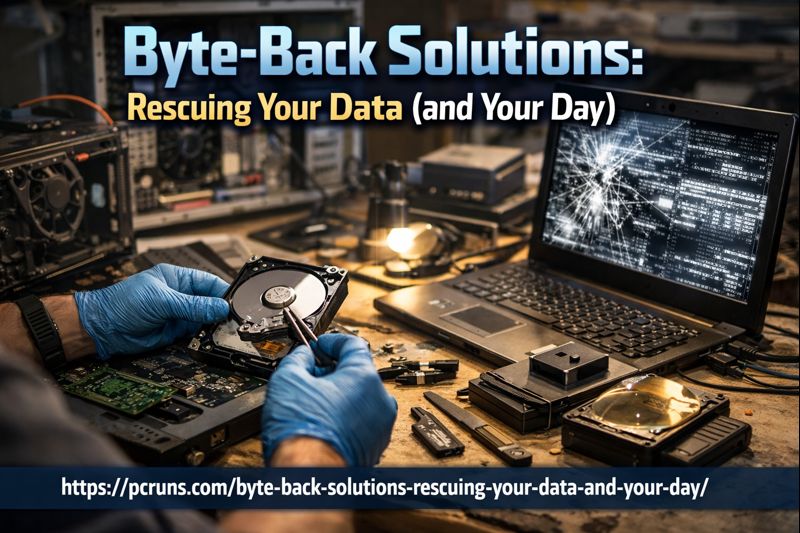
Byte-Back Solutions: Rescuing Your Data (and Your Day)
Data recovery: quick, practical guidance you can apply today.
Few things are more stressful than a computer that suddenly won’t open your files, a phone that won’t turn on, or a USB drive that “looks empty.” The good news: many data problems are recoverable if you take a calm, careful approach. At PCRuns, we call this mindset Byte-Back Solutions—practical steps that protect your data first, then fix the device.
What “Byte-Back” really means
When data goes missing, the biggest risk is making it worse by continuing to use the device. “Byte-Back” is about doing the safest, simplest things first:
- Stop the damage (avoid overwriting files)
- Confirm what’s actually happening (is it a file issue, an account issue, or a hardware issue?)
- Recover what you can with low-risk steps
- Set up protection so it’s less likely next time
Common “data loss” situations (and what they usually are)
1) “My files disappeared”
This is often one of these:
- You’re signed into a different Windows user account
- Files were moved into another folder (or cloud sync changed what you see)
- Drive letters changed (an external drive shows up differently)
- A storage drive is starting to fail
2) “My drive says it needs to be formatted”
This can happen if the drive’s file system is damaged (for example, from an unsafe unplug or a sudden shutdown). Formatting may make recovery harder, so it’s usually best to pause and assess first.
3) “My computer won’t boot”
This could be Windows corruption, a failing SSD/HDD, or a hardware problem. The key is to avoid repeated restarts and “repair attempts” that write more data to the drive until you have a plan.
First-aid checklist: what to do right away
If your files are missing or a drive is acting strange, these steps are safe defaults for most everyday situations:
- Stop using the device for anything non-essential. Don’t install software, download updates, or save new files to the affected drive.
- Don’t format the drive if Windows suggests it—at least not until you’ve tried safer checks.
- Take note of what changed: power outage, drop, spill, update, new software, unplugged drive, etc.
- Check the simple stuff: different USB port/cable, different computer (for external drives), and confirm you’re in the right Windows account.
- If you hear clicking, grinding, or repeated spin-up/spin-down, power the device off. That can be a sign of physical trouble.
Low-risk recovery steps you can try (Windows-friendly)
Check Recycle Bin and recent folders
Open Recycle Bin and look for the missing items. Also try searching for a known filename in File Explorer (top-right search box). If you find it, right-click and choose Open file location to see where it ended up.
Confirm you’re in the right place
- Open File Explorer → This PC and confirm the drive letter and folder path.
- If you use cloud sync, confirm the correct account is signed in and syncing is complete.
Use built-in backups (if enabled)
If you previously set up Windows backup options, you may be able to restore older versions of files. This depends on what was enabled ahead of time, so results vary.
When to stop DIY and get help
Some situations are easier to worsen than to fix. Consider pausing and getting hands-on help if:
- The drive is making unusual noises or disconnecting repeatedly
- Windows reports frequent disk errors, or the drive capacity looks wrong
- The device was dropped, exposed to liquid, or overheats
- The data is irreplaceable and you can’t risk trial-and-error
How to prevent a repeat (simple, realistic protection)
Most “bad day” data problems turn into minor inconveniences when you have a backup. A practical setup looks like this:
- Two copies of important files (original + backup)
- Two different places (for example: computer + external drive, or computer + cloud)
- Automatic where possible so you don’t have to remember
Even a basic weekly backup to an external drive is a big improvement. The goal isn’t perfection—it’s reducing the chance that one failure ruins your week.
Quick takeaway
Byte-Back Solutions is about staying calm, avoiding risky clicks, and taking the safest steps first. If you’re unsure, it’s okay to stop and ask for help—especially before formatting, reinstalling Windows, or running “fix” tools you don’t fully trust.
Related posts:
 Crashing PC and Data Loss Worries? Simple Steps and Reliable Local Repair Options
 How to Organize Files and Folders: A Simple Naming System That Works
 Understanding Files and Folders in Windows: How to Save, Find, and Organize Your Stuff
 Data Backup 101: The 3-2-1 Rule Explained for Everyday PC Users














