The Art of the Crash: Why Your Computer Freezes (and How to Stop It)
A frozen computer can feel random and personal at the same time: the mouse won’t move, the screen won’t update, and suddenly you’re debating whether to wait… or force a restart. The good news is that most freezes come from a few common causes. With a calm, repeatable approach, you can often reduce how often it happens—and make the next freeze easier to diagnose.
First: what “freezing” usually means
When Windows “freezes,” one of three things is typically happening:
- An app is stuck (Windows still works, but one program stops responding).
- The system is overloaded (CPU, memory, or disk is maxed out, so everything crawls or stops responding).
- A driver or hardware issue causes a deeper hang (sometimes the screen freezes, audio loops, or the system won’t recover without a restart).
Knowing which bucket you’re in determines what to check next.
What to do in the moment (safe steps)
1) Give it a short, structured wait
If the system is busy (installing updates, unpacking files, heavy browser tabs), it may recover. Wait 30–90 seconds, then try:
- Ctrl + Shift + Esc to open Task Manager
- Alt + Tab to switch windows
- Win + Ctrl + Shift + B to reset the graphics driver (screen may blink)
2) If only one app is frozen, end that task
If Task Manager opens, look for the app marked Not responding, select it, and choose End task. This is often safer than rebooting the whole PC.
3) If nothing responds, do a controlled restart
If you can open the security screen, press Ctrl + Alt + Delete and restart from there. If you can’t, hold the power button for about 10 seconds to shut down, then power back on. This can risk losing unsaved work, but it’s sometimes the only option.
The most common reasons PCs freeze (and what to check)
Cause #1: Not enough memory (RAM) for what you’re doing
Modern browsers, video calls, and multiple apps can push RAM to the limit. When that happens, Windows starts using the drive as “extra memory,” which is much slower—especially on older hard drives.
- Check: Open Task Manager → Performance → Memory. If it’s frequently near the top during normal use, you’re likely memory-bound.
- Try: Close unused browser tabs, disable heavy browser extensions, and keep fewer apps open at once.
Cause #2: Storage bottlenecks (especially if you have a hard drive)
If your system drive is nearly full—or if it’s an older mechanical hard drive—Windows can “freeze” while it waits on disk activity.
- Check: Task Manager → Performance → Disk. If Disk stays pegged at high usage during freezes, storage is a prime suspect.
- Try: Free up space (aim to keep some breathing room), uninstall programs you don’t use, and pause large downloads when you need the PC responsive.
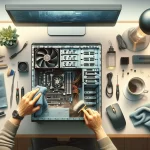
Cause #3: Overheating or dust buildup
Heat can force the CPU/GPU to slow down dramatically (throttling), which can look like freezing. Laptops are especially sensitive if vents are blocked.
- Clues: Fans running loud, the bottom of a laptop is very hot, freezes happen during gaming/video, or after long sessions.
- Try: Make sure vents aren’t blocked, use the PC on a hard surface, and clean dust from vents (gently). If you’re not comfortable opening a machine, a basic cleaning service can help.
Cause #4: Driver problems (graphics is a big one)
Drivers help Windows talk to hardware. A buggy or outdated graphics driver can cause hangs, black screens, or a frozen display.
- Try: Install Windows Updates, then restart. If freezes started after a recent update, you may need to roll back a driver—this can be a bit finicky, so it’s okay to get help.
- Tip: If Win + Ctrl + Shift + B brings the screen back, that’s a strong hint the graphics subsystem is involved.
Cause #5: Background programs fighting for resources
Startup apps, sync tools, updaters, and overlays can pile up. Individually they’re “fine,” but together they can overwhelm a mid-range PC.
- Check: Task Manager → Startup. Disable items you don’t need at boot (leave security software alone unless you’re sure).
- Try: Reboot once in a while—especially if you put your PC to sleep for weeks at a time.
Cause #6: Failing storage or unstable hardware
Not every freeze is software. If freezes are getting more frequent, you see file corruption, or the PC sometimes won’t boot cleanly, hardware could be involved (drive, RAM, power, or motherboard).
- Try: Back up important files now (just in case) and run built-in Windows checks like Windows Memory Diagnostic and Check Disk. If errors show up, stop troubleshooting “around” the issue and plan a repair.
A simple freeze-prevention checklist (reasonable defaults)
- Keep Windows updated (then restart after major updates).
- Keep some free disk space on the system drive so Windows can breathe.
- Trim startup programs to the essentials.
- Watch heat: clear vents, avoid soft surfaces for laptops, and don’t block airflow.
- Use fewer heavy browser tabs (or group them and close what you’re not using).
- Back up regularly so a bad freeze doesn’t become a data-loss event.
How to capture clues for the next time it freezes
If you want to move from “it froze again” to an actual cause, collect a little context:
- What were you doing? (video call, game, printing, lots of tabs, waking from sleep)
- Does audio keep playing? (helps distinguish display/driver issues from full system hangs)
- Does it recover after a minute? (overload) or only after a reboot (deeper hang)
- Any repeating pattern? same app, same website, same peripheral plugged in
You can also check Event Viewer and Reliability Monitor for error patterns, but don’t worry if the logs look intimidating—what matters most is whether the same error repeats around the time of the freeze.
When it’s time to get help
Consider professional help if:
- Freezes are frequent and getting worse
- You see blue screens, boot problems, or file corruption
- Windows checks report drive or memory errors
- The PC overheats quickly even after basic cleaning and airflow fixes
A good technician will focus on confirming whether it’s software overload, a driver conflict, or a hardware stability problem—then recommend the safest next step.