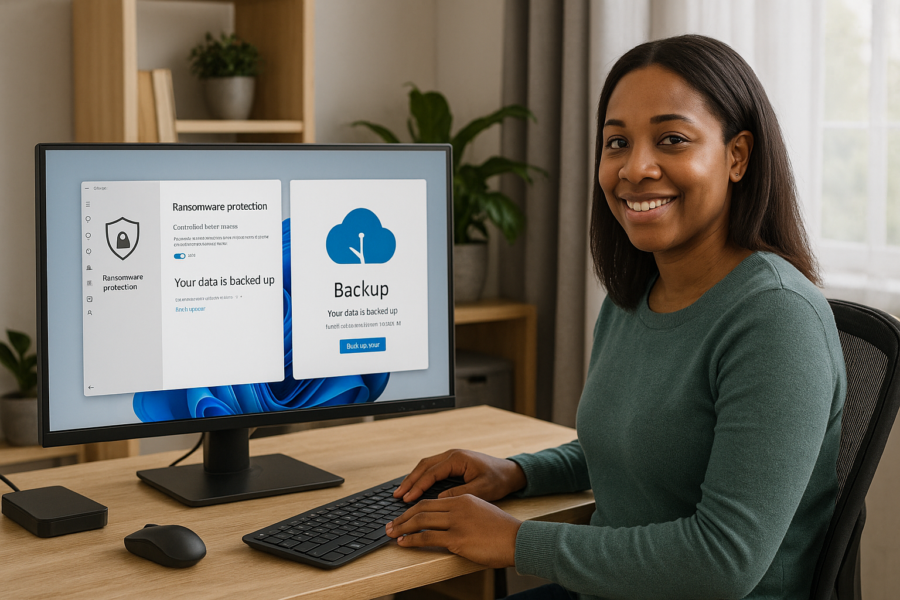
Ransomware Resilience on Windows: Controlled Folder Access + Backups (A Practical Setup)
Ransomware is a type of malware that tries to encrypt your files (photos, documents, projects) so you can’t open them. The goal isn’t to “never get infected” (nobody can promise that). The goal is resilience: if something slips through, your files still stay safe and recoverable.
Two Windows-friendly layers do most of the heavy lifting:
- Controlled Folder Access (CFA): blocks untrusted apps from changing files in protected folders.
- Backups: gives you a clean copy of your files you can restore if anything goes wrong.
This guide walks you through setting both up in a way that’s practical for everyday use, with a few “advanced user” options if you want tighter control.
What Controlled Folder Access actually does (and doesn’t)
Controlled Folder Access is a Microsoft Defender feature that helps prevent unauthorized apps from writing to protected folders such as Documents, Pictures, Desktop, and more. In plain terms: if a suspicious program tries to encrypt or overwrite your files, CFA can stop it.
Important limits:
- It’s not a full anti-malware replacement. You still need real-time protection and safe habits.
- It can’t protect what it can’t see. If your files live in unprotected locations, they may not be covered.
- It can be bypassed in some scenarios. Security features reduce risk; they don’t eliminate it.
Step 1: Turn on Controlled Folder Access
These steps are for Windows 10/11 using Microsoft Defender. Names can vary slightly by version.
- Open Windows Security.
- Select Virus & threat protection.
- Under Ransomware protection, choose Manage ransomware protection.
- Turn Controlled folder access On.
Once enabled, keep using your PC normally for a day or two. If something important is blocked, you’ll typically see a notification and an event in protection history.
What to do if a trusted app is blocked
If CFA blocks an app you trust (for example, a photo editor saving to Pictures), don’t disable CFA. Instead, allow that specific app.
- Go back to Manage ransomware protection.
- Select Allow an app through Controlled folder access.
- Add the app you trust.
Tip: Only allow apps you recognize and that you installed intentionally. If you’re unsure what something is, don’t whitelist it until you confirm.
Add extra folders (recommended if you store data outside the defaults)
If you keep important files in other locations (for example, a separate data drive or a custom “Work” folder), add them to the protected list:
- In Manage ransomware protection, choose Protected folders.
- Select Add a protected folder and choose your important folders.
Common “worth protecting” folders: accounting files, password manager vault exports (if you keep any), project folders, scanned documents, family photos, and anything you’d hate to recreate.
Step 2: Set up backups that ransomware can’t easily destroy
Ransomware often tries to encrypt anything it can reach—including connected external drives and synced folders. So a “good” backup strategy isn’t just having a copy; it’s having a copy that’s hard for malware to modify.
A practical approach is the 3-2-1 idea:
- 3 copies of important data (your working copy + 2 backups)
- On 2 different types of storage (for example, internal drive + external drive)
- 1 copy offline or otherwise isolated (not always connected)
Option A (simple and solid): External drive + “disconnect when done”
This is one of the most effective low-effort setups.
- Use an external drive dedicated to backups.
- Run backups on a schedule (daily or weekly depending on how often files change).
- Disconnect the drive when the backup finishes.
Why disconnecting matters: if the drive isn’t connected, ransomware can’t encrypt it.
Option B (built-in Windows backup tools): what to look for
Windows includes backup features, but the exact tools available depend on your version and settings. The key is choosing a method that supports:
- Version history (multiple points in time, not just a single mirror copy)
- Automatic scheduling
- Easy restore for individual files and folders
If your current setup is “I manually copy folders sometimes,” that’s a start—but it’s easy to forget, and it may overwrite good files with encrypted ones. Versioned backups are safer.
Option C (advanced): Separate backup account or device
If you want stronger isolation:
- Use a dedicated Windows user account for backups with limited permissions.
- Back up to a separate device that doesn’t share the same login.
- Keep the backup destination from being constantly mounted as a drive letter.
This adds friction for malware, but it also adds complexity. If you won’t maintain it, a simpler method you actually use is better.
Make CFA and backups work together (important workflow tips)
1) Protect where you actually save files
If you save everything to Desktop or Documents, you’re in good shape. If you save to a custom folder on D: or a synced folder, add it as a protected folder and include it in backups.
2) Don’t whitelist broadly
A common mistake is allowing “everything” after the first block. Only allow the specific app that needs access. If you see repeated blocks for unknown executables, treat that as a warning sign and investigate.
3) Back up more than just personal files
Consider backing up:
- Browser bookmarks (or export periodically)
- Email archives if you use local mail storage
- Game saves (some are local only)
- Configuration files for specialized apps
Test your restore (the step most people skip)
A backup you haven’t tested is a hopeful plan, not a proven one. Once you’ve set up backups:
- Create a small test folder with a few files.
- Run your backup.
- Delete or rename the test folder.
- Restore it from your backup and confirm the files open.
This quick check builds confidence that you’ll be able to recover if you ever need to.
Quick checklist (safe defaults)
- Turn on Controlled Folder Access.
- Add any non-standard data folders to Protected folders.
- When an app is blocked, allow only that specific trusted app (don’t disable CFA).
- Set up versioned backups on a schedule.
- Keep one backup offline (disconnect external drive after backup).
- Do a test restore of a small folder.
When to get extra help
If you’re seeing frequent blocks for unknown apps, unexpected system slowdowns, or your security settings keep changing on their own, it’s worth pausing and getting a second set of eyes. The safest move is to avoid “trying random fixes,” and instead focus on preserving data (backups) and verifying system integrity.