
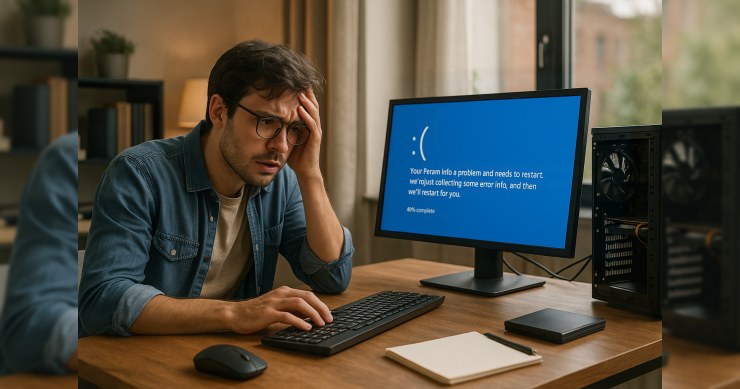
Crashing PC and Data Loss Worries? Simple Steps and Reliable Local Repair Options
Computer keeps crashing: quick, practical guidance you can apply today
A computer that freezes, restarts, or crashes without warning is stressful—especially when you’re worried about photos, documents, or work files. The good news: many crashes have common causes, and there are a few safe checks you can do at home before deciding on repair. If it keeps happening, a local technician can test the hardware and Windows system safely and explain your options clearly.
Why crashes happen (in plain English)
Most random crashes come from one (or a combination) of these issues:
- Overheating: Dust buildup or failing fans can make the PC shut down or crash to protect itself.
- Storage problems: A failing hard drive/SSD can cause freezes, blue screens, and file errors.
- Memory (RAM) faults: Bad RAM can lead to unpredictable restarts and app crashes.
- Driver or Windows issues: Updates, corrupted system files, or buggy drivers can destabilize Windows.
- Power problems: A weak power supply (desktop) or failing battery/charger (laptop) can cause sudden shutdowns.
- Software conflicts: Too many startup apps, security tools fighting each other, or unstable programs can trigger crashes.
First priority: protect your data (without making things worse)
If your system is crashing repeatedly, focus on saving important files before troubleshooting too deeply.
Quick, safe data-protection checklist
- If the PC still boots: Copy your most important folders (Documents, Desktop, Pictures) to an external drive.
- If it crashes during heavy use: Try copying in smaller batches (one folder at a time) to reduce stress on the system.
- If you hear clicking/grinding from a drive: Stop using the PC and seek help—continuing can reduce the chance of recovery.
- Don’t “clean up” or reinstall yet: Big changes (resets, reinstalls, disk “repair” tools) can make recovery harder if the drive is failing.
Simple checks you can do at home (low risk)
These steps are designed for everyday Windows users and are generally safe. If anything feels confusing, it’s okay to stop and ask for help.
1) Note what’s happening right before the crash
- Does it crash when opening a specific program?
- Does it crash during gaming, video calls, or charging?
- Does the laptop feel unusually hot or the fan run constantly?
Even a few details can help a technician diagnose faster.
2) Check Windows Update (and restart)
Install pending updates and restart. Some crashes are caused by partially installed updates or driver changes that need a clean restart to settle.
3) Reduce startup load
If the PC crashes shortly after logging in, too many startup apps can contribute to instability. Disable non-essential startup items and test again. Keep security software enabled.
4) Basic temperature and airflow check
- Make sure vents aren’t blocked (especially on laptops on blankets or couches).
- Listen for fans: if they’re unusually loud, rattling, or never spin up, that’s a clue.
- For desktops: check that the case isn’t packed with dust (if you’re comfortable opening it). If not, leave it to a shop.
5) Try Safe Mode (optional)
If crashes happen during normal use but not in Safe Mode, it often points to a driver, startup app, or software conflict. If you’re unsure how to access Safe Mode, a technician can guide you remotely or handle it in-shop.
Signs it’s time to stop DIY and get it checked
- Crashes are getting more frequent or happen during simple tasks
- Blue screens, repeated boot loops, or “repairing disk” messages
- Strange drive noises, burning smell, or sudden power-offs
- You can’t access important files and you need them back
- The PC is used for work/school and downtime is costly
What a reliable local repair should do (and what to ask)
A good repair process is calm, methodical, and transparent—especially when data matters.
Typical steps a technician may take
- Health checks: Storage and memory diagnostics, temperature checks, and a review of Windows reliability logs.
- Data-first approach: If a drive looks unstable, they’ll prioritize backing up data before deeper repairs.
- Clear options: Explain whether it’s likely hardware, software, or both—and what each fix costs.
- Stability testing: After repairs, they’ll run tests to confirm the system is stable under normal load.
Good questions to ask
- “Do you check the drive health before running repairs or reinstalling Windows?”
- “Can you help me back up my important files first?”
- “If it’s hardware, what parts are most likely and why?”
- “Will I get a summary of what you found and what you changed?”
How PCRuns can help
At PCRuns, we focus on safe, sensible troubleshooting for everyday Windows users. If your system is crashing, we can help protect your data, identify the root cause, and recommend the most practical fix—whether that’s a Windows repair, a cleanup/overheating fix, or a hardware replacement like a drive or RAM. If you’re not sure what you’re dealing with, that’s normal; we’ll explain what we find in plain language.
Tip: If you can, write down when the crashes started and what changed around that time (updates, new software, a drop/spill, new device). It often speeds up diagnosis.
Related: Diagnostics & System Recovery Services
If important files are involved, read the Byte-Back Solutions: Rescuing Your Data (and Your Day) before taking steps that could make recovery harder.