
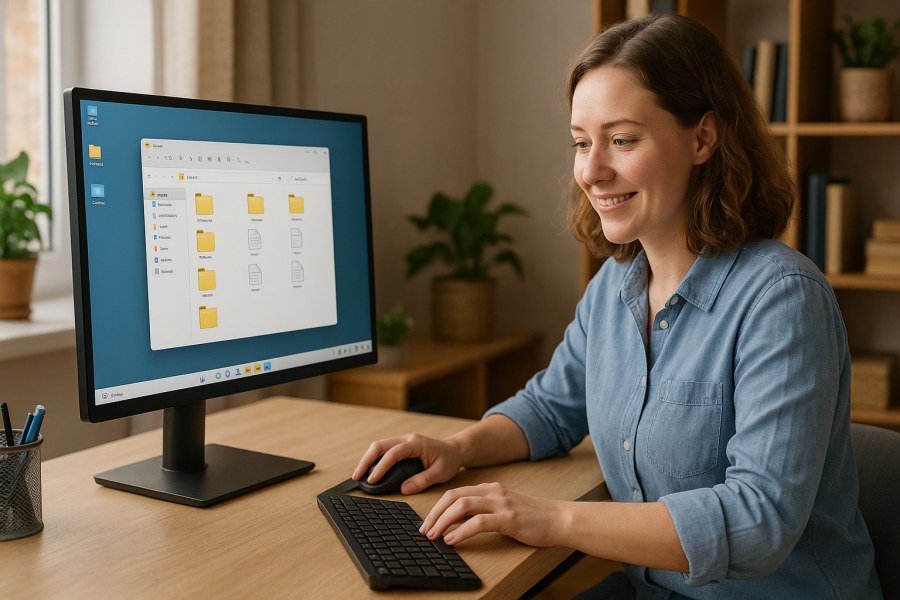
Understanding Files and Folders in Windows: How to Save, Find, and Organize Your Stuff
If you’ve ever saved a file and then immediately wondered, “Where did it go?”, you’re not alone. Windows gives you a lot of flexibility—but that also means it’s easy to end up with documents scattered across Downloads, Desktop, OneDrive, and random folders you didn’t mean to use.
This guide explains how files and folders work, how to save things where you expect, and a simple organization system you can stick with—without getting overly technical.
Files vs. folders (and why it matters)
A file is a single item—like a Word document, a photo, a PDF, or a spreadsheet.
A folder is a container that holds files (and other folders). Think of folders like labeled drawers, and files like the papers inside.
Understanding this helps because most “missing file” problems are really “saved to a different folder than I expected” problems.
What is a file extension?
Many files end with letters after a dot, like .docx, .pdf, .jpg, or .xlsx. That ending is the file extension, and it helps Windows know which app should open the file.
If you don’t see extensions, that’s normal—Windows can hide them by default. You can still work fine without seeing them, but knowing they exist can help you recognize file types.
Where your stuff usually goes in Windows
Windows tries to keep things in a few common places. The most important ones for everyday use are:
- Desktop: Easy to access, but can get cluttered fast.
- Downloads: Where most browsers save files unless you choose a different location.
- Documents: A good default for personal files like letters, forms, and notes.
- Pictures: A good default for photos and images.
- OneDrive (if enabled): Cloud-synced folders that may mirror Desktop/Documents/Pictures depending on your settings.
Tip: If you use OneDrive, you might have two “Documents” experiences—one local and one inside OneDrive. That’s not wrong, but it can be confusing if you don’t notice which one you’re using.
How saving works (so you can predict where files go)
When you click Save or Save As, the app chooses a location based on one or more of these:
- The last folder you used in that app
- A default like Documents or OneDrive
- A “suggested” recent folder Windows thinks you want
If you want control, use Save As more often. It forces you to confirm the folder and filename.
A safe, simple saving habit
- Use Save As the first time you create something important.
- Pick the correct folder on purpose (not just “where it happens to be”).
- Give the file a clear name (more on naming below).
- After that, regular Save is fine.
How to find a file you can’t locate
Before you assume a file is gone, try these steps in order. They’re quick and solve most cases.
1) Check “Recent” in the app you used
Many apps (Word, Excel, PDF readers, photo editors) show a Recent list. If the file is there, open it and then use File > Save As to put it into the right folder.
2) Search from the Start menu
Click Start and type part of the filename. If you don’t remember the exact name, try a keyword you know is in the name, like “invoice” or “resume”.
If you find the file, right-click it and choose Open file location (if available). That shows the folder it’s in.
3) Search inside File Explorer
Open File Explorer and click into the search box (top-right). Search in a likely place first:
- Downloads for things you downloaded
- Documents for created documents
- Pictures for images
If you still can’t find it, try searching in This PC. That’s broader and can take longer, but it’s more thorough.
4) Sort by date to spot “new” files
If you know roughly when you saved it, open the folder you suspect (like Downloads) and sort by Date modified. Newer files rise to the top, which often makes the missing file obvious.
A practical folder system that stays manageable
You don’t need a complicated structure. A simple system you actually use beats a perfect system you abandon.
Recommended: one “Home” folder for your personal work
Create a folder in Documents (or OneDrive Documents if you use it) called something like:
- My Files
- Personal
- PCRuns (or your name)
Inside it, create a few broad folders:
- 00 Inbox (temporary drop zone)
- Home (house, utilities, repairs)
- Work (if applicable)
- School (if applicable)
- Receipts & Taxes
- Projects
The 00 Inbox folder is key: it’s where you can save quickly when you’re busy. Then once a week (or whenever you have time), move items into the right folder.
Keep it shallow (avoid too many nested folders)
If you find yourself clicking through five levels to save a file, the system is probably too deep. Most people do best with 1–3 levels:
- Projects → Kitchen Remodel → files
- Not: Projects → Home → 2026 → Remodels → Kitchen → Quotes → Vendor A → Final
How to name files so you can recognize them later
Good names make search and sorting much easier. A simple pattern:
- What it is + who/where + date (optional)
Examples:
- Invoice_Electrician_2026-02.pdf
- Resume_Jordan_Smith_2026.docx
- Car_Insurance_Policy_2025.pdf
Use dates that sort correctly
If you include dates, use YYYY-MM or YYYY-MM-DD. That way files sort in order automatically.
Avoid these common naming problems
- “New Document (3)” or “Untitled” (hard to search later)
- Too many versions: final.docx, final2.docx, final_FINAL.docx
If you truly need versions, try: ProjectName_2026-02-27_v01.docx, v02, v03.
Desktop and Downloads: how to keep them from becoming a mess
Desktop and Downloads are convenient, but they’re best treated as temporary areas.
Desktop: use it like a workbench
- Keep only current items on the Desktop.
- Create one folder on the Desktop called To File and drop things there during the day.
- Move items into Documents/your main folders when you’re done.
Downloads: clean it with a simple rule
- Anything you want to keep: move it into your folder system.
- Installers you no longer need: delete them (when you’re sure the app is installed and working).
- Duplicates: keep the newest or the one with the clearest name.
OneDrive and “where did my folders go?” confusion
If OneDrive is set up on your PC, Windows may back up (sync) your Desktop, Documents, and Pictures. That can be helpful, but it can also make paths look different than expected.
Two practical tips:
- In File Explorer, look at the left sidebar: if you click OneDrive and see Documents/Pictures there, you’re working in the synced area.
- If you share files between devices, try to keep your important folders inside OneDrive (if you’re comfortable with it) so you’re not guessing which PC has the latest copy.
If you’re not sure whether something is local or synced, it’s okay to pause and check before moving or deleting large batches of files.
Quick checklist: a calm “reset” plan for your files
- Create one main folder in Documents (or OneDrive Documents) for your personal files.
- Add a 00 Inbox folder for quick saves.
- Pick 5–7 broad categories (Home, Work, Receipts, Projects, etc.).
- Start moving only your most important files first (don’t try to organize everything in one sitting).
- Use clearer filenames going forward.
- Once a week, empty Desktop “To File” and tidy Downloads.
When to be careful (so you don’t accidentally lose access)
Organizing is usually safe, but slow down in these situations:
- Program folders (like Program Files): don’t move or rename items there.
- Shared folders used by multiple people or apps: moving files may break shortcuts or workflows.
- Cloud-synced folders: large moves can take time to sync; make sure syncing finishes before shutting down.
If you’re unsure, copy a folder first (as a backup) before doing major reorganizing. It takes a little extra space, but it’s a safer approach.
Wrap-up
Once you understand where Windows tends to save things—and you adopt a simple “Inbox + a few categories” setup—files become much easier to find. You don’t need perfection. You just need a consistent place to save, a naming habit you can repeat, and a light weekly tidy-up.
Q&A
Why do my files keep saving to the wrong place?
Most apps remember the last folder you used, and some default to OneDrive or Documents. Use “Save As” the first time you save an important file so you can confirm the folder and filename. After that, regular “Save” usually keeps using the same location.
What’s the fastest way to find a file I just downloaded?
Open File Explorer and go to Downloads, then sort by Date modified so the newest items appear at the top. If you don’t see it there, use the Start menu search and type part of the filename.
Is it okay to store everything on my Desktop?
It works for short-term convenience, but it’s easy to lose track as it fills up. A better approach is to keep a single “To File” folder on the Desktop for temporary items, then move finished files into Documents (or your main folder system).
Why do I see Documents in two places (Documents and OneDrive)?
If OneDrive is enabled, you may have a local Documents folder and a OneDrive-synced Documents folder. They can look similar but behave differently. Check the left sidebar in File Explorer—if you’re inside OneDrive, you’re working in the cloud-synced area.
What’s a simple folder structure that won’t get out of control?
Create one main folder in Documents (or OneDrive Documents), add a “00 Inbox” folder for quick saves, and then 5–7 broad categories like Home, Work, Receipts & Taxes, and Projects. Keep it shallow—avoid too many nested subfolders.