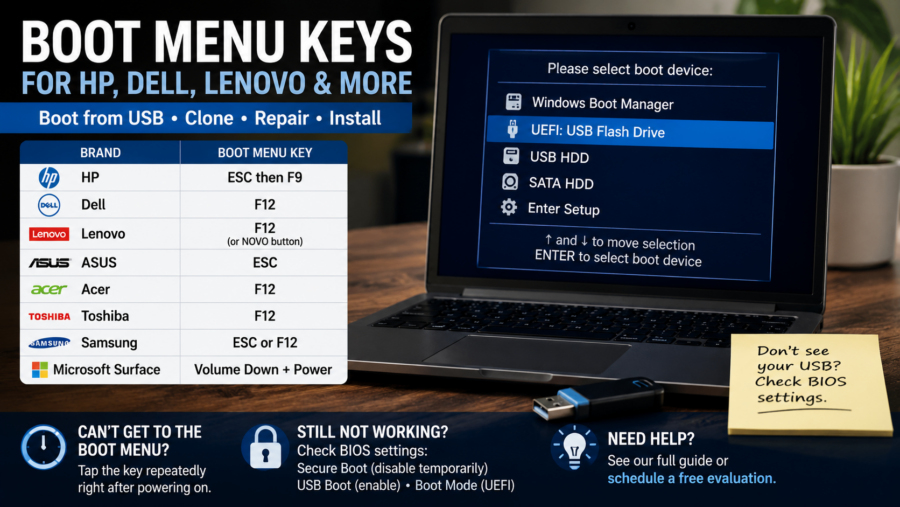
If your computer won’t start properly or you’re trying to clone a hard drive, one of the first things you may need is the boot menu. This is what lets you start your computer from a USB stick instead of the internal drive.
If you’re trying to clone or repair a system, this step is part of the larger hard drive cloning guide, which walks through the full process from start to finish.
For many people, this is the most frustrating part—pressing the wrong key or missing the timing can make it feel like nothing is working.
This guide gives you the exact keys to press and what to do if your system doesn’t respond.
Quick Boot Menu Keys (Most Common Brands)
Use this table first. Restart your computer and tap the key repeatedly as it powers on.
Laptops and Desktops
- HP →
ESCthenF9 - Dell →
F12 - Lenovo →
F12 - ASUS →
ESC - Acer →
F12 - Toshiba →
F12 - Samsung →
ESCorF12
If your system uses fast startup or secure boot, you may need to adjust BIOS settings before USB devices appear.
Special Cases
Lenovo (Some Models)
- Small NOVO button (tiny pinhole near power button)
- Press with a paperclip to open boot menu
Microsoft Surface
- Hold Volume Down + Power
How to Use the Boot Menu
Once the menu appears:
- Look for your USB device
(may say “USB HDD”, “UEFI USB”, or brand name) - Select it using arrow keys
- Press Enter
Your computer should now start from the USB (for cloning, repair, or reinstalling Windows).
If the Boot Menu Doesn’t Appear
This is very common—don’t assume something is broken.
Try This First
- Restart again
- Tap the key repeatedly (don’t hold it)
- Start tapping before the logo appears
If It Still Doesn’t Work
You may need to check BIOS settings.
BIOS Settings That Can Block USB Boot
Enter BIOS (usually F2, DEL, or F10) and look for:
1. Secure Boot
- Set to: Disabled (temporarily)
- Some systems block USB devices when enabled
2. USB Boot
- Make sure: Enabled
3. Boot Mode
- Use: UEFI (recommended)
- Only switch to Legacy if needed
After you finish cloning or repairs, you can turn Secure Boot back on.
Why This Matters for Cloning
If you’re following the hard drive cloning guide, getting into the boot menu is what allows tools like Macrium Reflect to run outside of Windows.
This is especially important when using tools like Macrium Reflect—see the full USB hard drive cloning with Macrium Reflect (step-by-step guide) for the complete process
That’s what makes cloning:
- More reliable
- Less prone to errors
- Safer for your data
Common Mistakes (Quick Fixes)
- USB not showing → try another port (use USB 2.0 if available)
- Wrong device selected → choose UEFI version of USB
- Boots to old drive → check boot order in BIOS
Real-World Tip (From Local Jobs)
Most systems I work on around Milwaukee respond to:
- F12 (Dell, Lenovo, Acer)
- ESC (HP, ASUS)
If one doesn’t work, try the other—it often saves time onsite.
Need Help Getting It to Boot?
If your system won’t respond or you’re not sure which option to choose, it’s better to stop before changing too many settings.
You can always schedule a free evaluation and get a quick answer on what’s going on—no pressure, just a clear direction.