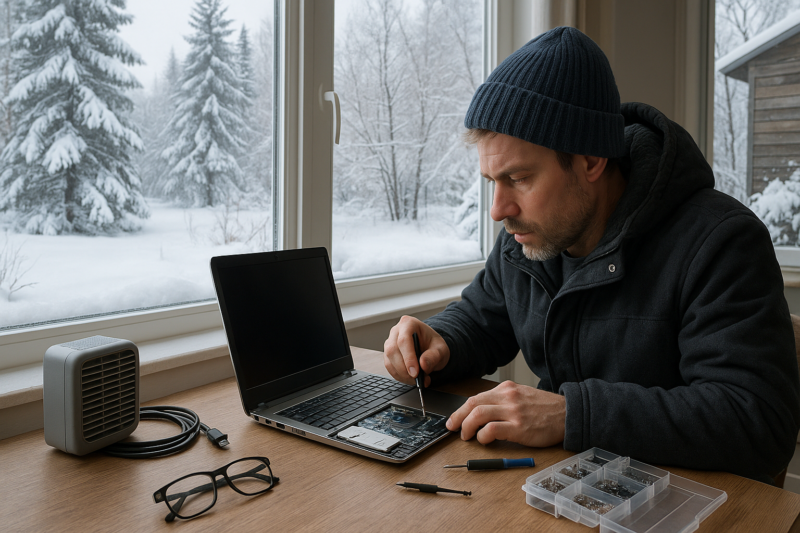
Avoid the Deep Freeze: Essential Winter Computer Care & Repair
Winter can be rough on computers—not because your PC “hates cold,” but because winter conditions often bring dry air, static, condensation risk, and more time spent moving devices between cold cars and warm rooms. The good news: a few simple habits can prevent most cold-weather problems and keep your Windows PC running reliably.
What winter does to your computer (and why it matters)
Most modern PCs and laptops can operate in a normal indoor temperature range without trouble. Winter issues usually happen when your device experiences rapid temperature changes or very dry air.
- Condensation: Bringing a cold laptop into a warm room can cause moisture to form on or inside it—similar to glasses fogging up. Moisture and electronics don’t mix.
- Static electricity: Heated indoor air is often dry, which increases static. A static discharge can cause odd glitches, or in rare cases, hardware damage.
- Dust and airflow problems: Closed windows and running heaters can increase dust buildup. Dust reduces cooling efficiency and can make fans louder.
- Battery performance: Cold temperatures can temporarily reduce laptop battery runtime and charging performance.
The winter checklist (safe defaults for most Windows users)
1) Let a cold device warm up before you power it on
If your laptop rode in a cold car or sat in a chilly entryway, give it time to reach room temperature before turning it on.
- As a general rule, wait 30–60 minutes after moving from cold to warm.
- If you see any visible moisture or fogging, wait longer until it’s fully dry.
- Keep it closed while it warms up to reduce moist air exposure.
If you must use it right away, it’s safer to wait than to risk powering on while condensation is present.
2) Avoid using your laptop on blankets, beds, or thick rugs
In winter, people naturally get cozy—unfortunately, soft surfaces can block air vents and trap heat. Heat is a bigger day-to-day enemy than cold.
- Use a hard surface (desk, table, lap desk).
- Make sure side and bottom vents aren’t covered.
- If your fan runs constantly, that’s a sign airflow may be restricted or dust buildup is increasing.
3) Reduce static risk with small changes
You don’t need special gear. Just reduce the chances of a zap.
- Before plugging in USB devices, briefly touch a metal part of your desk or PC case (if it’s metal) to discharge static.
- Avoid working on carpet when connecting/disconnecting lots of cables.
- If your home is very dry, consider keeping humidity in a comfortable range (many people aim for roughly 30–50% indoors). Don’t over-humidify—condensation is also a problem.
4) Keep ports and connectors clean and dry
Winter brings wet gloves, snow melt, and humid entryways.
- Don’t plug in cables with wet hands.
- If a port looks damp, power down and let it dry fully before use.
- If you use a laptop bag, check for moisture inside (snow melt can collect at the bottom).
5) Do a quick “winter tune-up” for smoother performance
Winter is a great time for basic maintenance that helps prevent slowdowns and random issues.
- Restart weekly: Especially if you usually just close the lid.
- Update Windows: Install pending updates when you can leave the PC plugged in.
- Check storage space: If your main drive is nearly full, Windows can feel sluggish.
- Listen for fan noise: A louder-than-normal fan can mean dust buildup or blocked airflow.
Common winter problems and simple fixes
Laptop won’t turn on after being in the cold
- Bring it to room temperature and wait (condensation risk).
- Plug it in and leave it charging for 15–30 minutes.
- If it still won’t respond, don’t keep forcing power cycles—there may be moisture or a battery/charger issue.
Random shutdowns or performance dips
- Check that vents aren’t blocked and the device isn’t sitting on fabric.
- Restart and install updates.
- If the PC is a few years old and runs hot, it may need internal cleaning. If you’re not comfortable opening it, it’s a good job to hand to a technician.
Keyboard or trackpad acting “weird” after coming indoors
- Power down and let it sit to dry at room temperature.
- Avoid using a hair dryer or direct heat (it can push moisture deeper or overheat parts).
- If symptoms persist after it’s fully dry, it may need inspection—especially if liquid exposure is possible.
When to stop DIY and get help
It’s smart to get support if you notice any of the following:
- Visible moisture inside the screen or under the keyboard
- A burning smell, unusual buzzing, or repeated shutdowns
- Charging issues that persist with known-good outlets and cables
- Fan noise plus high heat even on a hard surface
A technician can check for moisture damage, battery health, fan/clogging issues, and Windows stability problems without guesswork.
Quick recap
- Warm up cold devices before powering on to avoid condensation issues.
- Prioritize airflow—winter comfort habits often block vents.
- Reduce static with simple grounding and sensible indoor humidity.
- Keep ports dry and do a basic Windows tune-up.
If you’d like, tell me whether you’re using a laptop or desktop, and whether it’s traveling outdoors—those details change the best winter routine.