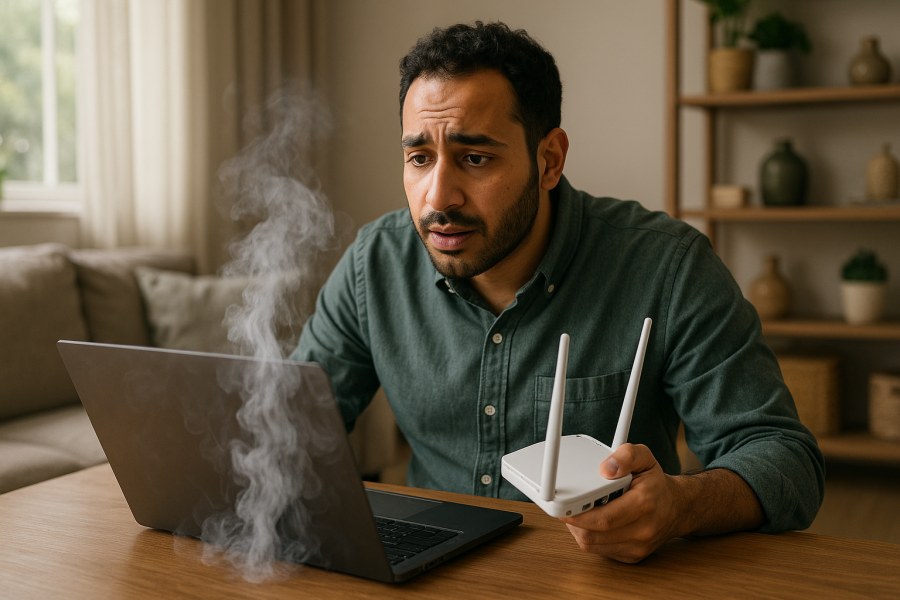
Source attribution: This post is a curated breakdown of How to Fix Overheating Laptop Performance, with added PCRuns context and practical guidance.
3 quick takeaways
- Heat usually causes slowdowns on purpose. Many laptops “throttle” (intentionally slow the CPU/GPU) to prevent damage, so overheating often looks like random lag, stuttering video calls, or sudden shutdowns.
- Most overheating is airflow + workload. Dust, blocked vents, dried-out thermal paste, and heavy background tasks are common culprits—and many are fixable without replacing the laptop.
- Don’t start with risky fixes. Avoid “miracle” software, avoid blasting fans with uncontrolled air, and don’t disassemble unless you’re comfortable. Start with safe checks, then escalate.
Plain-English explanation of the source
The source article focuses on a simple idea: when a laptop runs too hot, performance drops because the system is trying to protect itself. It explains that laptops have limited space to move heat out, and when airflow is restricted (dust, blocked vents, failing fan) or the system is being pushed hard (too many tasks, heavy apps, malware-like behavior), temperatures rise quickly. The laptop responds by slowing down, freezing, or shutting off to avoid hardware damage.
That framing matters because it helps you troubleshoot logically: you’re not chasing “mystery slowness.” You’re looking for why heat isn’t leaving the laptop or why the laptop is generating more heat than normal.
What the source says
- Overheating can cause noticeable performance problems like lag, freezing, and shutdowns.
- Heat buildup often comes from restricted airflow, dust accumulation, heavy software load, or failing internal components.
- When temperatures rise, laptops commonly throttle performance to protect the processor and other parts.
- Addressing overheating early can help prevent bigger hardware issues later.
Why overheating shows up as “slow laptop” (what’s really happening)
Modern CPUs and GPUs have temperature limits. When they approach those limits, the system reduces clock speed and power draw. That’s why you might see:
- Browser tabs feel heavy (especially video sites or lots of extensions).
- Video calls stutter (camera + mic + encoding + Wi‑Fi + background apps = heat).
- Games drop frames (GPU throttling is very noticeable).
- File transfers slow down (CPU throttling plus SSD/HDD heat management can reduce throughput).
- Random shutdowns (a safety cutoff when temperatures spike).
Important nuance: a laptop can be “hot” and still be within normal operating range. The problem is excess heat that triggers throttling or instability. The goal is not “cold laptop,” it’s “stable temperatures under your normal workload.”
Step-by-step: safe troubleshooting you can do first
Start with the least invasive checks. These steps are designed to reduce risk (no disassembly required) and still catch the most common causes.
1) Confirm the symptoms and pattern
Before changing anything, note what triggers the heat:
- Does it overheat only when plugged in? Only on battery? Both?
- Does it happen during video calls, gaming, charging, or even idle?
- Do the fans ramp up immediately, or only after a few minutes?
- Does it shut down, or just slow down?
This pattern helps separate “airflow problem” from “software load problem” from “hardware failure.”
2) Check airflow basics (the most common issue)
- Use a hard surface. Beds, couches, and laps block intake vents and trap heat.
- Inspect vents. If you see lint/dust packed in the exhaust, airflow is already compromised.
- Give it space. Even an extra inch behind the exhaust vent can help.
Pitfall: “Laptop cooling pads” can help in some cases, but they don’t fix a clogged heatsink or failing fan. Think of them as a small assist, not a cure.
3) Look for runaway processes (Windows)
If the laptop gets hot doing “nothing,” check what “nothing” actually means.
- Open Task Manager (Ctrl + Shift + Esc).
- On the Processes tab, sort by CPU and then by GPU.
- Watch for anything pinned high (for example, 30–100% CPU for minutes at a time).
Common legitimate heat-makers include browser processes (especially with many tabs), cloud sync tools, Windows Update activity, and video conferencing apps. Less legitimate causes can include unwanted software or a browser extension gone bad. If you’re unsure what a process is, don’t delete random files—look it up by name first.
4) Reduce heat from “always-on” background load
These changes are usually safe and reversible:
- Trim startup apps: Task Manager → Startup apps → disable what you don’t need at boot.
- Browser hygiene: reduce extensions, close unused tabs, and consider enabling “sleeping tabs” features if your browser supports it.
- Pause cloud sync temporarily during heavy work (large uploads can keep CPU and disk busy).
Pitfall: Don’t use “one-click optimizer” tools that promise dramatic cooling. Many are adware-heavy or make changes you can’t easily audit. If you want a clean system, focus on known Windows settings and reputable security scanning.
5) Check power settings (a practical way to reduce heat)
If you need a quick stability improvement (especially for older laptops), power settings can reduce peak heat output:
- Windows Settings → System → Power & battery → choose a more efficient power mode when you don’t need maximum performance.
- If your laptop has vendor utilities (Lenovo Vantage, Dell Power Manager, etc.), look for “quiet” or “cool” thermal profiles.
This doesn’t fix blocked airflow, but it can reduce throttling and fan noise during everyday tasks.
When basic steps aren’t enough: what usually fixes the root cause
If the laptop still overheats after airflow and software checks, the most common “real” fixes are physical: cleaning, fan service, and thermal interface work. This is where many laptops recover a lot of performance—because the CPU/GPU can sustain normal speeds again.
1) Internal dust removal (the right way)
Dust doesn’t just sit on the fan blades. It often forms a felt-like mat on the heatsink fins where you can’t see it from the outside. That mat blocks airflow even if the fan is spinning.
- Best practice: open the bottom cover (if you’re comfortable), hold the fan in place, and clean the heatsink/fan carefully.
- Why hold the fan: spinning a fan too fast with compressed air can stress the bearings.
If you’re not comfortable opening the laptop, it’s reasonable to have a shop do a cleaning as part of diagnostics. At PCRuns, we typically treat overheating as a “measure first, then clean/service” problem—because you want to confirm the fix with temperature and performance behavior, not just hope it worked.
2) Thermal paste and thermal pads (common on older systems)
Thermal paste is the material between the CPU/GPU and the heatsink. Over time, it can dry out or pump out, reducing heat transfer. Symptoms often include:
- Fans ramping quickly even under light load
- Temperatures spiking fast (not gradually)
- Throttling that starts within a minute or two of activity
Replacing thermal paste can help, but it’s not a universal fix. If the heatsink is clogged or the fan is failing, paste alone won’t solve it. Also, some laptops use thermal pads on VRMs or memory; using the wrong thickness can cause poor contact and worse temperatures. If you’re unsure, it’s better to have it serviced than to guess.
3) Fan failure and sensor issues
Sometimes the laptop isn’t “dirty,” it’s failing:
- Worn fan bearings: rattling, grinding, or inconsistent fan speed.
- Fan not spinning: the laptop may overheat rapidly and shut down.
- Temperature sensor/firmware oddities: less common, but can cause fans to behave strangely.
If you hear mechanical noise or the fan never ramps up even when the laptop is clearly hot, stop pushing it hard. Continued overheating can shorten the life of the battery and motherboard components.
Practical “do this, not that” checklist
- Do: keep vents clear and use the laptop on a hard surface. Not: run it on blankets or carpet that blocks intake.
- Do: check Task Manager for high CPU/GPU processes. Not: assume it’s “just old” without verifying load.
- Do: update Windows and key drivers through normal channels. Not: install random driver-updater utilities.
- Do: consider a conservative power mode for everyday work. Not: force “max performance” on a laptop that’s already thermally limited.
- Do: back up important data before any hardware service. Not: wait until after repeated shutdowns (heat-related instability can expose existing storage issues).
How to tell whether repair is worth it
Overheating fixes are often worthwhile when the laptop is otherwise in decent shape (good screen, acceptable battery health, no major hinge damage) and the performance issues are clearly heat-related. It may be less worthwhile when:
- The laptop is already struggling due to low RAM or a mechanical hard drive (HDD) and would need multiple upgrades.
- There are signs of broader failure (swollen battery, repeated blue screens unrelated to heat, liquid damage).
- The cost of parts + labor approaches the value of a better replacement.
In those cases, a value-conscious refurbished or repurposed system can be a smart move—especially if reliability matters more than squeezing a few more months out of a failing machine. The honest path is to diagnose first, then decide.
When to get professional help (and what to ask for)
If your laptop is shutting down from heat, making grinding fan noises, or you’ve already tried the safe steps above with no improvement, it’s time for hands-on diagnostics. If you’re in the Milwaukee area, PCRuns can help with:
- Overheating diagnostics (confirming throttling behavior and likely causes)
- Internal cleaning and fan/heatsink service
- Thermal paste/pad service when appropriate
- Windows performance cleanup when background load is the real culprit
- Data backup before any invasive repair
If you contact a technician, ask for a clear explanation of what they found (dust blockage vs. failing fan vs. software load) and what they recommend in order. A good shop will prioritize the simplest, most cost-effective fix first.
Conclusion
The source article’s core point is right: overheating doesn’t just make a laptop uncomfortable—it directly causes performance drops through throttling and can contribute to long-term wear. The best approach is to troubleshoot in layers: confirm the pattern, fix airflow basics, check for runaway software load, and then (if needed) address the physical cooling system with proper cleaning and service. Done methodically, many “slow and hot” laptops become stable and usable again without jumping straight to replacement.
Need local computer help?
If you are in the Milwaukee, Wisconsin and nearby local customers area and this issue affects your work, data, security, or daily computer use, PCRuns can help with computer diagnostics, Windows repair, malware removal, data backup, system recovery, hardware upgrades, remote support, small business IT support.
Q&A
Why does my laptop get hot and slow down at the same time?
In many cases it’s thermal throttling: the CPU/GPU intentionally reduces speed to stay within safe temperature limits. That protective slowdown can feel like lag, stutters, or freezes.
What’s the first thing I should check if my laptop is overheating?
Start with airflow and workload: make sure vents aren’t blocked (use a hard surface), then check Task Manager for high CPU/GPU processes that could be generating extra heat.
Will a cooling pad fix an overheating laptop?
Sometimes it helps a little, especially if the laptop’s intake vents are restricted. But it won’t fix a clogged heatsink, dried thermal paste, or a failing fan—those require service.
Is it safe to use compressed air to cool my laptop?
It can be safe if done carefully, but it’s easy to do it wrong. Blasting air can spin the fan too fast and push dust deeper into the heatsink. The most effective cleaning is usually internal, with the fan held in place and the heatsink fins cleaned directly.
When should I stop troubleshooting and get professional diagnostics?
If the laptop is shutting down from heat, the fan makes grinding/rattling noises, the fan doesn’t spin, or temperatures spike quickly even under light use, it’s worth getting diagnostics to avoid further wear or sudden failure.