
PCRuns Cornerstone Guide
This guide is part of the PCRuns Computer Recovery & Backup Guide Series. It combines real-world experience with practical recovery techniques to help you protect your files, recover from accidental data loss, and better understand how modern backup and synchronization systems work.
Whether you’re recovering from a synchronization mistake or building a safer backup strategy, this guide is designed to help you make informed decisions before small problems become major data-loss events.
In This Guide
- How My Backup Strategy Changed Over Time
- How Synchronization Turned One Deletion into Thousands
- What to Do Immediately If Your Files Suddenly Disappear
- How I Used Microsoft’s “Restore your OneDrive” to Recover Nearly Everything
- What I Would Do Differently Today
- My Backup Philosophy Going Forward
- Questions I Asked During My Recovery
- Final Thoughts
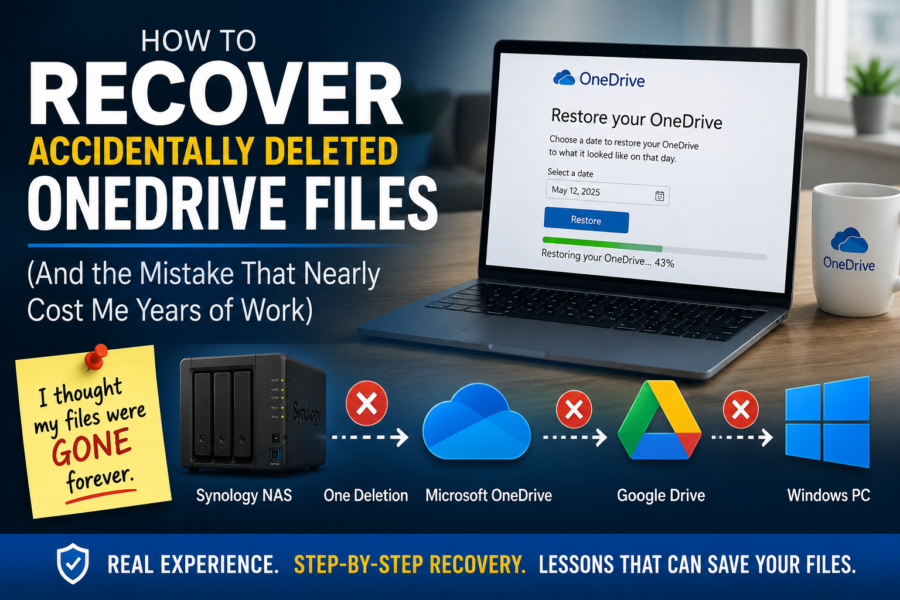
A step-by-step guide based on a real recovery after an old synchronization relationship silently deleted years of documents across a Synology NAS, Microsoft OneDrive, Google Drive, and Windows.
If you’re reading this, there’s a good chance you’re feeling exactly the way I did: shocked, frustrated, and worried that years of documents may be gone forever.
When my files disappeared, I wasn’t deleting my current work. I was simply trying to free space on my Synology NAS by removing what I believed was an old, unused OneDrive folder. I had stopped using that folder more than a year earlier after moving my active OneDrive data to a dedicated 2 TB NVMe drive in my Windows computer.
What I had forgotten was that the old folder was still part of an active synchronization relationship.
Within minutes, thousands of files began disappearing. The deletion propagated from my Synology NAS to Microsoft OneDrive, then to Google Drive, and eventually back to my Windows computer. Years of website development, custom software projects, business records, research, and personal documents appeared to vanish.
At first, I thought everything was lost.
Fortunately, it wasn’t.
Microsoft’s Restore your OneDrive feature recovered nearly everything, but the process was far from straightforward. The restore took almost an entire day, appeared to stall for hours, and at one point seemed as though it had stopped completely. Like many people in this situation, I questioned whether it was still working.
It was.
This guide explains exactly what happened, the recovery process that worked for me, what I learned along the way, and—most importantly—how you can avoid making the same mistake.
Before You Do Anything Else
If your files have just disappeared, resist the urge to start copying, deleting, or reconnecting every device you own.
Every additional synchronization can overwrite recovery opportunities.
Before attempting recovery:
- Pause OneDrive synchronization.
- Pause Google Drive synchronization if you use it.
- Disconnect or power down any NAS devices that may still be synchronizing.
- Avoid deleting additional folders or trying multiple recovery methods at the same time.
- Begin the recovery process from the cloud first.
A calm, methodical approach greatly improves your chances of recovering your files.
About This Guide
Unlike many online recovery articles, this guide is based on a real-world recovery involving a Synology NAS, Microsoft OneDrive, Google Drive, and Windows. It combines firsthand experience with practical recovery techniques to help others understand both what happened and how to respond.
Important Disclaimer
The events described in this guide were not caused by a fault in Synology, Microsoft OneDrive, or Google Drive.
The data loss occurred because an old synchronization relationship remained active long after I stopped using that folder. When I deleted what I believed was an unused copy of my OneDrive folder, the synchronization software interpreted that deletion as an intentional change and faithfully propagated it to every connected location.
This guide is intended to help others understand how synchronization works, how Microsoft’s recovery tools can help, and how to reduce the risk of a similar situation.
How My Backup Strategy Changed Over Time
Understanding how this happened is important because it illustrates a mistake that almost anyone could make. The problem wasn’t caused by defective hardware or unreliable cloud storage. Instead, it resulted from a synchronization relationship that I had forgotten was still active.
Like many people, my backup strategy evolved over several years as my needs changed. Each change made sense at the time, but together they created a situation I didn’t fully recognize until years later.
The Original Backup Plan
I originally synchronized my Windows computer with my Synology NAS so I would always have a second copy of my important documents. At that point, the Synology served as my primary local backup while Microsoft OneDrive provided an additional cloud copy.
This arrangement worked well and gave me confidence that my files existed in more than one location.
When Disaster Struck the First Time
Everything changed when repeated power interruptions occurred while my local utility company, We Energies, was performing work in my neighborhood. Electrical service stopped and restarted several times in a short period, and my Synology NAS suffered extensive data loss.
Fortunately, because my OneDrive files had already synchronized with Microsoft’s cloud, I was able to restore nearly everything back to the Synology. Although rebuilding parts of my media collection took considerable time, my documents survived because they existed in Microsoft’s cloud.
Moving OneDrive Back to My Computer
After that experience, I became concerned about relying on the Synology as the primary location for my working OneDrive files. To reduce that risk, I installed a dedicated 2 TB NVMe drive in my Windows computer and moved my active OneDrive folder there.
The move worked well. My computer became the primary location for my OneDrive documents, while the Synology was no longer part of my daily workflow.
What I didn’t realize was that the original OneDrive folder remained on the Synology, and more importantly, the synchronization relationship associated with that folder was still active.
The Forgotten Folder
More than a year later, I needed additional storage space on the Synology so I could begin creating larger backups of my current Windows system. While cleaning up old folders, I found what appeared to be an outdated copy of my OneDrive directory that I had not used in well over a year.
Believing it was simply an old copy, I deleted it.
That single action started a chain reaction that I never expected.
The folder wasn’t just an inactive copy.
It was still participating in an active synchronization relationship.
Within minutes, files began disappearing from Microsoft OneDrive, Google Drive, and eventually from my Windows computer itself.
Years of work seemed to vanish almost instantly.
How Synchronization Turned One Deletion into Thousands
The most important lesson I learned from this experience is surprisingly simple.
Synchronization is not the same thing as backup.
Before this happened, I believed I had multiple backups because my files existed on my Windows computer, my Synology NAS, Microsoft OneDrive, and Google Drive.
What I actually had was something very different.
I had several systems that were synchronized together.
That distinction became critically important the moment I deleted what I believed was an old, unused folder.
If you’re replacing an aging hard drive or SSD, our Hard Drive Cloning Guide explains how cloning can help preserve your existing data before hardware failure occurs.
What Synchronization Really Does
Synchronization is designed to keep multiple locations identical.
When you create a new document, synchronization copies that document everywhere.
When you edit a file, synchronization updates every connected location.
Most importantly—and this is the part many people don’t think about—when you delete a file, synchronization assumes the deletion was intentional and copies that change everywhere as well.
The software isn’t making a mistake.
It’s doing exactly what it was designed to do.
What Happened in My Case
When I deleted what appeared to be an old OneDrive folder from my Synology NAS, the synchronization software didn’t know that I considered it an unused copy.
It simply saw that thousands of files had been deleted.
Because the synchronization relationship was still active, every connected service began updating itself to match the new state.
The deletion propagated through my storage systems one after another.
- Files disappeared from the Synology NAS.
- Microsoft OneDrive synchronized the deletions to the cloud.
- Google Drive reflected those changes.
- Windows synchronized those same deletions back to my computer.
From my perspective, it looked as though every copy of my documents was disappearing at the same time.
In reality, every synchronization service believed it was doing exactly what I wanted.
Why This Wasn’t a Software Failure
It’s important to understand that neither Synology, Microsoft OneDrive, nor Google Drive malfunctioned.
Each program faithfully followed the instructions implied by an active synchronization relationship.
The problem wasn’t defective software.
The problem was that I had forgotten an old synchronization relationship was still active more than a year after I stopped using that folder.
The Difference Between Synchronization and Backup
One of the biggest misconceptions in computing is believing that synchronized copies are the same as independent backups.
They are not.
| Synchronization | Backup |
|---|---|
| Keeps locations identical. | Preserves previous versions. |
| Copies new files. | Stores historical copies. |
| Copies file edits. | Allows recovery from earlier versions. |
| Copies accidental deletions. | Protects against accidental deletions. |
| Excellent for working across devices. | Excellent for disaster recovery. |
Synchronization and backup are both valuable tools, but they solve different problems.
Synchronization keeps your current files available everywhere.
Backup protects you when something goes wrong.
Ideally, you should have both.
Lesson Learned
The most expensive mistake I made wasn’t deleting a folder.
It was assuming that multiple synchronized copies were the same thing as multiple backups.
They aren’t.
What to Do Immediately If Your Files Suddenly Disappear
If your documents suddenly begin disappearing, your first instinct may be to start copying files, reconnecting backups, or trying every recovery method you can find.
Don’t.
The first few minutes after discovering a synchronization problem are often the most important. Every additional synchronization can overwrite recovery opportunities or spread the problem to other devices.
Instead, slow down and work through the following steps one at a time.
Step 1: Stop Making Changes
As soon as you realize files are disappearing, stop deleting, moving, renaming, or copying files.
The goal is to prevent additional synchronization events while you determine exactly what happened.
Step 2: Pause Cloud Synchronization
If you use Microsoft OneDrive, pause synchronization immediately.
If you also use Google Drive or another cloud synchronization service, pause those as well.
At this stage, you don’t want one cloud service updating another while you’re trying to recover your data.
Step 3: Disconnect Any Devices That May Still Be Synchronizing
If you use a NAS such as a Synology, or another computer that synchronizes the same folders, disconnect it from the network or power it down until you understand what happened.
In my case, I shut down the Synology NAS before attempting any recovery. That prevented additional synchronization while I investigated the problem.
Tip:
Turning off a device temporarily is very different from deleting data. If you’re unsure whether a device is still synchronizing, it’s usually safer to disconnect it until you’ve completed your recovery plan.
Step 4: Check the Cloud Before Making Local Changes
Log in to your OneDrive account using your web browser.
Don’t rely only on what you see in Windows File Explorer.
The cloud often provides a much clearer picture of what has happened and gives you access to recovery tools that aren’t available through the desktop synchronization client.
Step 5: Check the OneDrive Recycle Bin
If only a few files were deleted, they may simply be waiting in the OneDrive Recycle Bin.
However, if thousands of files disappeared because of a synchronization event, restoring individual files may not be practical.
That’s when Microsoft’s Restore your OneDrive feature becomes one of the most valuable recovery tools available.
Step 6: Don’t Panic If the Deletions Continue for a Short Time
This was one of the most unsettling parts of my own experience.
Even after I realized what had happened, files continued disappearing because synchronization events were still working their way through multiple systems.
That doesn’t necessarily mean recovery is impossible.
It simply means the synchronization services are still processing the changes that were already started.
The important thing is to stop additional synchronization as soon as possible and begin working from the cloud recovery tools.
Remember:
The worst time to make rushed decisions is immediately after discovering major data loss. Taking a few minutes to stop synchronization and think through your recovery plan can dramatically improve your chances of getting your files back.
How I Used Microsoft’s “Restore Your OneDrive” to Recover Nearly Everything
After checking the OneDrive and Google Drive Recycle Bins, it became clear that restoring individual files wasn’t going to solve the problem. Thousands of documents had disappeared, and restoring them one by one would have taken far too long.
That’s when I discovered Microsoft’s Restore your OneDrive feature.
If you’ve never used it before, this tool allows you to restore your entire OneDrive account to an earlier point in time. Instead of recovering files individually, it attempts to return your OneDrive to the way it looked before the accidental deletion occurred.
Choosing the Restore Point
At first, I considered restoring my OneDrive to approximately nine days earlier, which was close to when the deletion occurred.
Instead, I decided to restore my OneDrive to approximately three weeks before the incident.
My reasoning was simple. I wanted to return to a point well before any synchronization problems had begun.
In my case, that decision proved to be the right one.
The restore returned nearly all of my missing documents, including years of website development, plugin programming, business records, research, and personal files.
Don’t Expect the Restore to Be Fast
This was one of the biggest surprises.
I expected the recovery to finish within an hour or two.
Instead, it took almost an entire day.
If you’re restoring thousands of files, don’t assume something is wrong simply because the process takes much longer than expected.
Large cloud restores involve rebuilding folders, metadata, permissions, version history, and file relationships. Depending on the number of files involved, that can take many hours.
When the Progress Appeared Stuck
During my recovery, the progress indicator reached approximately 43% and then appeared to stop.
For more than an hour, nothing seemed to happen.
Over the next hour and a half, the progress increased by only about one percent.
Naturally, I wondered whether the restore had failed.
It hadn’t.
The percentage barely changed, but files continued reappearing in my OneDrive account.
That taught me an important lesson.
Watch the files—not just the percentage.
If documents are continuing to reappear, the restore is probably still working even if the progress indicator seems frozen.
Tip:
Large OneDrive restores don’t always progress smoothly. The percentage may pause for long periods before suddenly jumping ahead. Be patient before assuming the restore has failed.
Why I Stayed Awake Most of the Night
One unusual part of my experience occurred during the early stages of the restore.
While the recovery was building the list of files, the web interface periodically timed out. If I didn’t return and interact with the page, I risked losing my place and having to begin that portion of the process again.
Because of that, I stayed up most of the night checking the progress and keeping the recovery moving.
Fortunately, once the restore progressed beyond roughly sixty percent, it became much more stable and no longer required the same level of attention.
Your experience may be different, but if the interface appears to pause while preparing the restore, don’t immediately assume the recovery has failed.
What Happened After the Restore Finished
When the recovery completed, I found that nearly all of my missing files had returned.
Microsoft also moved newer files that had been created after the restore point into the OneDrive Recycle Bin.
That behavior is intentional.
It allows you to restore your older files while still giving you the opportunity to recover newer work created after the selected restore date.
After verifying that my older documents had returned successfully, I restored the newer files from the OneDrive Recycle Bin.
Only after I confirmed that everything looked correct did I consider reconnecting the rest of my synchronization and backup systems.
The Biggest Lesson from the Recovery
The recovery took far longer than I expected.
At several points, I was convinced it had stopped working.
Fortunately, I resisted the temptation to cancel it.
Patience turned out to be one of the most important recovery tools I had.
What I Would Do Differently Today
Looking back, I don’t believe the biggest mistake I made was deleting the wrong folder.
The biggest mistake was assuming that multiple synchronized copies provided the same protection as multiple independent backups.
They don’t.
If this experience taught me anything, it’s that synchronization and backup serve two completely different purposes.
Synchronization is designed to keep your current files available everywhere.
Backup is designed to help you recover when something goes wrong.
Today, my backup strategy is much different than it was before this happened.
Lesson #1: Keep a Written Record of Every Synchronization Relationship
Over time, it’s easy to forget which folders are still synchronized and which ones are simply copies.
My disaster began because I believed an old OneDrive folder stored on my Synology NAS was no longer connected to anything.
I hadn’t used it for well over a year.
Unfortunately, the synchronization relationship was still active.
Today, I recommend keeping a simple document listing every synchronization relationship you have.
Include services such as:
- Microsoft OneDrive
- Google Drive
- Synology Drive
- Cloud Sync
- Dropbox
- Any NAS synchronization software
That simple list can prevent years of work from disappearing because of a forgotten connection.
Lesson #2: Never Assume an Old Folder Is Safe to Delete
Just because you haven’t used a folder in months—or even years—doesn’t mean it isn’t still participating in synchronization.
Before deleting any large folder that once belonged to a cloud service, verify that it is no longer synchronized.
Taking a few minutes to check can save days or even years of work.
Lesson #3: Synchronization Is Not a Backup
This is probably the single most important lesson from my experience.
Synchronization faithfully copies changes.
That includes accidental deletions.
A true backup preserves previous versions so you can recover from mistakes.
Both are important, but they should never be confused with one another.
Think of it this way:
Synchronization answers the question:
“How do I keep my files the same everywhere?”
Backup answers the question:
“How do I get my files back when everything goes wrong?”
Lesson #4: Verify Your Recovery Before Reconnecting Everything
After my OneDrive recovery finished, I resisted the temptation to immediately reconnect every device and resume synchronization.
Instead, I verified that my documents had returned, restored newer files from the OneDrive Recycle Bin, and confirmed that everything looked correct.
Only then did I begin thinking about reconnecting the rest of my storage systems.
Taking that extra time reduced the risk of another synchronization event undoing the recovery.
Lesson #5: Versioned Backups Are Worth the Storage Space
Before this experience, I sometimes viewed snapshots, version history, and backup archives as using valuable disk space.
Now I see them differently.
Storage can always be expanded.
Years of irreplaceable work cannot.
If you have the option to maintain versioned backups, snapshots, or historical archives, they’re often worth far more than the storage they consume.
If you’re considering installing a larger SSD or NVMe drive for additional backup space, our Computer Upgrade Guide explains the available upgrade options.
My Backup Philosophy Going Forward
If I were starting over today, I would build my backup strategy around three simple goals.
- Keep my working files synchronized so they’re available wherever I need them.
- Maintain independent versioned backups that cannot be affected by accidental deletions.
- Periodically create an additional offline backup that is disconnected after the backup completes.
Each layer serves a different purpose.
Together, they provide much stronger protection than relying on synchronization alone.
If you remember only one thing from this guide, remember this:
Synchronization makes multiple locations look the same.
Backup makes recovery possible.
They work best together—not as replacements for one another.
Questions I Asked During My Recovery
When I thought I had lost years of documents, website projects, business records, and custom plugin files, I had more questions than answers. If your files have suddenly disappeared, you may be feeling the same panic and uncertainty I experienced.
These are the answers I wish I had found when my recovery began.
Quick Recovery Checklist
- Pause Microsoft OneDrive synchronization.
- Pause Google Drive and any other cloud synchronization services.
- Disconnect or power down any NAS that may still be synchronizing.
- Stop deleting, moving, renaming, or reorganizing files.
- Check the OneDrive Recycle Bin.
- Use Restore your OneDrive if a large number of files disappeared.
- Select a restore point from before the accidental deletion or synchronization event.
- Allow the restore to finish, even if progress appears extremely slow.
- Verify that your important folders and files have returned online.
- Restore newer files placed in the OneDrive Recycle Bin.
- Create an independent backup before reconnecting devices or resuming synchronization.
Important: Avoid trying several recovery methods at the same time. Work from one known recovery source and do not reconnect synchronized systems until you understand what happened.
Can I recover files that were accidentally deleted from OneDrive?
In many cases, yes.
If the files were deleted recently, Microsoft provides several possible recovery options, including the OneDrive Recycle Bin, file version history, and the Restore your OneDrive feature.
The sooner you stop synchronization and begin investigating the loss, the better your chances of recovering your files.
What is Microsoft’s “Restore your OneDrive” feature?
Restore your OneDrive allows you to return your entire OneDrive account to an earlier point in time.
Instead of recovering thousands of files individually, Microsoft attempts to reverse the changes made after the selected restore point.
For a large accidental deletion or synchronization problem, this can be much more practical than restoring files one at a time from the Recycle Bin.
Where do I find Restore your OneDrive?
Sign in to OneDrive through a web browser and open the OneDrive settings. Look for the option labeled Restore your OneDrive.
The exact location and availability may depend on your Microsoft account and subscription. If the option is not visible, check Microsoft’s current recovery information or contact Microsoft Support as soon as possible.
How do I choose the right OneDrive restore date?
Choose a point from before the accidental deletion or destructive synchronization event began.
I initially examined activity from approximately nine days earlier because that was close to when the large deletion occurred. I ultimately restored OneDrive to approximately three weeks earlier so the selected point was safely before the problem.
A restore point farther back may recover older files, but it can also affect legitimate changes made after that date. Those newer files should therefore be reviewed carefully in the OneDrive Recycle Bin after the restore.
Does Restore your OneDrive recover everything or only selected files?
Restore your OneDrive is intended as an account-wide rollback rather than a normal selected-file recovery tool.
The activity list may display individual changes and allow you to review what will be reversed, but the purpose of the feature is to return OneDrive to the selected earlier state.
This is different from opening the Recycle Bin and manually selecting individual files.
Will Restore your OneDrive remove files created after the restore date?
Microsoft explains that files and folders created after the selected restore point may be moved to the OneDrive Recycle Bin as part of the rollback.
After the main recovery finishes, carefully review the Recycle Bin and restore any newer files you still need.
That was part of my recovery. I first restored OneDrive to its earlier state and then recovered most of the newer items from the Recycle Bin.
Why did my OneDrive recovery take so long?
A large OneDrive recovery can take many hours, especially when thousands of folders, documents, website files, plugin files, and other items are involved.
My recovery took almost an entire day to complete.
The recovery time can depend on the number of account changes Microsoft must process, the number of files involved, and the size and complexity of the OneDrive account.
A slow recovery does not automatically mean it has failed.
My OneDrive restore appears stuck. Should I cancel it?
Not necessarily.
During my recovery, the progress indicator remained at approximately 43% for more than an hour. It then increased by only about one percentage point during the next hour and a half.
Although the percentage barely moved, folders and files continued returning to OneDrive online.
If files are still reappearing and Microsoft has not displayed a failure message, the recovery may still be working. Watch the returning files, not only the progress percentage.
Can I stop a OneDrive restore after it has started?
Interrupting a large restore may create additional uncertainty and could force you to begin the process again.
Unless Microsoft reports a specific error or Microsoft Support tells you to stop, it is generally safer to allow an active recovery to finish.
My restore appeared stuck for long periods, but patience eventually resulted in the return of nearly all my missing files.
Why did I have to keep checking the OneDrive restore page?
During the earlier part of my recovery, OneDrive spent a long time populating the list of affected files and changes.
A blue prompt periodically appeared, and I had to interact with it to keep the page from timing out. If I missed that prompt during the early stages, the page could begin loading the information again.
I stayed awake for most of the night to keep the process moving. Once the recovery passed approximately sixty percent, it became more stable, and a timeout no longer appeared to send the process back to the beginning.
Other users may see different behavior, but a slow or awkward web interface does not automatically mean the recovery has failed.
Do I need to leave OneDrive synchronization enabled during a cloud restore?
No. In my case, I intentionally disabled OneDrive synchronization on the computer while Microsoft restored the files in the cloud.
The recovered files first reappeared in OneDrive online. Keeping local synchronization paused helped prevent my computer, Google Drive, and Synology NAS from introducing additional changes during the recovery.
Verify the cloud contents before allowing the restored files to synchronize back to the computer.
Should I reconnect my Synology NAS immediately after restoring OneDrive?
No.
First confirm that your important folders and files have returned to OneDrive online. Then review and restore newer files from the OneDrive Recycle Bin.
Before reconnecting the NAS, create an independent copy of the recovered data if possible and review every Synology synchronization job.
An old synchronization relationship caused my original loss. Reconnecting it too soon could allow conflicting changes or deletions to spread again.
How can synchronization software delete files everywhere?
Synchronization is designed to make connected locations match.
When a file is created, edited, moved, or deleted, that change may be copied to every connected location.
In my case, deleting an old OneDrive folder from the Synology NAS was interpreted as an intentional deletion. Because the old synchronization relationship was still active, the deletion spread to Microsoft OneDrive, Google Drive, and eventually back to the active OneDrive folder on my Windows computer.
The synchronization software did not understand that I considered the Synology folder to be an unused backup copy.
Can this happen with Google Drive, Dropbox, iCloud, or other cloud services?
Yes.
The exact settings and recovery tools vary, but synchronization services generally try to keep connected locations consistent.
An accidental deletion can therefore spread to multiple computers, drives, NAS folders, or cloud accounts when those locations are connected by active synchronization jobs.
The lesson is not to avoid cloud storage. The lesson is to know which folders are synchronized and maintain independent backups that preserve earlier versions.
Did Synology cause the loss of my files?
No.
The loss was not caused by a Synology hardware failure or a defect in Microsoft OneDrive.
An old synchronization relationship remained active after I stopped using the Synology copy as my main OneDrive location.
More than a year later, I deleted that folder while trying to free storage space for a new backup. Because it was still synchronized, the deletion spread to the connected cloud and computer locations.
The software followed the active synchronization instructions. The underlying problem was that I had forgotten the relationship still existed.
Why didn’t the OneDrive and Google Drive Recycle Bins contain everything?
Recycle bins are useful when a manageable number of files have been deleted, but a large synchronization event may involve thousands of changes.
In my case, checking the OneDrive and Google Drive Recycle Bins recovered only a small portion of what was missing.
Microsoft’s account-wide OneDrive restore recovered nearly all the older files. I then used the OneDrive Recycle Bin to recover newer files affected by the earlier restore date.
What are tmp.driveupload files in the OneDrive Recycle Bin?
Files with names containing tmp.driveupload are generally temporary working files associated with uploading or synchronizing data.
A large recovery or synchronization event may leave many of these temporary files in the OneDrive Recycle Bin.
They are generally not the original Word documents, PDFs, plugin files, photographs, or other personal files you are trying to recover.
Before permanently deleting them, verify that your important files have returned and that you have made an independent backup of the recovered data.
Should I keep snapshots and versioned backups even though they use a lot of space?
Versioned backups and snapshots can consume substantial storage, but they provide protection that ordinary synchronization does not.
A synchronized copy may repeat an accidental deletion. A versioned backup or snapshot may allow you to return to a point from before the deletion occurred.
Storage capacity has a cost, but losing years of business records, research, website files, and software projects can cost far more.
Before it becomes a bigger problem, review how much version history you need and reserve enough storage to maintain a practical recovery window.
How can I check whether an old folder is still synchronized?
Before deleting an old cloud or NAS folder, open every synchronization program connected to that location and review its active jobs.
On a Synology system, this may include Synology Drive Client, Synology Drive Admin Console, and Cloud Sync. On Windows, review Microsoft OneDrive, Google Drive, Dropbox, and any other installed synchronization applications.
Confirm the exact source folder, destination folder, synchronization direction, and deletion behavior for every job.
Do not assume a folder is disconnected simply because you have not opened or used it for a long time.
What should I do before deleting a large “old” folder?
First, verify that the folder is not being used by OneDrive, Google Drive, Synology Drive, Cloud Sync, backup software, or another computer.
Temporarily disable the related synchronization job rather than deleting the folder immediately. Confirm that your active files remain available in their intended locations.
When practical, rename or move the suspected old folder and wait before permanently deleting it. That creates an additional opportunity to discover a forgotten dependency.
A quick check now can save hundreds of hours of recovery work later.
What is the biggest lesson from this experience?
Synchronization is not the same thing as backup.
Synchronization keeps connected locations consistent, including copying accidental deletions.
A true backup preserves recoverable versions that remain available when working files are damaged, changed, or deleted.
Both tools are valuable, but they protect you in different ways.
Still trying to recover missing files?
Stop synchronization and avoid making additional changes until you understand what happened. Repeated recovery attempts, file moves, or reconnecting old synchronization jobs can make the situation harder to evaluate.
For Milwaukee-area computer users, PCRuns can provide an honest evaluation and help determine whether recovery makes sense. There is no pressure and no obligation.
Final Thoughts
When I deleted what I believed was an old, unused OneDrive folder from my Synology NAS, I never imagined that one action would spread through every connected system and make years of work appear to vanish.
My website files, custom plugin projects, business records, research, personal documents, and other important files disappeared from the Synology, Microsoft OneDrive, Google Drive, and eventually from the active OneDrive folder on my Windows computer.
For a while, I believed almost everything was gone.
Fortunately, Microsoft’s Restore your OneDrive feature gave me a way back.
The recovery was not quick or easy. It took almost an entire day. The progress appeared stuck for long periods, and I stayed awake for most of the night to keep the restore page from timing out during the earlier stages.
At approximately 43%, the recovery barely moved for hours. Even so, files continued returning online. Once the restore passed roughly 60%, the process became more stable and eventually completed.
Nearly all my missing files came back.
I then restored most of the newer files that Microsoft had moved into the OneDrive Recycle Bin because they had been created after the restore point I selected.
The experience taught me something I will not forget:
Synchronization is useful, but it is not the same as backup.
Synchronization keeps files available across several locations, but it can also copy an accidental deletion everywhere.
A true backup preserves earlier versions so you still have somewhere safe to return when something goes wrong.
I did not write this guide to criticize Synology, Microsoft OneDrive, or Google Drive. The software did what it had been configured to do.
The real problem was that an old synchronization relationship remained active long after I stopped using that folder. Because I had forgotten about it, I mistook a synchronized folder for an independent backup.
That is an easy mistake to make, especially when storage systems change over time.
If your files have suddenly disappeared, try not to panic. Pause synchronization, disconnect any other systems that may still be involved, and carefully examine the recovery options available through your cloud provider.
Do not assume a slow recovery has failed simply because the percentage appears frozen.
Most importantly, do not reconnect every device or resume every synchronization job until you have verified your restored files and created an independent copy.
If sharing this experience helps even one person recover important files—or prevents someone from making the same mistake—then the long night I spent watching that progress bar will have served a useful purpose.
Need an honest opinion before making more changes?
If you are in the Milwaukee area and are unsure whether your files can still be recovered, stop making changes before the problem becomes bigger.
PCRuns can help review what happened, identify the safest next step, and determine whether recovery makes sense.
Schedule a free evaluation. No pressure and no obligation.