No Display on Monitor? Easy PC Repair Steps for Beginners
Seeing a black screen (or “No Signal”) can feel scary, but most “no display” problems come down to power, the cable, the input setting, or a loose connection. This beginner-friendly checklist starts with the safest, easiest fixes first.
Before you start: what you’re seeing matters
- Monitor says “No Signal”: the monitor is on, but it’s not receiving video from the PC.
- Monitor is totally dark (no power light): the monitor may not be powered, or brightness/backlight may be off.
- PC turns on but nothing shows: could be a cable/input issue, a stuck startup, RAM seating, or (less commonly) a graphics card problem.
Step 1: Check the monitor power (quick wins)
- Make sure the monitor power cable is pushed in firmly at both ends (monitor and wall/power strip).
- If you’re using a power strip, try a different outlet on it—or plug the monitor directly into the wall.
- Look for the monitor’s power light. If it’s off, press the monitor power button once (some buttons are touch-sensitive).
- If the screen is on but extremely dim, use the monitor buttons to open its menu and raise brightness.
Step 2: Confirm the correct input (HDMI/DisplayPort)
Many monitors have multiple inputs. If the monitor is set to the wrong one, you’ll get “No Signal” even if the PC is fine.
- Use the monitor’s Input or Source button/menu.
- Switch between HDMI, DisplayPort (DP), DVI, or VGA (whichever your setup uses).
- Wait a few seconds after each change.
Step 3: Reseat the video cable (and use the right port)
Loose connections are common—especially after moving a PC or bumping a desk.
- Turn the monitor off.
- Unplug the video cable at both ends, then plug it back in firmly.
- If your cable has screws (like DVI/VGA), tighten them gently.
- Important: If you have a desktop with a separate graphics card, plug the monitor into the graphics card ports (lower area on the back), not the motherboard ports (upper area). Using the wrong port can cause no display.
Step 4: Power cycle the PC and monitor (safe reset)
This clears many “stuck” states without changing your files.
- Shut down the PC: hold the power button for about 10 seconds until it turns off.
- Turn off the monitor.
- Unplug power to both PC and monitor for 30 seconds.
- Plug the monitor back in and turn it on first.
- Plug the PC back in and turn it on.
Step 5: Try a different cable or a different port
Cables fail more often than people expect, and ports can get picky.
- If you’re on HDMI, try a different HDMI cable (even a spare from a TV can help).
- Try a different port on the monitor (HDMI 1 vs HDMI 2) or on the PC.
- If you have both HDMI and DisplayPort available, try switching types (with the correct cable).
Step 6: Test with another screen (or test the monitor)
- Test the PC: connect the PC to a TV or another monitor using a known-good cable.
- Test the monitor: connect the monitor to another device (like a laptop or game console) if available.
If the monitor works with another device, your PC is likely the issue. If the PC works on another display, the monitor/cable/input is likely the issue.
Step 7 (desktop only): Reseat RAM (common cause of “no display”)
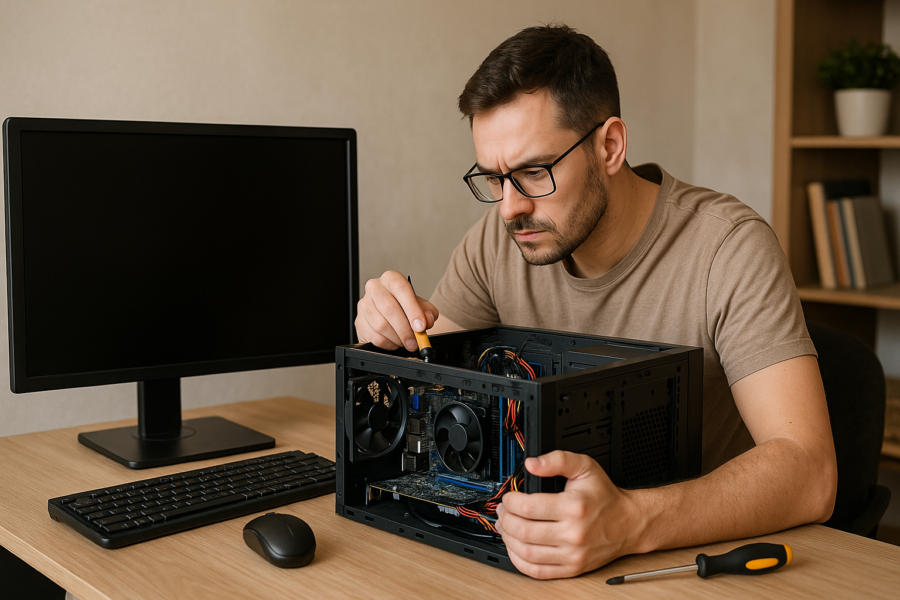
If your PC powers on but never shows anything, RAM that’s slightly unseated can do it—especially after moving the tower. If you’re not comfortable opening the PC, it’s okay to stop here.
- Shut down and unplug the PC.
- Press the power button once (unplugged) to discharge leftover power.
- Open the side panel.
- Press the RAM sticks down firmly until the side clips click into place.
- Close the case, plug in, and try booting again.
Tip: Avoid touching the gold contacts. Handle RAM by the edges.
Step 8: Watch for beep codes or warning lights
Some desktops have a small set of diagnostic LEDs on the motherboard, or they may beep during startup. The meaning varies by manufacturer, so if you see a repeating pattern, write it down (or take a photo) before you look it up or ask for help.
When to stop and get help
- You smell burning, see sparks, or hear unusual electrical buzzing (power off and unplug).
- The PC repeatedly turns on and off by itself.
- You’ve tested with another cable and another screen and still get no display.
- You suspect a failing graphics card, power supply, or motherboard (these are harder to confirm without spare parts).
A local technician can usually diagnose hardware faster by swapping known-good parts safely.
Quick checklist (printable)
- Monitor has power and brightness is up
- Correct input/source selected
- Cable reseated on both ends
- Using the correct video port (graphics card vs motherboard)
- Power cycle PC + monitor
- Try another cable/port
- Test with another screen/device
- (Desktop) Reseat RAM