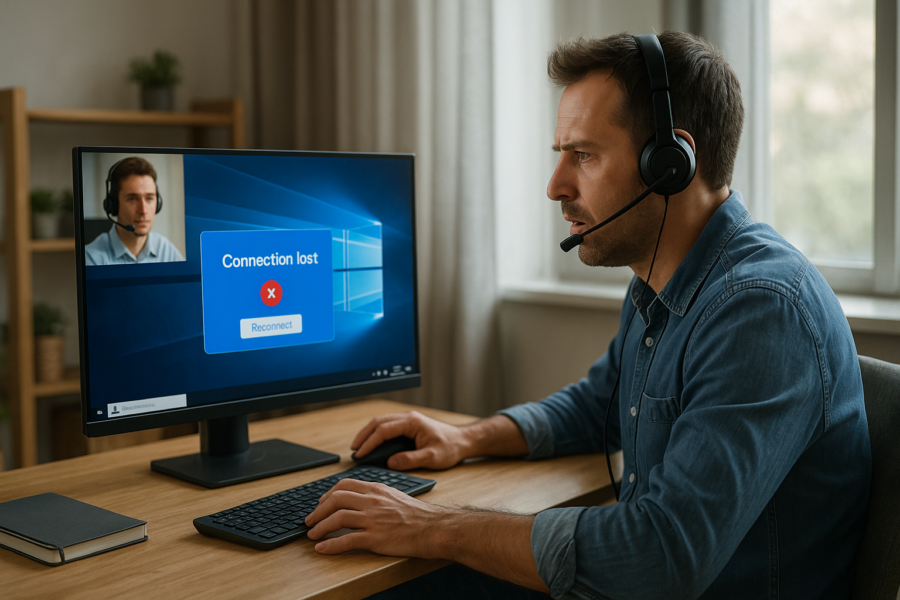
Does your remote support session keep disconnecting…
Here is a quick, practical guidance you can apply today.
Remote support is great when it works—and frustrating when it keeps disconnecting. Most session dropouts come down to a few common causes: unstable internet, Windows power-saving settings, VPN/proxy conflicts, or security software interfering with the connection.
Below are practical, safe steps you can try on a Windows PC to make remote support sessions more reliable. You don’t need to be an expert—just work through the checklist in order.
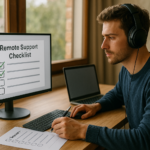
Quick checklist (do these first)
- Use a wired connection if possible (Ethernet is usually more stable than Wi‑Fi).
- Restart your PC (clears stuck network services and background apps).
- Restart your router/modem if your whole internet has been flaky.
- Close heavy apps (cloud backups, large downloads, game launchers, streaming).
- Keep the PC awake during the session (sleep can drop the connection).
1) Stabilize your network (most common cause)
Prefer Ethernet over Wi‑Fi
If you can plug in an Ethernet cable, do it for the session. Wi‑Fi is more likely to have brief signal drops that remote tools interpret as a disconnect.
If you must use Wi‑Fi, reduce interference
- Move closer to the router (even a few feet can help).
- Avoid running the session from the edge of your Wi‑Fi range.
- Pause large downloads/uploads on other devices during the session.
Run a quick Windows network reset (safe, reversible)
Try this when connections are “weird” (slow, frequent reconnects, or the PC says it’s connected but apps don’t behave).
- Go to Settings > Network & Internet > Advanced network settings > Network reset.
- Restart the PC when prompted.
Note: Network reset removes and reinstalls network adapters and can forget saved Wi‑Fi networks. Have your Wi‑Fi password handy.
2) Stop Windows from sleeping or powering down your network
Set the PC to stay awake during support
Sleep mode can interrupt remote sessions, especially if the screen turns off and the PC goes idle.
- Go to Settings > System > Power & battery (or Power & sleep on some versions).
- Temporarily set Screen and Sleep to longer times while you’re getting help.
- If you’re on a laptop, keep it plugged in during the session.
Disable power saving on the network adapter (common laptop fix)
This can prevent Windows from “turning off” the network card to save power.
- Right-click Start > Device Manager.
- Expand Network adapters.
- Double-click your Wi‑Fi or Ethernet adapter > Power Management tab.
- Uncheck Allow the computer to turn off this device to save power.
- Click OK, then restart the PC.
If you don’t see a Power Management tab, skip this step—some adapters/drivers don’t offer it.
3) Watch for VPNs, proxies, and “secure” network tools
VPNs and some “network protection” features can cause remote tools to re-route traffic or block parts of the connection, which can look like random disconnects.
- If you use a VPN, try disconnecting it temporarily during the support session.
- Check Settings > Network & Internet > VPN to confirm it’s off.
- If you’re on a work/school device, VPN settings may be managed—ask your IT team before changing anything.
4) Reduce security software interference (without turning off protection)
Security tools can sometimes block remote-control components or “quarantine” parts of a support app after an update. The safest approach is to avoid disabling protection and instead use allow/exception options if needed.
- If the remote tool repeatedly disconnects at the same point (for example, right after connecting), ask your technician whether the app needs an allow rule in your firewall/security software.
- Keep Windows Security and your antivirus up to date. Outdated definitions can cause false positives.
- Avoid running multiple antivirus products at the same time (that can create conflicts and slowdowns).
If you’re not sure what’s safe to change, pause here and ask the support person to guide you. It’s better to be cautious than to switch off protections blindly.
5) Update the basics that affect connection stability
Install Windows Updates
Windows updates can include networking fixes and driver improvements.
- Go to Settings > Windows Update > Check for updates.
- Restart if required (many networking fixes don’t fully apply until a reboot).
Update your network driver (when dropouts persist)
If you’ve tried the steps above and disconnects keep happening, your Wi‑Fi/Ethernet driver may be outdated or unstable. Driver updates are best done through:
- Windows Update (often safest for everyday users), or
- Your PC maker’s official support app (if your computer includes one).
If you’re unsure which driver is correct, don’t guess—incorrect drivers can create new issues.
6) During the session: small habits that prevent drops
- Keep the remote support window open and avoid locking the PC unless your technician says it’s okay.
- Don’t start large downloads, cloud sync jobs, or video calls during support.
- If you’re on battery, plug in power (some laptops get aggressive with power saving).
When it’s not your PC
Sometimes the issue is outside your control: the remote support service may be having an outage, your ISP may have brief packet loss, or the technician’s network may be unstable. If you’ve worked through the checklist and it still drops, share these details with support:
- Whether you’re on Wi‑Fi or Ethernet
- Whether a VPN is enabled
- Roughly how often it disconnects (every few minutes vs. once an hour)
- Whether other apps also lose internet at the same time
That info helps them quickly narrow it down.