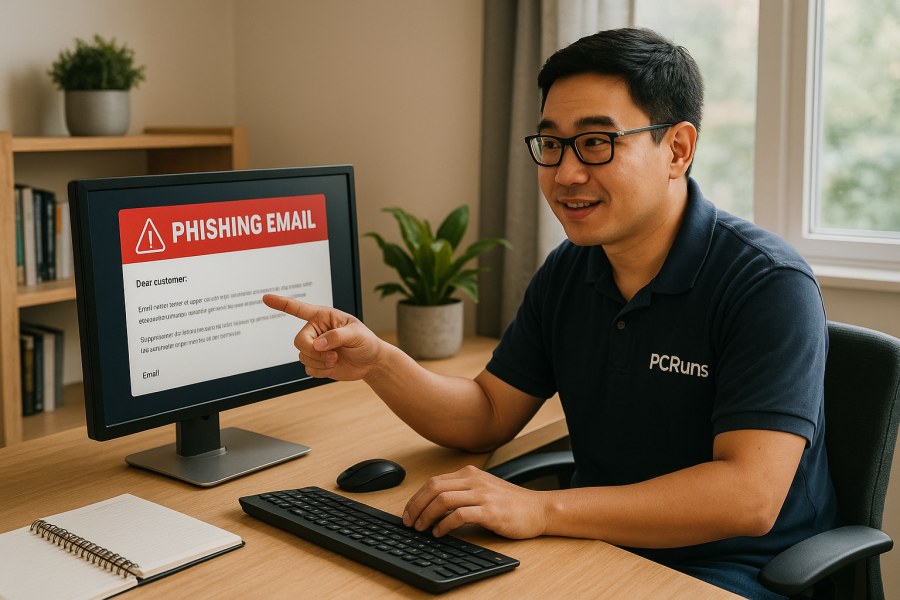
Phishing emails are messages designed to trick you into clicking a link, opening an attachment, or sharing personal information (like passwords, payment details, or verification codes). They often look “almost” legitimate—like a bank alert, a delivery notice, or a Microsoft login warning.
I’m John from PCRuns, and I see the fallout from phishing all the time during malware removals and account recovery work. The good news: you don’t need to be a security expert to catch most phishing attempts. You just need a fast, repeatable check.
The 60-Second Phishing Check (Do This Every Time)
0–10 seconds: Look at the sender (but don’t trust the display name)
Phishing emails often use a familiar display name (like “PayPal Support”) while hiding a suspicious email address behind it.
- Tap/click the sender name to reveal the full email address.
- Watch for misspellings or extra words: “support-paypaI.com” (capital i), “amazon.verify-team.com,” “micros0ft.com” (zero).
- Be cautious with “reply-to” mismatches (the reply address differs from the sender).
10–25 seconds: Scan the subject + first line for pressure tactics
Phishing works best when you’re rushed. Common pressure phrases include:
- “Immediate action required”
- “Your account will be locked today”
- “Unusual sign-in attempt” (especially when they demand you click a link)
- “Invoice attached” when you weren’t expecting one
Legitimate companies do send security alerts, but they typically don’t demand you act within minutes or threaten instant closure unless you click their link.
25–40 seconds: Hover (or long-press) the link before clicking
On a computer, hover your mouse over the link to preview where it really goes. On a phone, press and hold the link to preview it.
- If the visible text says “View invoice” but the preview shows a strange domain, treat it as phishing.
- Watch for look-alike domains: “paypaI.com” vs “paypal.com,” or “microsoft-login.security-alerts.com” (not Microsoft).
- Be wary of shortened links or random strings that don’t clearly match the company.
40–55 seconds: Check what they’re asking you to do
Most phishing emails push you toward one of these risky actions:
- Enter your password (especially “to confirm” or “to avoid suspension”)
- Provide a one-time code (MFA/2FA code)
- Open an attachment you weren’t expecting
- Buy gift cards, send crypto, or “pay an invoice” urgently
A big rule: no real company needs your password via email, and no legitimate support person should ask for your one-time verification code.
55–60 seconds: Use a safe verification step
If the email might be real, verify it safely without using the email’s links or phone numbers.
- Open a new browser tab and type the company’s website yourself.
- Use your saved bookmark for the real site.
- Check your account notifications after logging in normally.
This one habit stops a huge percentage of phishing attempts.
Common Phishing Examples (and What Gives Them Away)
Example 1: “Microsoft password expired”
What it might say: “Your password expires today. Keep access by confirming your login.”
- Red flag: The sender address doesn’t end in a legitimate Microsoft domain.
- Red flag: The link preview goes to a non-Microsoft site (often a random domain).
- Red flag: The email creates urgency and funnels you to a login page.
What to do instead: Open a new tab, go to your Microsoft account the normal way, and check security alerts there. If you’re unsure, don’t interact with the email.
Example 2: “Package delivery failed”
What it might say: “We attempted delivery. Pay a small fee to reschedule.”
- Red flag: You weren’t expecting a package, or the email doesn’t reference a real tracking number you recognize.
- Red flag: The link goes to a payment page that doesn’t match the carrier’s real domain.
- Red flag: Vague language: “Dear customer” instead of your name (not always, but common).
What to do instead: If you’re expecting something, go directly to the carrier’s website or the retailer’s order page (by typing it in) and check tracking there.
Example 3: “Invoice attached (urgent)”
What it might say: “Please see attached invoice. Payment due today.”
- Red flag: Unexpected attachment (especially .zip, .html, .iso, or unusual file types).
- Red flag: The sender claims to be a vendor you don’t use.
- Red flag: The message is short, generic, and pushes you to open the file.
What to do instead: Don’t open it. If it’s a vendor you actually work with, contact them using a known phone number or prior email thread (not the one in the suspicious message).
Example 4: “Your bank detected fraud”
What it might say: “Suspicious charge detected. Verify your identity now.”
- Red flag: The email asks you to log in through their link.
- Red flag: The email requests personal info directly (SSN, full card number, PIN).
- Red flag: The phone number in the email doesn’t match the number on the back of your card.
What to do instead: Use the bank’s official app or call the number on your card. If there’s real fraud, it will show up there.
Common Pitfalls (Even Careful People Fall for These)
- “It has my name, so it must be real.” Names and emails can be pulled from data breaches and public sources.
- “It came from a coworker/friend.” Their account may be compromised, and attackers often send phishing from real inboxes.
- “It looks professional.” Logos and formatting are easy to copy. The link destination matters more than the design.
- “It says HTTPS, so it’s safe.” HTTPS only means the connection is encrypted. Scam sites can use HTTPS too.
If You Clicked or Entered Info: What to Do Next
Mistakes happen. What matters is what you do immediately afterward.
- If you entered a password: Change it right away on the real site (type the address yourself). If you reused that password elsewhere, change those too.
- If you entered a one-time code: Treat it like an active compromise. Change your password and review sign-in activity and security settings.
- If you opened an attachment: Disconnect from Wi-Fi if anything looks odd (pop-ups, encryption warnings, sudden slowness), and run a reputable security scan. If you’re not sure what to do, stop and get help.
- If you paid or shared financial info: Contact your bank/card provider using the number on your card and ask about next steps.
For general guidance on phishing and reporting, the Cybersecurity and Infrastructure Security Agency (CISA) is a solid reference. Microsoft also publishes practical security guidance for account protection. (Background reading: https://www.cisa.gov/ and https://learn.microsoft.com/en-us/security/)
Quick “Safe Habits” That Make Phishing Much Less Likely to Work
- Use a password manager so you don’t reuse passwords (reused passwords are a common reason one phishing incident spreads).
- Turn on multi-factor authentication (MFA) where available, and never share MFA codes.
- Keep Windows and browsers updated (many attacks rely on old vulnerabilities).
- Back up important files (so a bad click doesn’t become a disaster).
If you want more security basics written in plain language, I keep related guides here: https://pcruns.com/security/.
Need local computer help?
For readers in Milwaukee, Wisconsin and nearby communities, PCRuns can help when a computer problem affects your work, data, security, or daily use. Services include computer diagnostics, Windows repair, malware removal, data backup, system recovery, hardware upgrades, remote support, small business IT support, broken screen replacement, broken hinge repair.
Schedule a free evaluation, get an honest opinion, or see whether repair makes sense with no pressure and no obligation.
Conclusion: Your Best Defense Is a Calm, Repeatable Routine
You don’t need special tools to spot most phishing emails—just a quick routine: check the sender, preview the link, watch for urgency, and verify through a trusted method (not through the email). If you build that 60-second habit, you’ll avoid the majority of “bad clicks” that lead to stolen accounts or malware.