If your computer takes a long time to become usable—or several programs appear before you have opened anything—too many startup apps may be part of the problem. This can be especially frustrating on an inexpensive computer with limited memory, where every unnecessary program consumes resources you need for browsing, email, documents, or video calls.
The good news is that you may be able to improve the situation without buying a new computer. Windows lets you stop optional apps from opening automatically, and the change is normally easy to reverse. The important part is knowing what is safe to disable and what should be left alone.
The safest rule: If you recognize an app and know you do not need it running all the time, it may be a good candidate to disable. If you do not recognize it, leave it enabled until you find out what it does.
In This Guide
- What are startup apps?
- Why startup apps affect some computers more than others
- Curated video: What Windows Startup Programs Do I Need?
- How to check startup apps in Windows 11
- What can usually be disabled?
- What should remain enabled?
- Disable or uninstall?
- When startup apps are not the whole problem
- Frequently asked questions
What Are Startup Apps?
Startup apps are programs that Windows opens automatically when you sign in. Some are useful. A backup program may need to start so it can protect your files. Security software may need to run so it can warn you about a threat. An accessibility program may be essential to the person using the computer.
Other programs start automatically mainly for convenience. Chat programs, game launchers, music services, meeting apps, printer helpers, phone-linking programs, and software update tools may all try to open before you need them. As more software is installed, this list can quietly grow.
Disabling a startup app does not normally remove the program. It simply stops the program from opening automatically. You can still open it yourself when you need it.
Why Startup Apps Affect Some Computers More Than Others
Not every computer is affected equally. A higher-performance computer with a strong processor, plenty of memory, and a fast solid-state drive may start many background programs without feeling noticeably slow. Cleaning up its startup list can still reduce clutter, but the improvement may be small.
An entry-level computer can be very different. A lower-cost processor and 8 GB of memory may be adequate for everyday use, but there is less capacity to spare. Windows, the web browser, security protection, cloud syncing, chat programs, update utilities, and other background apps all compete for the same limited resources.
Why 8 GB of RAM Can Feel Limited
Think of memory as a worktable. Windows and every open program need space on that table. When the table fills up, Windows temporarily moves some work between memory and the storage drive. An NVMe solid-state drive makes that process faster than an old mechanical drive, but it is still slower than having enough free memory.
That means an inexpensive computer can have a fast NVMe drive and still feel sluggish. The drive helps files and programs load, but it cannot transform a modest processor into a powerful one or make 8 GB of memory behave like 16 GB. Reducing unnecessary background activity gives the computer more of its limited resources for the work you actually want to do.
Where this change matters most: On an entry-level computer, reducing startup apps can improve sign-in time, responsiveness, and the time it takes before the browser or another program is ready to use. On a powerful computer, the same cleanup may produce only a modest improvement.
Curated Video: What Windows Startup Programs Do I Need?
This video from Leo Notenboom of Ask Leo! was selected because it takes a cautious, honest approach. Rather than presenting a universal list of programs everyone should disable, Leo explains why each computer and each user is different. He also demonstrates the most important principle: do not change something you do not understand.
Important note: The video shows an earlier appearance of Task Manager and mentions examples such as Cortana and Skype. Windows 11 looks somewhat different today, but the decision-making guidance remains useful.
Key Lessons from the Video
- There is no single correct startup list for every computer.
- Programs you recognize and do not use automatically may be disabled.
- Programs you no longer use at all may be better uninstalled.
- Cloud-syncing apps must run if you expect them to synchronize automatically.
- Security-related entries should be left enabled unless you know exactly what they do.
- If disabling something causes a feature to stop working, you can return to the list and enable it again.
- Some programs may add themselves back after they are opened or updated.
How to Check Startup Apps in Windows 11
Method 1: Use Task Manager
- Press Ctrl + Shift + Esc on the keyboard.
- When Task Manager opens, select Startup apps from the left side.
- Look at the Status column to see which apps are enabled.
- Look at Startup impact for an estimate of how much an app affects startup.
- To change a recognizable optional app, select it and choose Disable.
- Restart the computer when convenient and see whether it becomes ready sooner.
Method 2: Use Windows Settings
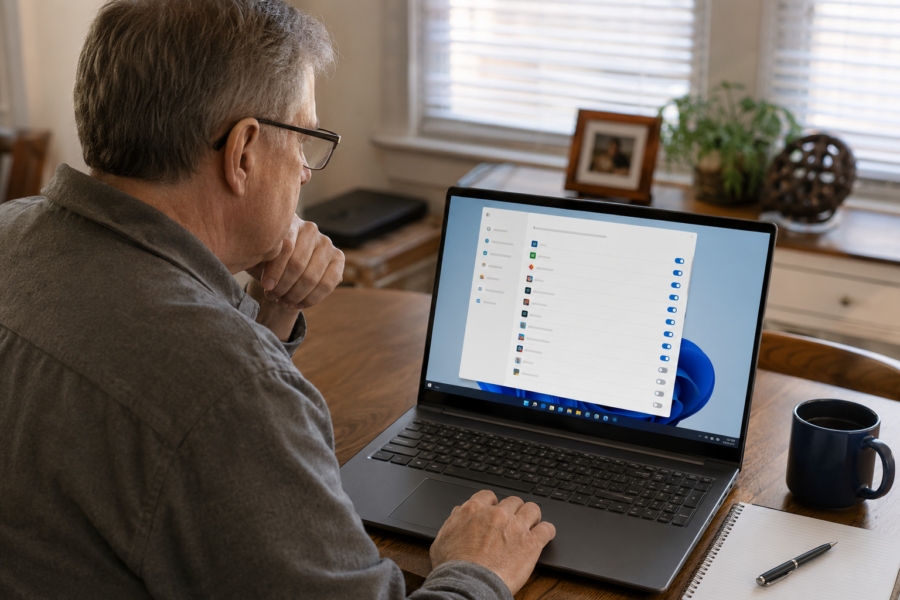
- Select Start and open Settings.
- Select Apps.
- Select Startup.
- Turn off only the apps you recognize and do not need to open automatically.
Change only a few apps at a time. Keep a note or take a screenshot before making changes. If a feature stops working, you will know which items to turn back on.
Microsoft also recommends reviewing startup apps as one way to reduce background activity and improve Windows performance.
What Can Usually Be Disabled?
There are no absolute rules, but the following programs are often optional at startup if you prefer to open them yourself:
- Game launchers you use only occasionally
- Music and entertainment apps
- Chat or meeting apps you do not need immediately
- Shopping, news, or promotional apps
- Phone-linking features you do not use
- Printer status or supply-ordering helpers when ordinary printing works without them
- Programs that check for updates but are already updated another way
- Software you recognize but use only occasionally
For example, you may use Zoom for occasional appointments but not need it running every time the computer starts. Disabling Zoom at startup does not prevent you from opening it when a meeting begins.
Do not disable an app merely because Task Manager labels its startup impact as “High.” A high-impact app may still perform an important job. What the program does matters more than the label alone.
What Should Remain Enabled?
Leave the following enabled unless you understand the consequences of turning them off:
- Windows Security, antivirus, and security notifications
- OneDrive, Google Drive, Dropbox, or backup software when you rely on automatic syncing or backup
- Accessibility software needed for vision, hearing, mobility, or other assistance
- Password managers when their background component is required
- Hardware and driver utilities controlling sound, touchpads, special keyboard keys, graphics, or other device features
- Anything unfamiliar until it has been identified
Windows Security itself operates partly as a Windows service and may not appear like an ordinary startup app. Do not try to disable Windows services or use advanced cleanup utilities based on a general startup guide. Those changes can affect security or make important features stop working.
Stop and ask for help if you see an unfamiliar remote-access program, repeated security warnings, or an entry you suspect may be malicious. Disabling a suspicious entry does not necessarily remove an infection.
Should You Disable or Uninstall a Program?
Disable it at startup when you still use the program but do not need it running all the time. This is usually the safest first step because it is reversible.
Uninstall it when you recognize the program, are certain you no longer use it, and do not need any files or services associated with it. In Windows 11, go to Settings > Apps > Installed apps, locate the program, and select its uninstall option.
Do not uninstall drivers, Microsoft system components, hardware utilities, or unfamiliar programs merely to make the list shorter. A short startup list is not the goal. The goal is to prevent unnecessary work while preserving everything the computer and its owner need.
When Startup Apps Are Not the Whole Problem
Reducing startup apps can help, particularly on a lower-end computer, but it cannot fix every performance problem. A computer may remain slow because of:
- A modest processor that struggles with modern websites and applications
- Only 8 GB of memory combined with many browser tabs or several open programs
- Very little free storage space
- Windows or application updates running in the background
- Overheating caused by dust or blocked ventilation
- A failing storage drive
- Unwanted software, browser extensions, or malware
- Too many browser tabs—even when the browser itself is the only visible program
Repair, Upgrade, or Replace?
If the computer has a mechanical hard drive, replacing it with an SSD can create a much larger improvement than changing startup apps. If it already has an NVMe SSD but uses a low-end processor and 8 GB of non-upgradable memory, however, there may be a practical limit to how fast it can become.
In that situation, reducing startup activity is still worthwhile because it costs nothing and gives the available hardware more room to work. But it is important to set honest expectations. The computer may become more usable without becoming genuinely fast.
A higher-end system with 16 GB or more memory, a capable processor, and an NVMe drive may need little startup adjustment unless unwanted programs are causing specific delays or distractions. Maintenance should match the computer and the person using it rather than following a one-size-fits-all checklist.
A practical test: After signing in, wait two or three minutes and then open the programs you normally use. If the computer is reasonably responsive after it settles down, startup activity may be the main annoyance. If it remains slow throughout the day, the hardware, available storage, heat, software condition, or another issue should be checked.
Frequently Asked Questions
Will disabling startup apps damage Windows?
Disabling an ordinary optional app is generally reversible and does not uninstall it. However, disabling security, backup, accessibility, or hardware-related software can stop an important feature. Leave unfamiliar entries alone.
Should I disable every app marked “High impact”?
No. “High impact” describes estimated startup activity, not whether the app is important. First identify the program and decide whether you need it to start automatically.
Should Google Chrome or Adobe Acrobat start with Windows?
Most people do not need a browser or PDF reader to open automatically. You can normally start these programs when you need them. Some software may have separate background settings, so disable only entries you recognize.
Should Patch My PC start automatically?
Patch My PC can be opened when you want to check and update supported programs. Whether it should start automatically depends on how it has been configured and how you prefer to manage updates. If PCRuns configured it for you, ask before changing settings you are unsure about.
Should I disable OneDrive or Google Drive to make the computer faster?
Not without first checking how your files are protected. Turning off a syncing app may prevent new or changed files from being copied to the cloud. File protection is more important than gaining a small amount of performance.
Why did a disabled startup app come back?
Some programs restore their startup setting when they are opened or updated. Check the program’s own settings for an option such as “Start with Windows.” If it repeatedly returns and you no longer use it, uninstalling the program may make more sense.
Will adding more RAM help?
It can help when the computer supports an upgrade and memory is the limiting factor. Some inexpensive computers have memory permanently attached to the motherboard and cannot be upgraded. The processor may also limit performance, so the complete computer should be evaluated before purchasing parts.
An Honest Local Evaluation Can Prevent Unnecessary Spending
You should not have to guess whether a slow computer needs a setting changed, an affordable upgrade, or replacement. Sometimes a few unnecessary startup apps are consuming limited resources. Sometimes the computer has reached the practical limits of its hardware. In other cases, low storage, heat, unwanted software, or a failing drive is the real cause.
PCRuns provides Milwaukee-area customers with a free evaluation and an honest opinion about what makes sense. If a safe adjustment can improve the computer, I will explain it. If an upgrade is worthwhile, I will tell you why. If replacing the computer would be the better use of your money, I will say that too—no pressure and no obligation.
A quick check now can prevent a small performance problem from becoming a larger and more expensive one.
Schedule a free computer evaluation
Curated resource note: The embedded video is produced by Ask Leo! and is presented for educational purposes. PCRuns added the current Windows 11 instructions, performance context, and local repair guidance on this page.