
Source attribution: This post is a curated breakdown of How to Speed Up a Slow Windows Computer Safely, with additional PCRuns context and practical computer guidance.
Three takeaways before you start:
- Protect your data first. The “quick fixes” that promise instant speed (registry cleaners, mystery optimizers) are the ones most likely to cause headaches.
- Most slow PCs aren’t “broken.” They’re usually slowed down by startup clutter, low storage space, Windows updates in the background, overheating, or an aging hard drive.
- The biggest safe speedups are usually boring: reduce startup load, free disk space, update Windows/drivers the normal way, and—when it makes sense—upgrade to an SSD and/or more RAM.
If your Windows computer used to feel “fine” and now it’s dragging, I get the frustration—especially if you’re worried about losing family photos, school files, or work documents. I’m John at PCRuns, and this is local computer repair guidance for Milwaukee and Wisconsin residents: no pressure, just the safest path to a faster, more reliable PC.
What the source says
The provided source excerpt is essentially a site navigation and coverage snapshot: it shows PCRuns has a “Maintenance & Performance” category and related guides (like upgrade guidance for SSD/NVMe/RAM and Windows 11 upgrade workflows), and it notes that performance/maintenance coverage was suggested for expansion. It also lists PCRuns service categories such as diagnostics, system recovery, virus removal, maintenance & performance tuning, hardware upgrades, and repair services.
In plain English: the source points to the practical themes PCRuns emphasizes—maintenance, safe performance tuning, and sensible upgrades—rather than promoting risky “one-click” tricks. Below, I’ll expand those themes into a safe, step-by-step approach you can actually use.
A safe way to think about “slow” on Windows
When someone tells me “my computer is slow,” I translate that into a few different possibilities:
- Slow to start up (too many startup apps, background services, or a failing drive).
- Slow to open programs (storage is nearly full, hard drive is the bottleneck, or malware/adware).
- Slow while multitasking (not enough RAM, too many browser tabs, or heavy apps running).
- Random pauses/freezes (Windows updates, disk errors, overheating/thermal throttling, or drive health issues).
The safest improvements come from confirming which category you’re in, then applying the least invasive fix first.
Before you “optimize”: two safety steps that prevent regret
1) Make sure you have a current backup of what matters
Performance work often involves deleting temporary files, uninstalling apps, or (if you upgrade storage) cloning/reinstalling Windows. Any of those can go sideways if the system is already unstable.
If you’re not sure what to back up, start with your Desktop, Documents, Pictures, and anything you keep in app-specific folders. If you’d like a deeper walkthrough, PCRuns also maintains guidance content you can browse in the PCRuns guides library.
2) Avoid “miracle” tools (especially registry cleaners)
Windows has built-in maintenance tools. Third-party “PC booster” suites are a common source of new problems: broken apps, missing network settings, strange pop-ups, or a PC that boots slower than before.
When in doubt, stick to Microsoft’s own guidance and built-in tools. Microsoft’s Windows support pages are a reliable place to confirm the safe, intended way to do maintenance tasks: Microsoft Support: Windows.
Step-by-step: safe speedups that don’t gamble with your data
You don’t have to do every step. The goal is to do the right step for your specific slowdown.
Step 1: Check what’s actually using your PC (Task Manager)
Press Ctrl + Shift + Esc to open Task Manager. Look at:
- CPU: If it’s pinned near 100% while you’re doing almost nothing, something is chewing resources.
- Memory: If you’re consistently above ~80–90%, you’re likely RAM-limited (especially with many browser tabs).
- Disk: If “Disk” is at 100% often, that’s a classic sign of an old spinning hard drive, low free space, disk errors, or heavy background activity.
This is not about becoming an expert—it’s just a quick reality check so you don’t waste time on the wrong fix.
Step 2: Reduce startup load (big payoff, low risk)
Many PCs feel slow simply because too much launches at boot. In Task Manager, go to the Startup tab and disable items you don’t need immediately at sign-in (common examples: extra update helpers, chat apps you rarely use, game launchers).
What not to disable: anything you recognize as security software, touchpad drivers, audio drivers, or manufacturer hotkey utilities if you use them. If you’re unsure, leave it enabled and ask.
Step 3: Free up storage space (Windows needs breathing room)
If your main drive is nearly full, Windows has less room for updates, temporary files, and normal caching. That can cause major slowdowns.
- Open Settings → System → Storage and see what’s taking space.
- Use built-in cleanup options (temporary files, recycle bin, old update files) instead of third-party “cleaners.”
Microsoft documents Storage and cleanup features in its Windows documentation (useful if the menus look different on your PC): Microsoft Learn: Windows documentation.
Step 4: Update Windows the normal way (and let it finish)
Partially installed updates can cause weird performance issues—especially right after a reboot. Go to Settings → Windows Update and make sure updates are completed. If your PC is slow during updates, that can be normal; let it finish while plugged in.
If you’re thinking about Windows 11 and you’re not sure whether it’s a good idea on your hardware, our beginner-friendly workflow is here: Windows 11 upgrade guide.
Step 5: Uninstall what you don’t use (but be selective)
Removing unused software can reduce background services and auto-updaters. Go to Settings → Apps and uninstall what you recognize and no longer need.
Be cautious with: “system” components, hardware driver packages, and anything labeled with your PC maker (Dell/HP/Lenovo). If your machine has special keys, touchpad gestures, or audio controls, those often rely on manufacturer utilities.
Step 6: Check for overheating (laptops especially)
A laptop that’s packed with dust or has a failing fan may throttle performance to protect itself. Signs include:
- Fan running hard even when you’re not doing much
- Bottom of the laptop is very hot
- Performance drops after 10–20 minutes of use
Safe first steps: use the laptop on a hard surface (not bedding), make sure vents aren’t blocked, and don’t force compressed air in ways that overspin the fan. If you suspect heat is the issue, a proper internal cleaning and inspection can be a real performance “fix” because it restores the CPU/GPU’s ability to run at normal speeds.
Step 7: Run a malware check (only if symptoms suggest it)
Not every slow PC has malware. But it’s worth checking if you notice pop-ups, browser redirects, unknown extensions, or new toolbars. Windows includes built-in protection (Microsoft Defender), and for many home users that’s a solid baseline. If the system is too unstable to scan, that’s when professional cleanup and recovery tools make more sense than DIY guessing.
When software cleanup won’t be enough: the hardware reality check
Here’s the honest part: a lot of “slow Windows computer” complaints come down to storage and memory limits, not a setting you can toggle.
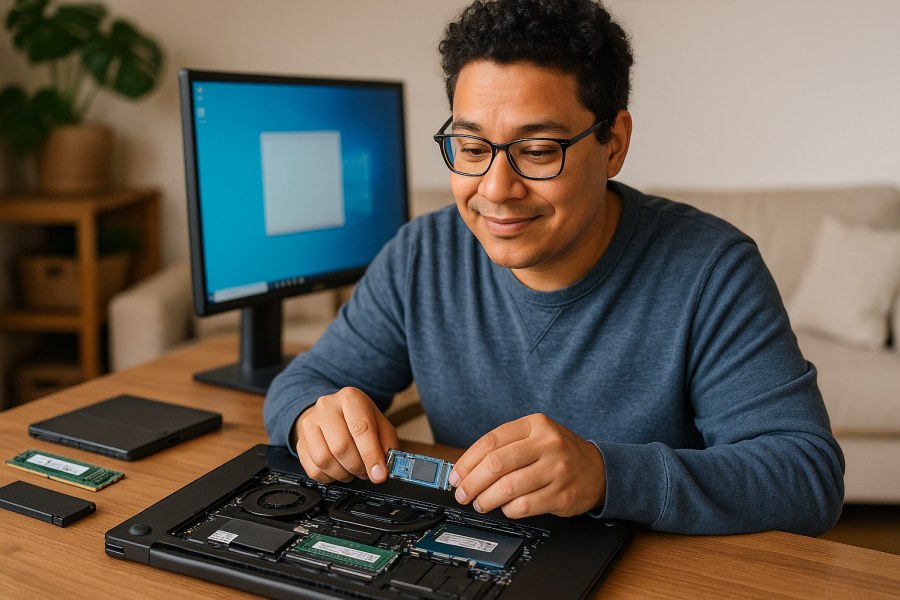
If your PC still has a spinning hard drive, an SSD upgrade is often the biggest feel-it-immediately improvement
For everyday use—booting Windows, opening a browser, launching Office—moving from an older hard drive (HDD) to a solid-state drive (SSD) is usually the most noticeable single upgrade.
PCRuns keeps upgrade guidance in one place here: computer upgrade guides (SSD, NVMe, RAM).
If you’re planning an SSD upgrade, you typically have two safe paths:
- Clone the old drive to the new drive (faster return to normal, keeps programs/settings if the old drive is healthy enough).
- Clean install Windows (fresh start, can fix years of software clutter, but takes longer to restore apps/settings).
If you want to understand the cloning approach before you commit, PCRuns also has a dedicated section for that: drive cloning and data protection guides.
If you constantly run out of memory, a RAM upgrade may be the right move
If Task Manager shows memory consistently high and your PC stutters when you switch apps, adding RAM can help—as long as the rest of the system is in decent shape. Our RAM guidance is here: RAM upgrade guide.
That said, RAM isn’t magic. If the main slowdown is a hard drive pegged at 100%, RAM alone may not fix the “I click and wait” feeling.
Repair vs. upgrade vs. replacement (a no-drama way to decide)
If your computer is older, you deserve an honest answer about whether it’s worth putting money into. The decision usually comes down to:
- What’s slow and why (software clutter vs. drive health vs. CPU limits)
- What you use it for (web/email vs. photo/video work vs. gaming)
- Whether your data is at risk (failing drive changes priorities)
- Cost vs. remaining life (some upgrades make sense; some don’t)
As a practical rule: if an SSD/RAM upgrade and a cleanup will give you the experience you want for a reasonable cost, that’s often the value move. If the machine is already struggling with modern Windows even after an SSD (or it can’t meet the needs of your work/software), replacement may be the more sensible path.
What I’d do first if you brought the PC to me
In the shop (or remote support when appropriate), the safe, honest process looks like this:
- Confirm the symptom (slow boot, slow apps, freezes) and whether it’s new or gradual.
- Check storage health, free space, and obvious background hogs.
- Check Windows update status and basic system integrity.
- Only then recommend: cleanup, malware removal, hardware upgrade, or replacement—whichever actually fits.
If you’re in Milwaukee or nearby and want a second set of eyes, you can contact PCRuns to schedule a free evaluation and get an honest opinion—no pressure and no obligation.
Need local computer help?
PCRuns serves readers in Milwaukee, Wisconsin and nearby communities. Services or primary themes include computer diagnostics, Windows repair, malware removal, data backup, system recovery, hardware upgrades, remote support, small business IT support, broken screen replacement, broken hinge repair.
Schedule a free evaluation, get an honest opinion, or see whether repair makes sense with no pressure and no obligation.
Conclusion
Speeding up a slow Windows computer safely is mostly about doing the fundamentals in the right order: protect your data, reduce startup load, make sure Windows is healthy and updated, and then decide whether an SSD/RAM upgrade is the sensible next step. If the slowdown points to failing hardware, the “safest” move is often to stop experimenting and focus on backup and evaluation so you don’t accidentally turn a performance problem into a data-loss problem.
Q&A
What’s the safest first step if my Windows computer suddenly got slow?
Make sure your important files are backed up (Documents, Desktop, Pictures), then check Task Manager to see whether CPU, Memory, or Disk usage is unusually high. That quick check helps you avoid random “fixes” that don’t match the real cause.
Are registry cleaners and “PC booster” apps safe?
I’m cautious with them. Some cause more problems than they solve (broken apps, odd errors, new pop-ups). Windows has built-in tools for updates, storage cleanup, and startup management, which are typically the safer route.
Why does my disk usage hit 100% and everything freezes?
Common causes include a nearly full drive, heavy background activity (updates/indexing), disk errors, or an older/failing hard drive. If you also hear clicking or see frequent freezes during file copies, prioritize backup and evaluation before doing aggressive cleanup.
What upgrade usually makes the biggest difference for an older PC?
If you’re still on a traditional spinning hard drive, moving to an SSD is often the most noticeable improvement for everyday use (booting, launching apps, general responsiveness). RAM helps most when you’re running out of memory while multitasking.
How do I know whether to upgrade or replace my computer?
Decide based on the actual bottleneck (drive, RAM, overheating, or overall age/CPU limits), what you use the PC for, and whether there are signs of drive failure that put data at risk. If a modest upgrade will meet your needs reliably, it often makes sense; if the machine still can’t keep up after sensible upgrades, replacement is the more honest answer.


















Leave a Reply