
Source attribution: This post is a curated breakdown of Why Does My Computer Take So Long to Start?, with additional PCRuns context and practical computer guidance.
If your computer takes forever to boot, you’re not alone—and you don’t have to “just live with it.” The good news is that slow startup is usually caused by a small number of fixable issues (too many startup items, a failing or slow hard drive, Windows update/repair problems, or security software/malware conflicts). The bad news is that guessing can waste time and sometimes risk your data. I’m John at PCRuns—local computer repair guidance for Milwaukee and Wisconsin residents—and below is a practical, no-pressure way to understand what’s happening and what’s worth doing first.
What the source says
The source page topic is “Why Does My Computer Take So Long to Start?” and it sits within PCRuns’ Maintenance & Performance focus. From the provided site excerpt, the surrounding PCRuns Knowledge Center content emphasizes practical maintenance/performance tuning, upgrade guidance (SSD/NVMe, RAM, Windows 11 readiness), and recovery/backup topics (including cloning and troubleshooting boot issues after an upgrade). The overall framing is consistent with a repair shop perspective: identify what’s slowing the system down, improve reliability, and avoid data loss while deciding whether a tune-up, upgrade, or replacement makes the most sense.
The excerpt itself doesn’t include the full article body for “Why Does My Computer Take So Long to Start?” (so I can’t treat any specific numbered tips from that page as verified). What it does establish is the intent and context: PCRuns positions slow startup as a maintenance/performance problem that can often be improved through troubleshooting and (when appropriate) storage or memory upgrades—alongside data-safety steps like backup/cloning before major changes.
Why slow startup happens (plain-English model)
Boot time is basically the sum of a few phases, and different problems show up in different phases:
- Power-on to Windows logo: The computer’s hardware checks itself and finds a boot drive. Slowdowns here can be drive detection issues, firmware/BIOS quirks, or external devices confusing startup.
- Windows loading: Windows reads a lot of files and drivers from storage. If the drive is slow or struggling, this phase drags.
- Sign-in to “usable desktop”: Startup apps, background services, cloud sync, updates, and security tools all kick in. Too many of these can make the PC feel “stuck” even though it technically finished booting.
That’s why two people can both say “my computer boots slow,” but one needs a simple startup cleanup and the other needs an SSD (or a failing drive replaced before it dies).
The most common causes I see (and how to spot them)
1) Too many startup programs (common and fixable)
Lots of apps set themselves to run at startup: chat tools, printer helpers, “updaters,” game launchers, cloud backup/sync, and vendor utilities. Each one might add only a little time, but together they can turn “starts in a minute” into “starts in ten.”
Clues: Windows reaches the sign-in screen quickly, but after logging in the desktop is sluggish for several minutes; the fan ramps up; disk activity light stays busy.
What helps: Disable non-essential startup items and remove software you don’t use. Microsoft’s guidance is to manage startup apps (often via Task Manager in Windows 10/11) and keep only what you truly need. For Microsoft background on Windows startup and performance settings, see Microsoft Support (search within for “startup apps” and “Task Manager startup”).
2) A mechanical hard drive (HDD) instead of an SSD (huge difference)
If your computer still boots from an older spinning hard drive, it’s doing thousands of tiny reads off a slow device. Even a healthy HDD is dramatically slower at that kind of work than a solid-state drive (SSD). This is one of the biggest “real world” upgrades for boot time and overall responsiveness.
Clues: The computer is several years old; it makes faint clicking/whirring; boot takes many minutes; the system feels slow opening apps even after it “finishes” booting.
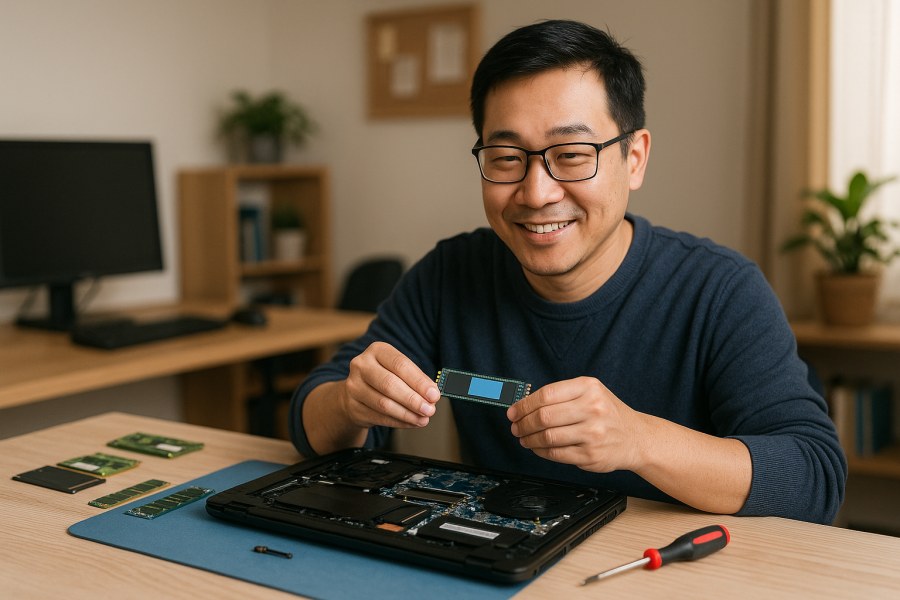
What helps: An SSD upgrade (SATA SSD or NVMe, depending on your system) plus a proper migration/clone or clean install. PCRuns has upgrade-oriented guides collected at PCRuns upgrade guides, and if you’re planning to move Windows and keep your apps/settings, also see PCRuns cloning guides so you don’t accidentally strand your data.
3) Windows updates, corruption, or driver issues
Sometimes startup is slow because Windows is repeatedly attempting updates, repairing components, or waiting on a driver/service that’s not behaving. This can look like “spinning dots forever,” long black screens, or “Preparing Windows” messages that repeat more than once.
Clues: Recent power outage or forced shutdowns; Windows updates recently failed; sign-in works but the machine behaves strangely; random hangs during startup.
What helps: Targeted Windows repair steps and updating drivers carefully (not via sketchy “driver updater” tools). Microsoft publishes official troubleshooting flows for updates and Windows recovery on Microsoft Support.
4) Low RAM or heavy background load
When RAM is tight, Windows leans harder on the storage drive (paging). If that drive is an HDD, the slowdowns get amplified. Even with an SSD, low RAM can make startup “feel” slow if your browser launches a ton of tabs or cloud apps immediately start syncing.
Clues: The system becomes usable only after a long wait; your browser opens with many tabs; you do video calls; you keep multiple apps running.
What helps: Right-sizing startup apps, and sometimes a RAM upgrade. If you’re unsure what you actually need, see PCRuns RAM upgrade guide for a plain-language way to think about it.
5) Malware or unwanted software (possible, not automatic)
I don’t assume malware just because a PC is slow. But adware, browser hijackers, and some “free utility” bundles can absolutely add startup tasks and background activity. If your homepage/search changed, you’re getting pop-ups, or security software is disabled, take it seriously.
Clues: Unexpected toolbars/extensions, fake alerts, browser redirects, unknown programs, or security warnings.
What helps: A reputable malware scan and cleanup. For safe, defensive guidance and explanations of common threats, BleepingComputer is a long-running reference many technicians use: BleepingComputer.
6) A failing drive (data risk—don’t ignore this one)
Slow startup can be an early warning sign of drive trouble: bad sectors, controller issues, or a drive that’s repeatedly retrying reads. If the drive is failing, the priority is protecting your data—not “tuning Windows” first.
Clues: New clicking noises, frequent freezes, file corruption, “repairing disk” messages, repeated boot failures, or the system getting slower quickly over days/weeks.
What to do first (safe, high-signal checks)
These steps are meant to be low-risk and genuinely useful for narrowing the cause. Stop if you hit a red flag (like signs of drive failure) and focus on backup/data safety.
Step 1: Time the slowdown and notice where it happens
- Slow before the Windows logo? Think external devices, BIOS/firmware settings, or hardware detection.
- Slow at the Windows logo/spinning dots? Think storage speed/health, updates, drivers.
- Fast to desktop but slow to become usable? Think startup programs and background services.
Step 2: Unplug non-essential USB devices and retry
Disconnect docks, external drives, USB printers, and extra accessories (leave keyboard/mouse). Occasionally a device delays boot while Windows or firmware tries to enumerate it. If startup improves, you’ve learned something: it’s not “the whole computer,” it’s a specific interaction.
Step 3: Check startup apps (Windows Task Manager)
Disable obvious non-essentials. Keep your security software, touchpad/keyboard essentials, and anything you truly rely on (for example, accessibility tools). If you’re unsure about an item, look it up by publisher name and file location—random names with no publisher are worth extra scrutiny.
Step 4: Check your storage type (HDD vs SSD)
If you discover you’re still on an HDD, an SSD upgrade is often the most noticeable boot-time improvement you can buy. It’s also usually more “bang for the buck” than paying for repeated tune-ups on old spinning storage.
Step 5: Check free disk space and Windows Update status
Low disk space can slow updates and normal operation. Also confirm Windows Update isn’t stuck in a loop. Microsoft’s official documentation is the safest place to follow for update and recovery steps: Microsoft Learn.
Repair vs upgrade vs replacement (honest decision points)
Here’s how I generally think about it when someone brings in a slow-booting computer.
When a tune-up/repair makes sense
- The PC is already on an SSD and still slow mainly due to software clutter, updates, or misbehaving startup items.
- You’ve got signs of Windows corruption or a driver problem that can be repaired without replacing major parts.
- The machine meets your needs once it’s running—startup is the main pain point.
When an upgrade is the smart middle ground
- You’re on an HDD: moving to an SSD is often a night-and-day change for boot and responsiveness.
- You’re short on RAM for the way you actually use the PC (lots of browser tabs, video calls, Office + multiple apps).
- Your computer is otherwise in good shape (no overheating, stable power, no obvious hardware faults).
When replacement is more sensible
- Multiple hardware issues stack up (failing drive plus overheating plus battery/hinge problems, etc.).
- The system is too old to support the software you need (or would require multiple upgrades to get there).
- You need reliability for school/work and downtime is more expensive than the computer.
If you’re on the fence, that’s normal. A quick diagnosis often clarifies whether you’re dealing with “a couple settings and cleanup” versus “hardware aging out.” If you’d like, you can contact PCRuns to schedule a free evaluation and get an honest opinion on whether repair makes sense—no pressure and no obligation.
Pitfalls that waste money (or risk your data)
- Paying for repeated tune-ups on an HDD-based system when the real limiter is storage speed. You might get a small improvement, but it won’t feel “new.”
- Using random “PC optimizer” tools that promise miracle speedups. Some are harmless, some are adware, and some change settings you later have to undo.
- Ignoring early drive-failure symptoms and focusing only on boot speed. If the drive fails, the problem shifts from “slow” to “won’t start,” and the priority becomes recovery.
- Doing a clean reinstall without backing up (or without confirming you can sign into accounts you’ll need afterward). If you’re unsure, pause and protect data first.
Need local computer help?
PCRuns serves readers in Milwaukee, Wisconsin and nearby communities. Services or primary themes include computer diagnostics, Windows repair, malware removal, data backup, system recovery, hardware upgrades, remote support, small business IT support, broken screen replacement, broken hinge repair.
Schedule a free evaluation, get an honest opinion, or see whether repair makes sense with no pressure and no obligation.
Bottom line
Slow startup is usually either (1) too much loading at login, (2) slow/aging storage (especially an HDD), or (3) Windows update/repair/driver friction—and each has a different “best” fix. If you want the fastest path to improvement, figure out which phase is slow, confirm whether you’re on an SSD, and treat any signs of drive failure as a data-protection priority.
Q&A
Is a slow boot more likely software or hardware?
Both are common. If it’s slow after you sign in, it’s often software (startup apps, background services). If it’s slow at the Windows loading screen, storage speed/health and Windows update/driver issues move higher on the list. If you’re still on a mechanical hard drive (HDD), that’s a frequent hardware bottleneck.
What’s the single biggest upgrade for faster startup?
For many older PCs, moving from an HDD to an SSD is the most noticeable improvement to boot time and overall responsiveness. It doesn’t fix every issue, but it removes a major speed limiter.
How do I know if I should worry about my data?
If you notice new clicking noises, frequent freezes, repeated “repairing disk” messages, or boot failures, treat it as a possible drive-health problem and prioritize backing up important files. In those cases, chasing speed tweaks first can be the wrong order of operations.
Should I use a “PC optimizer” program to speed up boot?
I’m cautious with them. Some are harmless, but others add bloat, ads, or change settings in ways that cause new problems. The safer route is built-in Windows tools (startup app control, Windows Update, storage cleanup) and a targeted diagnosis if the cause isn’t obvious.
If I bring it in, will you push me to replace it?
No. The point of a diagnostic is to see whether repair makes sense before spending money. If an upgrade or repair is practical, I’ll explain why. If replacement honestly makes more sense (age, stacked hardware issues, reliability needs), I’ll say that too—no pressure.

















Leave a Reply