
Source attribution: This post is a curated breakdown of Beginner Guide to Local Tech, with added PCRuns context and practical guidance.
3 quick takeaways
- Backups beat recovery. Most “data recovery” success stories start with at least one good copy somewhere else (external drive, cloud, or both).
- Upgrade and repair decisions should be evidence-based. A few quick checks (drive health, free space, RAM pressure, Windows integrity) often tell you whether an SSD/RAM upgrade is worth it or if you’re chasing a deeper issue.
- When things go wrong, your first actions matter. Stopping risky activity (like installing tools onto a failing drive) can preserve your best chance of recovery.
What the source says
The PCRuns source page is positioned as a beginner-friendly local tech guide and a jumping-off point into a Knowledge Center. It highlights practical, common-sense topics people actually run into: diagnostics and system recovery, data recovery and backup, operating system recovery, security and virus removal, maintenance/performance tuning, and hardware upgrades like SSD/NVMe and RAM. It also points readers toward step-by-step style guides (for example, upgrade workflows, cloning, and troubleshooting issues like a cloned drive that won’t boot), plus service categories for people who want help.
In plain English: the source emphasizes a “fix what matters first” approach—protect your files, diagnose the real bottleneck, then decide whether repair, upgrade, or replacement makes the most sense.
Why this matters (especially when you’re worried about losing files)
I talk with Milwaukee-area residents and small businesses all the time who are dealing with one of these situations:
- A laptop suddenly won’t start and there are years of photos or QuickBooks files on it.
- A PC is painfully slow, and they’re not sure if it needs an SSD, a Windows repair, malware cleanup, or all three.
- They “back up” by occasionally copying a folder to a USB drive—until the day they realize it’s missing months of new files.
The good news: you can avoid most catastrophic data loss with a few habits and a simple, realistic plan. And if something already happened, there are still sensible next steps—without making the situation worse.
My added context as a technician: the local-tech “starter kit” that prevents expensive surprises
Below is the practical framework I use when helping people decide what to do next. This is “local computer repair guidance for Milwaukee and Wisconsin residents” style advice: calm, realistic, and aimed at protecting your data and your budget.
1) Know what kind of problem you’re in: inconvenience vs. emergency
Not every issue is urgent. Some are. Here’s the fast sorting method:
- Emergency: clicking/grinding drive noises, frequent “repairing disk” messages, a drive that disappears from Windows, a laptop that only boots sometimes, or you smell burning/electronics heat. Priority is protecting data, not “fixing Windows.”
- High priority: ransomware/malware signs, repeated blue screens, Windows failing updates for weeks, or storage nearly full with no idea why.
- Lower urgency: slow startup, low storage, annoying pop-ups, Wi‑Fi drops, or an older PC that just “feels slow.” Usually solvable with maintenance, settings, or an upgrade.
If you’re unsure, that’s exactly when a free evaluation makes sense—get an honest opinion, no pressure recommendations, and determine whether repair makes sense before spending money.
2) Backups: what actually works (without turning it into a full-time job)
Most people don’t need a complicated enterprise setup. They need a repeatable one. A good baseline is the 3-2-1 idea: keep 3 copies of important data, on 2 types of storage, with 1 copy offsite. You don’t have to implement it perfectly to get big benefits.
A realistic home setup:
- Primary: your computer (obviously).
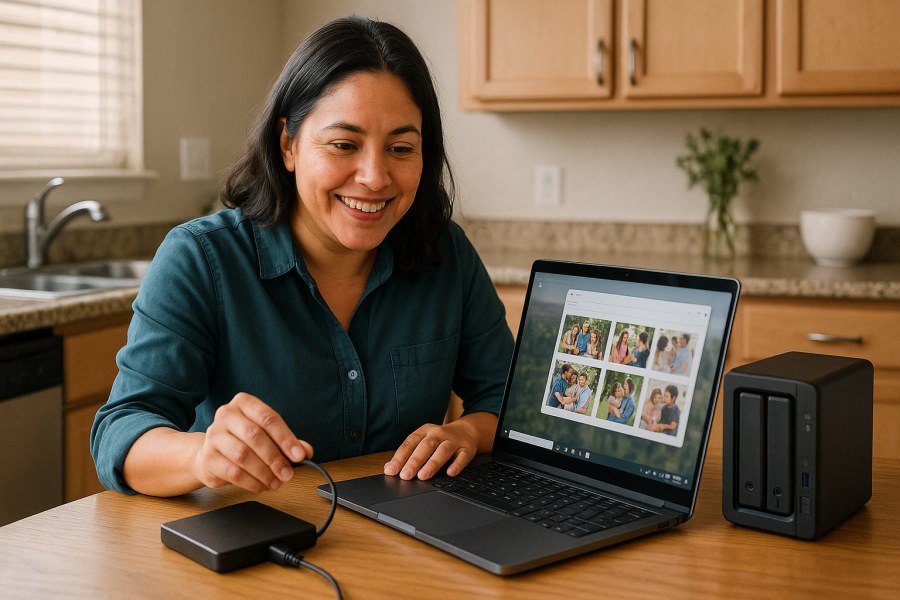
- Local backup: an external USB drive that runs automatic backups.
- Offsite backup: a cloud sync/backup for key folders (Documents/Desktop/Pictures) or critical project folders.
A realistic small business setup:
- One local backup target (external drive rotation or a small NAS) plus an offsite copy.
- At least one backup that is not always connected (helps reduce risk from ransomware and accidental deletion syncing everywhere).
- Periodic test restores (even a single file) so you know it works.
Two common pitfalls I see:
- Sync isn’t the same as backup. OneDrive/Google Drive can protect against device failure, but deletions and some corruption can sync too. It’s still valuable—just not the entire plan.
- “I copied my photos once.” A manual copy is fine as an extra layer, but if it’s not scheduled, it will be forgotten—until it’s too late.
3) If you deleted something: what to do immediately (and what not to do)
Deleted-file recovery is possible sometimes, but it’s not guaranteed. The biggest factor is what happened after the deletion.
- Stop writing to the drive. Don’t install recovery tools onto the same drive you’re trying to recover from. Don’t keep downloading, updating, or gaming on it.
- Check the obvious places first: Recycle Bin, cloud recycle bins (OneDrive/Google Drive), and any app-specific “trash” area.
- Be cautious with “magic recovery” apps. Some are helpful; some are junk; and even a good tool can reduce your chances if used incorrectly on a failing drive.
If the deleted files are business-critical or irreplaceable, it’s usually worth pausing and getting a second set of eyes before experimenting. That’s a situation where a no-pressure evaluation can save you money and regret.
4) When a computer won’t boot: protect data first, then troubleshoot
A non-booting Windows PC can mean anything from a simple Windows repair to a dying drive. The order you do things matters.
Safer first steps:
- Note symptoms. Do you get a blue screen? Spinning dots forever? “No boot device”? Does the BIOS/UEFI see the drive?
- Disconnect non-essential USB devices. Sometimes Windows boot gets confused by a flaky USB drive or hub.
- Don’t keep power-cycling a failing drive. If you hear unusual noises or it vanishes intermittently, repeated restarts can worsen damage.
If the goal is data first: creating a plan to copy critical files off (or cloning the drive) is often the most responsible move before deep repairs. PCRuns has a set of guides around cloning workflows here: https://pcruns.com/guides/cloning/.
5) SSD/NVMe and RAM upgrades: how to tell what you’ll actually notice
The source’s Knowledge Center emphasizes SSD/NVMe and RAM upgrades for good reason: they’re two of the most common “night and day” improvements—when the rest of the system is healthy enough to benefit.
Signs an SSD upgrade will help:
- Disk usage hits 100% during normal tasks (especially on older spinning HDDs).
- Boot and app load times are your main complaint.
- The system is otherwise stable (no constant crashing, no obvious malware).
Signs RAM may be the better first move:
- Slowdowns happen when you have many browser tabs, Teams/Zoom, spreadsheets, and email open.
- You see frequent “low memory” warnings or heavy paging to disk.
Two upgrade pitfalls to avoid:
- Cloning without a plan. Cloning can be smooth—or it can produce a drive that won’t boot if partitions/boot modes aren’t right. It’s fixable, but it’s better to anticipate it.
- Upgrading to cover up instability. If Windows is corrupted or the drive is failing, new hardware won’t “fix” it. It may even make troubleshooting harder.
If you’re deciding between upgrade paths or trying to figure out whether Windows 11 is part of the decision, the guides hub is a good starting point: https://pcruns.com/guides/.
6) Security basics that reduce data loss (without turning you into an IT department)
Data loss isn’t only hardware failure. A lot of it is security-related: stolen accounts, phishing, malware, and ransomware.
These are the high-return habits I recommend:
- Use strong, unique passwords (a password manager helps). Reused passwords are one of the most common ways accounts get compromised.
- Turn on multi-factor authentication (MFA) for email and cloud storage. If someone gets into your email, they can often reset everything else.
- Keep Windows and browsers updated. Updates aren’t fun, but they close known holes.
- Have at least one offline or disconnected backup. This is a big ransomware mitigator.
For broader, reputable security guidance, CISA is a solid reference point: https://www.cisa.gov/.
7) A simple “monthly maintenance” routine that keeps problems from piling up
You don’t need daily tinkering. You need a short checklist that prevents the common slowdowns and “sudden disasters.” Once a month (or once a quarter if you’re consistent):
- Confirm backups are running. Don’t assume. Spot-check a couple files.
- Check storage free space. If your system drive is nearly full, performance and updates suffer.
- Run a malware scan with a reputable tool and review what it found (don’t ignore detections).
- Review startup apps. Too many background tools slow boot and can cause conflicts.
- Install pending updates when you can reboot without interrupting work.
For people managing lots of files across devices (home plus work laptop, shared family PC, external drives), it’s also worth having a basic organization plan. This overview can help you think it through: https://pcruns.com/data-management/.
8) When professional help is the sensible option
Some situations are easy to make worse with well-meant DIY attempts. I recommend pausing and getting help when:
- The drive is making unusual noises, disconnecting, or showing obvious failure signs.
- You suspect ransomware or account compromise and don’t know the scope.
- You need to preserve business records, legal documents, or irreplaceable family photos.
- The machine won’t boot and you’re tempted to reinstall Windows before securing your files.
If you’re in the Milwaukee area, you can schedule a free evaluation so we can get you an honest opinion and help you determine whether repair makes sense before spending money—no pressure and no obligation.
Need local computer help?
For readers in Milwaukee, Wisconsin and nearby communities, PCRuns can help when a computer problem affects your work, data, security, or daily use. Services include computer diagnostics, Windows repair, malware removal, data backup, system recovery, hardware upgrades, remote support, small business IT support, broken screen replacement, broken hinge repair.
Schedule a free evaluation, get an honest opinion, or see whether repair makes sense with no pressure and no obligation.
Conclusion
The PCRuns “Beginner Guide to Local Tech” theme is the right mindset: start with the basics that protect your data, diagnose before spending, and use targeted upgrades (SSD/NVMe, RAM) when they address the real bottleneck. If you take only one action this week, make it this: set up a backup that runs automatically and verify it works. That single habit prevents more heartbreak (and expense) than any other “tech tip” I can give.
Q&A
Is cloud sync (like OneDrive) enough as a backup?
It’s a strong layer, but it’s not the whole plan. Sync protects you if a device dies, but deletions and some corruption can sync too. The safer approach is sync plus an additional backup (often an external drive) and ideally one copy that isn’t always connected.
What should I do first if I accidentally deleted an important file?
Stop using the drive as much as possible, check the Recycle Bin and your cloud service’s recycle bin, and avoid installing recovery tools onto the same drive you’re trying to recover from. If the files are irreplaceable, pause and get an evaluation before experimenting.
When will I actually notice an SSD upgrade?
Most people notice it immediately when they’re coming from a traditional hard drive: faster boot, faster app launches, and less “stuck at 100% disk” behavior. If your system is unstable due to corruption or a failing drive, address that first so the upgrade isn’t masking a deeper issue.
My computer won’t boot—should I reinstall Windows?
Not until you’ve considered your data. Reinstalling can overwrite files or complicate recovery. First, identify the symptom (no boot device vs. endless spinning vs. blue screen) and prioritize getting important files copied or the drive cloned if data matters.
Do I need professional data recovery to get my files back?
Not always. Simple deletions or a Windows issue can sometimes be handled with careful steps. But if the drive is failing (clicking, disappearing, frequent errors) or the data is business-critical, professional help can prevent making the damage worse. There are no guarantees either way—anyone who promises 100% recovery isn’t being honest.
Related posts:
 Repair or Replace a Computer? A Practical Decision Guide (With Real-World Cutoffs)
 Monthly Computer Maintenance Checklist for Home Users (A Practical, No-Drama Routine)
 OneDrive Backup Mistakes That Can Put Files at Risk (and How to Fix Them)
 What Microsoft’s XDR “Leader” Recognition Means for Real-World PC and Business Security














