

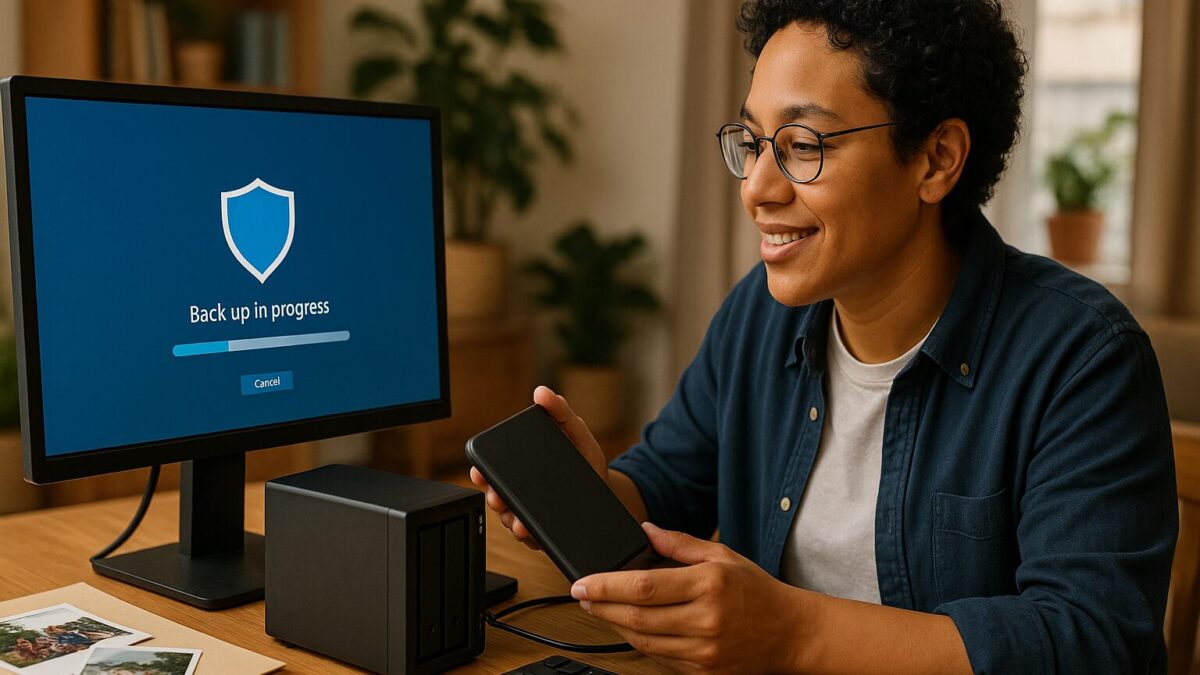
If your computer has been acting strange—slow logins, repeated password prompts, security warnings, or just that uneasy feeling that your accounts aren’t safe—you’re not alone. A lot of people also worry about the cost of replacing a PC and whether a repair shop will “poke around” in personal files. I’m John at PCRuns, and this is calm, local computer repair guidance for Milwaukee and Wisconsin residents who want to understand (and verify) two Windows protections without guessing or getting pressured.
This guide focuses on LSASS Protection (also called RunAsPPL) and Credential Guard. Both are aimed at one common modern problem: credential theft—attackers trying to steal reusable login material from a Windows PC to access email, bank accounts, or business systems.
What problem are LSASS and Credential Guard trying to solve?
When you sign into Windows, the operating system needs to keep track of who you are and what you’re allowed to do. A key piece of that is LSASS (Local Security Authority Subsystem Service). In plain language: LSASS helps enforce sign-in rules and manages parts of the authentication process.
Attackers often target LSASS because, on an already-compromised machine, it can be a path to steal credential material (password hashes, tickets, tokens) and reuse it elsewhere. That’s one reason you’ll hear about “credential dumping” in ransomware and corporate breach writeups: it helps an attacker move from one machine to another and escalate access.
Big-picture guidance from organizations like CISA emphasizes layered defenses for ransomware and intrusions—reducing the chance a single compromise turns into a broader takeover. Credential theft protections are one layer in that “assume compromise, limit blast radius” approach. (See CISA’s StopRansomware guidance for the emphasis on layered controls and reducing impact.)
LSASS Protection (RunAsPPL) in plain English
LSASS Protection is Microsoft’s additional hardening option that starts LSASS as a protected process (Protected Process Light / PPL). The goal is straightforward:
- Make it harder for other processes to read or tamper with LSASS.
- Reduce successful “read LSASS memory” credential theft techniques on a compromised system.
It’s not magic and it’s not malware removal. It’s a guardrail that can make a very common attacker step harder.
What LSASS Protection helps with
- Resistance to credential dumping: It restricts what can access LSASS in ways typical “dump the process” tools rely on.
- Hardening for everyday PCs: Useful if you stay signed into email, store passwords in a browser, or use remote access tools.
- Business hygiene: Helpful on systems that touch business email, admin tools, shared files, or remote management.
What LSASS Protection does not do
- It won’t clean an infected PC. If malware is already present, you still need remediation and verification.
- It won’t stop phishing. If someone types a password into a fake login page, Windows can’t “un-type” it.
- It’s not a guarantee. Real security is layers: updates, safer accounts, backups, and sensible hardening.
Microsoft’s documentation on configuring additional LSA protection is the best reference for what LSASS protection is, how it’s configured, and how to verify it correctly. (Microsoft Learn: Configuring Additional LSA Protection.)
Credential Guard in plain English (and why it’s a bigger step)
Credential Guard uses virtualization-based security (VBS) to isolate certain credential material away from the normal Windows environment. In plain terms: Windows tries to keep the most sensitive “keys” in a more separated compartment, so malware living in the regular Windows session has a harder time getting at them.
Credential Guard is often discussed in business settings because it can reduce the value of stolen local secrets and make certain credential-theft paths less effective. Microsoft explains the architecture and intent in its Credential Guard overview. (Microsoft Learn: Credential Guard: How it works.)
Where Credential Guard is most valuable
- Work/school authentication tied to organizational resources
- Small business PCs where one credential can open shared drives or mailboxes
- Power users using remote access, admin tools, or managing multiple systems
Where Credential Guard may not be your first priority
- Older computers already struggling with modern Windows demands (you may get bigger wins from an SSD, RAM, and cleanup)
- Simple home PCs used for web/email/photos where strong account security and backups reduce real-world risk more immediately
- Some specialty software environments (more common at businesses) where compatibility needs to be checked first
Edition/support nuance (important): Whether Credential Guard is available, enabled by default, or recommended can depend on Windows version, edition, hardware support, and how the PC was deployed. Microsoft and OEM defaults change over time. If you’re trying to make a yes/no decision for a specific PC, treat the steps below as “how to check,” not “what your PC must support.”
LSASS Protection vs. Credential Guard: what’s the difference?
- LSASS Protection (RunAsPPL): focuses on making the LSASS process harder to access or tamper with.
- Credential Guard: focuses on isolating credential secrets using VBS so they’re not as exposed to the regular Windows session.
They’re related because both reduce credential theft, but they are not the same feature—and they aren’t verified the same way.
How to check whether LSASS Protection is enabled (reliable verification)
This section is the “don’t guess” part. Some Windows Security screens (like Core isolation / Memory integrity) are useful for understanding VBS-related security posture, but they are not a reliable way to confirm that LSASS is actually running as a protected process. For LSASS Protection, use methods Microsoft documents.
Method 1 (Microsoft-documented): Check Event Viewer for the Wininit message
Microsoft documents a specific event that indicates LSASS started as a protected process.
- Open Event Viewer (Start menu search: “Event Viewer”).
- Go to Windows Logs → System.
- Look for events from Wininit around boot time.
- Microsoft’s documentation notes you may see a message like: “LSASS.exe was started as a protected process with level: 4.”
If you’re not used to Event Viewer, that’s normal—it’s noisy, and finding the right entry can be frustrating. The key idea is that you’re looking for a boot-time confirmation that LSASS started in protected mode, as described in Microsoft’s “Configuring Additional LSA Protection” documentation.
Method 2: Windows Security “Local Security Authority protection” status page (when present)
On some Windows builds, Windows Security includes a dedicated page or status indicator for Local Security Authority protection. If your Windows Security app shows a specific “Local Security Authority protection” setting/status, that’s a more direct indicator than looking at Core isolation screens. Microsoft describes Windows Security’s “Device security” area and how it surfaces security features, but the exact layout varies by version. (Microsoft Support: Device security in the Windows Security app.)
How to check whether Credential Guard is enabled
Credential Guard is commonly checked via built-in system reporting tools:
Option A: System Information (msinfo32)
- Open Start and type System Information (or run msinfo32).
- Look for entries referencing Virtualization-based Security and (when shown) Credential Guard related status.
Option B: Windows Security → Device security
Windows Security can show virtualization-based security features and related settings. This is a good “what security posture is my PC using?” view, even when it doesn’t answer every detail. Because the exact labels vary by Windows build, treat this as a helpful indicator rather than the single source of truth for every feature. (Microsoft Support: Device security in the Windows Security app.)
If you’re in a work or school environment, Credential Guard may be controlled by organizational policy. If it’s your personal PC, whether it’s enabled “by default” is not consistent across all Windows versions, editions, and hardware, so it’s best to verify on the specific device rather than assume.
Common misconceptions (and what actually matters)
“If I turn these on, I’m safe.”
These features help, but they don’t disinfect a compromised computer and they don’t prevent phishing. Think of them as impact reducers: if something bad runs on the PC, it has a harder time stealing reusable secrets.
“My antivirus already covers this.”
Antivirus/EDR is important, but it’s not the only layer. Hardening features like LSASS Protection and Credential Guard aim to reduce damage when something slips through. That layering idea (prevent, detect, recover) is consistent with broad frameworks like the NIST Cybersecurity Framework and practical ransomware guidance from CISA, even though they don’t prescribe one single Windows setting for everyone.
“My PC is slow because security features are on.”
Sometimes security features add overhead, but there’s no universal number that applies to every PC. In everyday repair work, common causes of “slow” are still basics like:
- A failing or older spinning hard drive (HDD)
- Too little RAM for modern browsers
- Too many startup/background apps
- Windows corruption or a stuck update cycle
- Adware or unwanted browser extensions
If your PC is on an HDD, moving to an SSD is often the biggest speed-per-dollar improvement. If you want to understand how “move everything to a new drive” works, see our plain-language drive cloning guide.
When enabling these protections makes the most sense
These features are most worth your time when the computer holds logins that would really hurt to lose:
- You sign into email that can reset other passwords (most people do).
- You use work/school accounts on a personal device.
- You use remote access tools or admin utilities.
- You’ve had a malware scare and want to reduce “what happens next time,” not just “remove the popups.”
When repair and cleanup is more urgent than turning on a feature
If any of the below is happening, focus on remediation first. Hardening a compromised system can create a false sense of security.
- Browser redirects, popups, or new toolbars/extensions you didn’t install
- Unexpected login alerts from email/social accounts
- Repeated Windows update failures
- Overheating, crashing, or random reboots
If you suspect malware, start with careful cleanup and verification. Our virus removal and security help page explains the kind of situations we can help with and what typically matters for safe recovery.
Safe “no drama” steps that pair well with LSASS Protection and Credential Guard
If you want a practical sequence that protects your data and reduces surprises, here’s a calm order of operations:
- Back up what you can before major changes. If you want help setting this up safely (especially when a drive might be failing), we also do this kind of work under data recovery and backup services.
- Get Windows fully updated (and don’t ignore repeated update failures—those can be a symptom of deeper system health issues).
- Secure your primary email account: change the password and enable MFA if available. Email is often the “master key” for password resets.
- Remove unknown browser extensions and reset the browser if you’re seeing redirects.
- Then harden Windows: consider enabling LSASS Protection and (where appropriate) Credential Guard—after you’ve stabilized the system.
If you travel with a laptop (holidays, summer trips, conferences, visiting family), disk encryption can protect files if the device is lost—but only if you plan the recovery side correctly. If that’s on your radar, see our BitLocker setup and recovery planning guide.
Decision point: when to stop tweaking and get hands-on help
It’s time to escalate (or at least get a second set of eyes) when:
- You can’t tell whether the system is clean and trustworthy.
- Windows Security settings keep flipping back after restart.
- You see signs of account takeover (password reset emails you didn’t request, MFA prompts you didn’t initiate).
- You depend on the PC for work and downtime is expensive.
Repair vs. upgrade vs. replace: an honest way to decide
Security features run on top of your hardware. If your PC is struggling, it’s fair to ask whether spending time on advanced hardening is the best use of your budget right now.
Repair / tune-up makes sense when…
- The PC meets your needs but feels unstable, infected, or “off.”
- You want to keep your setup and data with minimal disruption.
- The computer is compatible with supported Windows security updates.
Upgrade makes sense when…
- The computer is decent but held back by an HDD or low RAM.
- You want a speed boost and fewer crashes without buying a whole new system.
If you’re comparing upgrade paths, our computer upgrade guides break down what tends to matter most in plain English.
Replacement makes sense when…
- The PC can’t run a supported Windows version or is nearing end-of-support.
- Hardware is failing (frequent drive errors, random shutdowns, overheating).
- You need a more modern baseline for security and performance.
If Windows 11 compatibility is part of your decision, see our Windows 11 upgrade guide for the practical checkpoints.
Cost guidance: what drives the price (without making up numbers)
I can’t give one honest price without seeing your device, because “turn on a setting” can be either a quick configuration—or the last step after a lot of cleanup. Instead, here are the real factors that usually decide whether this is simple or involved:
- Is the PC infected? Cleanup and verification is more work than flipping a switch.
- Is Windows healthy? Corruption and stuck updates add time.
- Is your data already backed up? If not, doing it safely (and confirming it worked) matters.
- Is the drive failing? A failing drive can turn every step into a “save what we can first” project.
- Home vs. small business: Business setups can require extra care around user accounts, access, and continuity.
If you’re trying to avoid spending money twice, a quick evaluation first usually beats guessing. You can always start by reviewing the options on our services page and then decide what level of help you want.
Benefits you can actually feel: speed, reliability, and safety
LSASS Protection and Credential Guard are mostly “quiet” features—you don’t usually feel them day to day. The real payoff is fewer bad outcomes:
- Safety: reduced chance that one infection turns into stolen logins that follow you for months.
- Recovery: a PC that’s updated, backed up, and hardened is typically easier to trust again after a scare.
- Reliability: the repair work that often goes along with hardening (fixing updates, removing junk, stabilizing storage) can make the computer feel more dependable.
Seasonally, these problems show up a lot around back-to-school and the holidays, when devices get shared, travel more, and accumulate more logins—exactly when you want fewer surprises.
If you’re worried about privacy during repair
You’re right to think about it. Any legit technician should be willing to explain what access is needed (and what isn’t), whether a temporary login is appropriate, and what you can do first to protect private files. If password trouble is part of the situation—locked accounts, unknown changes, suspicious logins—see our password recovery services information for the kinds of situations that can be handled safely and legitimately.
Need local computer help?
PCRuns serves readers in Milwaukee, Wisconsin and nearby communities. Services or primary themes include computer diagnostics, Windows repair, malware removal, data backup, system recovery, hardware upgrades, remote support, small business IT support, broken screen replacement, broken hinge repair.
Schedule a free evaluation, get an honest opinion, or see whether repair makes sense with no pressure and no obligation.
Bottom line
LSASS Protection and Credential Guard are Windows features designed to make credential theft harder—especially the “steal it from memory and reuse it” style of attack. They work best when your PC is already stable: clean, updated, and backed up.
If you want help checking what’s already enabled on your specific PC (and whether turning these on makes sense for how you use it), you’re welcome to schedule a free evaluation. I’ll give you an honest opinion—no pressure and no obligation—so you can decide whether repair, upgrade, or replacement makes sense before you spend money.
References (for technical grounding)
- Microsoft Learn: Configuring Additional LSA Protection
- Microsoft Learn: Credential Guard – How it works
- Microsoft Support: Device security in the Windows Security app
- CISA: StopRansomware Guide
Q&A
Is Core isolation / Memory integrity a reliable way to confirm LSASS Protection (RunAsPPL)?
Not by itself. Core isolation/Memory integrity relates to virtualization-based protections, but it doesn’t reliably confirm that LSASS is running as a protected process. A more reliable check is the Microsoft-documented Wininit event message in Event Viewer indicating LSASS started as a protected process, or a specific Windows Security “Local Security Authority protection” status page when your Windows build shows it.
Will enabling LSASS Protection or Credential Guard make my computer faster?
Usually no. These are security hardening features, not performance tweaks. If your PC feels slow, common causes are an HDD instead of an SSD, low RAM, too many startup apps, Windows update problems, or malware/adware.
Do I need Credential Guard on a home PC?
Sometimes, but not always. It’s more compelling if you sign into work/school accounts, use remote access/admin tools, or have high-value logins on the device. If the PC is older or used mostly for web/email, your first priorities are typically updates, strong passwords with MFA, and reliable backups—then consider hardening.
If I had malware, should I turn these protections on right away?
Clean and verify the system first. LSASS Protection and Credential Guard can reduce credential theft, but they don’t remove an infection. After cleanup and updates, it’s a good time to verify which protections are supported and enable what fits your setup.
I’m worried about privacy—what should I ask a technician before bringing my PC in?
Ask what access is actually needed, whether a temporary Windows login can be used, and what you should back up first. It’s also reasonable to ask how passwords and sensitive files are handled during diagnostics. If you want, you can start with a free evaluation so you can decide what you’re comfortable authorizing.
Related posts:
 Defend Your Digital Frontier: A Comprehensive Guide to Protecting Your Computer from Viruses
 Secure DNS on Windows: DoH vs DoT (and Safe Provider Settings)
 Securing PowerShell: Constrained Language Mode, Logging, and AMSI
 Microsoft Build 2026 security announcements—what they mean for everyday PC users and small businesses















Leave a Reply