
Source attribution: This post is a curated breakdown of When a Slow Computer Needs Maintenance vs an Upgrade, with additional PCRuns context and practical computer guidance.
If your computer used to feel “fine” and now it drags, it’s natural to worry about two things: your budget and your files. I’m John at PCRuns, and this is the kind of situation where I like to slow down, protect the data first, and then figure out whether you’re looking at simple maintenance, a targeted upgrade, or a sign the hardware is wearing out.
What the source says
The source material is essentially a site-level outline of PCRuns’ Maintenance & Performance and upgrade education topics—things like performance tuning, Windows upgrade guidance, SSD/NVMe and RAM upgrades, and drive cloning and recovery resources. It also frames PCRuns as a Milwaukee-area repair service focused on getting computers running smoothly again, with services spanning diagnostics, system recovery, maintenance/tuning, hardware upgrades, and repairs.
In plain terms, the core idea behind “maintenance vs upgrade” is this: some slow-computer problems are caused by software and housekeeping issues (maintenance), and some are caused by hardware limits (upgrade). The practical goal is to tell the difference before you spend money.
Why this matters (in real life)
Most people don’t care why a PC is slow—they care that it’s missing deadlines, freezing during schoolwork, or taking forever to boot. The tricky part is that “slow” can come from very different root causes:
- Maintenance-type slow: too many startup programs, low free disk space, Windows updates stuck, browser bloat, temporary files, malware/adware, or a driver/software conflict.
- Upgrade-type slow: an older hard drive, not enough RAM for modern workloads, an aging battery/thermal issue causing throttling, or a CPU that’s simply outmatched by today’s apps.
In Milwaukee homes and small offices, I see both. The fastest path is a quick set of checks that separate “cleanup and tune-up” from “this machine is bottlenecked.”
A practical decision rule: “Was it always slow, or did it become slow?”
This isn’t perfect, but it’s surprisingly helpful:
- If it was never fast (even when new-to-you): you’re more likely dealing with hardware limits (or a machine that was underpowered from day one).
- If it got worse over time: maintenance, storage health, heat, or software changes are more likely.
Either way, treat your data like it matters (because it does). If the computer is acting “weird” in addition to slow—crashes, clicking noises, frequent “repairing disk,” or files going missing—think backup first, then performance.
Maintenance: what it is (and what it is not)
Maintenance is about removing avoidable drag and making sure Windows is healthy. It is not a magic button that turns a 10-year-old PC into a new one. But it can absolutely restore “normal” performance if the machine is being held back by fixable software and configuration issues.
1) Check storage space and disk type (the #1 common bottleneck)
A computer can feel dramatically slower when the system drive is nearly full. Windows needs working space for updates, temporary files, paging, and general housekeeping. Microsoft’s Windows guidance consistently emphasizes keeping Windows updated and functioning properly, and disk space is a practical prerequisite for that. For Windows help references, see Microsoft Support.
Also: if your PC still runs on an older spinning hard drive (HDD), everyday tasks like booting, opening apps, and launching browsers can feel painfully slow compared to an SSD. If you’re unsure what you have, Task Manager typically shows “SSD” or “HDD” under Performance > Disk.
2) Startup programs: reduce the “always running” clutter
A very common maintenance win is trimming what launches at startup. Lots of programs “helpfully” add background services that chew up CPU time and memory—especially on older machines.
- In Windows, Task Manager > Startup apps is a good first view of what’s auto-starting.
- Disable items you don’t need all the time (chat apps, game launchers, printer updaters, etc.).
If you’re not sure what something is, pause before disabling security software or core driver tools. When in doubt, get an honest opinion rather than guess.
3) Updates and health checks: make sure Windows isn’t stuck
Sometimes “slow” is Windows trying (and failing) to update in the background, retrying downloads, or fighting with a driver problem. Confirm Windows Update is completing normally. Microsoft’s documentation is the safest baseline for update troubleshooting steps and expected behavior (again, Microsoft Support is the right starting point).
4) Browser and extension overload
For many people, “my computer is slow” really means “Chrome/Edge is slow.” Too many extensions, dozens of tabs, or a corrupted profile can feel like a system-wide issue.
- Try temporarily disabling extensions you don’t rely on.
- Close tabs you’re “saving for later” and bookmark them instead.
- If one browser is acting up, test another browser to separate system performance from browser-specific problems.
5) Malware/adware: rule it out without panic
Some slowdowns are caused by unwanted software, mining scripts, or adware. This is one place where reputable security reporting matters. For grounded, practical malware removal context and warnings about sketchy “cleaner” tools, BleepingComputer is a long-running reference in the PC repair world.
What I recommend for most folks: don’t start installing random “PC optimizer” utilities. If you suspect malware, focus on reputable tools and careful steps—because the wrong cleanup tool can create more problems than it solves.
Upgrade: when maintenance won’t get you there
Upgrades make sense when the computer is healthy, but limited. Here are the most common “high value” upgrades, and how to tell if they fit your situation.
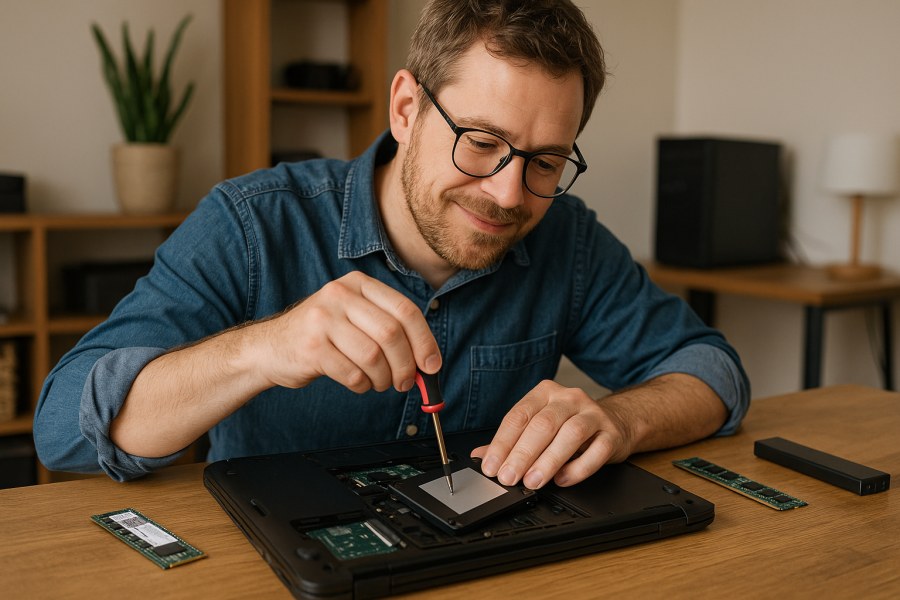
SSD upgrade (often the biggest noticeable improvement)
If your computer still has a traditional hard drive, moving to an SSD is usually the single biggest “feel it immediately” upgrade for everyday use: faster boot, faster app launches, less waiting. If you already have an SSD, moving from SATA SSD to NVMe can help in some workloads, but for many everyday tasks the jump is smaller than HDD-to-SSD.
Because upgrades can involve moving Windows and your files to a new drive, cloning is often the cleanest path when you want to keep everything intact. If that’s on your mind, PCRuns has practical cloning guidance in the drive cloning guides.
RAM upgrade (when you’re hitting memory limits)
Not enough memory forces Windows to juggle data between RAM and disk, which feels like lag, stutter, and constant “thinking.” If Task Manager shows memory usage pinned high during normal work (web + email + documents), RAM may be your bottleneck.
If you want a plain-English way to decide what’s reasonable for your workload, see the RAM upgrade guide.
Windows 11 readiness and “upgrade vs replace” reality
Some older PCs can’t officially move to Windows 11 due to CPU/TPM requirements. That doesn’t automatically mean the computer is useless, but it does affect long-term planning and security updates. If you’re trying to make that call, PCRuns’ Windows 11 upgrade guide lays out a beginner-friendly workflow and compatibility considerations.
My honest rule: if a machine is both incompatible with your needed OS path and already struggling with basic performance, you’re often better off putting upgrade money toward a newer (or quality refurbished) system—especially if reliability matters for school or business.
How to tell which camp you’re in (maintenance vs upgrade) in 15 minutes
You don’t need special tools to get a decent first answer. Here’s a safe, practical triage you can do:
- Check storage free space: If the system drive is nearly full, free space can restore responsiveness.
- Check disk type: HDD vs SSD tells you a lot about the machine’s baseline feel.
- Open Task Manager during slowness: Look for CPU at/near 100%, Disk at/near 100%, or Memory maxed out.
- Notice the pattern:
- Slow boot + slow opening apps often points to HDD, startup bloat, or drive health.
- Slow only with many tabs/apps often points to RAM limits.
- Slow after an update or new software often points to software conflicts or background tasks.
This doesn’t replace diagnostics, but it prevents a lot of wasted spending.
What I’d do as a local tech (and what I’d avoid)
As a practical matter, here’s the order that tends to be safest and most cost-effective:
- Protect data first if there are any signs of drive failure or instability.
- Do maintenance second (updates, startup trimming, malware checks, storage cleanup).
- Upgrade third if the computer is stable but limited (SSD/RAM are the usual winners).
- Replace when the platform is too old, too unreliable, or upgrade money won’t translate into a machine you can trust.
What I’d avoid: spending money on vague “tune-up software,” paying for upgrades without confirming the real bottleneck, or continuing to run a PC that shows clear signs of a failing drive without a backup plan.
Maintenance vs upgrade: the honest value comparison
Because every machine is different, I can’t give a truthful price for your exact situation in a web post. But I can tell you what usually drives the decision:
- Maintenance makes sense when: the PC is stable (no crashes), has a decent SSD already (or adequate hardware), and the slowdown is tied to software clutter, updates, or unwanted programs.
- An upgrade makes sense when: the PC is stable but bottlenecked (HDD, low RAM), the rest of the system is in good shape, and you like the machine otherwise.
- Replacement makes sense when: the system is unreliable, incompatible with what you need next, or the total cost to “make it right” approaches the cost of a better machine you can trust.
Local next step (no pressure)
Need local computer help?
PCRuns serves readers in Milwaukee, Wisconsin and nearby communities. Services or primary themes include computer diagnostics, Windows repair, malware removal, data backup, system recovery, hardware upgrades, remote support, small business IT support, broken screen replacement, broken hinge repair.
Schedule a free evaluation, get an honest opinion, or see whether repair makes sense with no pressure and no obligation.
Bottom line
Treat the source as a useful starting point and verify details before making changes. If data, security, business continuity, or hardware risk is involved, stop before taking a step that could make the situation worse and get qualified help when appropriate.
Q&A
What’s the quickest sign my slowdown is “maintenance,” not hardware?
If the PC used to feel normal and gradually got slower—especially after new software, lots of startup items, or browser extension buildup—maintenance is a strong first bet. Also, if Task Manager shows one specific program spiking CPU usage, that’s often software-related.
What’s the clearest sign I should consider an SSD upgrade?
If your computer still has an HDD (spinning hard drive) as the main Windows drive, an SSD upgrade is often the biggest day-to-day improvement you’ll notice—faster startup and much faster app loading.
When is a RAM upgrade more helpful than an SSD upgrade?
When the computer is mostly fine until you have multiple apps/tabs open, and memory use stays very high (or the system becomes laggy under multitasking). Low RAM causes swapping, which feels like stutter and delays.
Should I do maintenance before upgrading?
Usually, yes—because it’s cheaper and it confirms the computer is stable. The exception is when you’re on an HDD and the system is otherwise healthy; in that case, the SSD upgrade itself often solves a lot of “slow” and also makes future maintenance easier.
What should I do first if I suspect drive failure?
Back up important files first. If you’re seeing crashes, disk errors, repeated repair screens, or missing files, don’t push the drive harder with lots of cleanup steps before your data is safe.


















Leave a Reply