
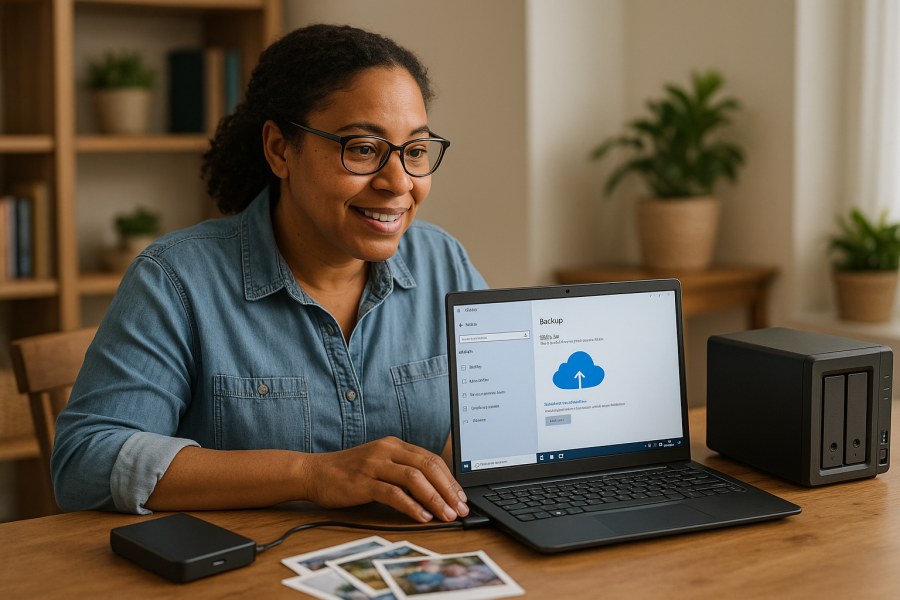
Source attribution: This post is a curated breakdown of External Drive vs Cloud Backup: Which Makes Sense?, with additional PCRuns context and practical computer guidance.
Three quick takeaways:
- If you want the fastest, cheapest big backup (photos/videos, whole-PC images), an external drive usually wins.
- If you want “set it and forget it” protection against theft, fire, and spilled coffee, cloud backup usually wins.
- For most people, the best answer is both: one local copy (external drive) plus one off-site copy (cloud). That combination is what prevents “one bad day” from becoming permanent loss.
What the source says
The source is framed as a practical comparison: external drive backup versus cloud backup, and which makes sense depending on what you’re protecting and how you use your computer. It sits alongside PCRuns backup and recovery topics (data recovery, cloning, OneDrive recovery, and system recovery), which signals the intent: help readers protect data before trouble hits, and reduce the odds you’ll ever need a risky/expensive recovery attempt.
Based on the page context and surrounding topics, the key idea is not that one method is “always best,” but that each covers different risks. External drives are local, fast, and straightforward; cloud adds off-site resilience and convenience—especially when devices are lost, stolen, or physically damaged.
External drive backup vs cloud backup (plain-English explanation)
Both options are ways to make extra copies of your files. The important difference is where that copy lives and what kinds of problems it protects you from.
What an external drive backup is good at
- Speed: Copying hundreds of gigabytes to a USB drive is usually much faster than uploading over home internet.
- Big backups: Great for full photo libraries, video projects, and full-system backups (an “image” of your drive).
- One-time cost: You buy the drive once (though you should plan to replace it eventually).
- Works even when the internet is down: Useful during outages or travel.
Where external drives can fail you
- Same-location risk: If the computer and the drive are in the same house/office, a theft, fire, flood, or power event can take out both.
- Human nature risk: Many people forget to plug the drive in—or they plug it in once a month and assume they’re “covered.”
- Ransomware risk: If ransomware hits while the drive is connected and writable, the backup can get encrypted too.
- Drive failure is real: External drives are still drives. They can fail, get dropped, or develop file system corruption.
What cloud backup is good at
- Off-site protection: Your copy is stored away from your home/office. That’s the big win.
- Automation: Most services can run continuously or on a schedule, with minimal effort.
- Version history (sometimes): Many services keep older versions, which can help with accidental overwrites or some ransomware scenarios (details vary by provider).
- Device loss: If a laptop is stolen, your data can still be there.
Where cloud backup can disappoint people
- Upload time: The first backup can take days (or longer) depending on your internet speed and how much you have.
- Ongoing cost: Usually a subscription.
- Account access matters: If you lose access (password issues, locked account), getting to your backup can be harder than grabbing a local drive.
- Not all “cloud” is backup: Sync services (like some “Drive” folders) can mirror deletions too. That’s useful, but it’s different than a true backup plan.
Which one makes sense for you? (A practical decision guide)
Here’s how I’d decide this in the real world, sitting with someone at the counter in Milwaukee with a worried look and a laptop full of family photos.
Pick an external drive first if…
- You have a lot of data (hundreds of GB to multiple TB).
- Your internet upload speed is slow or capped.
- You want to back up a whole PC (system image / cloning style) so you can recover faster after a drive failure.
- You’re trying to keep ongoing costs low.
Pick cloud backup first if…
- Your biggest fear is loss of the device (theft, drop, spill) or a home/office disaster.
- You don’t want to remember to run backups.
- You work across multiple devices and want your important files protected automatically.
Use both (recommended for most) if…
- Your files are irreplaceable (business records, client work, years of photos).
- You want fast recovery (external) plus disaster protection (cloud).
- You’ve already lived through a drive failure once and never want to repeat it.
How to set this up without getting fancy
You don’t need an enterprise IT department. You need a routine that’s easy enough you’ll actually keep doing it.
Step 1: Decide what you’re backing up
- “My files” backup: Documents, photos, desktop, downloads, email archives, QuickBooks files, project folders.
- Full-system backup: Everything, including Windows and installed programs. This helps you recover quickly after a drive failure, but it takes more space and planning.
If you’re not sure which matters more, start with “my files.” Most people care about data more than reinstalling apps.
Step 2: External drive basics that prevent heartbreak
- Use a dedicated backup drive (not the same one you use to move random files around).
- Keep it disconnected when not backing up. That reduces ransomware exposure and accidental deletion risk.
- Verify occasionally: Open a few backed-up folders/files to confirm they’re really there and readable.
Step 3: Cloud backup basics that actually protect you
- Enable strong sign-in protection: A strong password and multi-factor authentication where available helps prevent account takeover.
- Know what’s being protected: Confirm the folders you care about are included (especially “Pictures” and any custom work folders).
- Learn the restore process before you need it: Even a quick test restore of one folder can remove a lot of uncertainty.
Common “gotchas” I see in real repairs
These are patterns I see when people come in after something went wrong. Fixing them now is much cheaper than trying to recover data later.
- Sync confusion: “It’s in OneDrive/Google Drive” might mean it’s synced—not backed up with versioning that fits your situation. Sync can be part of a plan, but it’s not automatically the whole plan.
- One copy only: If you have exactly one backup, you’re one mistake (or one failed drive) away from zero.
- Backup drive always plugged in: Convenient, yes. Safe, not always. If malware hits, connected drives are at risk.
- No encryption or lock screen on laptops: That’s a data exposure issue, not just a backup issue. (This matters a lot for small businesses.)
When to escalate (and why)
If any of these are true, it’s worth getting an honest second set of eyes before you spend money or make the problem worse:
- Your computer is clicking, freezing, or taking forever to boot (possible storage issues).
- You see repeated “disk” errors, or files that won’t open.
- Your backup drive shows up sometimes but not always.
- You suspect malware or ransomware.
If you’re in Milwaukee or nearby communities, you can contact PCRuns to schedule a free evaluation. No pressure and no obligation—I’ll help you figure out whether repair makes sense before spending money.
Practical next step
If you do just one thing today: make two copies of your most important folder(s)—one to an external drive and one to a cloud account you can actually sign into. Then set a reminder to confirm it’s still working next month. That simple habit prevents most “I lost everything” stories.
For more PCRuns guides on protecting data and planning upgrades, see the PCRuns guide library and our data backup resources. If you’re trying to move to a new drive or recover from a failing one, our cloning and migration guides can help you understand the process before you start.
Need local computer help?
PCRuns serves readers in Milwaukee, Wisconsin and nearby communities. Services or primary themes include computer diagnostics, Windows repair, malware removal, data backup, system recovery, hardware upgrades, remote support, small business IT support, broken screen replacement, broken hinge repair.
Schedule a free evaluation, get an honest opinion, or see whether repair makes sense with no pressure and no obligation.
Conclusion
External drives are great for fast, affordable local backups. Cloud backups are great for automatic off-site protection. If your files matter, the most reliable approach is using both—so one accident, one malware infection, or one hardware failure doesn’t get to decide what you lose.
Q&A
Is OneDrive/Google Drive the same thing as a backup?
Not automatically. Those tools often work as sync first: changes (including deletions) can replicate across devices. Many do offer version history or restore options, but it depends on settings and plan. Sync can be part of a backup plan, but don’t assume it’s your only safety net.
What’s the simplest “good enough” backup plan for a home laptop?
One external drive backup (run weekly or monthly, and unplug afterward) plus one cloud copy of your most important folders (photos/documents) running automatically. That gives you fast local recovery and off-site protection.
Can ransomware encrypt my external backup drive?
Yes—if the drive is connected and writable when the infection runs, it can be affected. A simple protection is disconnecting the backup drive when you’re not actively backing up, and keeping an additional off-site copy (cloud or a second drive stored elsewhere).
If my drive is failing, should I try to back it up anyway?
Sometimes, but be careful. A failing drive can get worse with heavy read/write activity. If you’re hearing clicking, seeing frequent freezes, or the drive disappears, it’s often safer to stop and get help—especially if the data is important and you don’t have another copy.
Do you offer help choosing and setting up backups locally?
Yes. At PCRuns we can look at what you’re trying to protect, how much data you have, and your budget—then recommend a setup that’s realistic to maintain. If you’re nearby, you can schedule a free evaluation and get an honest opinion with no pressure.
Related posts:
 When It’s Time to Retire Your Old Wi‑Fi Router (and what to do first)
 Computer Speaker Troubleshooting: Fix Sound Issues on Windows & Mac (Practical Checklist)
 Monthly Computer Maintenance Checklist for Home Users (A Practical, No-Drama Routine)
 How Much Does Computer Repair Cost? A Practical Breakdown (and How to Avoid Paying Twice)















Leave a Reply