
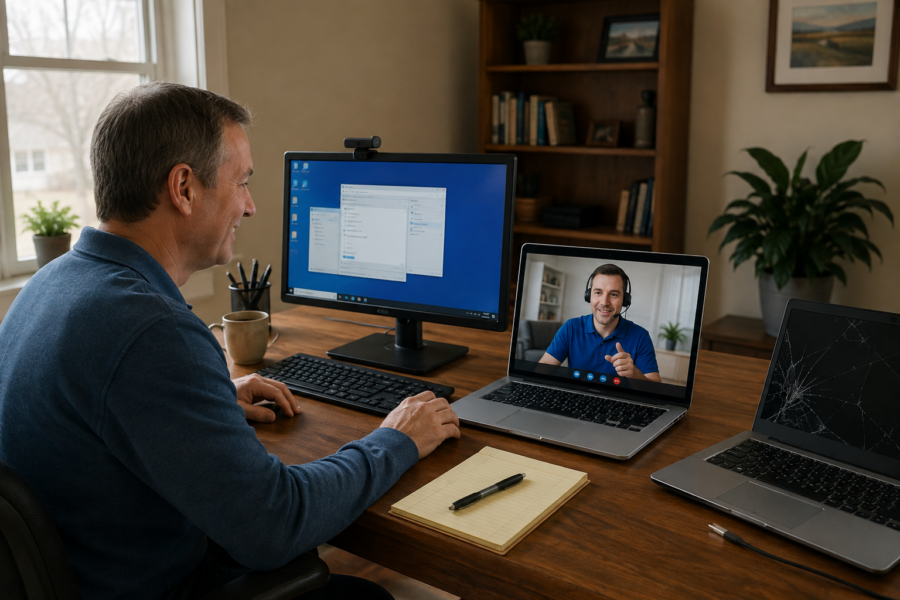
Source attribution: This post is a curated breakdown of What Computer Problems Can Be Fixed Remotely?, with added PCRuns context and practical guidance.
If you’re staring at a slow laptop, a pop-up that won’t quit, or a Windows error that appeared out of nowhere, you’re probably wondering one thing: “Do I really have to bring this in?” A lot of day-to-day computer problems can be handled remotely—especially when the computer still turns on and can get online. But some issues are hands-on by nature (hardware damage, no-power situations, certain data recovery cases).
Remote help matters because it can save time, reduce downtime for small businesses, and avoid unnecessary trips—when it’s the right fit. The key is knowing what remote support is good at, what it’s risky for, and what you should verify on your own machine before anyone touches settings.
What the source says
The source focuses on a practical idea: many computer problems are software-related and can be diagnosed and fixed remotely. The typical “remote-friendly” category includes things like Windows issues, performance problems, malware cleanup, software configuration, and guidance for backups or cloud syncing—assuming the computer is able to boot and connect to the internet.
It also implies an important boundary: when the issue is physical (broken screen, hinge damage, failing drive symptoms, liquid spill, overheating from dust buildup, no power), remote support may help with triage and planning, but the actual repair usually requires hands-on service.
Remote support: what it’s best at (with real examples)
In practice, remote support shines when the problem lives in Windows, your apps, or your settings—and the computer is stable enough to stay connected. Here are common cases I see where remote work is often efficient.
1) Windows errors after an update, driver change, or new software
- PC suddenly slow after an update
- Printer stopped working
- App crashes on launch
- “No internet” but Wi‑Fi shows connected
Remote steps may include reviewing recent changes, checking Device Manager, validating Windows services, repairing system files, and rolling back a problematic driver. Some fixes are quick; others require careful testing so we don’t create new issues while chasing the old one.
2) Performance tuning and cleanup (the “it’s just gotten slow” problem)
Remote work can help identify what’s actually causing slowness:
- Too many startup items
- Low free disk space
- Browser extensions or adware
- Windows indexing or updates stuck in a loop
- Background sync tools (OneDrive/Google Drive) chewing resources
What remote support can’t do is magically turn an older hard drive into an SSD. If the root cause is aging hardware (especially a mechanical hard drive), the best “performance fix” is often a hardware upgrade. Remote support is still useful because we can confirm the bottleneck before you spend money.
3) Malware removal and security hardening (with realistic expectations)
If Windows still boots and you can get online, remote malware cleanup is often possible. The goal is to remove the infection, reduce persistence, and make sure your system is patched and protected going forward. For general security guidance, official sources like Microsoft’s security documentation can be helpful for understanding built-in protections and best practices (Microsoft Security documentation).
Two honest caveats:
- Some infections damage Windows enough that repair/reinstall is the safer path.
- Some situations require offline scanning (bootable tools) or hands-on work, especially if the system can’t stay stable long enough for remote tools to run.
4) Email, Microsoft account, OneDrive, and “where did my files go?” issues
A surprising amount of “data loss” is actually:
- Files saved to a different folder than expected
- OneDrive syncing confusion (Desktop/Documents redirected)
- Multiple Microsoft accounts signed in
- Outlook profile issues
Remote support is great for walking through what’s synced, what’s local, and what’s actually missing—without guessing. For OneDrive-specific behavior and recovery options, Microsoft’s official OneDrive support pages are the most reliable reference (Microsoft OneDrive support).
5) Backup setup and verification
Remote sessions are ideal for setting up a backup plan and, more importantly, verifying it. Plenty of people “have a backup” that hasn’t run in months—or is backing up the wrong folders.
Remote work can help you:
- Choose what to back up (and what not to)
- Confirm the backup is actually running
- Test restoring a couple of files
- Set a schedule that fits your workflow
6) Small business triage: keeping people working
For small businesses, remote support can reduce downtime fast: user account issues, mapped drives, printer sharing, basic network troubleshooting, and getting a workstation stable enough to function until a planned onsite visit (if needed). It’s not a replacement for good IT planning, but it’s a practical tool.
What usually can’t be fixed remotely (or shouldn’t be)
Here’s where I draw a clear line. Remote support can still help diagnose and recommend next steps, but the actual fix is typically hands-on.
1) No power, no boot, or “it turns on but nothing shows”
- No lights, no fan, no charging indicator
- Stuck at a black screen before Windows loads
- Repeated boot loops
Remote tools require a working operating system and a network connection. If you can’t reliably reach the desktop, remote support becomes limited to coaching and basic checks.
2) Hardware damage: screens, hinges, ports, liquid spills
Broken screens, cracked hinges, damaged charging ports, and spill damage are physical repairs. Remote support can help you identify the likely part and the urgency (especially if there’s risk of shorting), but the repair itself is hands-on.
3) Overheating, loud fans, and thermal shutdowns
Overheating can be caused by software load, but very often it’s dust buildup, dried thermal paste, or a failing fan. Remote support can confirm temperatures and processes, but cleaning and re-pasting are physical maintenance tasks.
4) Suspected drive failure or “clicking”/I/O errors
If a drive is failing, every extra minute it runs can make recovery harder. Remote support can help you decide whether to shut down immediately and what not to do next, but actual data recovery often requires hands-on evaluation and the right tools. I’m careful here: there are no guarantees with data recovery, and the safest plan depends on symptoms.
5) Internet problems that are actually ISP/router/hardware faults
Remote troubleshooting can help you isolate whether the issue is the PC or the network. But if the router is dying, the cable modem is offline, or Wi‑Fi coverage is poor due to layout/interference, the fix may involve replacing or relocating hardware.
Before you start: a quick checklist to verify on your own computer
This is the part that saves people time and money. Before any remote session (with us or anyone), verify these basics so you don’t chase the wrong problem.
A) Can the computer stay on and stay connected?
- Does it run for at least 15–20 minutes without rebooting?
- Is it connected to power (laptop) and showing it’s charging?
- Is your internet stable enough for a video call or streaming?
B) What exactly is the symptom?
- What changed right before the issue started (update, new app, new device)?
- Is it one program or the whole computer?
- Do you see an error code/message? (A photo helps.)
C) Protect your data first (even if you think it’s “just Windows”)
- Identify your most important folders (Documents, Desktop, Photos, QuickBooks/company files, etc.).
- If the system seems unstable, avoid repeated restarts and “repair tools” that might make things worse.
- If you already use OneDrive/Google Drive, confirm syncing is current (not paused or errored).
D) Basic health checks you can do safely
- Disk space: if your C: drive is nearly full, Windows can misbehave.
- Task Manager: see what’s pegging CPU, Memory, or Disk.
- Windows Update status: stuck updates can cause repeated slowdowns.
E) Security sanity check (avoid getting scammed)
Only accept remote help from someone you contacted intentionally. Don’t let a random pop-up or unsolicited call talk you into remote access. If you want general security readiness guidance, CISA is a solid, non-commercial resource (CISA).
How I decide (quickly) if remote repair makes sense
When someone calls or messages PCRuns, I’m basically sorting the situation into one of three buckets:
- Remote fix likely: Windows boots, internet works, issue is software/settings.
- Remote triage first: we can test and gather clues remotely, but may need an in-shop visit for hardware or deeper recovery work.
- Hands-on recommended immediately: no-boot/no-power, liquid spill, obvious hardware damage, or strong signs of drive failure.
The goal is always the same: determine whether repair makes sense before spending money. If it’s a quick remote fix, great. If it’s not, I’d rather tell you early than waste your time.
Common pitfalls (and how to avoid them)
“I tried five cleanup tools and now it’s worse”
Totally common. Many “optimizer” tools do more harm than good. If you’re unsure, pause and get an honest opinion before running more utilities.
“I reset Windows and now my files are gone”
Windows reset/reinstall can be appropriate, but it should be a deliberate decision with a backup plan. If you’re seeing signs of drive trouble, a reset can increase risk.
“Remote support didn’t work because the PC kept disconnecting”
If the PC is overheating, crashing, or the Wi‑Fi is unstable, remote sessions can fail repeatedly. In those cases, it’s often faster to switch to hands-on service or stabilize the system first (sometimes with a wired connection).
If you’re in Milwaukee: practical next steps
If you’re local and not sure which bucket you’re in, that’s exactly where a quick evaluation helps. You can start by looking through our guides for common scenarios, or reach out and we’ll help you decide the most sensible path.
- Services at PCRuns (remote support, diagnostics, repair options)
- Security & recovery help (malware cleanup, account and recovery planning)
- Data recovery & backup services (when files are at risk)
- Contact PCRuns (Schedule a free evaluation, get an honest opinion, or see whether repair makes sense with no pressure and no obligation.)
Remote repair is a tool—not a magic trick. When the computer is booting and connected, it’s often the fastest way to solve software problems and protect your data. When the symptoms point to hardware or a failing drive, the smartest move is usually to stop experimenting and get it evaluated before the situation gets more expensive.
Need local computer help?
For readers in Milwaukee, Wisconsin and nearby communities, PCRuns can help when a computer problem affects your work, data, security, or daily use. Services include computer diagnostics, Windows repair, malware removal, data backup, system recovery, hardware upgrades, remote support, small business IT support, broken screen replacement, broken hinge repair.
Schedule a free evaluation, get an honest opinion, or see whether repair makes sense with no pressure and no obligation.
Bottom line
For most readers, the safest approach is to treat the source as a useful starting point, then verify the details on your own device before making changes. If the issue affects a work computer, important files, or business operations, get help before taking risky steps.
Q&A
Can you fix a slow computer remotely?
Often, yes—if the computer boots and can stay connected to the internet. Remote support can identify startup bloat, low disk space, stuck updates, browser issues, or malware. If the slowdown is caused by aging hardware (like an old hard drive), remote help can confirm that and recommend an upgrade rather than guessing.
Can malware be removed remotely?
Sometimes. If Windows is stable enough to run security tools and stay connected, remote cleanup can work well. If the infection is severe or the system is unstable, the safer approach may be hands-on service or an offline scan. There are no guarantees—some cases require reinstalling Windows after backing up important data.
What problems usually require in-person repair?
No-power/no-boot issues, broken screens or hinges, liquid spills, overheating due to dust or failing fans, and many suspected drive-failure situations. Remote support can still help with triage, but the actual fix is usually hands-on.
Is remote computer repair safe?
It can be safe when you initiate the contact, you know who you’re working with, and you understand what access you’re granting. Avoid unsolicited calls or pop-ups asking for remote access. If you’re unsure, stop and verify before proceeding.
What should I do before a remote support session?
Make sure the computer can stay on and connected, note what changed before the issue started, and identify your most important files. If the system seems unstable or you suspect drive failure, avoid repeated restarts and get guidance first so you don’t accidentally make recovery harder.
Related posts:
 Repair or Replace a Computer? A Practical Decision Guide (With Real-World Cutoffs)
 Accidentally Deleted Files? What to Do Immediately (and What Not to Do)
 Monthly Computer Maintenance Checklist for Home Users (A Practical, No-Drama Routine)
 OneDrive Backup Mistakes That Can Put Files at Risk (and How to Fix Them)














