

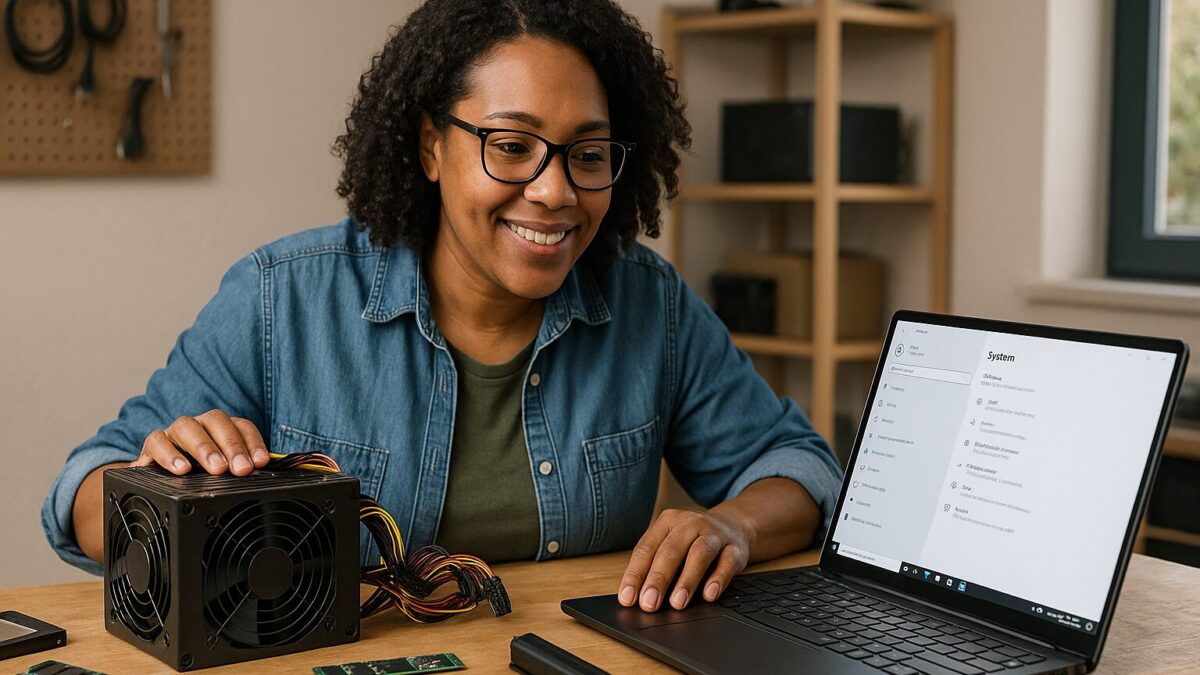
If your PC has started randomly rebooting, shutting off under load, or acting “possessed” right after a GPU upgrade, it’s normal to worry you’re looking at an expensive replacement—or that a repair shop will push parts you don’t need. It’s also reasonable to worry about your data and privacy when troubleshooting hardware. I’m John at PCRuns, and this guide is meant to help you understand what’s actually going on with modern power supplies in 2026 so you can make a confident repair-or-replace decision.
Power supply units (PSUs) don’t get much attention until they cause problems. But newer GPUs can demand power in fast spikes, and newer standards (ATX 3.x) were created partly to address that reality. The good news: you can choose a PSU logically, without guessing, and without buying a monster unit “just in case.”
What a PSU really does (and why “watts” is only half the story)
Your PSU converts wall power into stable DC power rails that your motherboard, CPU, GPU, and drives can use. When a PC is stable, it’s not just because the PSU has enough total wattage—it’s because it can deliver the right amount of power on the right cables, respond to sudden demand changes, and maintain clean output within spec.
In plain terms:
- Total wattage is the “size of the fuel tank.”
- Transient response (handling spikes) is how well the engine responds when you slam the gas pedal.
- Connectors and cable limits determine whether the power can be delivered safely to the GPU/CPU.
- Protection circuits (OCP/OVP/OTP, etc.) are the safety systems that prevent damage when something goes wrong.
Why GPUs in 2026 can expose weak or older PSUs
Modern GPUs can change power draw extremely quickly—especially during scene changes, loading screens, or brief “boost” behavior. That can trigger one of two outcomes with a borderline PSU:
- A clean shutdown or reboot (the PSU’s protection trips, or voltage droops enough to crash the system).
- Instability and weirdness (driver timeouts, black screens, freezes) that looks like a software problem, but is really power delivery.
It’s easy to misdiagnose. A PC may run fine on the desktop and even pass some stress tests, but still reboot during certain games. That’s because not all loads are the same—some workloads create sharper power swings than a steady “max load” test.
ATX 3.1 in plain language: what it is, and who should care
ATX is the PSU design standard. ATX 3.x (including ATX 3.1) is meant to better handle the power behavior of newer components—especially GPUs—by defining requirements around how the PSU behaves during rapid power excursions and by formalizing modern GPU power connectors.
What ATX 3.1 typically means for you as a buyer:
- Better handling of fast GPU power spikes (the PSU is designed/tested with modern transient behavior in mind).
- Native support for modern GPU connectors (commonly the 12V-2×6 style connector on newer units, depending on GPU).
- Clearer guidance around “GPU-ready” power delivery vs. older PSUs that technically have enough watts but struggle in real use.
Do you need ATX 3.1? Not always. A high-quality older ATX 2.x unit can still be excellent—especially if it’s sized correctly and has the right connectors. But if you’re building around a newer, higher-draw GPU (or you’re troubleshooting unexplained shutdowns), choosing an ATX 3.x unit can reduce guesswork.
How to pick PSU wattage in 2026 (without overbuying)
The most honest approach is: size the PSU for your GPU/CPU combo, your upgrade plans, and the kind of stability margin you want. Instead of chasing a single “correct wattage,” think in ranges.
Step 1: Identify your real power drivers (GPU + CPU)
For most modern desktops, the GPU and CPU dominate power demand. Storage, fans, and RAM matter much less by comparison.
If you’re not sure what you have, the quickest “non-technical” method is to look up your exact GPU model and CPU model from your purchase receipt or from Windows System Information, then use the manufacturer recommendations as a starting point. (Those recommendations are often conservative, but they’re a safer baseline than random forum numbers.)
Step 2: Decide whether you want “comfortable headroom” or “tight and efficient”
Headroom isn’t just about future upgrades. It’s also about keeping the PSU in a range where it’s less stressed during spikes and potentially quieter (depending on fan curve design). But too much oversizing can be unnecessary cost.
A practical approach for many Milwaukee-area households and small businesses I see at PCRuns:
- Everyday gaming / general use: choose a quality PSU with enough headroom that you’re not riding the limit.
- Content creation / frequent heavy loads: consider a bit more margin for sustained load plus spikes.
- Office PCs without a power-hungry GPU: you can often use a smaller, high-quality unit (and save money) if the connectors match.
Step 3: Treat “random reboots” as a clue you may need more than watts
If you’re already near the recommended wattage and experiencing resets under GPU load, simply moving to a slightly higher wattage can help, but it’s not guaranteed if the root problem is connector/cable use, an aging PSU, or a unit that doesn’t handle spikes well.
GPU power spikes: what they look like in the real world
People often describe power-spike symptoms like this:
- The PC is stable doing normal tasks.
- It crashes only in certain games or only at certain moments (loading, alt-tabbing, entering a new area).
- Event Viewer might show a “Kernel-Power” critical event after the fact—useful as a clue, but not a full diagnosis.
That pattern can also be caused by heat, bad RAM, or driver issues—so it’s important not to jump to conclusions. The point is: if your PSU is borderline, modern GPU behavior can reveal it.
Connectors matter: the “right plug” is part of choosing the right PSU
In 2026, PSU choice is often connector-driven as much as wattage-driven. Before buying anything, confirm what your GPU requires and what the PSU provides.
PCIe 8-pin connectors vs. modern 12V-style connectors
Some GPUs still use multiple 8-pin PCIe connectors. Others use a newer single high-power connector (commonly referenced in the market by names like “12VHPWR” and newer revisions). If your GPU expects a native modern connector, using adapters can be fine in some cases, but it increases the importance of correct installation and cable routing.
Practical safety tips that prevent a lot of trouble:
- Prefer native PSU-to-GPU cables (the ones designed for that PSU model) over third-party “mystery” cables.
- Avoid daisy-chaining one PSU cable to feed multiple high-draw GPU inputs if the GPU vendor and PSU vendor expect separate cables.
- Fully seat connectors and avoid sharp bends right at the plug—especially on high-power GPU connectors.
ATX 3.1 vs. a good older PSU: an honest “repair vs. upgrade” lens
If you already own a quality PSU from a reputable line, you may not need to replace it just because it’s “not ATX 3.1.” Here’s how I usually frame it as local computer repair guidance for Milwaukee and Wisconsin residents:
Keeping your current PSU can make sense when:
- It’s a higher-quality unit with enough wattage margin for your current GPU/CPU.
- You’re not seeing shutdowns/reboots under load.
- You have the correct connectors without questionable adapters.
- The PSU isn’t very old, hasn’t had a hard life (dust/heat), and isn’t making fan or electrical noises.
Replacing/upgrading the PSU is often the smarter move when:
- You upgraded to a much stronger GPU and now see instability.
- You must rely on adapters or daisy-chains to power the GPU.
- The PSU is older, out of warranty, or from a low-end/off-brand line.
- You’re building a system you need to trust (school, work-from-home, or small business continuity).
Realistic cost guidance (what affects the price most)
PSU pricing changes over time, and I don’t want to give you a number that’s outdated next month. What I can do is explain the cost drivers so you can spot when you’re paying for real value versus paying for hype:
- Wattage tier: higher wattage usually costs more, but quality matters more than raw watts.
- Standard and connector support: units designed for modern GPU connectors and modern transient behavior can cost more.
- Build quality and protections: better internals, better protections, and better warranty support typically cost more.
- Modular cabling: fully modular units are often priced higher and can make builds cleaner (and troubleshooting easier).
For labor, the cost is also “case-by-case” because access varies wildly by computer model, cable management, whether we’re also cleaning dust, and whether any troubleshooting is needed beyond a straight swap. The honest way to price it is after we look at the machine and your goals.
DIY troubleshooting before you buy a PSU (safe steps)
If you’re comfortable opening your case (and your system is out of warranty), these checks can clarify whether the PSU is the likely culprit. If you’re not comfortable, that’s completely fine—this is exactly the kind of thing we can evaluate without risking your data.
1) Check event clues (without over-trusting them)
Windows may log a critical “Kernel-Power” event after a sudden loss of power. That doesn’t “prove” the PSU failed, but it supports the general idea of an abrupt power loss rather than a clean software shutdown. Microsoft’s documentation and support resources can help you understand Windows logs and reliability tooling at a high level. (See Microsoft Support for background on Windows reliability and troubleshooting concepts.)
2) Inspect GPU power cabling
- Confirm plugs are fully seated.
- Confirm you’re using the intended number of separate PCIe power cables.
- Look for heat discoloration, looseness, or a connector that never felt like it “clicked” in.
3) Reduce variables temporarily
- Remove unnecessary USB devices.
- Turn off manual overclocks/undervolts temporarily.
- If you recently changed drivers, consider rolling back to a known-stable driver.
If malware is part of your concern (pop-ups, browser redirects, strange background usage), handle that too—because malware can cause performance issues that get blamed on hardware. For practical, well-vetted remediation and safety reporting, BleepingComputer is a long-running reference many techs use to track common Windows threats and cleanup patterns.
Repair vs. replace: what makes sense for your PC in 2026?
A PSU replacement is often a very cost-effective way to stabilize a desktop—especially if the rest of the system is in good shape. But sometimes replacement is smarter overall.
Repair/upgrade the PSU when:
- You like the PC and it meets your needs, but stability is the problem.
- You’re upgrading GPU/CPU and want the system to be dependable for a few more years.
- You want to protect existing data and avoid the time cost of migrating everything.
Consider replacing the whole PC when:
- The system is already behind on Windows requirements or modern software needs.
- Multiple parts are aging (PSU + storage + motherboard issues), making the repair stack up.
- You need a laptop form factor, portability, or modern features your current system can’t realistically support.
If you’re unsure where your PC lands, that’s normal. The goal is to spend money once, in the direction that actually solves the problem.
Benefits of choosing the right PSU (beyond “it turns on”)
- Speed (indirectly): fewer crashes and less time recovering from instability.
- Reliability: fewer random resets, fewer corrupted updates, fewer “why is this acting weird?” moments.
- Safety: better protection circuitry can reduce the chance that a power issue cascades into other component damage.
- Data protection: sudden power loss at the wrong time can corrupt files—especially if it happens repeatedly.
Seasonal Milwaukee reality: power flickers and storm season
In Wisconsin, we do get storms and occasional power flickers. A quality PSU helps, but it’s not the same thing as battery backup. If your neighborhood is prone to flickers, a UPS (uninterruptible power supply) can prevent abrupt shutoffs and can make your whole setup more resilient—especially for work-from-home and small business setups. If you’re seeing frequent sudden shutoffs during storms, mention that during evaluation; it changes the recommendation.
When it’s worth having a tech evaluate it
If your PC is rebooting under load, there’s a real chance you can waste money guessing—buying a bigger PSU when the issue was a loose connector, or replacing a GPU when the real issue was power delivery. A hands-on evaluation can quickly sort out:
- Whether your existing PSU is truly undersized for your current GPU/CPU
- Whether cabling/connector choices are creating risk
- Whether temperatures, RAM instability, or software issues are the real cause
- Whether repair makes sense before you invest in new hardware
Practical next step (no pressure)
If you’re choosing a PSU for a new build or troubleshooting shutdowns after a GPU upgrade, you’re welcome to schedule a free evaluation. We’ll look at your current parts, how you use the PC, and whether a PSU upgrade is the right fix—or whether you’d be better served by a different upgrade path.
And if your system is on the edge of a bigger transition (like Windows 11 readiness), this Windows 11 upgrade guide can help you plan without surprises.
Need local computer help?
PCRuns serves readers in Milwaukee, Wisconsin and nearby communities. Services or primary themes include computer diagnostics, Windows repair, malware removal, data backup, system recovery, hardware upgrades, remote support, small business IT support, broken screen replacement, broken hinge repair.
Schedule a free evaluation, get an honest opinion, or see whether repair makes sense with no pressure and no obligation.
Q&A
If my PC meets the “recommended PSU wattage” on the GPU box, why is it still rebooting?
Because stability isn’t just total watts. The PSU also has to handle fast power spikes (transients), deliver power through the correct connectors/cables, and maintain voltage within spec. A borderline or aging PSU can reboot under certain game scenes even if the average power draw looks fine.
Do I need an ATX 3.1 PSU for a modern GPU?
Not always. A high-quality older PSU can work well if it has enough headroom and the right connectors. ATX 3.x/3.1 becomes more important when you’re running higher-draw GPUs, using modern high-power GPU connectors, or troubleshooting shutdowns that may be related to transient spikes.
Is it safe to use GPU power adapters?
Sometimes, but it raises the importance of correct installation and cable management. When possible, it’s safer and simpler to use a PSU with a native connector and the manufacturer-provided PSU-to-GPU cable set for that exact PSU model.
What’s the biggest cabling mistake you see with GPU power?
Daisy-chaining one PSU cable to feed multiple high-draw GPU inputs when separate cables are recommended. It can increase heat and voltage drop and may contribute to instability under load.
Should I replace the PSU first when troubleshooting crashes?
Not automatically. Random reboots can also come from overheating, RAM issues, or software/driver problems. The best approach is a short, structured check: cabling and seating, temps, stability settings, and logs—then decide whether the PSU is the most likely cause.



















Leave a Reply